
Adobe Dreamweaver for macOS
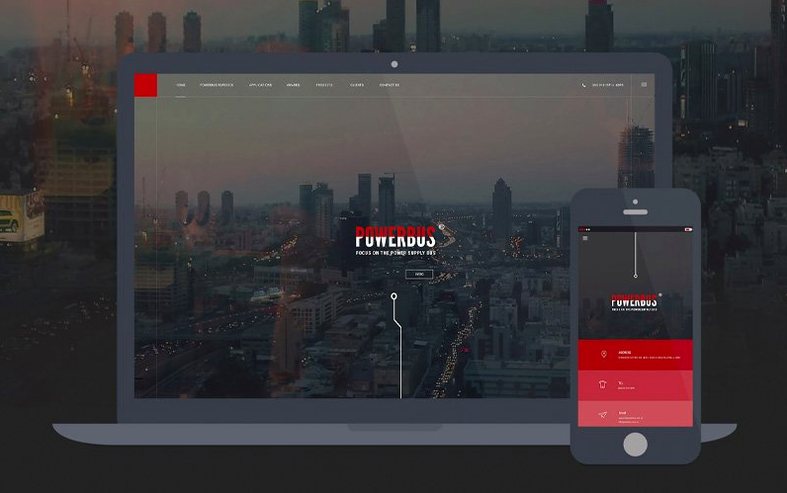



Live View can show edits to your CSS and HTML as you type them, without a manual browser refresh. That’s a time-saver when you’re tweaking a flexbox layout or tracing a JavaScript interaction. Dreamweaver bridges a visual interface with a full code editor, so you can work in Split view or jump straight into the source on projects that mix static pages with application logic.
What does it write and manage?
It handles HTML, CSS and JavaScript alongside other web standards. You build responsive layouts with media queries and grid systems, preview how they reflow at different screen widths, and commit changes through built-in Git operations—basic stuff like staging, committing and pushing without leaving the app. The April 2026 release, version 21.8, adds server behaviors and database bindings directly into the workflow, which matters for anyone wiring up a dynamic site backed by MySQL or similar.
What’s the runtime environment like on a Mac?
It requires macOS 13 Ventura or later and runs natively on both Intel and Apple Silicon. Expect to give it 2 GB of RAM and about 3 GB of disk space, plus extra breathing room during the install. Activation and online services need an internet connection. The interface ships in Russian and English.
How does Dreamweaver fit into a wider macOS workflow?
It’s not an island. Most workflows I see have Dreamweaver sitting next to a standalone image editor, a dedicated Git GUI like Fork or Sourcetree for heavier branching, and a few browsers for cross-checking. Because the app uses the Chromium Embedded Framework for Live View, what you see on-screen is a real Blink render—not an approximation. That means a layout that works in Live View will almost certainly behave the same in Chrome, though you still test in Firefox and Safari.
macOS integration goes about as deep as you’d expect from a Creative Cloud app. You can drag a folder from Finder straight into the Files panel and it maps as a site root. The system spell-checker works inside Code View if you enable it, and the Share menu can hand a selection off to Notes or Mail. One under-used trick: you can open a .dwsite file by dropping it onto the Dock icon, which is handy when you juggle three or four client sites in a day.
For designers who also touch video or motion, Dreamweaver sits upstream of After Effects or Premiere—you build the page that hosts the embedded player, then drop in an iframe or a tag. Nobody edits video inside Dreamweaver, but the HTML panel makes it straightforward to wrap a hosted MP4 with custom controls.
Switching the default view to Split right after install
Out of the box, Dreamweaver makes a few choices that aren’t wrong but aren’t mine. Here’s what I adjust on a fresh install.
- Switch the default view to Split (Code/Live). Preferences > General > “Default document view.” Split means you see the source and the rendered output together. It’s the fastest way to catch a typo in a class name while you’re visually checking the layout.
- Turn off “Enable Related Files” auto-discovery if you work with frameworks. Dreamweaver tries to list every linked CSS and JS file above the code pane. With a medium-sized React or Vue project, that list becomes noise. I disable it under Preferences > General and open files manually from the Files panel instead.
- Set the code formatter to your team’s style. Under Edit > Code > Apply Source Formatting settings, you can define line length, indentation (spaces, not tabs, please), and tag case. It’s a small thing, but matching your team’s linting rules here avoids diff noise when someone else touches the same file.
- Map a local testing server. In Site Setup > Servers, add a local folder and point it to a
localhostURL served by MAMP, Laravel Valet, or Python’shttp.server. Live View can then pull from the running server, so PHP includes and database queries render properly instead of showing raw code.
What formats does it handle?
Does it work offline?
The core editor—Code View, Live View for static files, the Files panel—runs without a connection. Activation and any Creative Cloud sync need the internet, but once you’re activated you can build a whole static site on a plane. Server behaviors and database bindings obviously need the server reachable; that’s not Dreamweaver’s limitation, just how networking works.
Can I open a project I started in VS Code or Sublime Text?
Yes. Dreamweaver doesn’t own your files. Point it at any folder with an index.html and it reads what’s there. The only friction is if you rely on editor-specific config files like .vscode/settings.json—those won’t carry over because Dreamweaver keeps its own site definition in a .dwsite file. Extensions and linters you’re used to in other editors won’t follow you either.
Is it just a code editor, or can I build a full database-driven site?
With the April 2026 release, version 21.8, the built-in server behaviors and database bindings cover a good chunk of that ground. You can define a MySQL connection, drag a recordset onto a page, and Dreamweaver writes the server-side code—PHP, mostly. It won’t replace a custom back-end framework for complex queries, but for a CMS-driven brochure site or a simple product catalogue, it’s entirely capable.
Don’t treat Design View like a word processor
The first one I see is treating Dreamweaver like a word processor. Dragging elements around in Design View without ever opening the code panel produces markup that’s hard to maintain. The tool lets you do that, but it’s a trap. Get comfortable with the Split view early and read the HTML it generates so you understand every div and span.
Another classic: defining a site root in a folder that’s also synced to iCloud or Dropbox. Dreamweaver’s cache and the sync service fight over file locks, and you end up with phantom “file modified externally” warnings. Keep your site folder outside any cloud-synced directory during active development. Commit to Git for backup instead.
Beginners also skip the testing server step. They open a PHP file directly from the file system via file://, then wonder why server-side includes are blank and the contact form doesn’t send. If the page uses any server-side processing, you must preview it through a running localhost server. Set it once in Site Setup and you never think about it again.
Finally, ignoring the Site Manager’s cloaking feature. Large projects have folders like node_modules or vendor that you never want Dreamweaver to scan during file synchronization. Right-click a folder in the Files panel, choose Cloak, and the app skips it. Your sync times drop noticeably on sites with thousands of dependency files.
- Updated OpenSSL, Libcurl, CEP, jQuery, Lodash, RequireJS, Node.js and Zlib libraries to current versions.
- Added built-in server behaviors and database bindings for dynamic site work.
- File modification time can drift from the local time zone after system clock changes.
- In site synchronization, modification time does not auto-refresh when the system time zone changes.
- macOS 13 Ventura or later
- Intel and Apple Silicon native
- 2 GB RAM
- 3 GB free disk space for installation, plus additional temporary space during the process
- Internet connection for activation, validation and online services
Comments 0
Sign in or create an account to leave a comment.
No comments yet. A codec, a slice, a machine — they appear after moderation.