
How to run java applet – Ultimate way 2 success
Java Programming
How to run Java Applet
Java Applet
A Java applet is a tiny application that is written in the Java programming language. They can be embedded as part of a web page. An applet is used to create dynamic platform-independent content such as animation, banners, GUIs (Graphical User Interfaces), and games for web pages.
Applets run in a sandbox environment to ensure security and are executed by the Java Virtual Machine (JVM), using:
(i) Web browser
(ii) Appletviewer tool
To run Applet in a browser
We can embed the applet in an HTML file and execute it within a web browser. Nowadays, modern browsers do not natively support applets, but we can install a plugin to enable this functionality.
The CheerpJ Applet Runner extension is one such plugin for running Java applets on modern browsers such as Google Chrome, Microsoft Edge, Firefox, Safari, etc. It is free and easy to use. Moreover, it is completely private and secure.
(i)Create a java program(Sample.java)
1.Open any editor such as notepad or notepad++.
2. Create a folder named “javaprogram” in D: drive(we can use any drive such as F, E, etc).
3. Type the following program and save it as “Sample.java”.
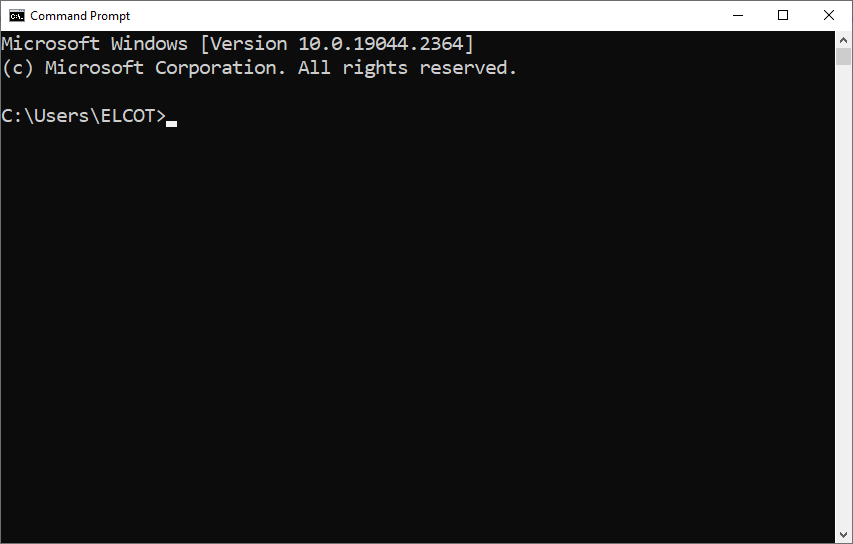
4. Open the command prompt window by typing the command “cmd” in the Windows search box.

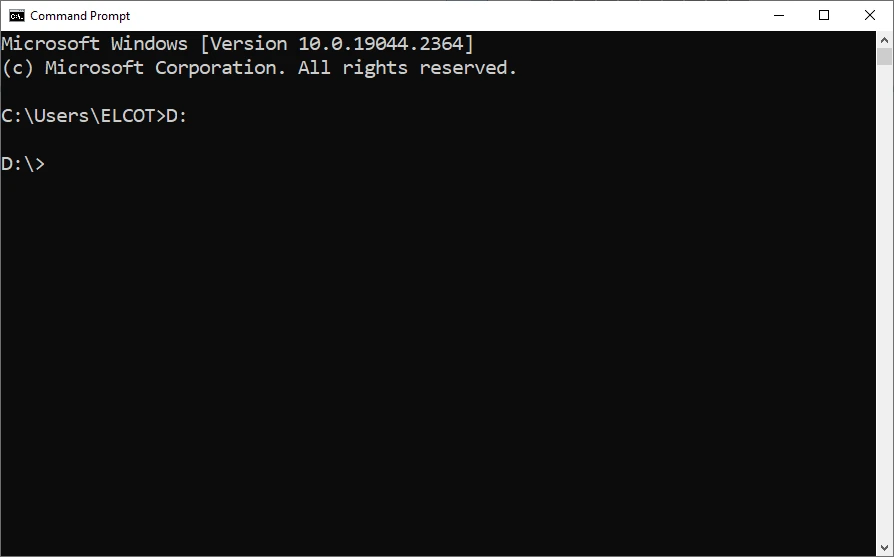
5. Change the current “C” drive into “D” by typing “D:” in the prompt (because the applet program is stored in the “javaprogram” folder, which is on the “D” drive. Moreover, enter the drive name where your program folder is stored).
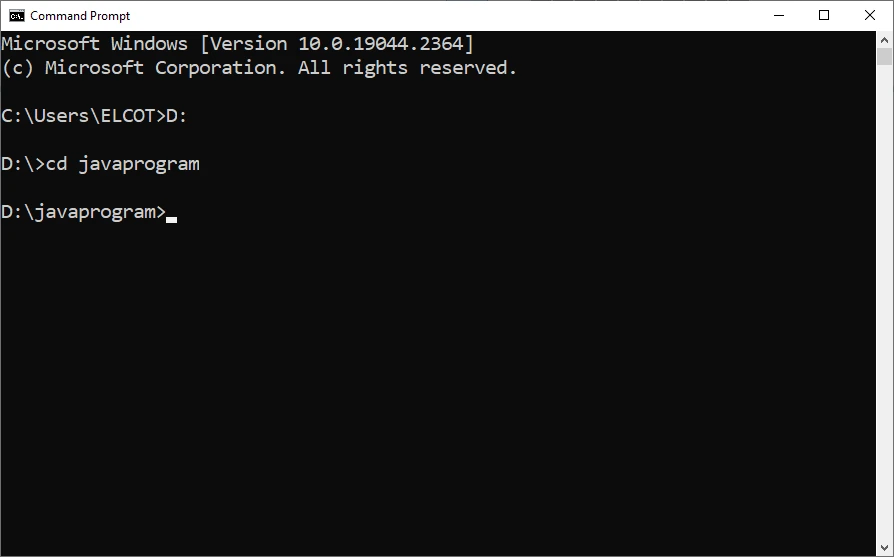
6. Change the current working folder as “javaprogram” by entering the command “cd javaprogram”.
7. Set the java path:
(i)Navigate to the “bin” folder within the “jdk” folder. Select the path in the address bar. Right-click on the address and choose the “copy” option.
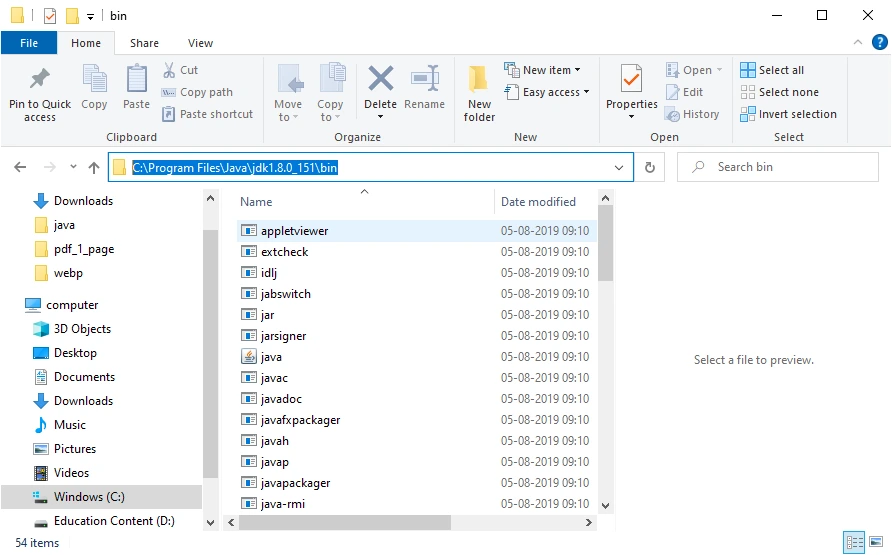
(ii) In the command prompt, enter the command “path” and paste the path in the prompt (Right-click in the title bar of the command prompt window, to paste the path).

8. Now compile the applet by using the following command:
To run Applet using Appletviewer
1. Function Overloading : Function overloading enables the implementation of multiple functions with the same name but with different parameters.The programmer can distinguish the functions by number of parameters, datatype of parameters and return type.
In this program, the “area” function is overloaded within the “shape” class. There are three “area” functions:
(i) The first function with an integer argument (for calculating the area of a square).
(ii) The second function with two integer arguments (for calculating the area of a rectangle).
(iii) The third function with a double argument (for calculating the area of a circle).
This allows the program to call the appropriate “area” function based on the number and types of arguments , passed by the user.
2. Default Arguments : Default arguments provide default values for function parameters, if there is no argument value is passed during the function call. This default argument is defined by the programmer.
In the above program, the “area” function for calculating the area of a circle has a default argument for “pi” with a value of 3.14. If the user does not provide a value for “pi” when calling this function, it will use the default value of 3.14.
3. Inline Functions : Inline functions are functions whose code is expanded at the time of the function call, rather than being executed through a function call mechanism.
In the above program, the “area” function for calculating the area of a square is declared as an inline function using the “inline” keyword. This means that the function call is replaced with the actual code of the function during compilation, which can result in faster execution compared to a regular function call.
We hope this article has helped readers learn how to write a C++ program to demonstrate function overloading, default arguments, and inline functions. This C++ practical program is included in the I year BCA TANSCHE syllabus.
If you found this article helpful, consider sharing it with your friends. For more tutorials and content, subscribe to our YouTube channel and follow us on Twitter, Instagram, LinkedIn and Facebook.
The CS Articles
Computer Science Articles-
Author:The CS guide
-
Date : May 31, 2024
-
Category : Java
-
Website : https://thecsguide.com


Share the Article
How to run java applet – Ultimate way 2 success Read More »