
ACDSee Photo Studio for macOS
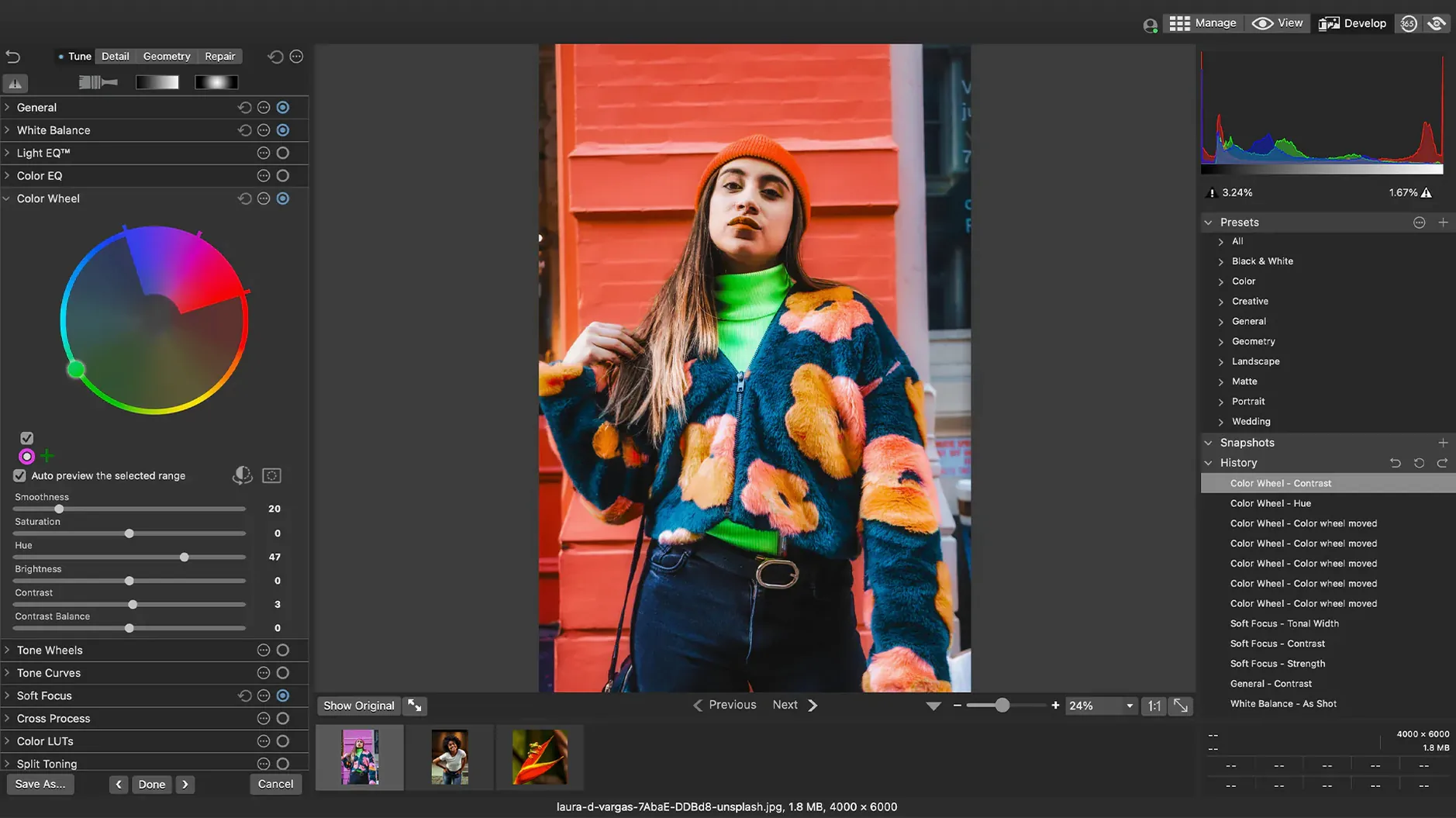
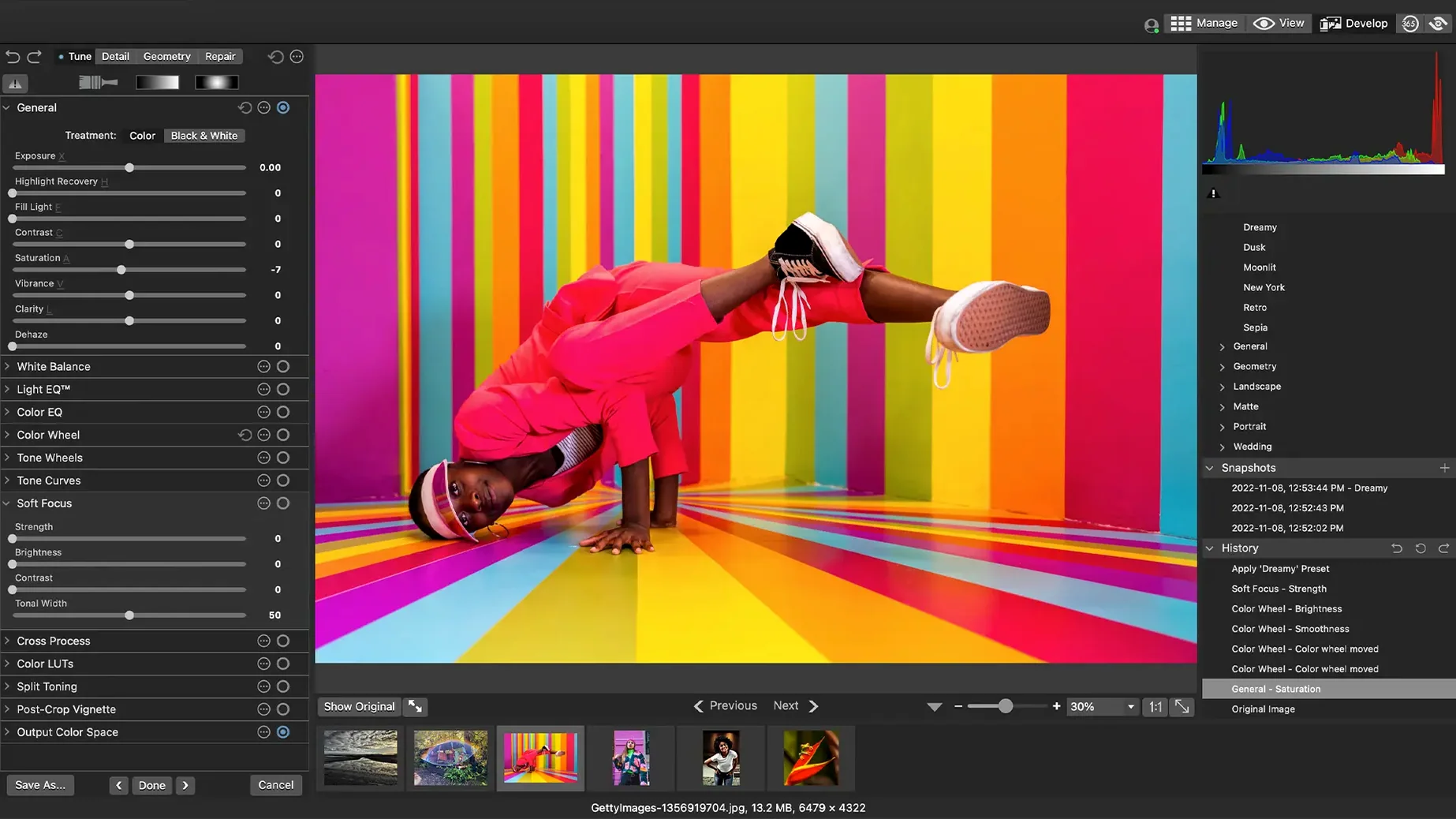
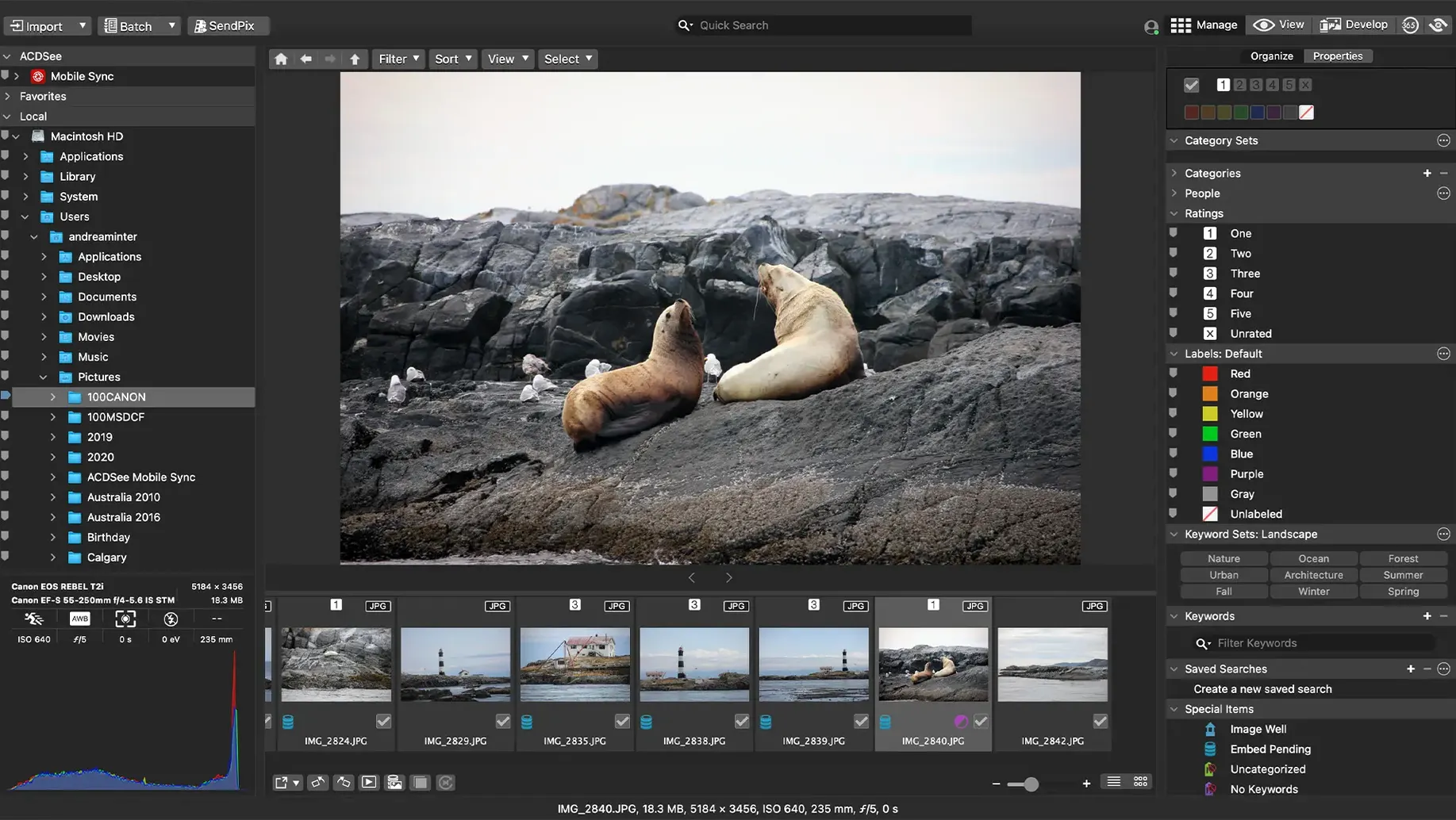
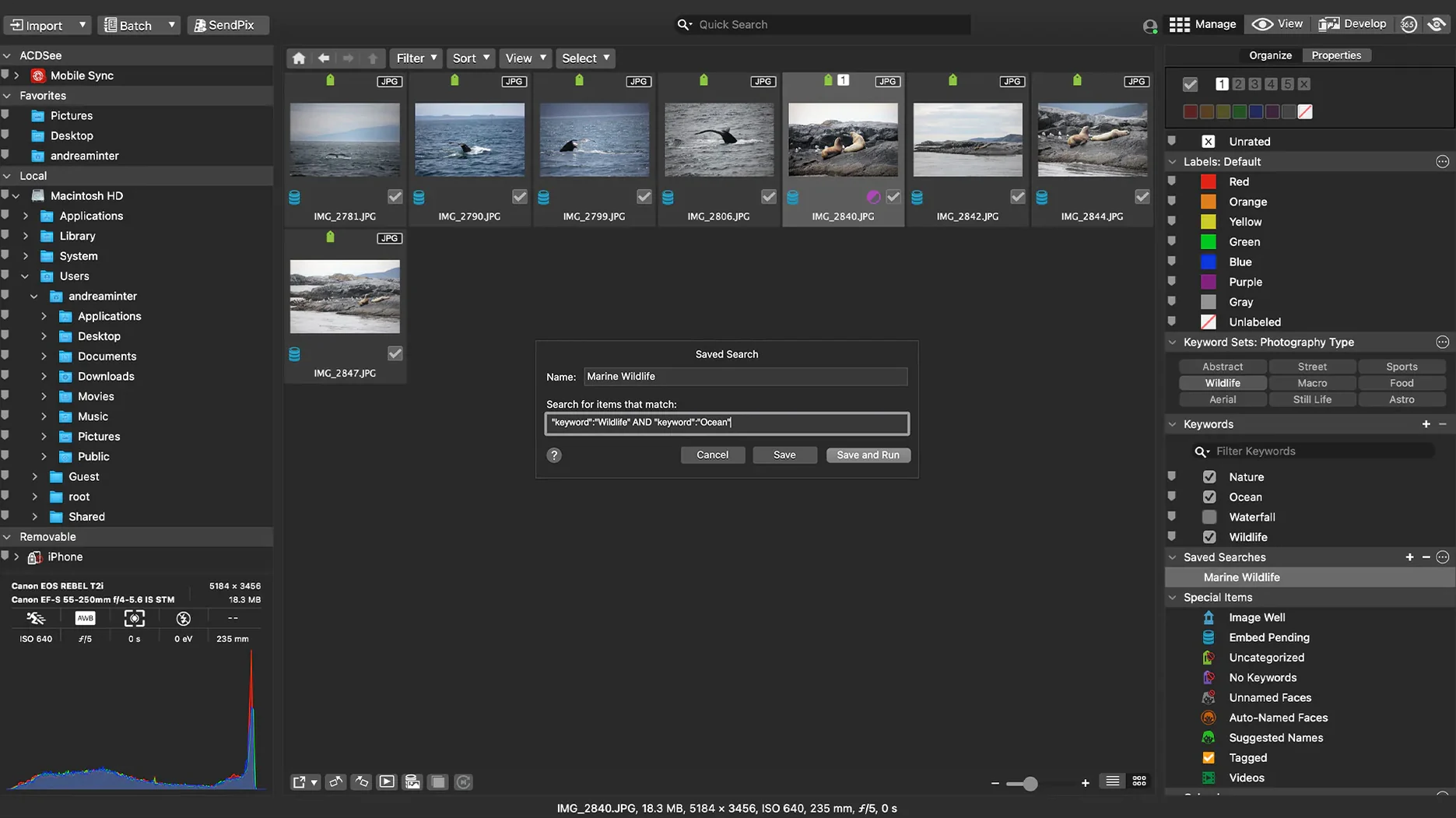
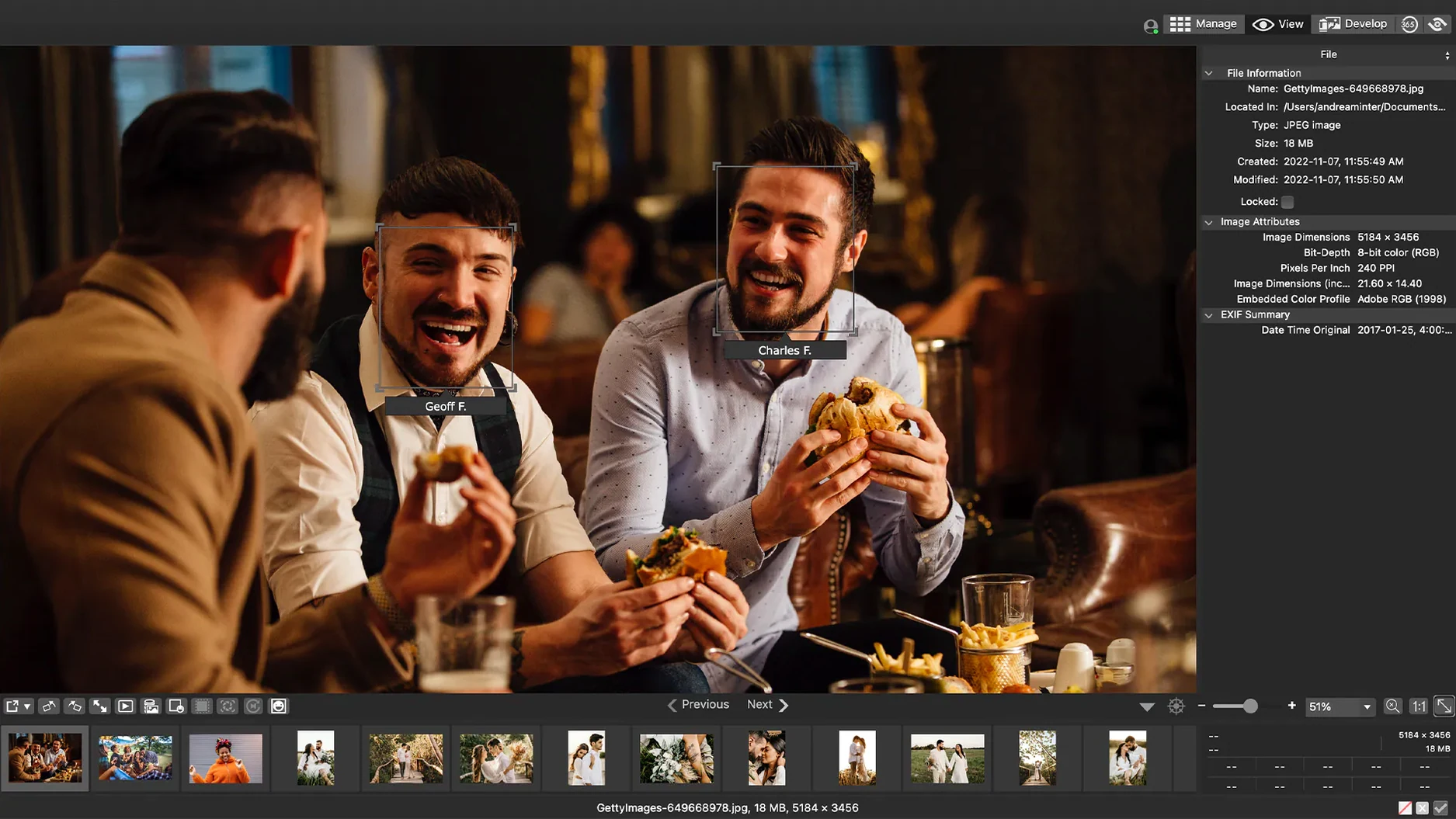
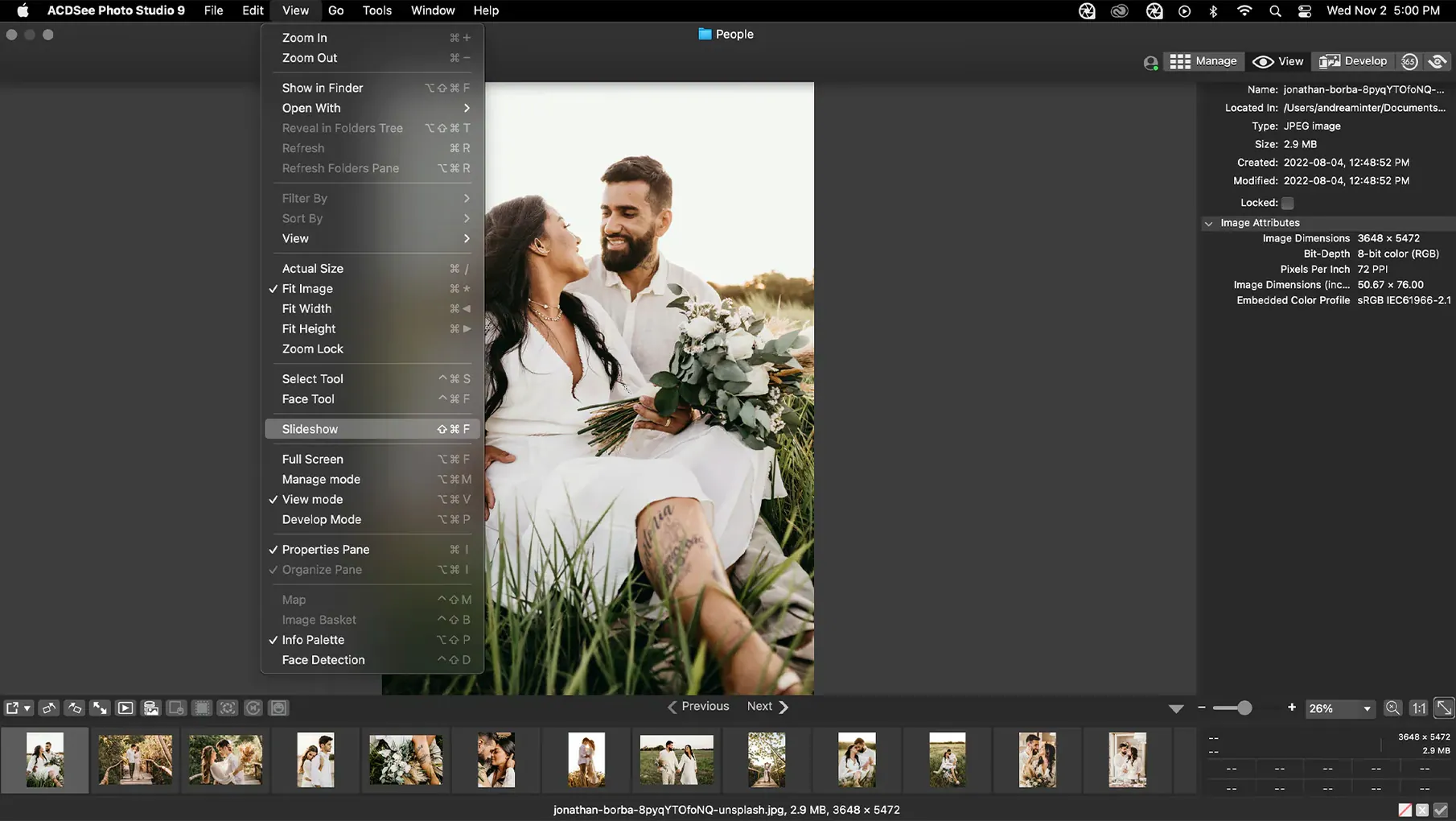
You come back from a shoot with a card full of RAW files. You need to cull the duds, rate the keepers, and fix exposure on a dozen shots before you even think about looking for a specific photo from last year. ACDSee Photo Studio covers that whole chain on macOS — it's a photo manager and RAW editor built around a local file browser rather than a locked-in catalog.
What it does well
- Assigns ratings, categories, and keywords for fast filtering later
- Displays and edits EXIF and IPTC metadata directly
- Adjusts exposure, clarity, sharpness, lighting, color, noise, and detail in RAW files
- Runs customizable batch presets across folders of images
Why does it need macOS 14 and native Apple Silicon?
Version 26 is a native build for Apple Silicon and Intel, requiring macOS 14.0 or later. The 26.0.3 update tightened up iCloud integration and fixed a few metadata bugs — clicking away from a new keyword or category now correctly stops editing, and RAW file ratings read accurately across more scenarios. If you prefer browsing by folder structure and want RAW development alongside metadata management without importing into a monolithic library, the tool makes sense.
What happens when you treat the Manage pane like the Finder?
The first one is treating the app like a Finder replacement. Dragging folders around inside the Manage pane doesn't move them on disk — it only adjusts the catalog view. Users who expect file-system-level moves get confused, then frustrated, when Finder shows the old location. The fix is simple: use File > Move or Copy when you want actual disk operations, not the left-pane tree.
Another early stumble is ignoring the Backup Database option. Ratings, keywords, and categories live in a local database unless you embed them into file metadata. If the database gets corrupted and you haven't embedded metadata, you lose hours of organizational work. A good habit: after a long culling session, go to Tools > Metadata > Embed ACDSee Metadata and run it on your keepers. That writes ratings and keywords into the files themselves, where any future catalog can find them.
New users also tend to apply sharpening and noise reduction globally while still zoomed out to fit the whole image. At 1:1 view, the defaults often look over-processed. The RAW engine's sharpening slider works on luminance detail; pairing it with the Detail tab's masking control keeps flat areas smooth. If you don't zoom to 100% while dialing those in, you'll print grain that you never saw on screen.
Why does it drop right in if your photos are already in dated folders?
Photographers who work with existing folder structures benefit the most. If your archive already lives on an external drive organized by YYYY/MM-DD-shoot-name, the app drops right in without forcing a reimport. You browse to the folder, and the whole thumbnail strip populates from what's actually there. That appeals to anyone who left another catalog-based manager because they didn't want a proprietary library format sitting between them and their files.
Event shooters who deliver same-day selects also get a lot from the rating and batch-export pipeline. You can mark picks with Cmd+1 through Cmd+5, filter to three stars and above, then apply a batch preset that resizes to 2048px long edge, sharpens for screen, and appends a watermark. The preset saves everything — dimensions, output format, color space, metadata handling — so the evening delivery run becomes a few clicks.
Users with mixed-camera libraries appreciate the RAW support for over 450 models. One folder might hold .CR3 files from a Canon, .NEF from a Nikon, and .ARW from a Sony. The decoding happens transparently; you edit all of them with the same exposure, clarity, and color controls. For someone who shoots with two bodies at an event and doesn't want to switch raw converters between sets, that's a quiet time-saver.
Which search setting slows down your whole Mac out of the box?
Open Preferences > Manage Mode and set Quick Search to index the folders you actually use. The default often grabs your entire home directory, which slows down the drag-and-drop search on machines with large document trees. Restrict it to your photo root folder — something like /Volumes/PhotoDrive/Archive — and the search bar returns results noticeably faster.
Turn on Embed ACDSee Metadata by default under Preferences > Database. This writes ratings and keywords back to supported file types automatically, so you don't have to remember the manual embed step I mentioned earlier. For RAW files, the metadata goes into a sidecar .xmp file in the same folder. That keeps your work portable across any app that reads XMP.
In Preferences > RAW Processing, check what default sharpening and noise reduction are set to. The factory defaults lean a little aggressive on luminance noise reduction for modern sensors. Dropping it to 20-25 and setting sharpening to a radius of 0.8 with an amount around 40 gives a cleaner starting point that you can push further image by image.
What makes batch RAW exports silent on an M-series MacBook Air?
The move to version 26 brought full Apple Silicon support, and the difference shows in batch operations. Applying a preset to 200 RAW files now saturates the efficiency cores without spinning up the fans on an M-series MacBook Air. Intel users on version 26.0.3 report the same metadata fixes the patch notes list: keyword and category creation no longer crashes in edge-case scenarios, and clicking away from an in-progress keyword stops editing as expected — a small fix that removes a daily annoyance for heavy keyworders.
The iCloud integration fix in 26.0.3 matters if you keep a working folder inside iCloud Drive. Earlier builds sometimes lost track of files after an iCloud sync eviction, showing broken thumbnails until you restarted. The patch resolved that, so you can now point the browser at an iCloud-synced folder and expect thumbnails that survive sync cycles.
Earlier in the version 26 cycle, the developers tightened how RAW file ratings get read across different camera brands. Before the fix, a rated .NEF file from one Nikon body would sometimes show as unrated on import from another body, because the rating byte sat in a different maker-note offset. The current build normalizes that, which means your in-camera star ratings survive the trip to the Mac without manual correction.
- Fixed a crash triggered when adding a new keyword or category in a specific scenario
- Clicking away from a new keyword or category now correctly stops editing
- RAW file ratings read accurately in certain edge-case scenarios
- Fixed an issue with iCloud integration
- macOS 14.0 or later
- Apple Silicon or Intel Mac
Comments 0
Sign in or create an account to leave a comment.
No comments yet. A codec, a slice, a machine — they appear after moderation.