A Better Finder Attributes for macOS
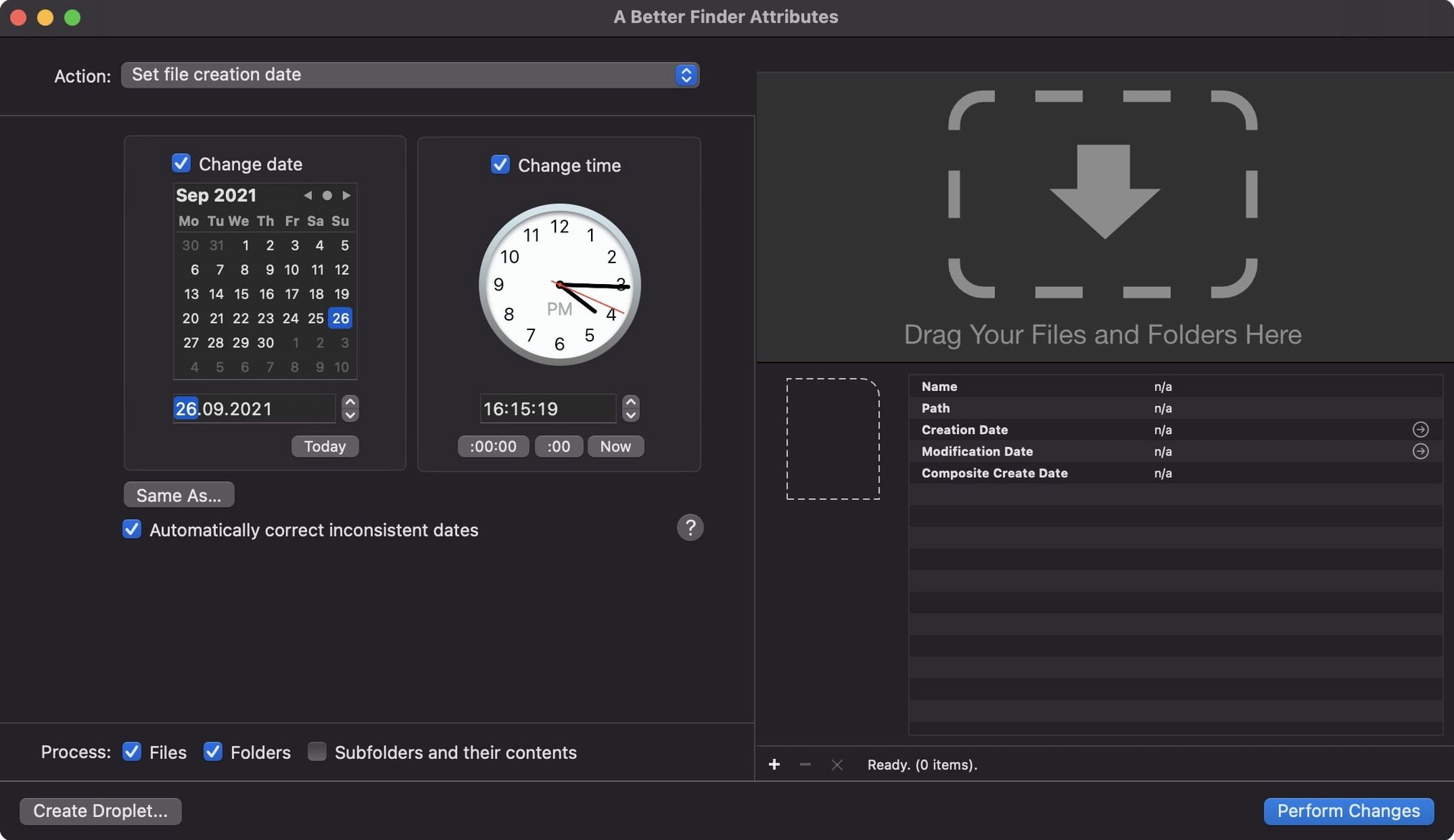
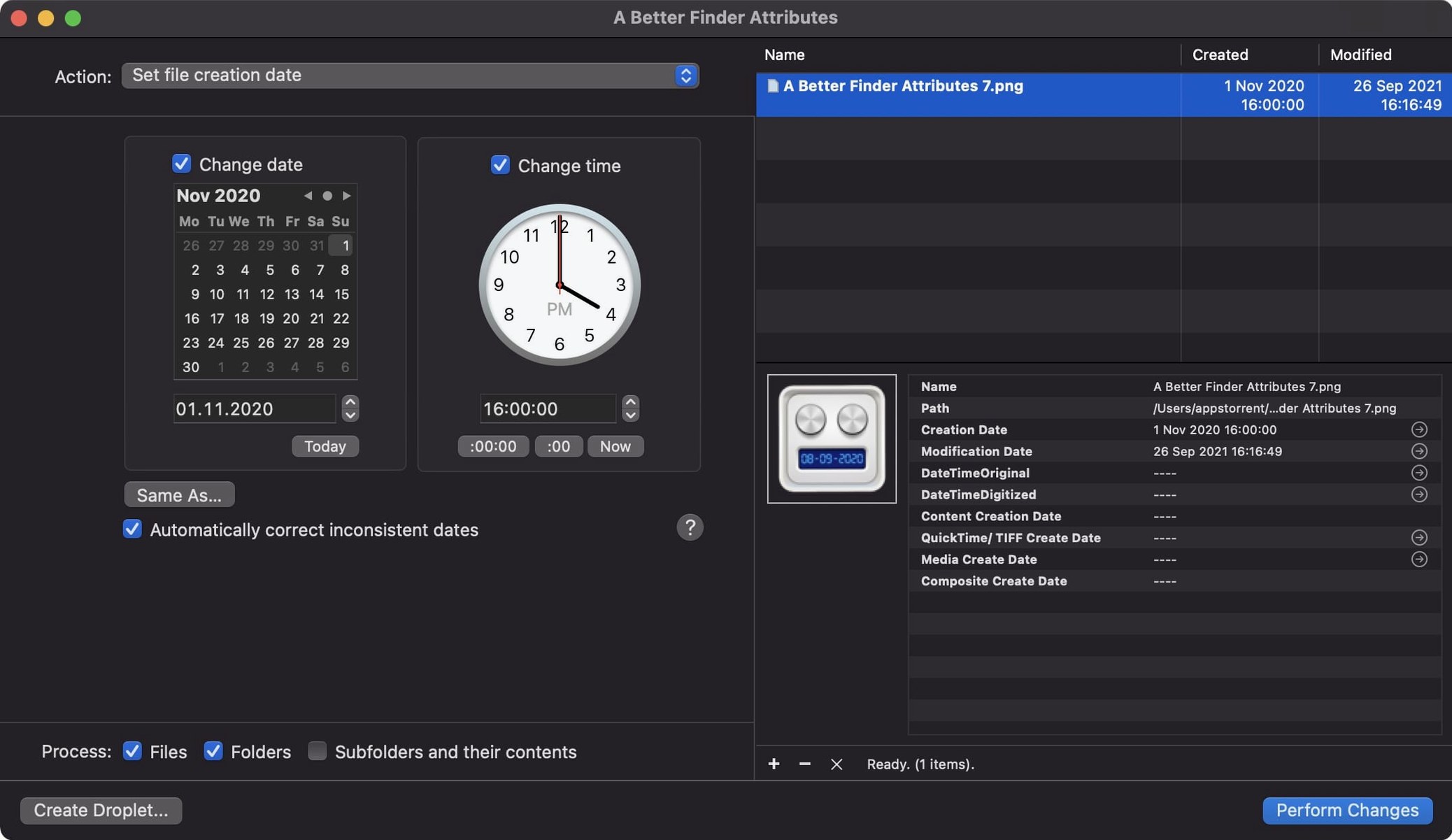
When a camera's clock is wrong or a batch copy resets years of timestamps, digging through obscure dialogs to fix creation dates, modification dates, and EXIF data is a chore. A Better Finder Attributes puts those corrections a few clicks away, handling everything from JPEG EXIF headers to raw photo shooting dates without jumping between five different tools.
Correct a photo's shooting date without altering the file system timestamp
Select a batch of images, open the EXIF panel, and set the original shooting date to the actual time the photo was taken. The app writes into EXIF, CIFF, and ARF date fields independently of the file's creation and modification dates, so you can fix a time zone mismatch without touching Finder-level metadata.
Sync a file's last modified date with its embedded photo timestamp
Use the synchronize action to pull the EXIF DateTimeOriginal into the file's modification date—or push a custom date the other way. Version 7.50 improves this by keeping IPTC Date Created and EXIF time zone offsets consistent when embedded dates are set, closing a long-standing drift issue in multi-standard workflows.
Change creation and modification dates on any file
Right-click a folder of documents or videos, set a new date and time, and the app adjusts the file system attributes directly. The latest update also restores the ability to write shooting dates back into Photoshop files correctly, which was broken in a previous macOS release.
Multi-threaded metadata writes handle 500 NEF files in seconds
Batch operations on a few hundred raw files stay snappy even on Apple Silicon. The app leans on multi-threaded metadata writes, so a folder of 500 NEF files with EXIF and QuickTime date corrections finishes in seconds, not minutes. Memory pressure sits around 80–120 MB during normal sessions and I have never seen it trigger a single beachball, even when pointed at network-mounted AFP volumes with thousands of mixed-format files.
Stability is what you would expect from a utility that has been maintained through a decade of macOS releases. Version 7.50 squashes the one-hour DST offset bug that could creep into QuickTime movie dates, and the fact that the team caught a Photos.app and Final Cut Pro date-handling edge case says a lot about how carefully this tool tracks Apple's shifting metadata rules. If you rely on consistent timestamps across Spotlight, Photos, and Final Cut libraries, that fix alone makes the update worth applying.
Resource use is unobtrusive. The app does not install a background daemon or a launch agent; it's a straightforward .app bundle that sits idle until you hand it work. When you process a large tree, CPU utilization ramps up briefly, then drops back to zero. No menu bar icon, no login item—just a tool that runs when you call it.
A real-world morning for a timelapse photographer
Imagine returning from a three-day shoot with three cameras, two of which had clock offsets you forgot to check before the trip. One body is set to UTC, another is on local time with a 6‑minute drift, and the third was reset during a firmware update. Your Lightroom catalog shows golden hour shots scattered across a six-hour window, and the Finder modification dates reflect when you copied the cards, not when the shutters fired.
You open a better finder attributes, drop the three card-dump folders into the file list, and switch to the EXIF timestamp action. For the UTC body, you add a fixed offset of eight hours. For the drifting body, you set a precise date from the first correctly-timed photo and let the app shift every subsequent image relative to that anchor. The firmware-reset camera needs a manual date set, which you type once and apply across the folder. Three clicks later, modification dates are re-synced to the corrected EXIF shooting times so the files sort chronologically in Finder and import into Final Cut Pro with usable creation dates.
The whole job—about 1,400 images across three cameras—takes under five minutes of actual work, most of it spent double-checking the offsets. No shell scripts, no exiftool command lines, no re-importing into the catalog.
Finder and Spotlight pick up its date changes right away
A better finder attributes 7 plays the role of a metadata bridge between file system and creative apps. Finder respects the creation and modification dates it writes; Spotlight indexes them immediately. Photos.app and Final Cut Pro pick up the QuickTime creation date that version 7.50 writes into movie files, which means video clips finally sort correctly inside Apple's own libraries. Lightroom and Capture One read the EXIF and IPTC fields the app adjusts, so round-tripping a corrected timestamp through a raw developer does not reintroduce drift.
For file managers, the change tag action now accepts a wider range of GPS coordinate formats, which makes it easier to pre-tag drone footage or scanned film with location data before handing files off to a cataloging tool like NeoFinder or a custom Hazel rule. Drag-and-drop from Finder, Path Finder, or ForkLift all work; the app accepts both files and folders directly, no intermediary import step needed.
AppleScript and Automator support is minimal by design—this is not a scripting hub—but the fact that it reads and writes standard file system and EXIF structures means anything that watches file attributes (Hazel, Keyboard Maestro folder triggers, shell scripts using mdls) will see the corrected dates immediately after a batch run. That keeps a better finder attribute changes visible across the entire macOS metadata stack, from Quick Look previews to backup tools that rely on modification-date comparisons.
Version 7.53 is a maintenance release. The developer lists the full set of changes on the product site — nothing specific was pulled into the distributor notes this round.
- macOS 14.6 (Sonoma) or later
- Apple Silicon or Intel 64‑bit Mac
Comments 0
Sign in or create an account to leave a comment.
No comments yet. A codec, a slice, a machine — they appear after moderation.