ABBYY FineReader PDF for macOS
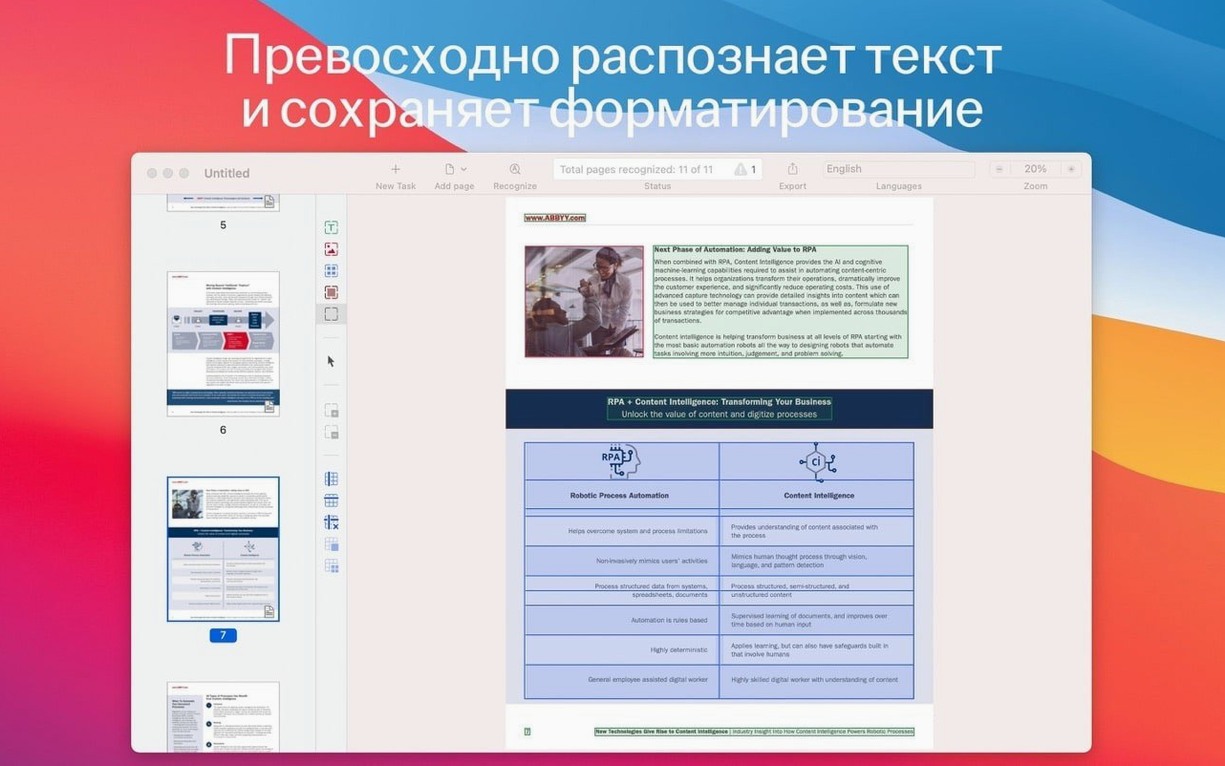
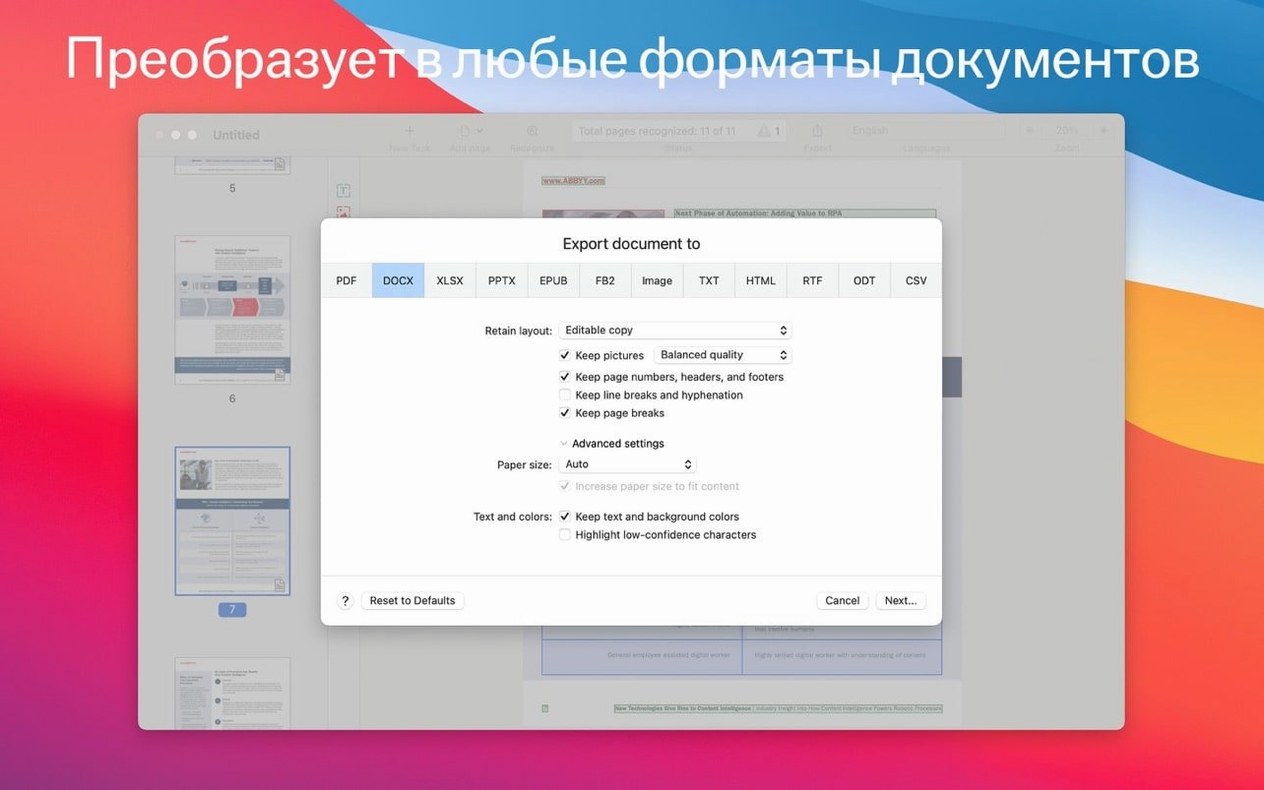
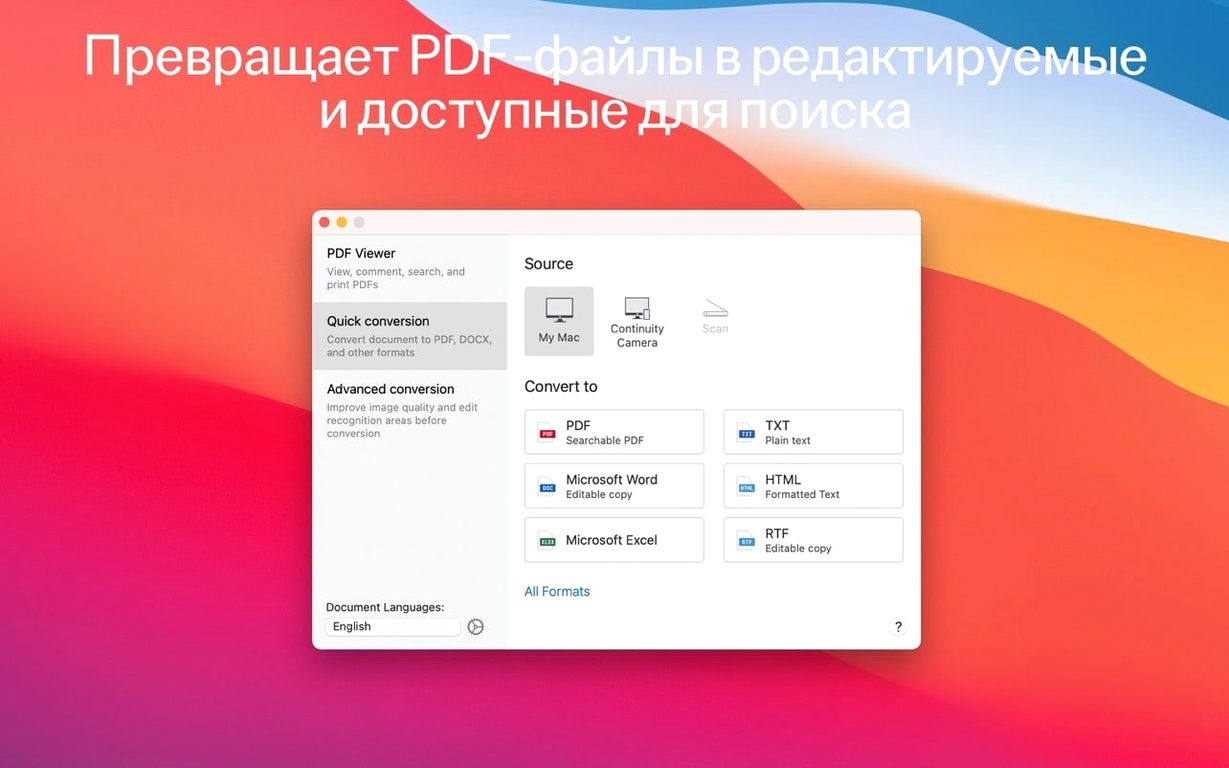
The built-in PDF viewer is where most sessions start. It handles multi-page documents without protest, and double-clicking any text block inside a scan drops you directly into an edit mode that treats the content like a document, not a photograph. That same selection mechanism is what drives the citation workflow: drag across a paragraph in a scanned contract or a page from a book, and the recognized text lands in your clipboard for pasting into a translator or a word processor. No intermediate export step required.
Export formats cover the obvious office suite — .docx, .xlsx, .rtf, .odt — and the app pushes further with PDF/UA creation, which embeds the structural tags assistive technologies rely on. Password protection for PDFs sits in the same save dialog, so a single export can be both searchable and locked down.
Continuity Camera support means the iPhone on your desk becomes a live document scanner. Point it at a receipt, snap the shot, and the image appears directly in FineReader for recognition. The whole pipeline runs as x86 64-bit code under Rosetta 2, so Apple Silicon Macs need that translation layer present. Interface languages include English, German, French, Italian, Russian, and Simplified Chinese. Dark mode keeps the reading pane comfortable during long editing sessions.
How does FineReader stack up against other Mac OCR apps?
Three names come up whenever someone asks about OCR on macOS: ABBYY FineReader, Adobe Acrobat Pro, and OwlOCR. They solve overlapping problems but go about it in different ways, and the right pick depends almost entirely on how far you need to take the recognized text after the scan.
Adobe Acrobat Pro bundles OCR into a larger PDF toolkit — form creation, redaction, digital signatures. Its recognition engine is solid, especially on clean typewritten pages, but the export options narrow quickly. Acrobat wants you to stay in the PDF ecosystem. You can extract text from a scan, but pushing that text into a properly formatted .docx with tables and columns intact is not its strongest suit. FineReader treats the scan as a temporary state on the way to an office document, and the table reconstruction reflects that philosophy. For legal discovery where you are pulling clauses from hundreds of contracts, Acrobat works. For turning a scanned contract into something you can actually edit in Word, FineReader gets closer on the first pass.
OwlOCR sits at the other end of the spectrum. It is a lightweight, menu-bar utility that grabs any screenshot or image on screen and dumps recognized text into a floating window. It runs natively on Apple Silicon, uses the open-source Tesseract engine plus Apple's Vision framework, and costs nothing. The recognition quality drops noticeably on dense layouts, multi-column pages, or anything with tables — the engine simply was not built for that kind of structural reconstruction. OwlOCR is brilliant for quick snippets: a few lines from a locked PDF, a slide from a presentation, a paragraph from a scanned book. But nobody would feed it a fifty-page legal filing and expect a clean .docx out the other side.
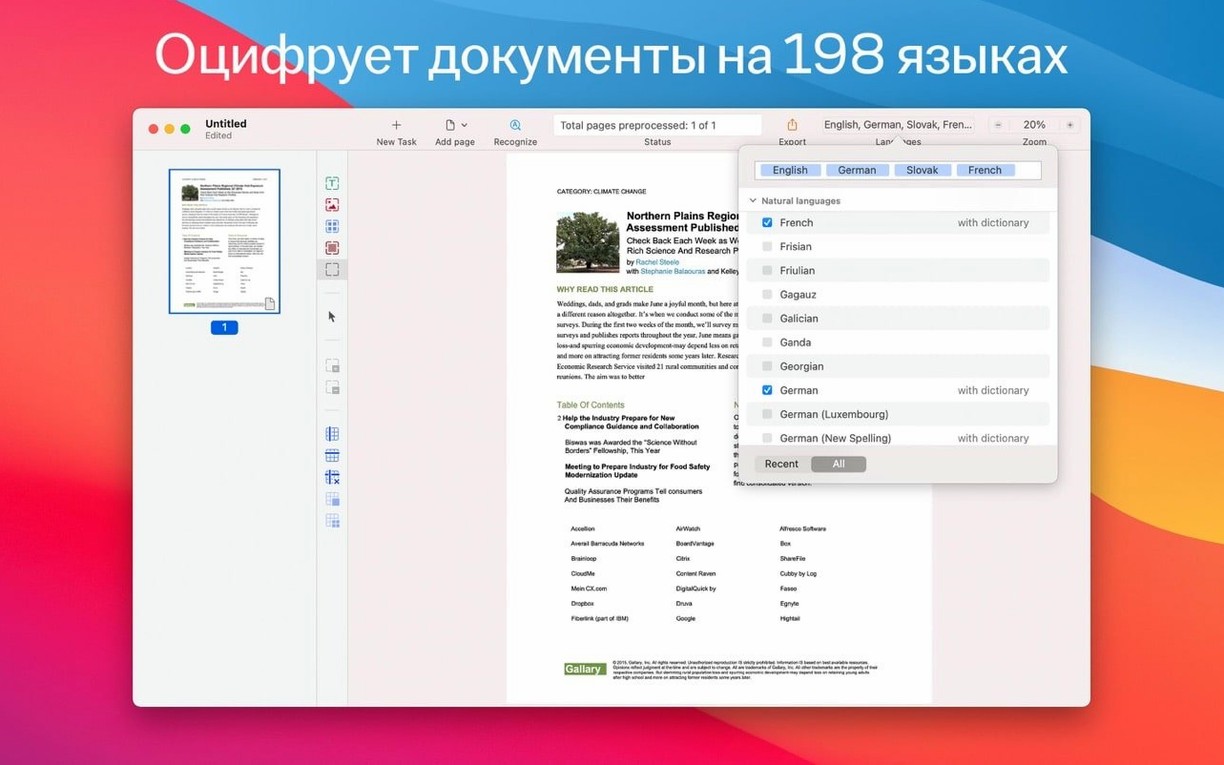
Where FineReader draws a clear line is the combination of document reconstruction and language breadth. Handling 198 recognition languages matters less if you only ever scan English, but for translation workflows or multilingual research — German contracts, French academic papers, Chinese technical manuals — the engine has training behind it that lightweight tools simply cannot match.
Dark mode spares your eyes during long correction sessions
Version 15 brought dark mode to the entire interface, which sounds cosmetic until you spend three hours correcting recognition errors in a scan-lit office. The reading pane, the document viewer, and the edit panels all follow the system appearance setting. That arrived alongside the Continuity Camera integration — before version 15, getting a paper document into FineReader meant a dedicated scanner or a separate photo import step. Now the iPhone camera feeds directly into the recognition pipeline.
Earlier builds focused on PDF output standards. PDF/UA support — the universal accessibility tag set — appeared without much noise but matters for anyone producing documents that need to work with screen readers. PDF/A for archiving followed the same pattern: it is a checkbox in the export dialog, but behind it sits full compliance with ISO standards for long-term document preservation. Courts, libraries, and government archives require these formats, and FineReader builds them without a separate preflight tool.
The move to full 64-bit x86 came earlier in the product's lifecycle, which is why it runs under Rosetta 2 on Apple Silicon rather than as a universal binary. ABBYY has not released a native ARM build for version 15, so Intel Macs run it directly while M-series machines depend on Apple's translation layer. In everyday use the performance gap is not dramatic — recognition happens in bursts, and the engine spends most of its time on the CPU anyway — but memory usage sits a little higher under Rosetta.
No section text provided for this heading
Rosetta 2 translation lets it run on M-series Macs
Yes, through Rosetta 2. The app is compiled for x86 64-bit, so macOS automatically launches it under the translation environment on M1, M2, and M3 machines. You need Rosetta 2 installed — macOS prompts you the first time it is required, and the install takes under a minute. After that, FineReader runs without any visible difference from an Intel Mac. Recognition speed depends more on page complexity than on architecture overhead, so a dense multi-column page takes time regardless of the processor.
Can it handle handwriting?
Only structured handwriting — block capitals on forms, for instance — and even then accuracy drops compared to typewritten text. Cursive notes, margin scribbles, and freeform handwriting are outside the engine's training. For archival work where the source is a mix of typed and hand-annotated pages, expect to correct the handwritten portions manually.
How large a document can it process?
The practical limit depends on available RAM and patience. Documents over 200 pages with complex layouts benefit from being split into smaller chunks before recognition. FineReader does not impose a hard page cap, but Rosetta 2 adds a memory overhead of roughly 10–15 percent compared to native Intel execution, which becomes noticeable on 8 GB machines with very large files. On 16 GB or more, the bottleneck is usually the export format — building a heavily formatted .docx from a 300-page scan takes longer than the recognition itself.
Is an internet connection required?
No. All recognition runs locally on the machine. The language packs install alongside the application, and no document data leaves your Mac during processing. This is worth knowing for legal, medical, or confidential work where cloud-based OCR services would be a compliance problem.
How FineReader fits into a Mac workflow
The app does not try to be a document manager — it hands recognized text off to other tools and gets out of the way. A typical path starts with a scanned PDF arriving in the Downloads folder. FineReader opens it, runs recognition, and exports a .docx straight into a folder watched by a reference manager like Zotero or Bookends. From there, the text is searchable, citable, and extractable without ever opening the original scan again.
For translation work, the clipboard integration becomes the bridge. Select text in FineReader's viewer, copy, and paste into a CAT tool or a browser-based translator. The recognition layer handles the language tagging, so a German document comes through with the expected character set and word boundaries. No cleanup script needed between the scan and the translation interface.
macOS tags and Spotlight work with the exported files like any other document. Export a .docx and tag it with a client name or project code in Finder; Spotlight indexes the full recognized text. The original scanned PDF can sit in an archive folder while the editable version carries forward into the active project. Continuity Camera shortcuts tie into the same system — snap a receipt on the iPhone, and the image appears ready for recognition, after which the exported spreadsheet lands in an iCloud-synced folder available to Numbers or Excel on any device. The app never becomes the center of the workflow; it functions as the conversion engine between the paper world and the editable one.
- macOS 11 or later
- Intel architecture (runs on Apple Silicon via Rosetta 2)
$ man abbyy-finereader-pdf | grep -A2 "?"
Can I edit text trapped in a scanned PDF?
Yes. The app recognizes text from scans and paper documents, then lets you edit that text and any tables directly inside the PDF without converting to another format first.
Comments 0
Sign in or create an account to leave a comment.
No comments yet. A codec, a slice, a machine — they appear after moderation.