
Affinity Publisher for macOS
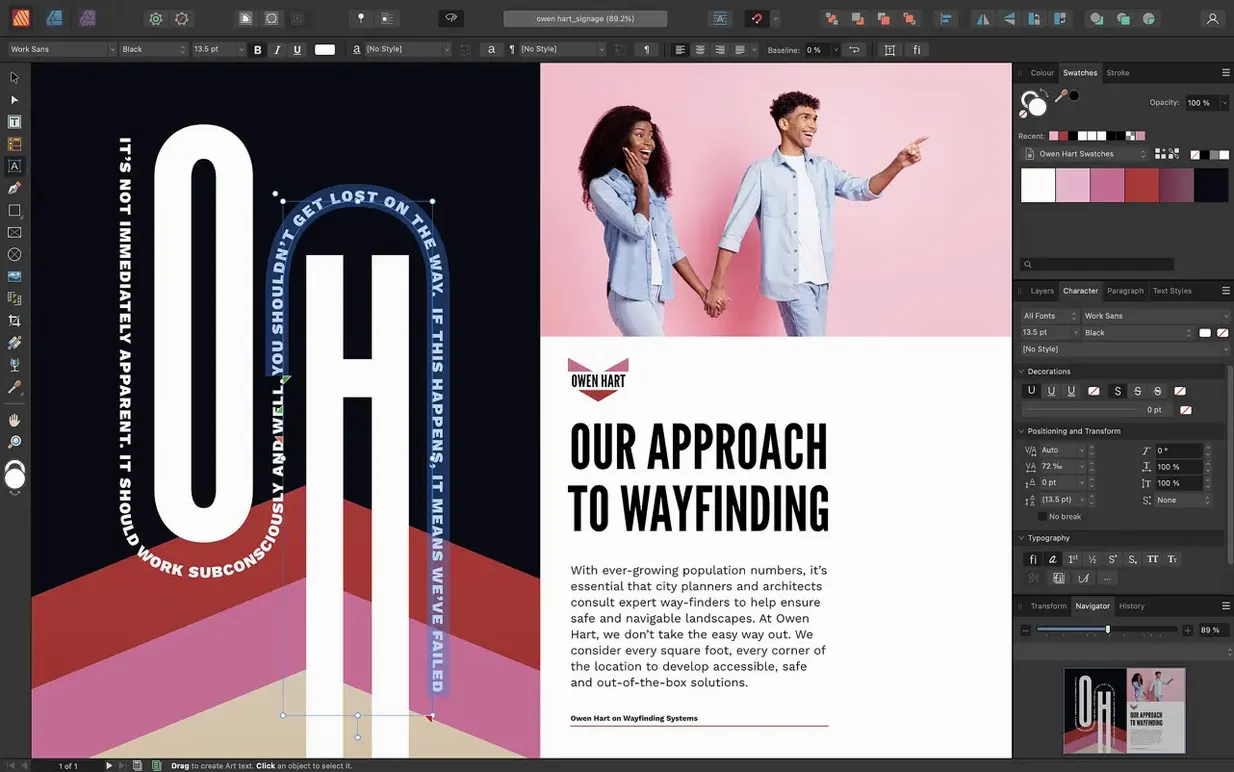
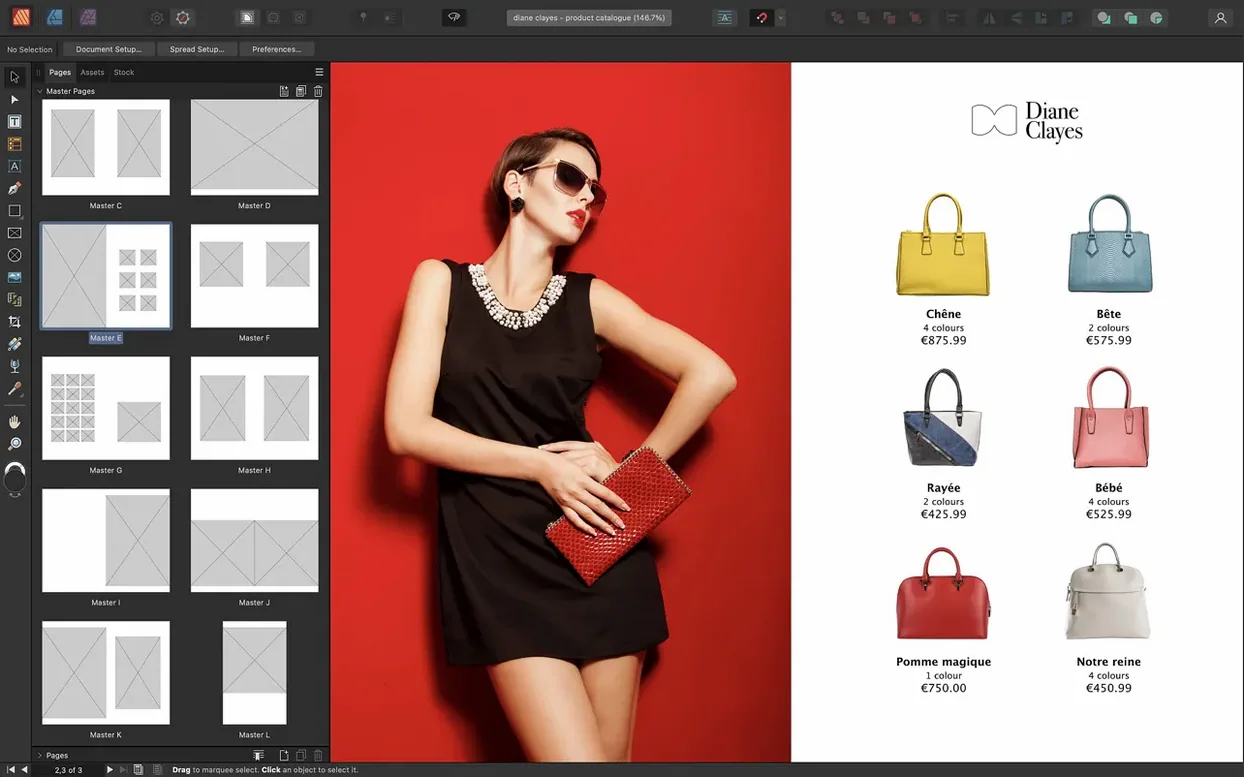
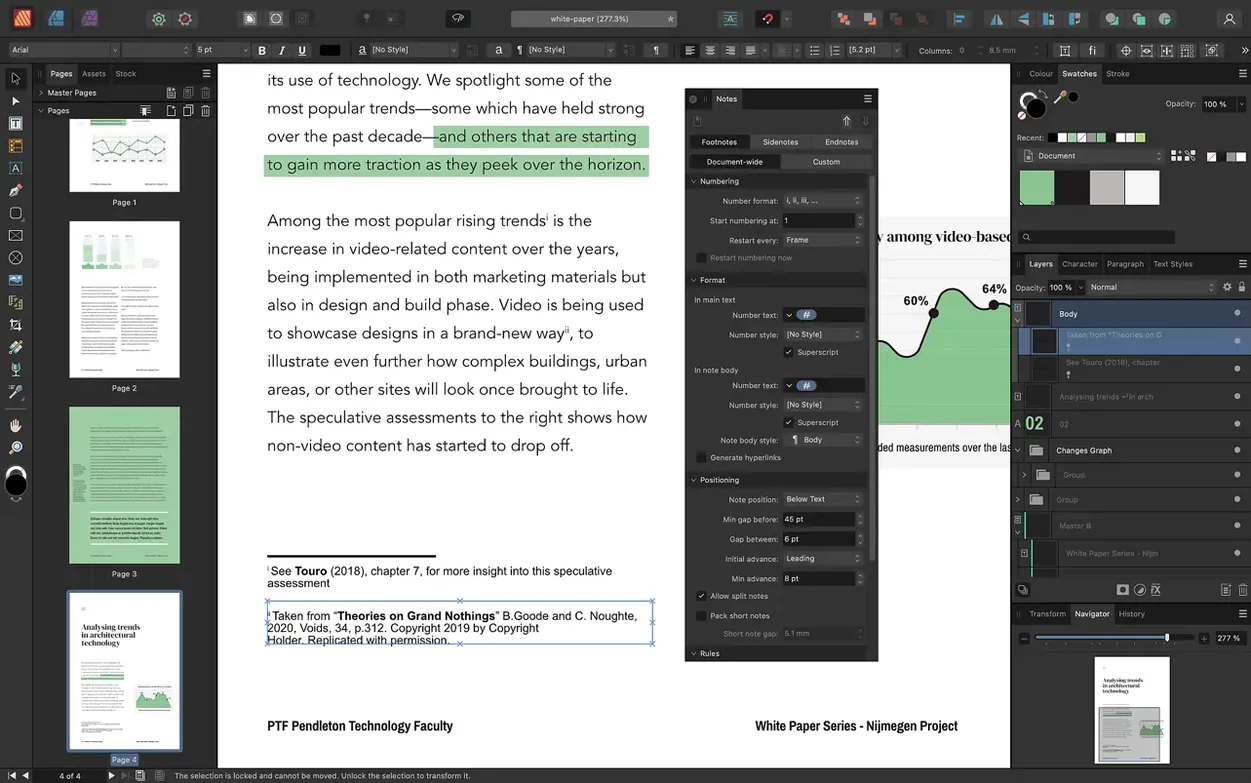
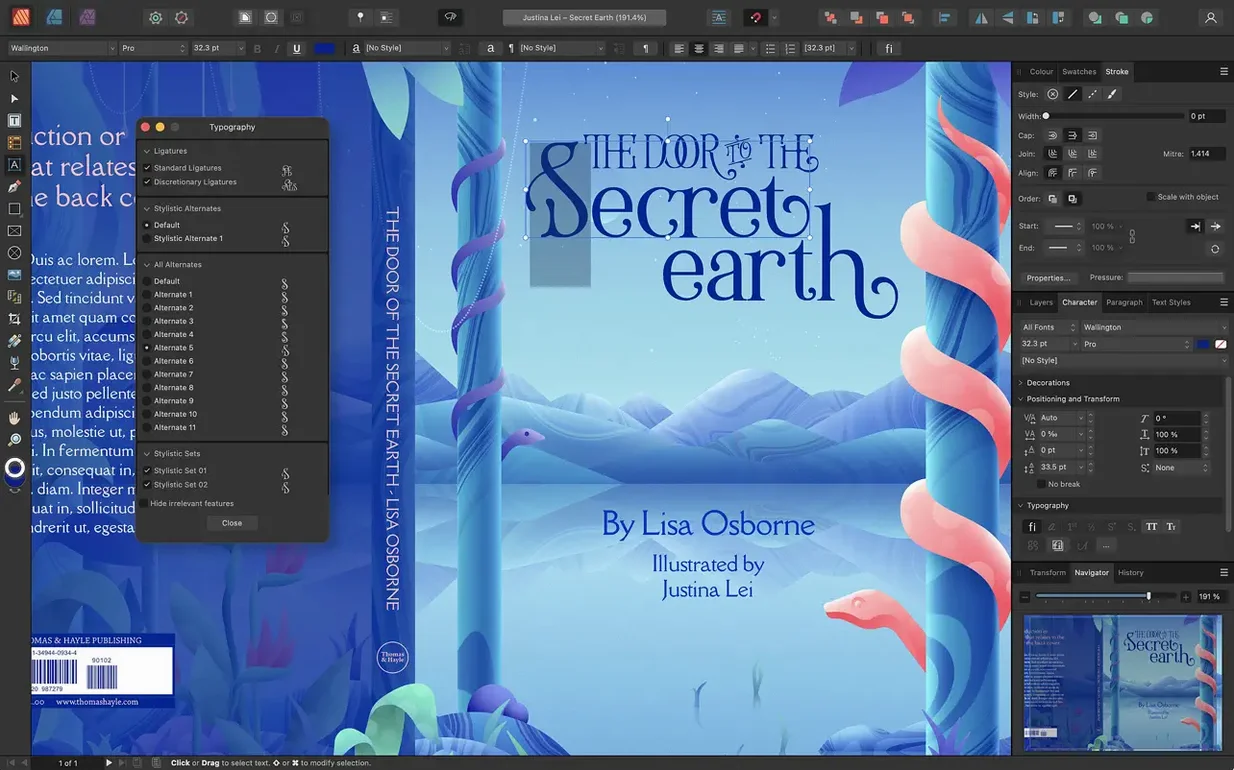
Affinity Publisher 2 is the kind of app you reach for when a word processor starts feeling like the wrong tool for the job. Designers putting together a multi-page magazine, a product catalog, a poster, or a report with placed images and precise typography tend to find their footing here quickly. It handles the heavy lifting of page layout without getting in the way.
Does it handle long-form books with linked text frames and curved type?
Books, brochures, forms, reports, and posters are all fair game. You can link text frames across dozens of pages, set drop caps and initial words, and place text along a curved path when a straight line won’t do. The boolean shape operations let you build custom frames by adding, subtracting, or intersecting simple geometry. On the color side, CMYK and spot colors are standard, the Pantone library is built in, and PDF/X-1a through PDF/X-4 export is there when a print shop asks for it. Non-destructive adjustment layers borrowed from Affinity Photo mean you can tweak an image’s levels or white balance right on the page without round-tripping to another app.
How does switching between photo and vector tools inside a layout work?
StudioLink is the piece that makes the Affinity trio feel like a single workspace. With Affinity Photo and Affinity Designer installed, you switch personas inside Publisher to edit images or vector graphics without leaving the document. The 2.6 release also brought multiple-page spreads and foldable layouts—gatefolds, trifolds, accordion folds—which is a practical upgrade for anyone laying out printed brochures. A Reading Order panel for PDF accessibility arrived in the same update, so exported documents can carry proper structure for screen readers.
Working through a trifold brochure from scratch
Let’s walk through a real job: an A4 trifold for a small conference. Start with File → New, pick the Print (Press Ready) preset, and set the spread type to Trifold from the layout dropdown. Affinity Publisher 2.6 builds three panels on one sheet, with the fold guide lines already placed. You don’t need to calculate panel widths yourself—the app spaces them so the inner panel tucks correctly when folded.
Switch straight to the master page. Drop a colored rectangle across the full spread as a background, then add a text frame for the footer with the date and venue name. Because nested master pages are supported, I usually build a base master with only the page number and a thin rule, then a second master that inherits from it and adds the panel backgrounds. That way a last-minute background color change hits every page at once.
Back on the live pages, place the speaker headshots with File → Place. PSD and TIFF files drop in with transparency intact. Use the Text Wrap panel to push body copy around each photo with a 2 mm offset. For the registration form on the back panel, insert a table and style it with a custom table format that alternates row fills—readers track across the columns more easily that way.
Before exporting, open the Reading Order panel added in 2.6 and check the tag flow. Drag the title to the top, then the speaker bios, then the form. Export as PDF/X-4 and the file is ready for the print shop and screen readers in one go.
Should you link your other Affinity apps on day one?
A few things make the first week smoother. If you already have Affinity Photo or Designer installed, open Publisher and confirm StudioLink picks them up—the persona buttons appear in the toolbar automatically. No separate linking step needed.
Set up your document presets early. Spend ten minutes saving your common sizes—A4 booklet, US letter trifold, square social media card—as named presets. The Spread Setup dialog remembers fold types per preset, which saves hunting through menus later.
Check the color settings under File → Document Setup → Color. Publisher defaults to CMYK for print templates, but if you design mostly for screens, switch to RGB and set the profile to sRGB. The Swatches panel then shows only the colors that make sense for your output.
One habit worth forming: pin the Layers panel open. Publisher’s layer model treats every placed image, text frame, and shape as a separate object on a per-page stack. Naming layers as you go—"hero image," "pull quote," "page number"—keeps a 40-page document from becoming a puzzle.
How fast does a 48-page document with linked PSDs scroll on Apple Silicon?
On Apple Silicon, the app opens in about three seconds cold and under a second warm. Page thumbnails render as fast as you scroll through the Pages panel. Working with a 48-page document containing linked PSDs and TIFFs, I see memory settle around 1.8 GB—noticeably lighter than the 2.8 GB ceiling Serif quotes for installation. On an Intel Mac with 8 GB of RAM, the same file hovers near 2.4 GB but stays responsive. The gap makes sense: the ARM build uses less overhead for rasterization.
Live filters and adjustment layers recalculate without beachballing. Dropping a Gaussian Blur on a high-res placed image updates in real time as you drag the slider. The one operation that pauses briefly is boolean union on a dozen overlapping vector nodes—maybe half a second—but the Node tool itself doesn’t lag.
Stability has been uneventful, which is about the best thing you can say. Across a week of daily use, no crashes during export, no corrupted files after forced quit, and no font cache weirdness. Auto-save fires unobtrusively every few minutes, and recovery on relaunch brings back unsaved changes without fuss.
Why do placed images look soft until you switch view modes?
Placed images look soft on screen. Check View → View Mode. Publisher’s default is often Pixel view, which renders placed content at screen resolution for speed. Switch to Vector view and the image sharpens—this matters when you’re checking focus or aligning fine details.
Text frames won’t link. Clicking the linking triangle on a text frame and then clicking another frame usually works, but if the target frame already contains text, the link won’t take. Clear the target frame first or draw a fresh empty one. Also, linked frames must share the same story; you can’t link a frame on a master page directly to a frame on a document page—use a master page text frame with a defined flow area instead.
Pantone swatch doesn’t separate on export. Double-check that the swatch is set to Spot Color in the Swatches panel options, not just named after a Pantone code. The export dialog under File → Export → PDF → More must have Honor spot colors ticked. Without both, the color lands in the CMYK plate.
StudioLink personas are grayed out. This usually means Affinity Photo or Designer isn’t installed in /Applications. If you renamed the app bundle or moved it elsewhere, Publisher can’t find it. Move it back to /Applications and relaunch.
People searching affinity publisher 2 mac often ask about the multi-page spread feature specifically. The fold types—gatefold, accordion, trifold—live in the Spread Setup dialog under Layout. You can change a spread’s fold type after the fact without rebuilding the page, though you may need to nudge content to align with the new fold guides. Someone grabbing an Affinity Publisher torrent or a Publisher torrent to try before committing will find the full feature set present; the Reading Order panel and foldable spreads are baked into the 2.6.5 build regardless of how the app lands on the machine. And if you’re hunting for Affinity torrent bundles that include all three apps, StudioLink integration works exactly the same provided all three live in /Applications.
- Multiple-page spreads are now supported, letting you see facing pages and more as a single layout unit.
- Foldable spreads—gatefolds, trifolds, and accordion folds—are built into the page setup.
- A new Reading Order panel lets you define PDF accessibility structure for screen readers.
- macOS 10.15 or later
- Intel or Apple Silicon Mac
- 8 GB RAM recommended
- Up to 2.8 GB available disk space
- Display resolution 1280×768 or larger
$ man affinity-publisher | grep -A2 "?"
Can Affinity Publisher open Adobe InDesign files?
It can open IDML files exported from InDesign, though some complex elements may need adjustment after import.
Does it support non-destructive image editing?
Yes, it supports non-destructive adjustment layers for tasks like levels, curves, and white balance directly on the page.
What PDF/X standards can it export?
It can export PDF/X-1a, PDF/X-3, and PDF/X-4 files for professional print workflows.
Comments 0
Sign in or create an account to leave a comment.
No comments yet. A codec, a slice, a machine — they appear after moderation.