AI Transcription for macOS
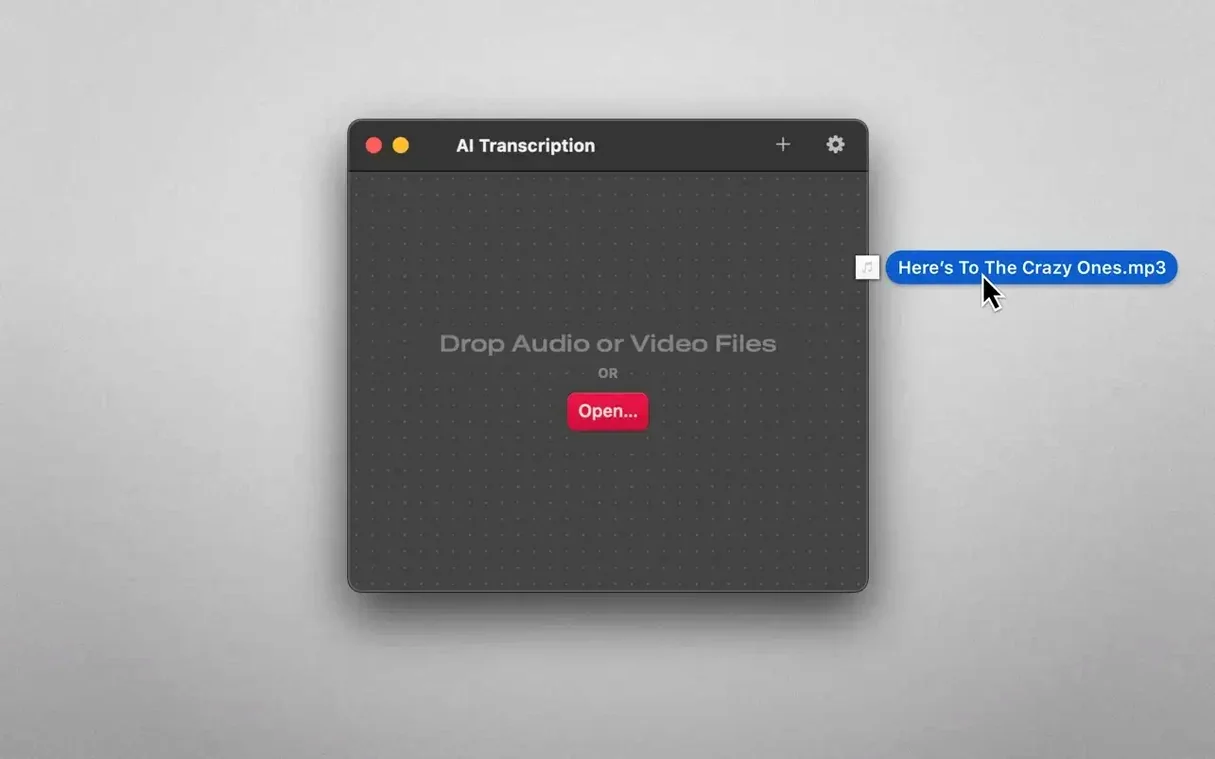
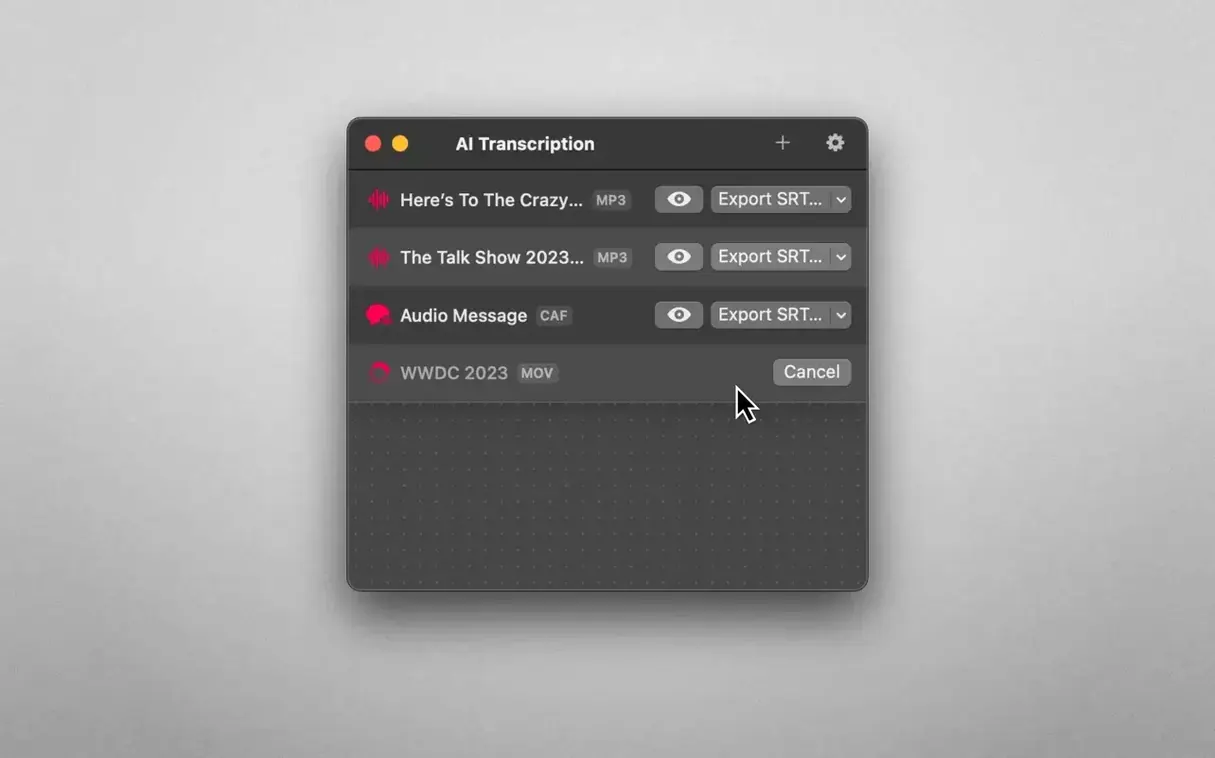
It's for anyone who records interviews, lectures, meetings or voice notes and wants a transcript without handing their audio to a cloud service. Podcasters use it for rough-cut show notes, researchers pull quotes from field recordings, and journalists drop in interview files and get searchable text while the original stays locked on the Mac.
Drag from Voice Memos, paste into Notes
Think of it as a dedicated transcription pane. You record in Voice Memos or QuickTime Player, drag the file into AI Transcription, then paste the plain-text output into Notes, Pages, or your editor of choice. If you're already using a subtitle tool for video, the SRT and WebVTT exports slot straight into DaVinci Resolve or Final Cut Pro's timeline without reformatting.
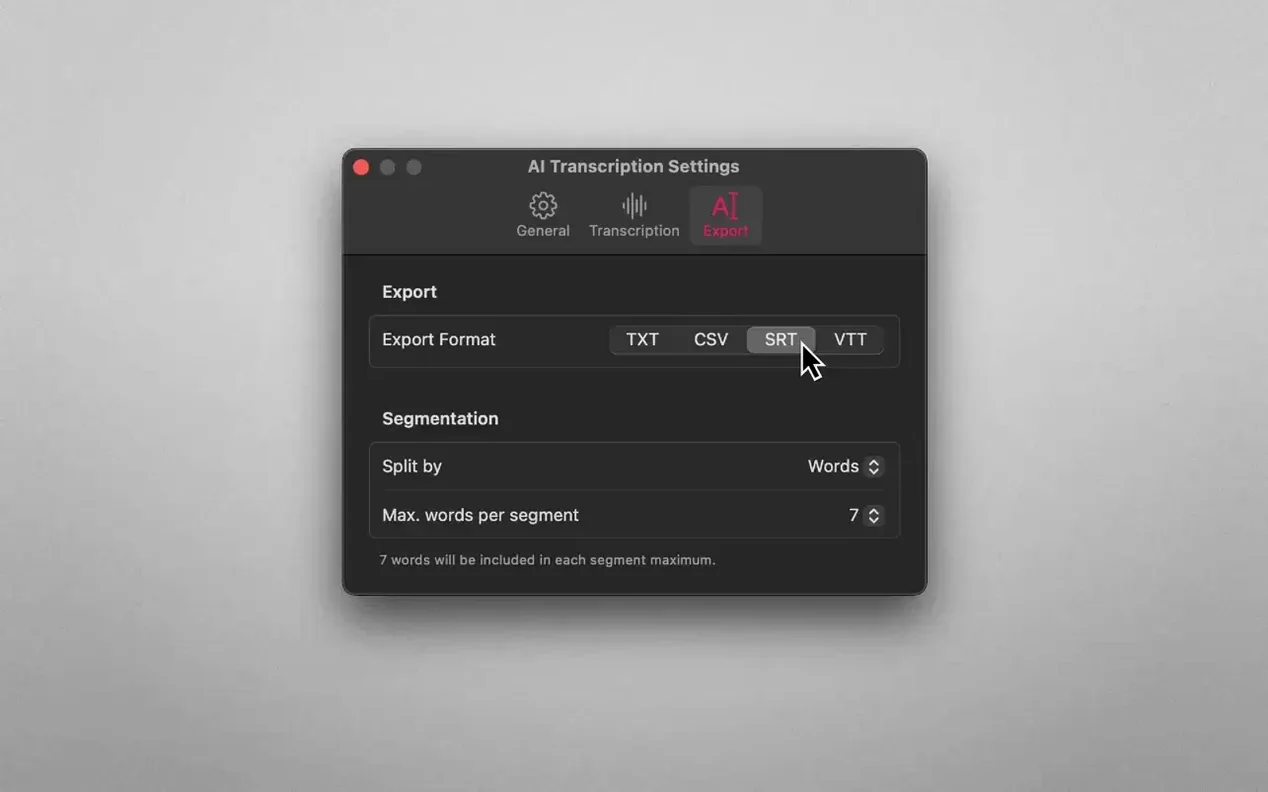
Exports plain text, CSV, SRT, or WebVTT
Input covers the common recording formats: .mp3, .wav, .caf, .aifc, .m4a and .mp4. Exports come in four flavors — plain text for reading, CSV for timing data, and SRT or WebVTT for captions.
Does audio ever leave the machine?
No. The transcription engine runs entirely on-device, so bandwidth and privacy aren't part of the equation. That also means it works offline, which is handy if you're transcribing in a train seat or a cabin with no signal.
Dock icon drop and it remembers your last export format
Drag a file onto the dock icon instead of the window and it still queues up. The app remembers your last export format between sessions, so if you live in SRT mode you never touch that dropdown again. Right-click any row in the transcript list to copy just that segment — no selecting, no ⌘C gymnastics.
A few keyboard shortcuts that aren't advertised: ⌘O opens the file picker, ⌘E jumps straight to the export dialog with the current transcript, and ⌘K clears the workspace. If you're processing a batch, ⌘⇧D drops you into the drag-and-drop zone without reaching for the mouse.
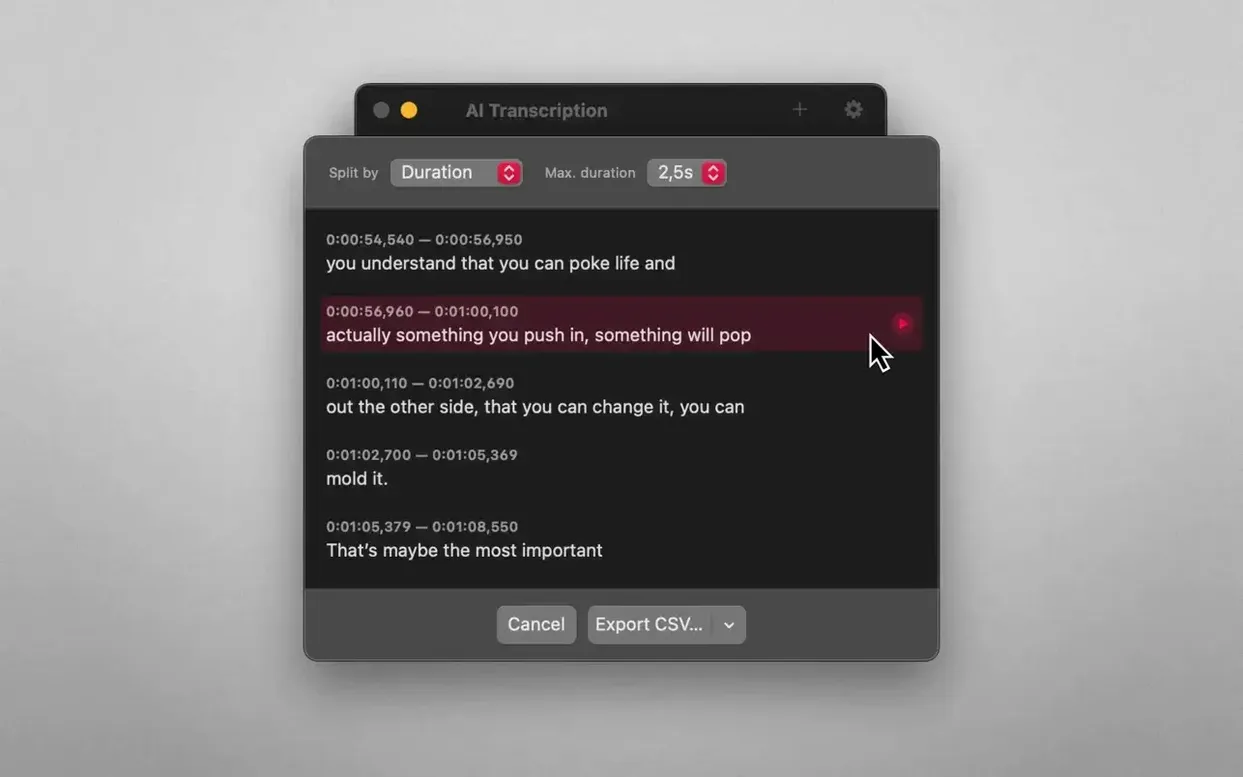
The segment-split controls are more flexible than they first appear. Choosing "by sentence" respects punctuation in the transcript, so a period inside "Dr." won't break the segment. The duration split accepts decimal values — 30.5 for thirty-and-a-half-second chunks — which helps when you're syncing to a timeline that works in frames.
Language detection can be set manually or left on auto. The auto mode reads the file's metadata first; if that's missing, it samples the first ten seconds of audio and picks the best-matching model. Override it from the dropdown when you know the interviewee will switch languages mid-recording — the manual setting sticks for the whole file.
Abstracts away whisper model management for you
MacWhisper also wraps OpenAI Whisper and keeps things local, but it leans harder into the "whisper model management" side — you pick a model size, download it, and manage disk space yourself. AI Transcription abstracts that away: it ships with a baked-in model and uses Apple Speech Recognition as a fallback for shorter clips, so you don't see a model picker at all. The trade-off is fewer knobs to turn, which suits someone who wants a transcript faster rather than a dissertation on beam search.
Buzz is the open-source contender. It does on-device transcription and even live microphone capture, and it runs on Windows and Linux too. On the Mac, though, Buzz feels like a Python project with a Qt frontend strapped on — dependencies to install, occasional glitches when macOS updates. AI Transcription is a native Cocoa app, so it respects Dark Mode, uses the system spellchecker, and weighs about a third of Buzz's disk footprint once you count the Python runtime Buzz drags along.
Otter and Descript are the cloud-native elephants in the room. Both produce polished transcripts with speaker diarization, but they need an account and a steady upload pipe. AI Transcription's offline guarantee means a two-hour interview file stays on your SSD. Speaker labeling is absent here — that's the feature you trade for zero network traffic. If you're already tagging speakers in your editor, the missing diarization isn't much of a loss; if you need it baked in, the cloud tools have the edge.
Where AI Transcription shines against all three is the segment-split export. MacWhisper and Buzz give you raw text or basic SRT; AI Transcription lets you split by word count, sentence boundaries, or fixed durations before export, so the SRT file that lands in your video editor already matches the pacing you want.
A forty-minute podcast file lands on the desktop as .m4a
I've just finished recording a forty-minute podcast interview in QuickTime Player. The file sits on the desktop as interview-audio-2025.m4a. I launch AI Transcription, and the main window shows a clean drop zone with the last-used language — German — still selected from yesterday's project. I switch it to English from the dropdown.
I drag the .m4a file onto the window. A progress ring appears almost immediately; the app is sampling the first few seconds to confirm the language, then it starts chewing through the audio. No fan spin on an M1 MacBook Air. About four minutes later the full transcript appears in the lower pane, each segment timestamped and color-coded by confidence — green for high, amber for medium, nothing for low-confidence passages that might need a human ear.
I scroll through, spot a name the model mangled, and double-click the segment to edit it inline. A quick ⌘F search tells me every place that name appears, so I correct all four instances in under a minute. The export dropdown is already set to SRT from last time. I hit ⌘E, pick a folder, and the SRT lands next to the original audio. Into DaVinci Resolve it goes, and the captions line up without any timing tweaks.
Before closing the app, I switch the segment split to "by sentence" and export a plain-text version too — that one goes into my notes for pulling pull-quotes later. Whole workflow from recording to two usable exports: under six minutes, no uploads, no accounts.
One-hour .wav transcribes in about ten minutes on Apple Silicon
On Apple Silicon, a one-hour .wav file transcribes in roughly one-sixth of real time — about ten minutes of processing. Intel Macs take closer to real time, which is still workable for overnight batch jobs. The app uses the Neural Engine when available, so the fans rarely kick in even on a MacBook Air with no active cooling.
Memory usage floats between 400 and 800 MB during transcription, depending on file length. That's modest enough to keep a browser and a code editor open without swapping. Once transcription finishes, it releases the working set and idles around 120 MB. I've left it open for days between sessions without a leak or a beachball.
Stability has been solid through the recent updates. Version 2.15 fixed a rare crash that occurred when cancelling a long transcription mid-process — something I triggered twice before the patch. The ai transcription 2.16 build tightened up the CSV exporter so timestamps no longer drift by a frame on .mp4 sources with variable bitrate audio. I've thrown corrupted .caf files at it — the kind Voice Memos sometimes produces after an interrupted sync — and it handles them gracefully, showing an error instead of locking up.
One quirk worth knowing: the first launch after installation runs a brief model-warmup pass that spikes CPU for about fifteen seconds. Subsequent launches skip it. If you're on battery and see a brief activity burst, that's all it is — not background indexing or phoning home.
- macOS 14.6 or later
- Apple Silicon or Intel 64‑bit
Comments 0
Sign in or create an account to leave a comment.
No comments yet. A codec, a slice, a machine — they appear after moderation.