
AfterCodecs for macOS
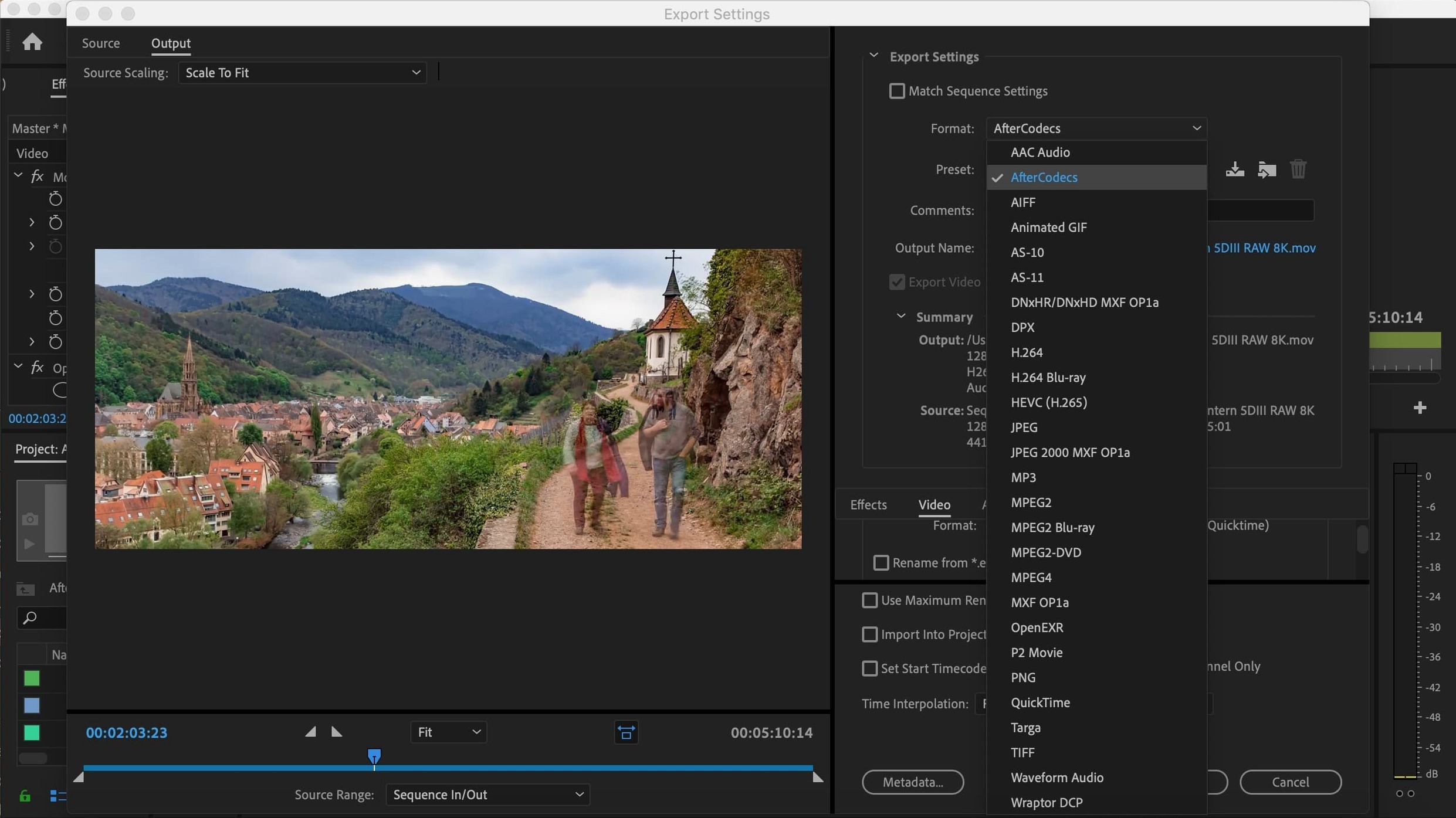
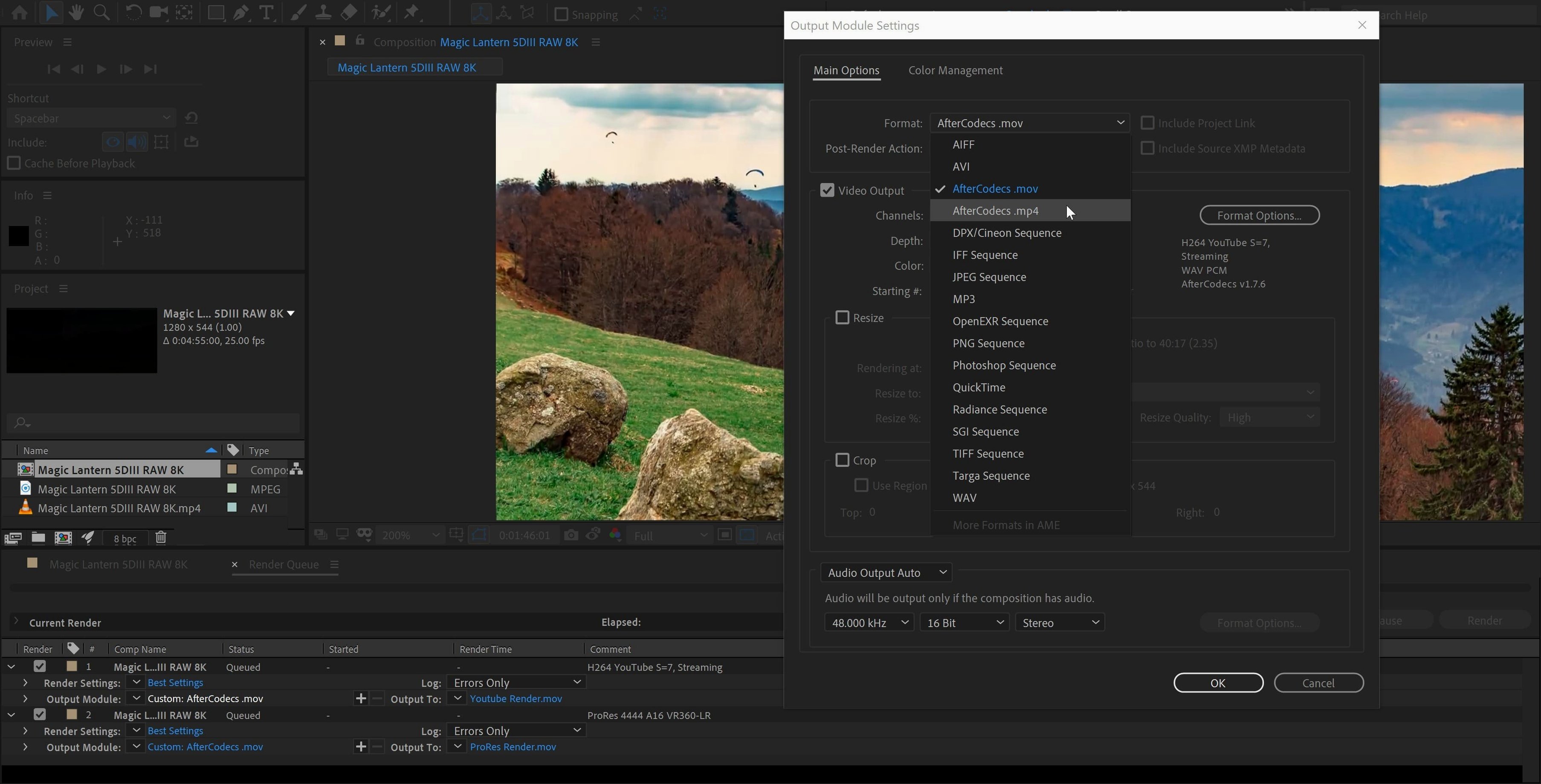
AfterCodecs is an exporter plugin for Adobe After Effects, Premiere Pro, and Media Encoder that adds a panel of encoding choices right inside the render queue and export dialogs. It's aimed at motion designers and editors who want direct access to formats like Apple ProRes or H.265 without leaving the host application.
| Key detail | What it means |
|---|---|
| Host apps | After Effects, Premiere Pro, Media Encoder |
| Architecture | Apple silicon and Intel 64‑bit |
In a typical session, AfterCodecs lives on your output module list. Pick it instead of the native AME exporter, and you get a self-contained codec selection — ProRes 4444, 422, 422 LT, H.264, and H.265/HEVC are all on the table. That means a compositor can render a ProRes master straight from the After Effects render queue, then switch to an H.265 delivery file for a review, all without opening a separate compressor. Because the plugin talks to the host through Adobe's own SDK, there's no command-line tinkering involved — it's all GUI, all contained in the CC workflow. A common job is rendering a pre-comp for an editor who requests ProRes 422; AfterCodecs puts that option one dropdown away from the lossless AVI preset you never use. It's a short hop from timeline to final file, keeping codec profiles and bitrate ladders in the same place you set your render bounds.
One‑click YouTube presets instead of hunting for Google’s specs
The YouTube upload profile is a one‑click preset that sets resolution, frame rate, and bitrate to match the platform's current recommendations for 4K and 1080p — no need to look up Google's encoding guidelines. Another detail people overlook is that AfterCodecs remembers your last‑used settings per host app and per project, so closing and reopening a Premiere project brings back the exact codec, quality slider, and resolution you had before.
When you render from the After Effects render queue, the plugin writes files directly to disk as they encode. If you need a preview snippet while a long comp renders, you can open the growing .mp4 or .mov in any player that handles incomplete files — no waiting for the full export to finish.
There's also a hidden time‑saver in the multi‑render workflow. Because AfterCodecs runs inside the host, you can queue three versions of the same comp in the render queue — say, a ProRes 4444 master, an H.264 review copy, and an H.265 delivery file — and let them run overnight as one batch. No need to re‑import anything into Media Encoder.
What you need to know before running the installer
Does it replace Adobe Media Encoder, or just sit alongside?
It sits alongside. AfterCodecs appears as a format choice inside After Effects and Premiere Pro output modules, and as a format inside Media Encoder's preset list. You keep all the native exporters; nothing gets removed. If a project calls for a codec the plugin doesn't handle, you simply pick the built‑in option instead.
Will my older projects break if I uninstall it later?
No. Your source projects, comps, and timelines remain untouched. The only thing you lose is the ability to re‑render directly with the AfterCodecs presets. Any exported files you already made stay exactly as they are — standard .mov and .mp4 files that any player or NLE can read.
Does it run as native ARM code, not through Rosetta?
Native. The plugin ships as a universal binary, so After Effects and Premiere Pro running in Apple silicon mode load the ARM code directly. There's no translation layer between the host and the encoder.
Forgetting to restart the host app after installing
The most common slip happens right after mounting the .dmg. People double‑click the installer, breeze through, then can't find the plugin. It's there — you just need to restart the host app completely. AfterCodecs won't show up in the output module list until After Effects or Premiere Pro does a cold launch and scans its plug‑in directories.
Another routine mistake is treating the quality slider like a percentage of "original quality." It actually controls the rate‑control target: on the H.264 and H.265 paths, sliding left lowers the average bitrate for a given resolution, which can starve high‑motion frames of data. For anything with fast pans or heavy grain, keeping the slider above 80 and watching the estimated file size is safer than chasing a smaller number.
Beginners also miss that the ProRes presets are real ProRes — the same Apple‑certified encoder paths — so a ProRes 4444 export carries an alpha channel when your comp has transparency. If your render comes out with a solid black background instead, check that you didn't accidentally pick ProRes 422, which strips alpha. The fix is a single dropdown change in the output module settings. Those little format‑specific behaviors trip up new users more often than any install issue, and they're the sort of thing you only catch by checking the first few frames of the export.
- Compatibility with After Effects, Premiere Pro, and Media Encoder 2026 v26.
- Licensing support for PlumePack V3.
- Adobe After Effects, Premiere Pro, or Media Encoder (2026 v26 supported).
- Apple silicon or Intel 64‑bit Mac.
- Interface language: English.
$ man aftercodecs | grep -A2 "?"
Which codecs do I get with AfterCodecs?
It exposes Apple ProRes, H.264, and H.265/HEVC encoding directly inside After Effects, Premiere Pro, and Media Encoder.
Does it run natively on Apple silicon Macs?
Yes — version 1.12.1 carries native support for both ARM (Apple silicon) and x86 64‑bit Macs.
Comments 0
Sign in or create an account to leave a comment.
No comments yet. A codec, a slice, a machine — they appear after moderation.