AlDente for macOS
You plug your MacBook into the USB-C hub on your desk at 9 AM, launch Xcode alongside a handful of Electron apps, and don't unplug it until dinner. macOS will happily hold the battery at 100% all day — and lithium-ion cells don't love that. AlDente steps in as a charge limiter that lives in your menu bar, letting you set a hard ceiling (say, 70% or 80%) so the battery stops charging even while the power adapter stays connected. It sits comfortably next to tools like iStat Menus or coconutBattery, covering the proactive side of battery care while those apps handle monitoring and history.
| What | Detail |
|---|---|
| Developer | AppHouseKitchen |
| Current version | 1.39.4 |
| Architecture | Apple Silicon + Intel 64‑bit |
| Minimum macOS | macOS 12 Monterey |
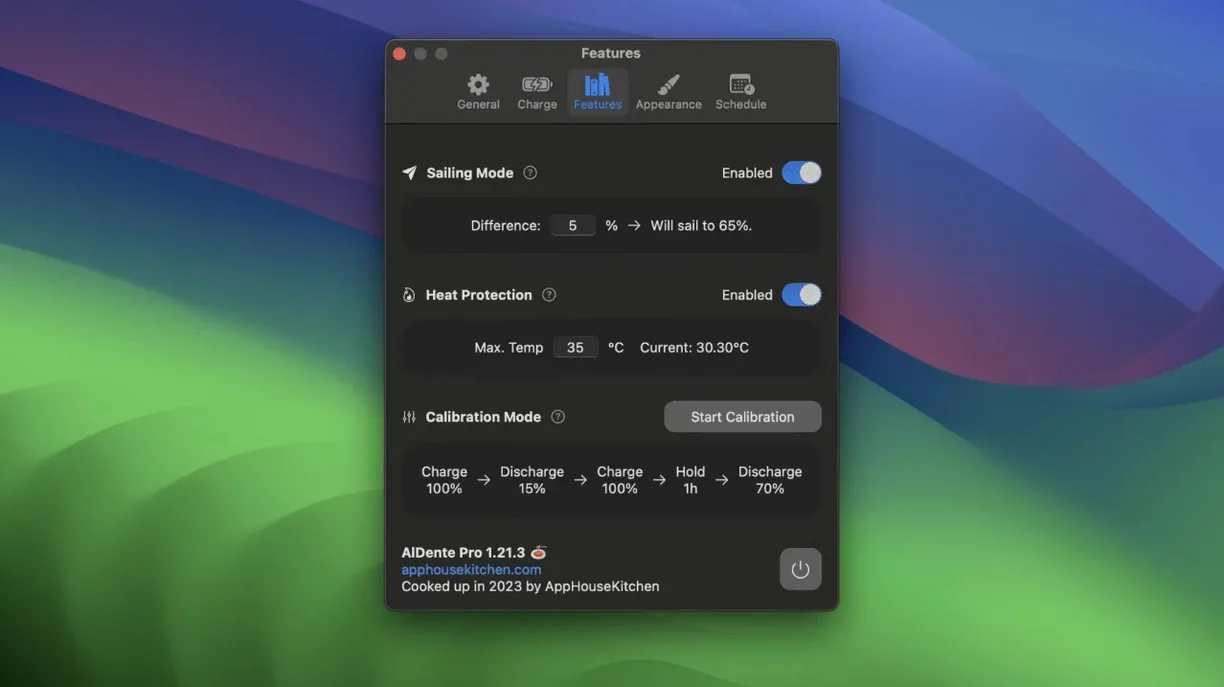
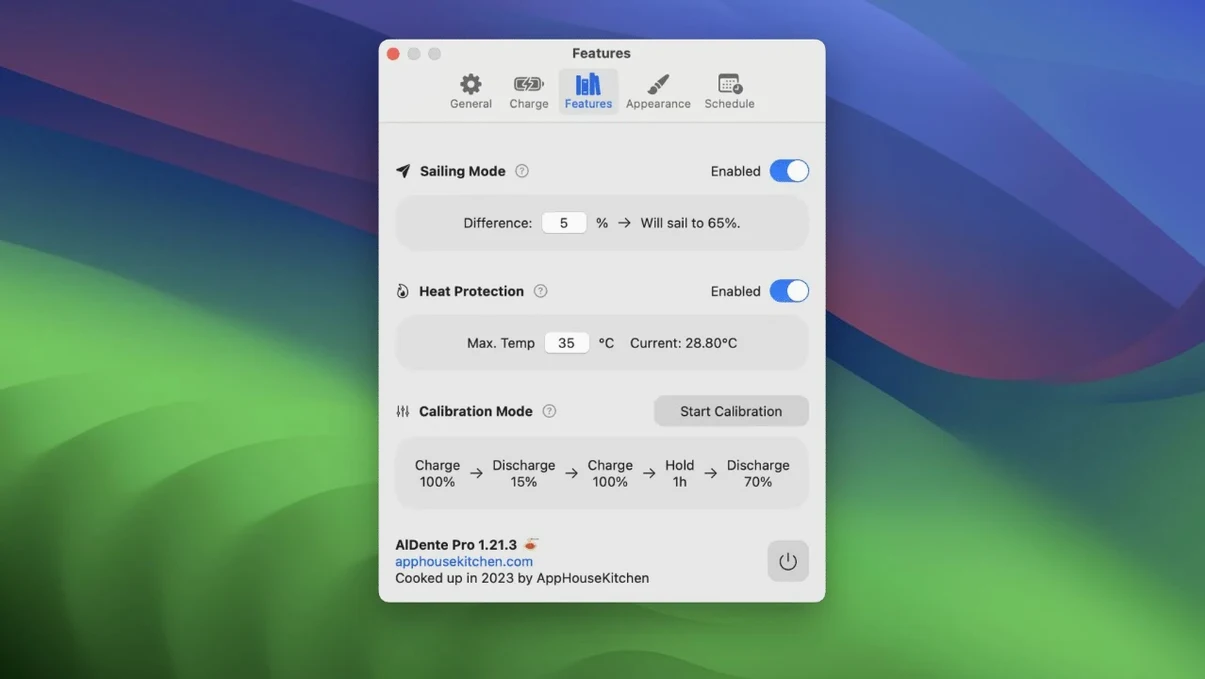
Two features go beyond a simple charge cap. Sailing Mode lets the charge level drift between a lower and upper bound — the battery discharges a few percent, then trickle-charges back up — mimicking a gentler cycling pattern for machines that stay docked for weeks. Heat protection kicks in when the battery temperature climbs above a threshold, automatically pausing charging to keep temperatures in a safer zone. The interface switches between Russian, German, Dutch, Portuguese, French, Japanese, Greek, Korean, Arabic, Spanish, Italian, Traditional Chinese, Simplified Chinese, Polish, Turkish, and English. It's a lightweight utility that adds a missing dial to the built‑in Optimized Battery Charging feature, giving you manual control without taking over the rest of your power workflow.
MacOS still says “not charging” at your chosen cap
AlDente doesn't try to replace the energy settings in System Settings — it works beside them. When you set a charge limit of 75%, macOS still reports the battery as "not charging" and the menu bar icon shows the power source as connected. The difference is invisible to the rest of the operating system: Low Power Mode triggers normally, sleep timers still fire, and the Battery Health Management daemon in macOS continues its own analysis in the background. Most users disable Apple's Optimized Battery Charging after installing AlDente, since the two can end up fighting for control of the charge ceiling, but nothing technically breaks if you leave both on. The app simply wins the argument.
Integration with third-party monitors is straightforward. coconutBattery reads the same SMC data that AlDente writes to, so its charge graph reflects the limit accurately — you'll see a flat line at 80% while connected to power. iStat Menus picks up the charge status and current capacity without any special configuration. If you use pmset from the terminal to inspect power management states, the values remain consistent: the MacBook knows it's on AC power, knows the battery isn't charging, and reports design capacity correctly. AlDente essentially inserts a small policy layer between the charger and the battery controller.
What about clamshell mode and external displays?
Plenty of MacBooks spend their lives with the lid shut, driving a single USB-C monitor that supplies power. AlDente handles this without trouble. The charge limit stays enforced whether the lid is open or closed, because the limiting happens at the SMC level — it's independent of display state. One thing to watch: if the external display is also the power source, and the display drops power during sleep, the MacBook discharges a few percent overnight. That's normal behavior. When power returns in the morning, AlDente resumes the cap where you left it.
Maya’s battery hit 87% health after 18 months at 100%
Maya edits in DaVinci Resolve on an M1 Max MacBook Pro that rarely leaves the desk. Before AlDente, her battery sat at 100% for eleven hours a day, six days a week. After eighteen months, coconutBattery reported 87% of design capacity — an expected but frustrating decline.
She installs AlDente and sets the charge limit to 75%. She flips on Sailing Mode with a 5% band: the battery drops to 70%, charges back to 75%, and repeats. The menu bar reads a steady 73% most of the time. Resolve performance doesn't change — GPU-intensive renders pull from the charger, not the battery — so the limit is invisible during actual work. Once a month, she runs Calibration Mode on a Sunday: the app lets the battery discharge to 15%, then charges it uninterrupted to 100%, giving the power controller a complete reference point. It takes about four hours and she treats it like any other maintenance task, no different from cleaning the cooling fans.
The real payoff arrives a year later. Design capacity has slipped from 100% to 96%, a 4% drop instead of the 13% she saw in the previous cycle. For a machine that lives on AC power, that's a tangible difference — and it cost her nothing beyond the initial setup.
What the free version actually locks away
Does it conflict with Apple's battery health features?
No technical conflict, but it's redundant. Optimized Battery Charging tries to learn your schedule and delay the final charge to 100%, while AlDente gives you a hard limit that the battery never passes. If both are active, Optimized Charging might occasionally override the limit during its learning phase, so most users turn it off. The underlying Battery Health Management — the part that monitors temperature and charge patterns and doesn't control the ceiling — can stay on without interfering.
Will I damage the battery by capping the charge?
Lithium-ion cells degrade fastest at the extremes: fully charged and fully discharged. Keeping a cell at 75% instead of 100% reduces the voltage stress on the electrolyte, which slows the chemical aging process. The trade-off is that you carry less charge when you unplug. For a docked machine, that's irrelevant. For a laptop that travels, you might set the limit to 90% on days you need the full runtime and drop it back to 70% when you're back at the desk. The app includes a "Top Up" button that temporarily overrides the limit and charges to 100% on demand — useful right before you head out.
Which MacBooks are supported, from 2018 onward?
AlDente supports Apple silicon MacBooks and Intel MacBooks with a T2 chip or later, running macOS 12 Monterey or newer. The oldest supported machines are roughly the 2018 MacBook Pro and 2018 MacBook Air. Very early Intel MacBooks without a T2 chip don't expose the necessary charging controls to software, so the app can't set limits on those models. If you're unsure, the developer's compatibility list covers every MacBook model by year.
The popover stopped jumping to the wrong screen edge
Version 1.39.4 is a maintenance release, but the 1.39.x series brought a handful of quality-of-life fixes that matter in daily use. The popover — the small window that appears when you click the menu bar icon — had been accumulating subtle graphical glitches on macOS beta builds, where the charge percentage text would clip or the slider would render a few pixels above its track. Those are resolved in this release, specifically targeting the first betas of macOS 27.2.
Earlier in the 1.39 cycle, the developer tightened how Sailing Mode reacts to sudden power source changes. If you unplug while Sailing Mode is active, the app now exits the mode cleanly instead of leaving the charge controller in an ambiguous state that could cause a brief charging spike on reconnect. Calibration Mode received similar attention: the discharge phase no longer gets interrupted when the MacBook enters sleep, which was a point of friction for users who closed the lid overnight expecting calibration to finish by morning.
None of these are headline features, but they remove small papercuts that made the app feel slightly rough around the edges during long-term use. For a utility that you interact with for five seconds a day, polish in the menu bar popover matters more than it has any right to.
Right-click the menu bar icon for a one-time top-up
- Right-click for instant top-up. Right-click the menu bar icon and choose "Top Up" to charge to 100% once, without changing your saved limit. The app reverts to your cap after you unplug. Faster than opening preferences and dragging a slider.
- Option-click the slider. In the popover, holding Option while dragging the charge limit slider moves it in 1% increments instead of the default 5% steps. Useful if you want exactly 77% for no reason other than you can.
- Keyboard shortcut for Calibration Mode. There's no system-wide shortcut by default, but AlDente exposes an AppleScript dictionary. A one-line script can trigger Calibration Mode, which you can bind in Automator or a launcher like Raycast. The command is
tell application "AlDente" to calibrate. - Temperature display in the menu bar. The menu bar text can show battery temperature instead of charge percentage. Hold Command while clicking the menu bar icon to cycle through the available displays. If your MacBook runs hot in a dock, a quick glance tells you whether heat protection has kicked in.
- Discharge via the USB-C port. In the advanced settings, there's an option to allow the MacBook to power small accessories directly from the battery even while plugged in, which slowly discharges the battery without unplugging the charger. It's niche — useful mainly during Calibration Mode if you don't want to wait for passive drain.
- Pause on battery. AlDente can automatically disable itself when you're on battery power and re-engage when you plug in. This means the limit only applies while connected to AC, so unplugging gives you the full charge you left with.
- Fixed visual glitches in the Popover that showed up on the earliest macOS 27.2 beta builds.
- macOS 12 Monterey or newer
- Apple Silicon or 64‑bit Intel processor
$ man aldente | grep -A2 "?"
What is Sailing Mode in AlDente?
Sailing Mode lets the battery charge level drift between a lower and upper percentage so the system doesn't hold a fixed charge ceiling indefinitely — it's designed for MacBooks that stay plugged in for long stretches.
Does AlDente include any thermal protections?
Yes, its heat protection feature pauses charging when the battery temperature rises above a set threshold, helping keep the cells within a safer operating range.
Comments 0
Sign in or create an account to leave a comment.
No comments yet. A codec, a slice, a machine — they appear after moderation.