Canopy for macOS
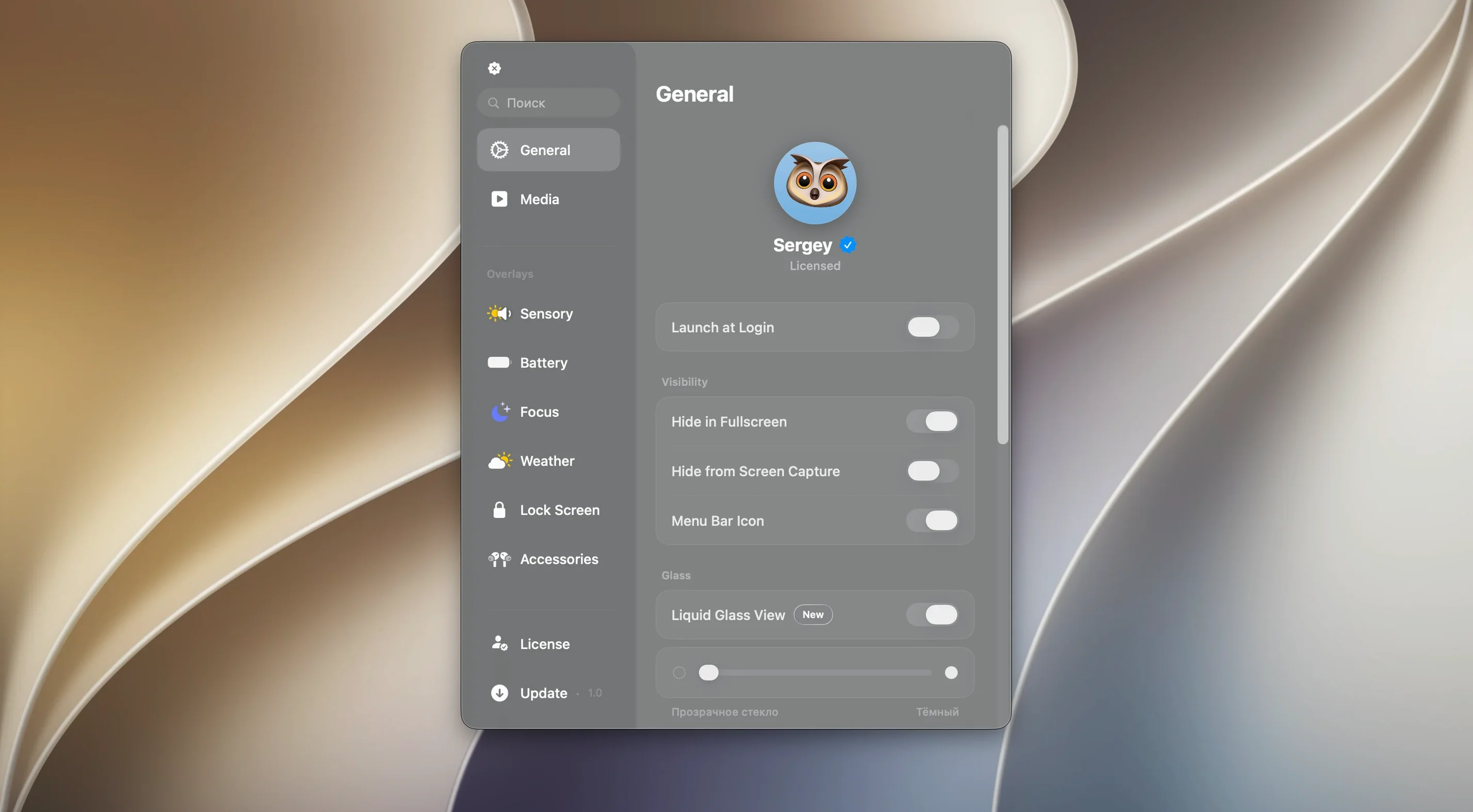
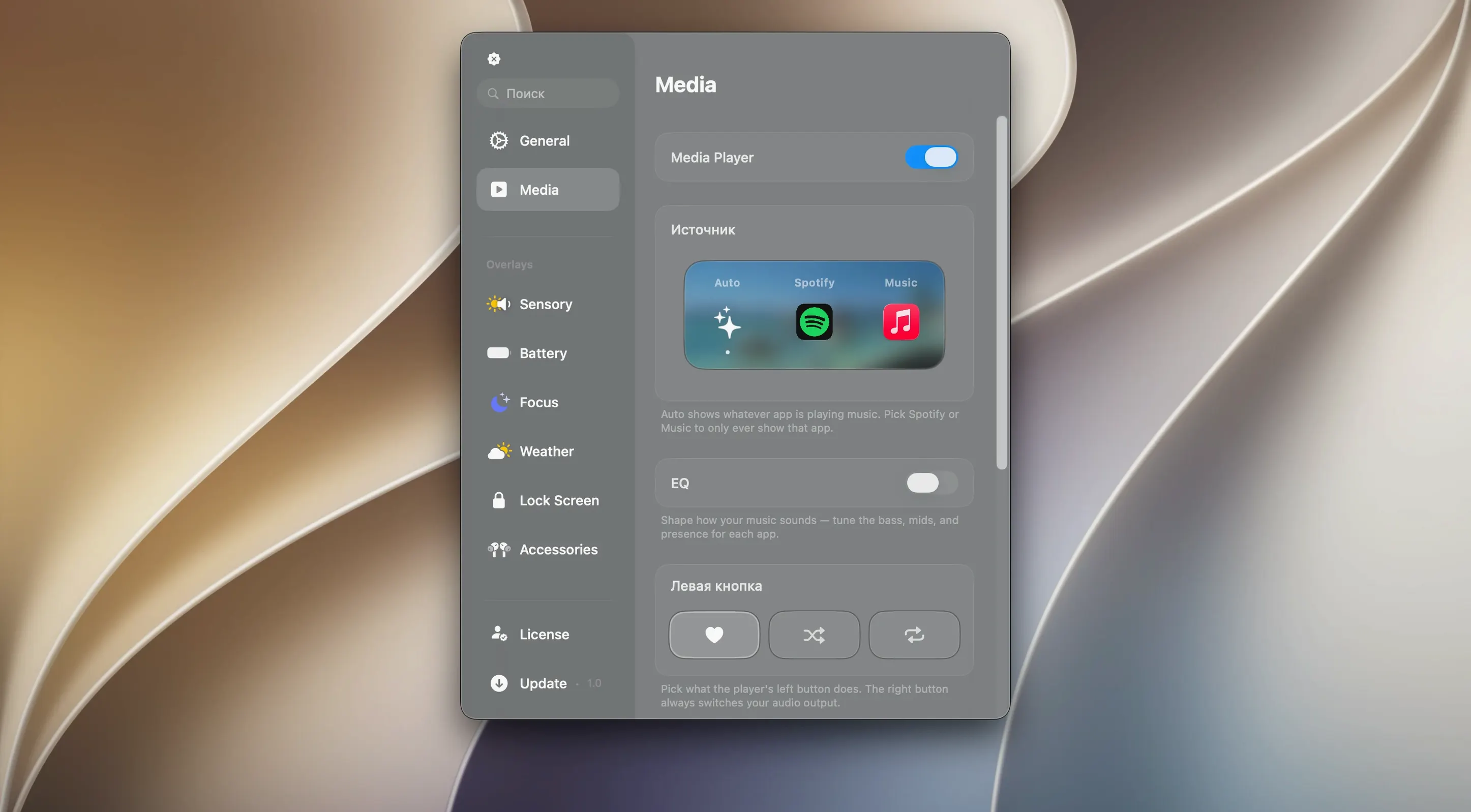
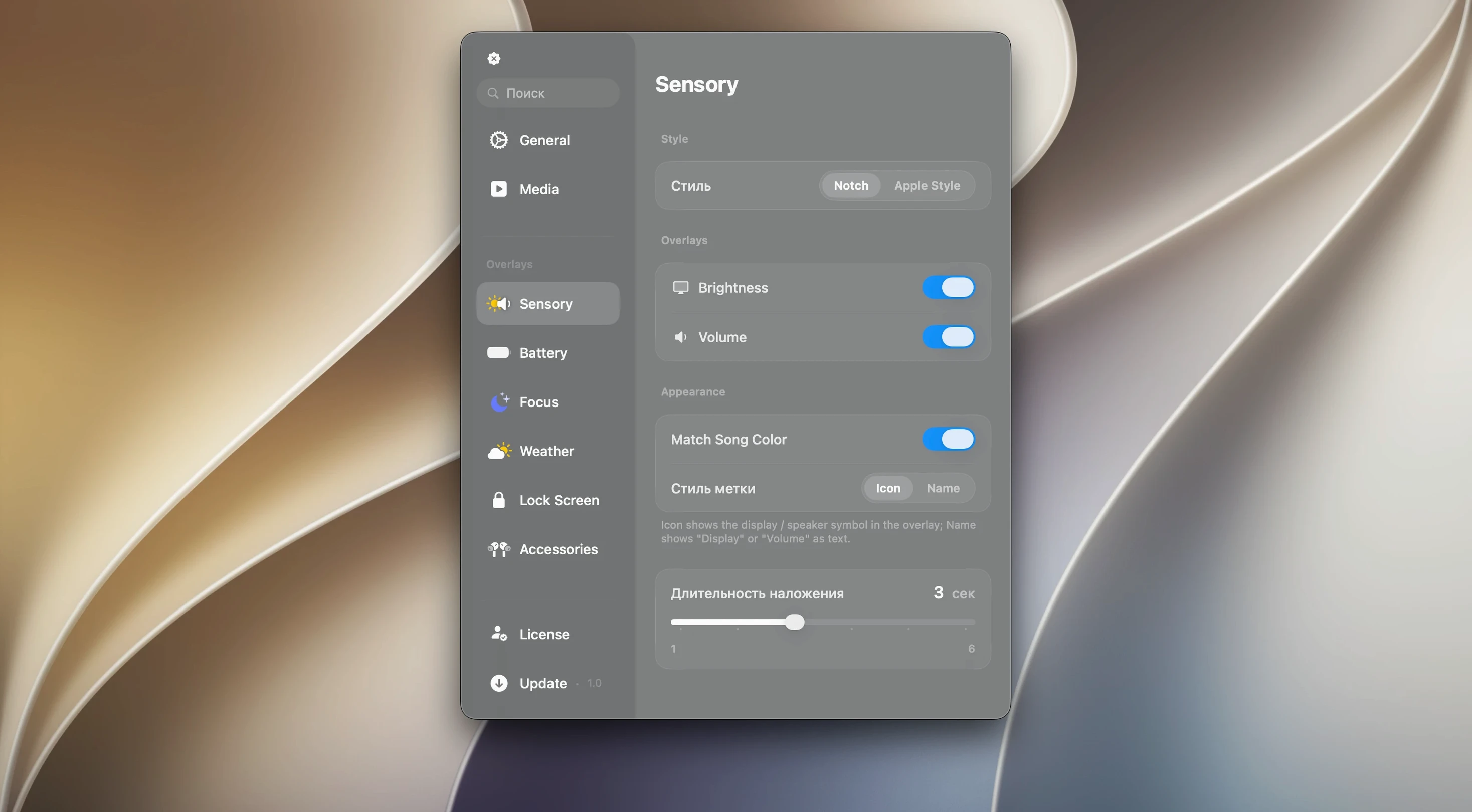
Canopy runs on any Apple Silicon or Intel 64-bit Mac with macOS 26 or later. It does not need a notch — the panel lives in the menu bar and adapts to either screen shape.
Glance at tracks, timers, and live alerts from your menu bar
- Glancing at Now Playing track info and controlling playback without switching apps
- Starting a timer or checking its remaining time from the menu bar
- Seeing incoming notifications and live activities in a compact, at-a-glance style
Needs macOS 26 and only speaks English right now
- Requires macOS 26, so it only fits Macs that support the latest OS
- Interface language is English only at this stage
- The interaction model is deliberately compact — it complements Notification Center rather than replacing it
Check what’s playing in Logic Pro without leaving Spotify
You sit down with a coffee, open Logic Pro, and Spotify is already playing. Without switching windows, you glance at the menu bar — Canopy shows the track name and artist in its compact panel. A tap on the forward button skips to the next song, and the panel updates instantly, the Liquid Glass ripple effect confirming the interaction before fading back to idle transparency.
Mid-morning, a reminder fires. The panel expands gently from the menu bar, showing the event title and a short description. No window steals focus from your arrange window, no banner slides in from the right. You dismiss it with a single click, and the panel shrinks back. That is the rhythm of a session with Canopy: information arrives, you acknowledge it, and it gets out of the way.
Around lunch you set a 25-minute focus timer. The countdown lives in the panel — a small, live activity that ticks down without needing a separate window. When time is up, Canopy pulses with a subtle animation. You reset it for another round and get back to work.
Later, a build finishes in Xcode. A notification from your CI tool slides into the panel. You read the first line — "Build #247 succeeded" — and continue coding. No interruption, no context switch. Canopy acts as a thin information layer between you and the OS, always visible but never demanding.
By evening, the panel has handled music control, three timers, a dozen notifications, and a calendar alert, all without pulling you out of a single window. That is what the app is designed for: a persistent, ambient dashboard that respects your focus.
What to do when the Now Playing widget goes blank
The panel does not appear on a Mac without a notch
This is the most frequent early confusion. Canopy does not require a physical notch — on a standard rectangular display, it creates a floating widget anchored near the top of the screen. If you do not see it, check that Canopy is running and has screen recording permission under System Settings → Privacy & Security → Screen & System Audio Recording. The floating widget needs that permission to draw its overlay correctly.
Media controls do not respond
Canopy talks to the system's Now Playing framework. If the controls are unresponsive, make sure the media app (Music, Spotify, or a browser tab playing audio) is actively playing something. Paused or idle sources do not send updates. Also confirm that Canopy has Automation permission to control other apps — you can toggle this in System Settings under Privacy & Security → Automation.
Notifications are delayed or missing
Canopy mirrors a subset of your Notification Center alerts. It respects your Focus modes and Do Not Disturb settings. If you see nothing, open System Settings → Notifications and verify that the apps you expect to see (Reminders, Calendar, third-party tools) are allowed to show notifications. Canopy reads from the same notification stream — it does not intercept or filter independently.
High CPU usage after long uptime
The Liquid Glass effect uses Metal rendering, and on older Intel Macs it can occasionally spike after several hours. A quick restart of the app — quit from the menu bar icon and relaunch — clears any accumulated render buffer. This is rare on Apple Silicon but worth knowing about on Intel hardware.
A specific workflow: timer-driven writing sprints with music control
Here is a focused workflow that uses Canopy's three core features — timers, media controls, and live activities — in one continuous session.
Goal: Write for two hours in 25-minute sprints with background music, minimal window switching.
- Set the environment. Open your writing app in full screen. Start a playlist in Music or Spotify. The Canopy panel now shows the track info in the menu bar.
- Start the first timer. Click the Canopy panel to expand it, tap the timer icon, and set 25 minutes. The countdown appears as a live activity. Minimize the panel — the timer stays visible as a compact indicator.
- Write without distractions. When the timer ends, Canopy pulses. You glance up, see the alert, and take a five-minute break. Use the media controls in the panel to pause the music without leaving your writing app.
- Repeat for four cycles. After the fourth sprint, Canopy's panel shows a summary notification: four completed timers, total focused time one hour and forty minutes. You skip the playlist forward to something calmer for a longer break.
- End the session. Close the timer. The media controls remain active — you can stop playback from the panel without reopening the music app.
The whole session happens without a single Command-Tab. Canopy sits in the menu bar, handling the three things that normally pull you out of flow: time tracking, music control, and reminders.
Launch from Launchpad after dragging from the .dmg
After dragging Canopy.app from the .dmg to your Applications folder and launching it from Launchpad, a few small adjustments make the first week smoother.
Grant permissions in one go
On first launch, Canopy asks for two permissions: Screen Recording (to render the overlay) and Automation (to control media apps). Grant both immediately. If you skip either, the panel may appear blank or the controls may not work. You can fix this later in System Settings, but doing it upfront saves a round of troubleshooting.
Position the floating widget (non-notch Macs)
On a Mac without a notch, you can drag the floating widget to a preferred horizontal position. The default is centered, but if it overlaps your menu bar icons, slide it left or right until it sits in a comfortable gap. The position persists across restarts.
Decide which notifications you want to see
Canopy does not have its own notification filter — it mirrors whatever Notification Center allows. In the first day, you may see more alerts than you expected. Open System Settings → Notifications and silence apps whose alerts you do not need in the panel. Leave Calendar, Reminders, and messaging apps active; disable promotional alerts from apps you rarely need.
Learn the click zones
The panel has three interaction zones: a tap on the left opens the full panel, a tap on the right cycles through active live activities, and a long press anywhere reveals a quick settings menu. Practice these once — they become muscle memory by day two. The long-press menu is especially useful for adjusting the Liquid Glass intensity or temporarily hiding the widget on a non-notch Mac.
Pair with Focus modes
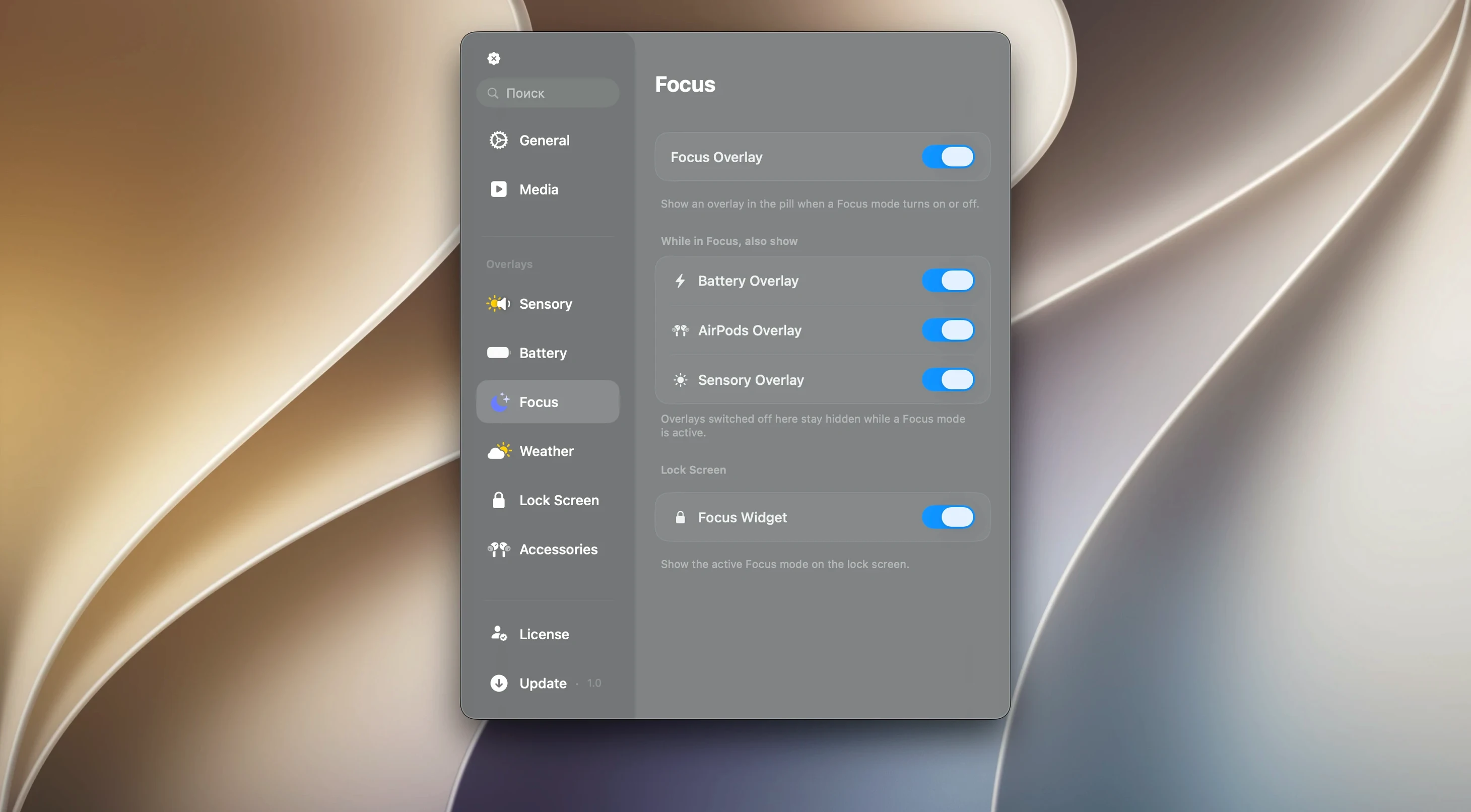
Canopy respects system Focus modes. During a work Focus, you might only see timers and music controls. During personal time, calendar alerts and messages reappear. Set up a work Focus in System Settings → Focus, and Canopy will automatically adapt to show only what is relevant for that context.
- macOS 26 or later
- Apple Silicon or Intel 64-bit Mac
- Interface: English
$ man canopy | grep -A2 "?"
Is Canopy for Mac free?
The brief doesn't confirm a price or license model, so check the developer's site for the current details.
Comments 0
Sign in or create an account to leave a comment.
No comments yet. A codec, a slice, a machine — they appear after moderation.