macOS Mojave for macOS
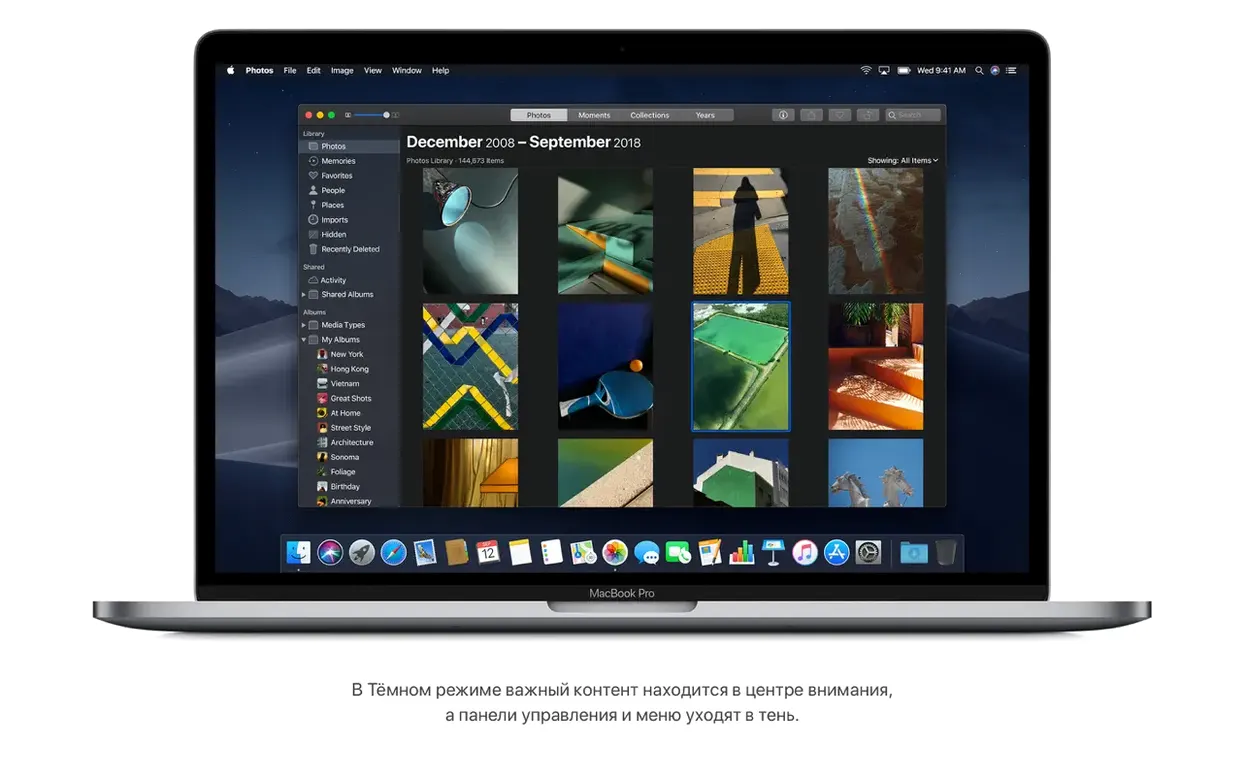
A colleague handed you a 2015 MacBook Air that’s been running El Capitan since the day it left the box. You need to wipe it and put something fresher on it — not the latest, just something solid that still runs a few older 32-bit apps. Mojave is the logical step, and the quickest path is to grab the mac os mojave dmg download from Apple’s support archive and build a bootable USB.
What you’ll work with
- The full
InstallESD.dmgpulled from theInstall macOS Mojave.appbundle - A 16 GB USB stick formatted as
Mac OS Extended (Journaled)with a GUID partition map - The
createinstallmediatool tucked inside the installer app - A Mac that can actually boot Mojave — Intel only, obviously
A few things worth knowing before you boot
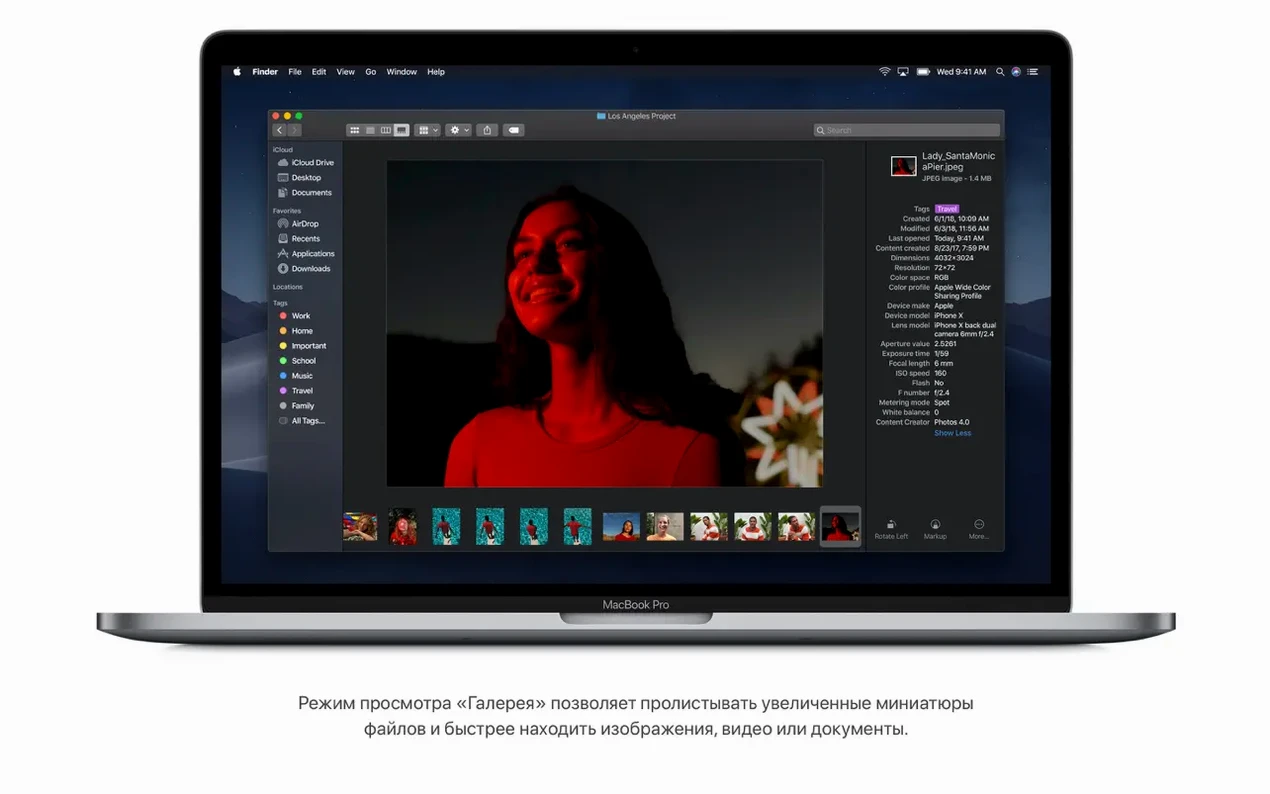
Once the install finishes and the Mac settles into 10.14.6, you’ll notice that Finder picked up a few practical tricks. Gallery View gives you a big file preview with metadata down the right side — handy when you’re sorting through screenshots or raw photos without opening Preview. Stacks cleans up a messy desktop by grouping files by kind, date, or tag with a single click. And if you need to send a PDF that shouldn’t be read by just anyone, Finder can password-protect it right from the contextual menu without ever launching an app. Safari’s Intelligent Tracking Prevention got a bump too, which makes browser fingerprinting a little harder for ad networks. It’s not a flashy release, but the handful of refinements have aged well for a machine that just needs to get out of the way and work.
A late-night install session, step by step
I dug out a 16 GB SanDisk stick, plugged it into the old Air, and let Disk Utility do its thing — one partition, Mac OS Extended (Journaled), GUID scheme. No fancy name, just UNTITLED. The mac os mojave 10.14 6 download dmg had finished half an hour earlier, sitting in ~/Downloads as a nondescript disk image. I double-clicked it, and there it was: Install macOS Mojave.app, all 6-and-change gigabytes of it, looking exactly like it did on every Apple support page I’d scanned that evening.
I dragged the app to /Applications first — createinstallmedia gets grumpy if you run it from the mounted disk image. Then Terminal. One long command, the kind you triple-check before hitting Return:
sudo /Applications/Install\ macOS\ Mojave.app/Contents/Resources/createinstallmedia --volume /Volumes/UNTITLED
It asked for my admin password, warned me the stick would be erased, and then spent twenty minutes copying files with a progress bar that felt optimistic at first and then slowed to a crawl around the 80% mark. Normal. Once it printed “Done,” I had a bootable installer that any compatible Intel Mac would recognize if I held Option at startup.
Booting from it on the Air took a few minutes — the fans spun up, the gray screen lingered, and then the familiar macOS Utilities window appeared. I ran Disk Utility again from the menu bar to wipe the internal SSD as APFS, quit, and started the install. Forty-five minutes later Mojave was asking me to pick a language and sign in. The whole affair, from searching for a mac os mojave torrent to staring at the desktop wallpaper, took about two hours with a decent USB 3.0 stick.
Press Space to browse files without opening them
Mojave has a handful of shortcuts that never made it into splash screens. A few I keep reaching for:
- In Gallery View, pressing Space on a selected file enters Quick Look instantly, and the arrow keys let you walk through the folder without ever closing the preview. The metadata pane updates live, which is useful when you’re culling burst photos by aperture or focal length.
- Stacks respects your sort order. If you group by Kind but then sort by Date Modified inside the stack, it sticks. Right-click the stack’s title bar to change the grouping without digging into Finder preferences.
- Screenshots got a quiet overhaul. Cmd-Shift-5 brings up a floating panel with capture options and a timer. After you take a shot, a thumbnail drifts to the bottom-right corner — swipe it away to dismiss, or click it to mark up and crop before the file lands on your desktop.
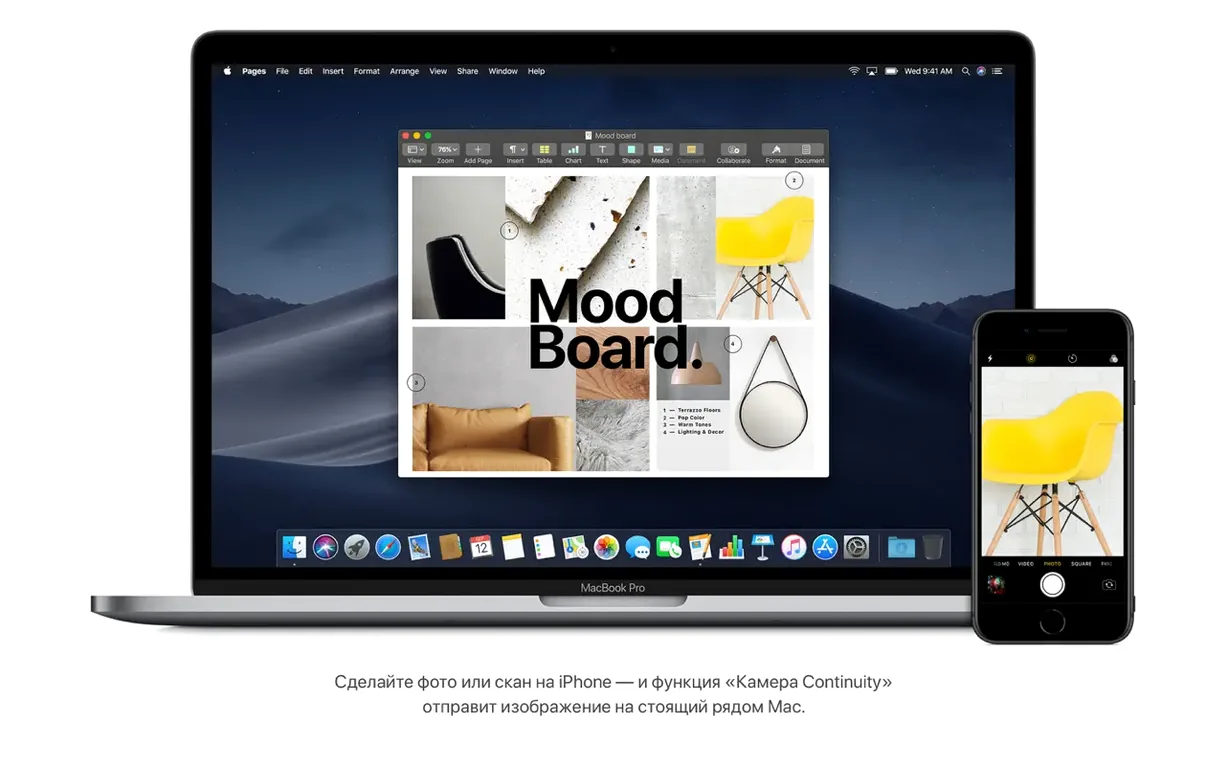
- If you use an iPhone or iPad alongside the Mac, Continuity Camera appears in Finder under File > Import from iPhone without launching Photos. You pick “Take Photo” or “Scan Document,” and the iOS device wakes up with the camera ready. The resulting JPEG or PDF drops right into whatever Finder window you were in.
Still running 32-bit apps without a fuss?
Will my 32-bit apps still work? Yes, and that’s the main reason someone grabs a macos mojave torrent in 2025 instead of jumping to Catalina or later. Mojave is the last release that runs 32-bit software without complaints. If you rely on an older version of Adobe CS, legacy audio plug-ins, or a game that never got a 64-bit port, Mojave keeps them alive.
Does Dark Mode cover third-party apps? Only the ones that opted into AppKit’s dark appearance API. Apple’s own apps — Mail, Messages, Xcode, Terminal — switch fully. Chrome and Firefox eventually caught up, but plenty of indie utilities stayed light no matter what you picked in System Preferences.
Is it safe to use online today? Safari 14 shipped for Mojave, and it still receives occasional security updates through Software Update as of the last patch cycle. Intelligent Tracking Prevention blocks cross-site tracking reasonably well, and the built-in sandboxing hasn’t changed. You won’t get the latest Safari features, but for browsing, email, and streaming it holds its own. Anyone hunting a mojave torrent should grab the 10.14.6 build specifically — earlier point releases miss out on some of those browser fixes.
What if I need to go back? You can’t downgrade in place. A clean install from a bootable USB (or restoring a Time Machine backup made before the upgrade) is the only path backward, so clone your disk before you start if you’re unsure.
- The 10.14.6 update targets overall stability and reliability on supported Intel Macs.
- macOS 10.8 or later for the initial download
- Intel 64-bit architecture
- 2 GB of memory
- 12.5 GB of available storage
- MacBook Early 2015 or newer
- MacBook Air Mid 2012 or newer
- MacBook Pro Mid 2012 or newer
- Mac mini Late 2012 or newer
- iMac Late 2012 or newer
- iMac Pro 2017
- Mac Pro Late 2013, or mid 2010 / mid 2012 with recommended Metal-capable graphics cards
$ man macos-mojave | grep -A2 "?"
Does macOS Mojave support group FaceTime calls?
Yes. Mojave added FaceTime group calling for up to 32 participants, so you can have a proper family catch-up or a quick team check-in without needing a third-party app.
Which MacBook Air models can run Mojave?
The supported MacBook Air models are those from mid 2012 or later. Earlier machines lack the required Metal-capable graphics stack.
Comments 0
Sign in or create an account to leave a comment.
No comments yet. A codec, a slice, a machine — they appear after moderation.