macOS Tahoe for macOS

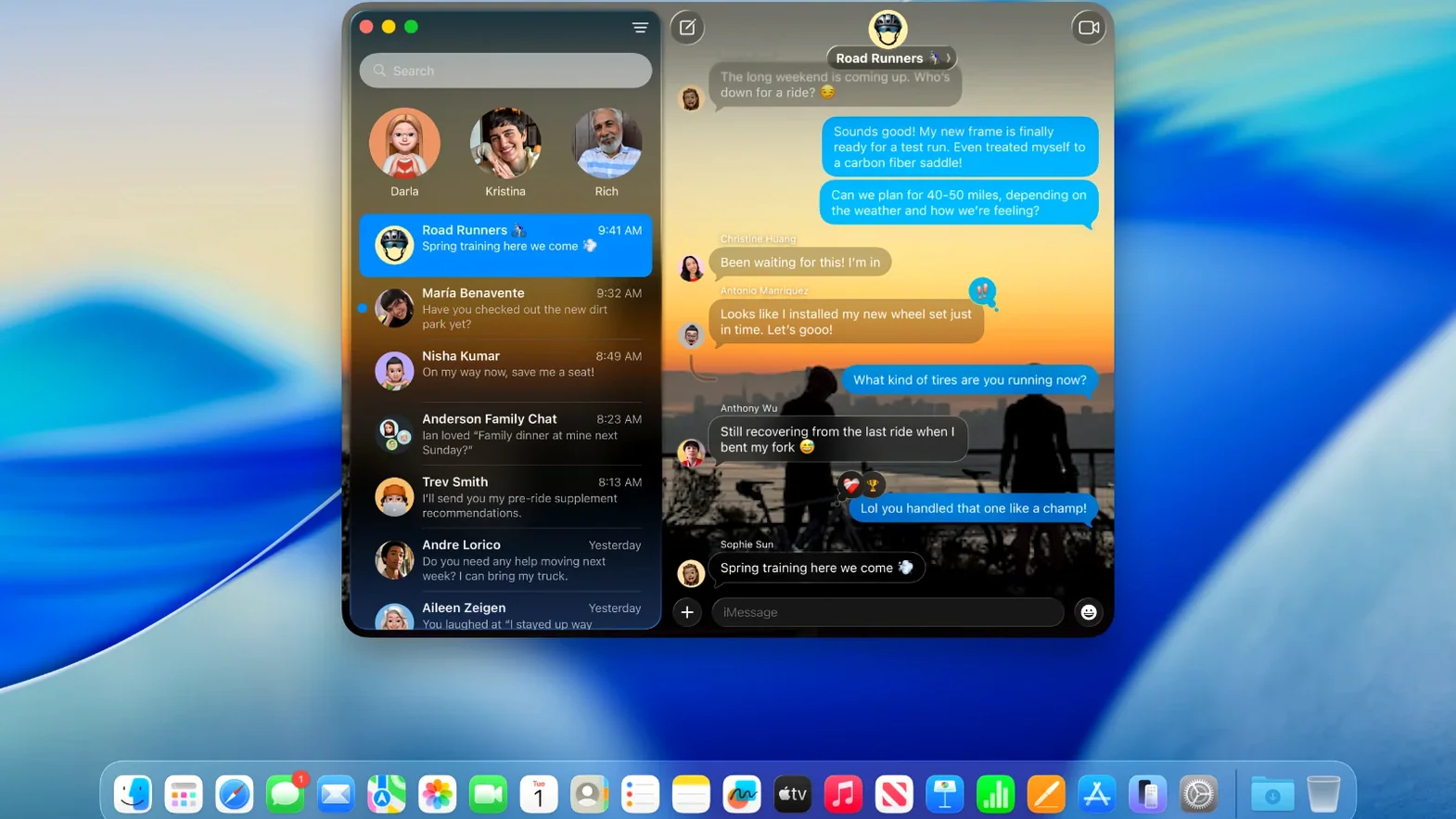
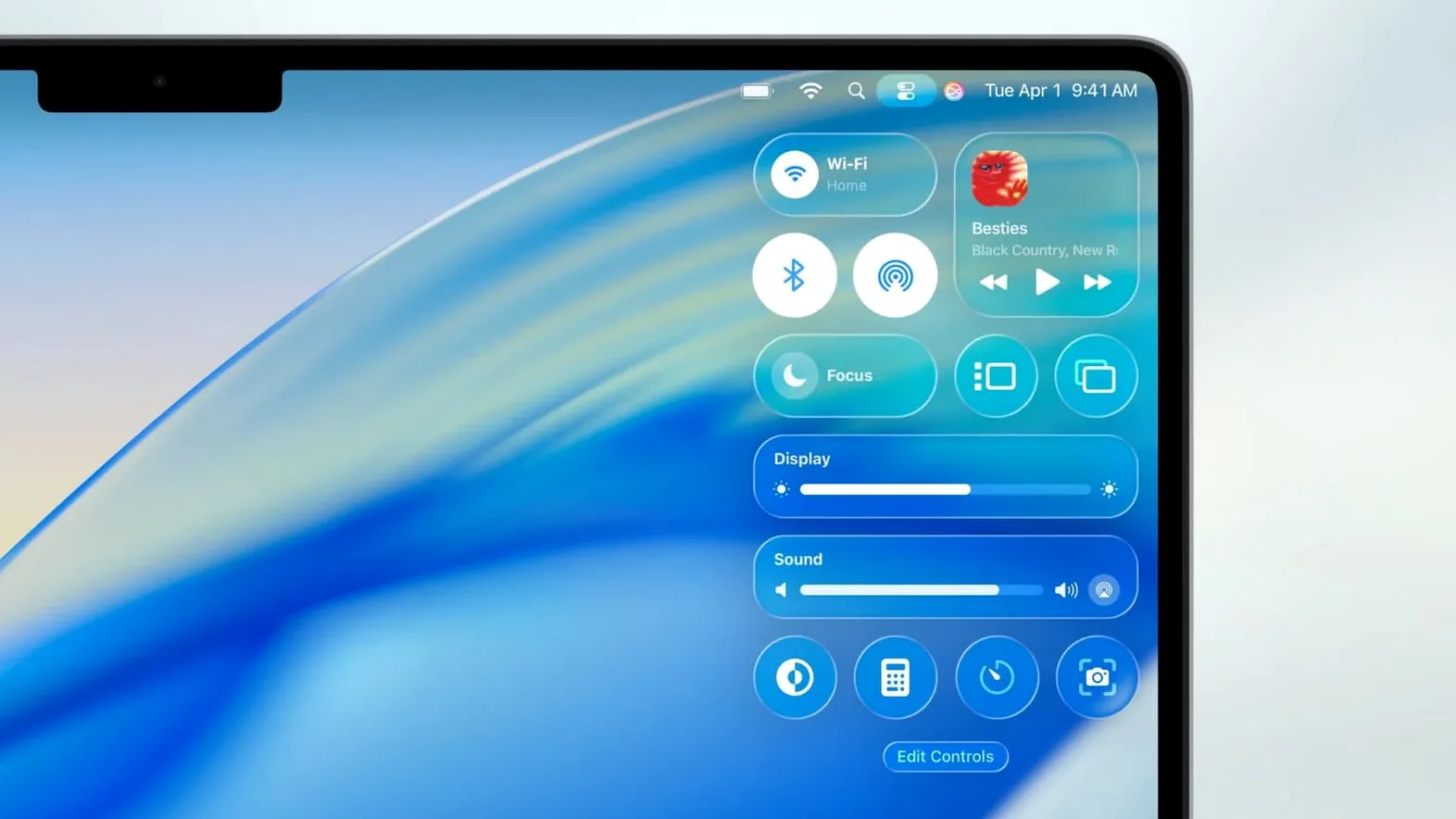
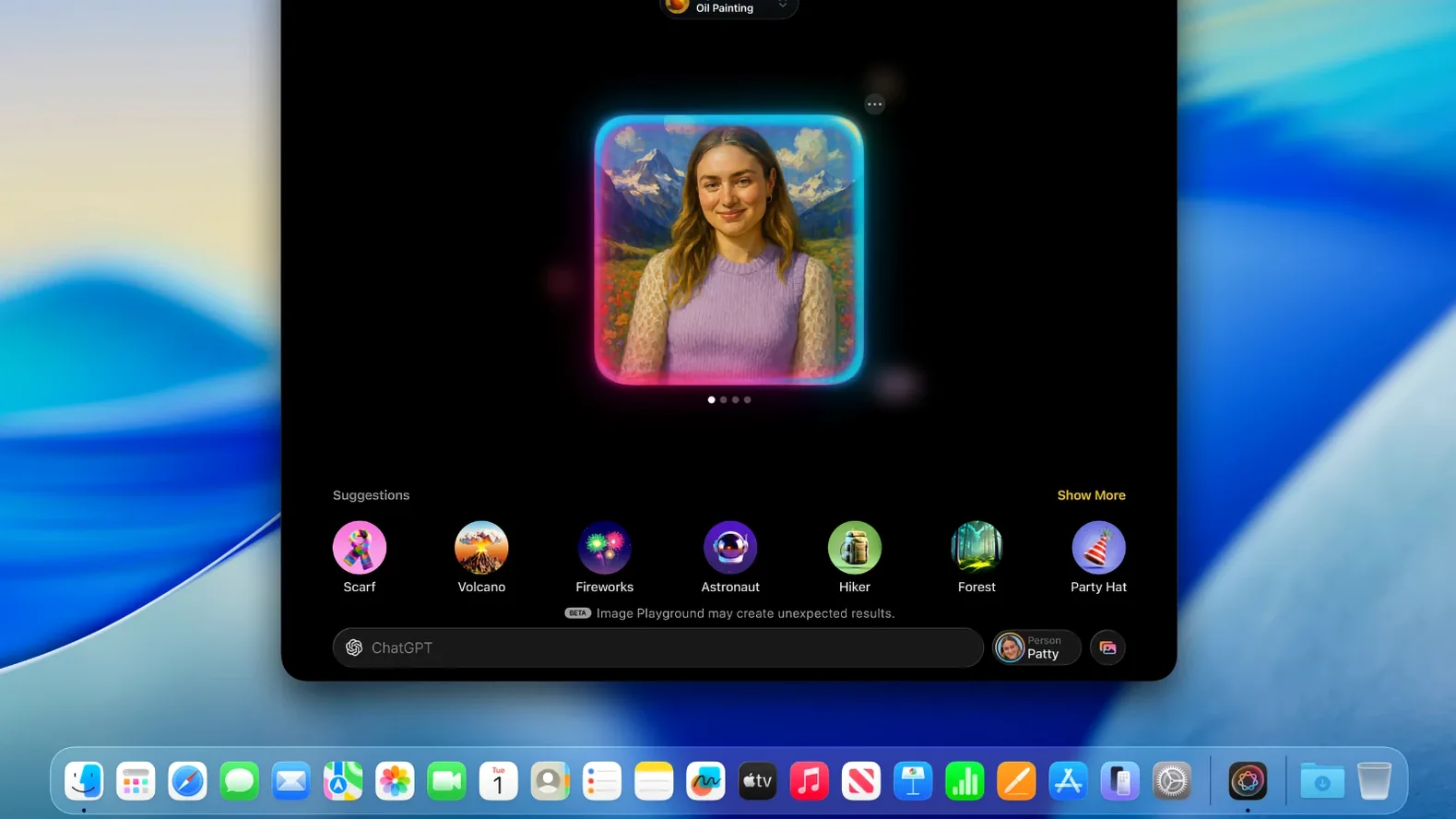
macOS Tahoe is for anyone with a supported Mac who wants the latest system-level changes without a clean slate. The 26.7.1 update lands on machines introduced roughly 2019 or later — everything from the 16-inch MacBook Pro to Apple silicon Mac mini and Mac Studio.
Find and launch apps without Launchpad
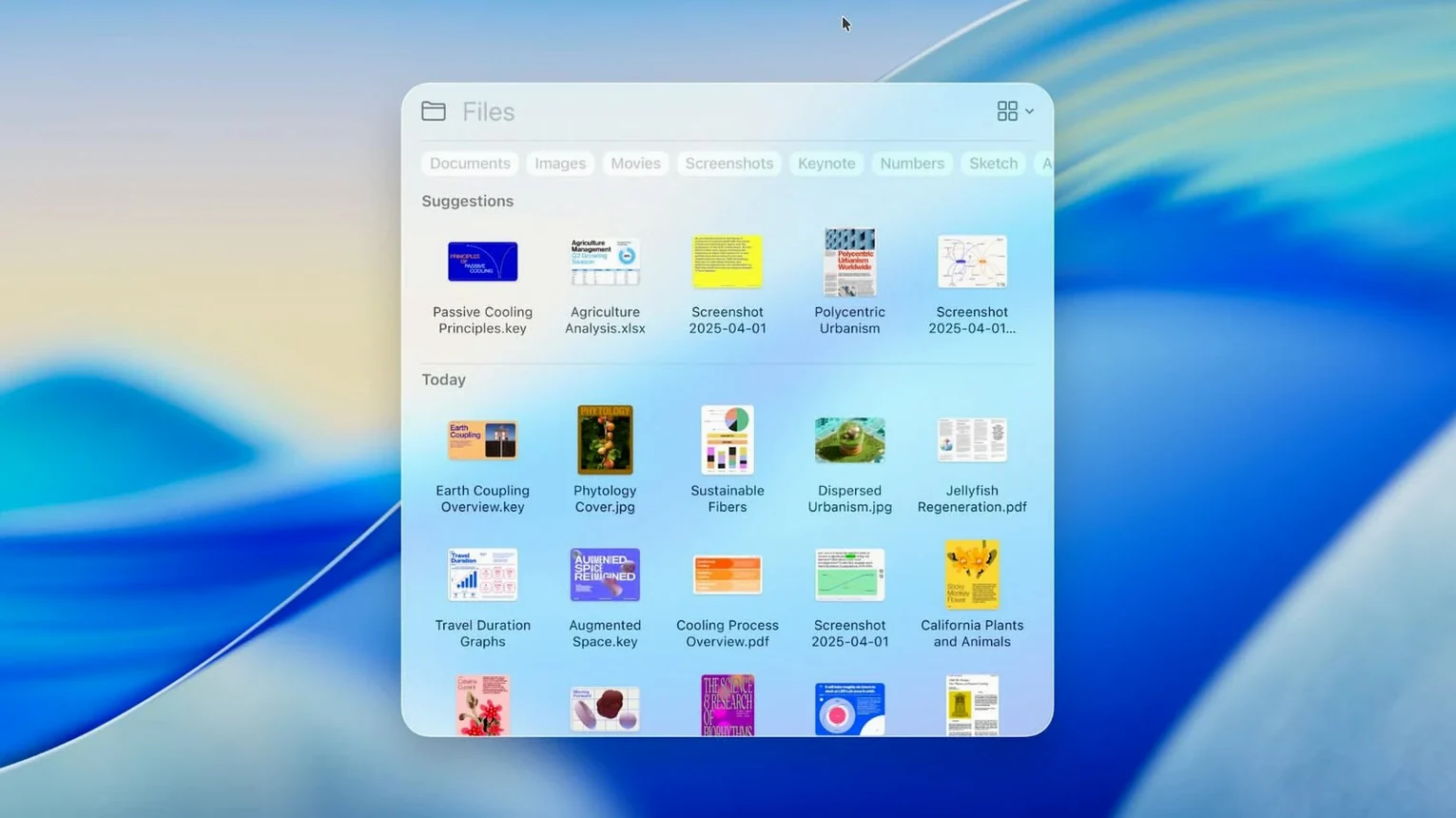
The old Launchpad grid is gone. Spotlight now includes an Apps view, so you search or scroll a list instead of flipping through icon pages. It’s the same quick-launch muscle memory with less visual overhead.
Take a call from your iPhone right on the Mac
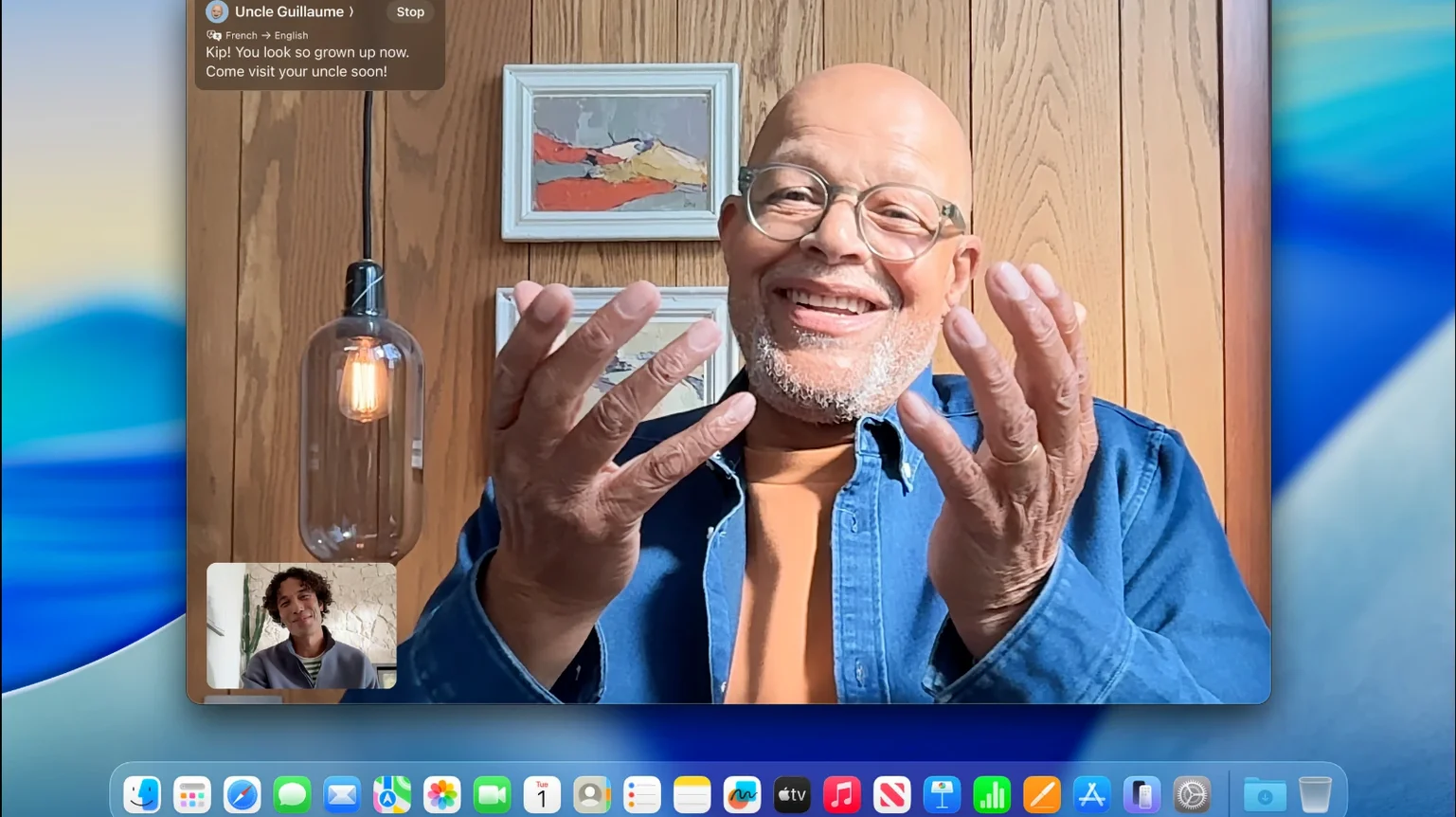
The Phone app arrives on the desktop, and Live Activities from your iPhone appear here too. A food delivery ETA or a ride-share progress bar sits in the Mac interface without you reaching for the phone.
Grab a quick game from the new Games app
Apple’s own Games app pulls together Arcade titles and your Mac App Store library in one spot. It’s a straightforward launcher, not a storefront replacement — just a cleaner way to see what’s installed and ready to play.
Bridging Mac and iPhone instead of turning the desktop into a springboard
Compared to macOS Sonoma, Tahoe shifts attention away from desktop widgets and toward bridging Mac and iPhone workflows. The Phone app and Live Activities are the obvious signals. Sonoma focused on making the desktop feel more like an iOS springboard; Tahoe pulls back a little and lets the Mac be a Mac, while still letting phone events bleed through in useful ways.
Against the older Ventura, the contrast is sharper. Ventura introduced Stage Manager and continuity camera; Tahoe assumes those are table stakes and builds on top with the Spotlight overhaul and the Journal app. If Ventura asked “what if your Mac acted more like an iPad,” Tahoe asks “what if your Mac just stayed out of your way?”
Can the expanded Apps view replace Alfred or Raycast?
Tahoe’s expanded Spotlight changes how launchers like Alfred and Raycast fit into a daily workflow. With the built-in Apps view, some users may drop third-party launchers entirely — Spotlight now does a decent job of listing applications without extra indexing tweaks. Keyboard-driven folks can keep Command-Space as the single entry point for apps, files and calculations.
The Journal app slides into the existing Notes–Reminders–Calendar triangle. It pulls in suggestions from Photos, workouts and locations, so it leans on the same data pipelines that power Memories in Photos and the Fitness app. If you already let those apps share data with Suggestions, Journal feels like a natural addition rather than an isolated diary.
For people keeping a bootable backup or a second install on an external drive, the .ipsw restore path through Apple Configurator plays well with asr and Disk Utility workflows. A clean IPSW restore on an Apple silicon Mac requires a second Mac running Configurator — that is an intentional friction point, not a bug.
Beginner mistakes that cause headaches
The most common stumble is treating the PKG updater like a full installer. Grabbing the PKG and double-clicking it updates in-place, which is fine for a point release, but people who want a clean start sometimes try to drag it onto a USB stick and wonder why the Mac won’t boot from it. Making a bootable installer still requires the full installer app and createinstallmedia in Terminal — the PKG alone is not enough.
Another frequent mix-up involves the IPSW file and Apple Configurator. On Apple silicon machines, a DFU restore wipes the internal SSD completely, including any other installed volumes or Boot Camp remnants. Beginners sometimes assume it acts like a standard recovery reinstall and are surprised when a dual-boot macOS setup disappears.
With the new Spotlight replacing Launchpad, people occasionally panic when the familiar rocket icon vanishes from the Dock. The Apps view lives in Spotlight, not as a separate Dock tile, and adding a custom shortcut to the Dock requires dragging the Spotlight icon from the menu bar — not something most users think to try. The functionality is there, just one gesture deeper than before.
- Bug fixes and security updates, including a patch for arbitrary code execution triggered by a maliciously crafted file.
- Compatible with MacBook Air (Apple silicon, 2020 or later)
- Compatible with MacBook Pro (Apple silicon, 2020 or later) and MacBook Pro (13-inch, 2020, Four Thunderbolt 3 ports)
- Compatible with MacBook Pro (16-inch, 2019) and later
- Compatible with iMac (2020 or later)
- Compatible with Mac mini (2020 or later)
- Compatible with Mac Studio (2022 or later)
- Compatible with Mac Pro (2019 or later)
Comments 0
Sign in or create an account to leave a comment.
No comments yet. A codec, a slice, a machine — they appear after moderation.