MacWhisper for macOS
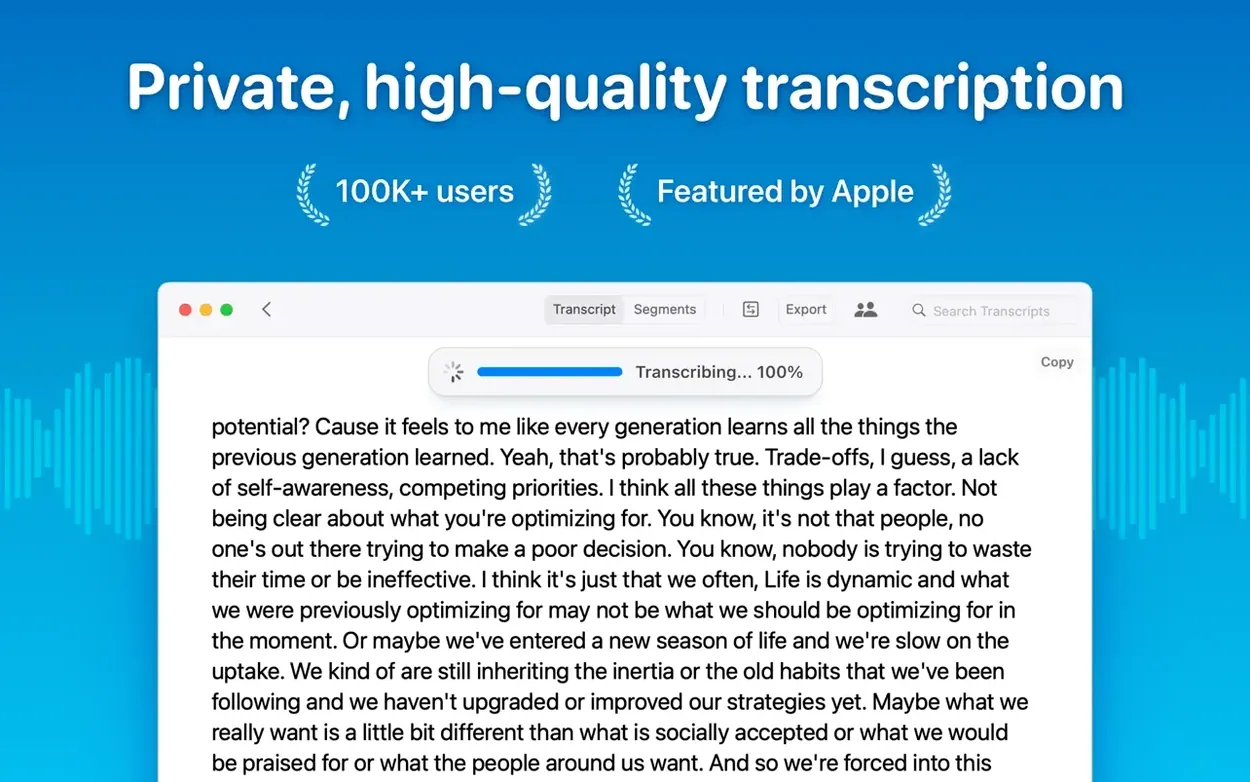
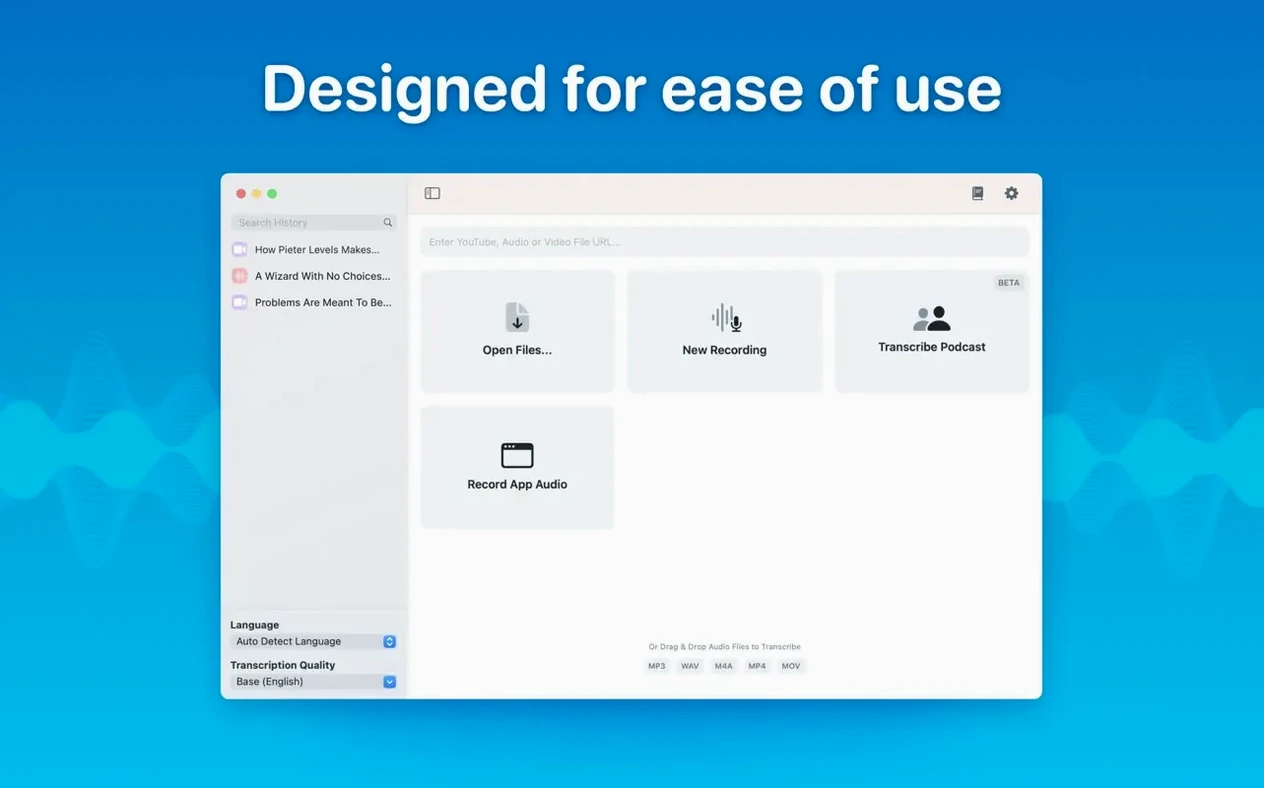
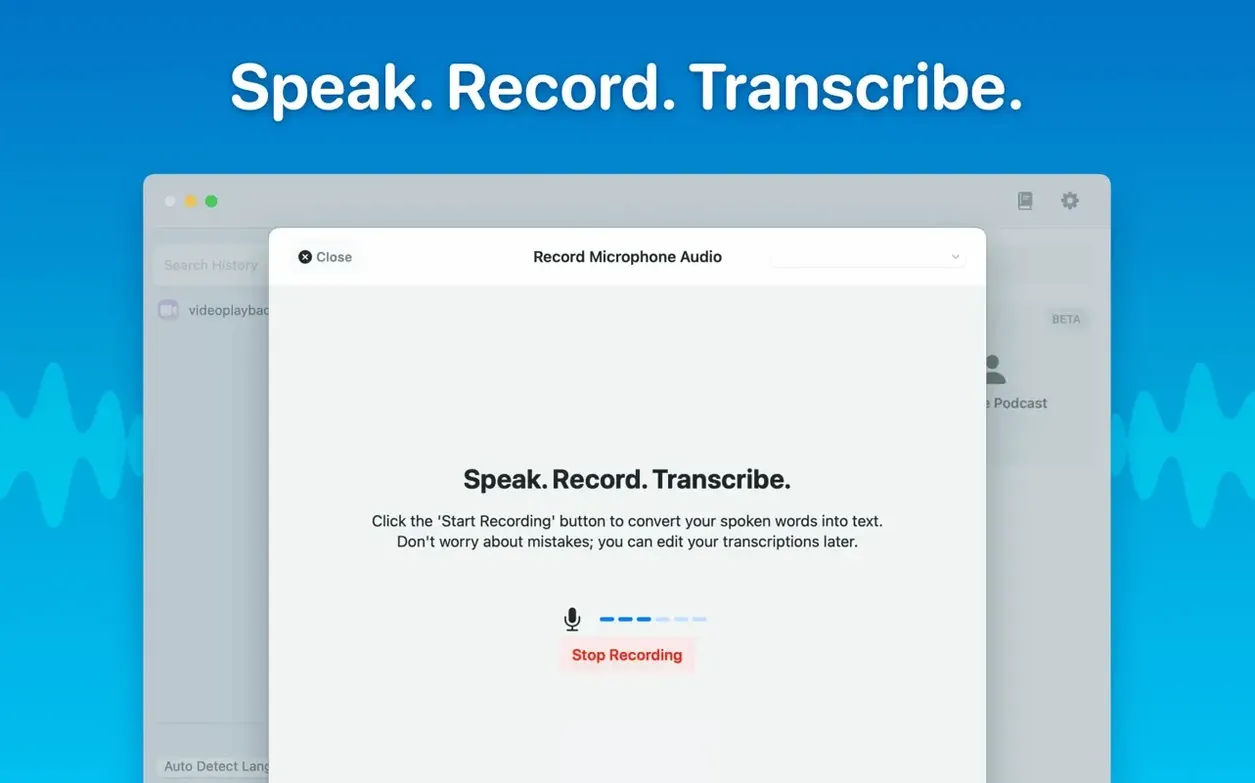
You have an hour-long interview recording and a deadline. Uploading it to a website you do not control feels wrong. You just want accurate text, on your own machine, without the audio leaving your drive.
What to try in your first ten minutes
- Drop in a short MP3 or WAV. The app handles
.mp3,.wav,.m4a,.mp4,.mov,.ogg, and.opus. Pick something under two minutes so you can see results fast. The transcription runs entirely on your Mac — nothing hits a server. - Switch the model. Head into settings and pick a larger model for higher accuracy. The available sizes — Tiny, Small, Base, Medium, Large-V2, and Large-V3 — trade speed for precision. Large-V3 is slower but catches technical terms that smaller models miss.
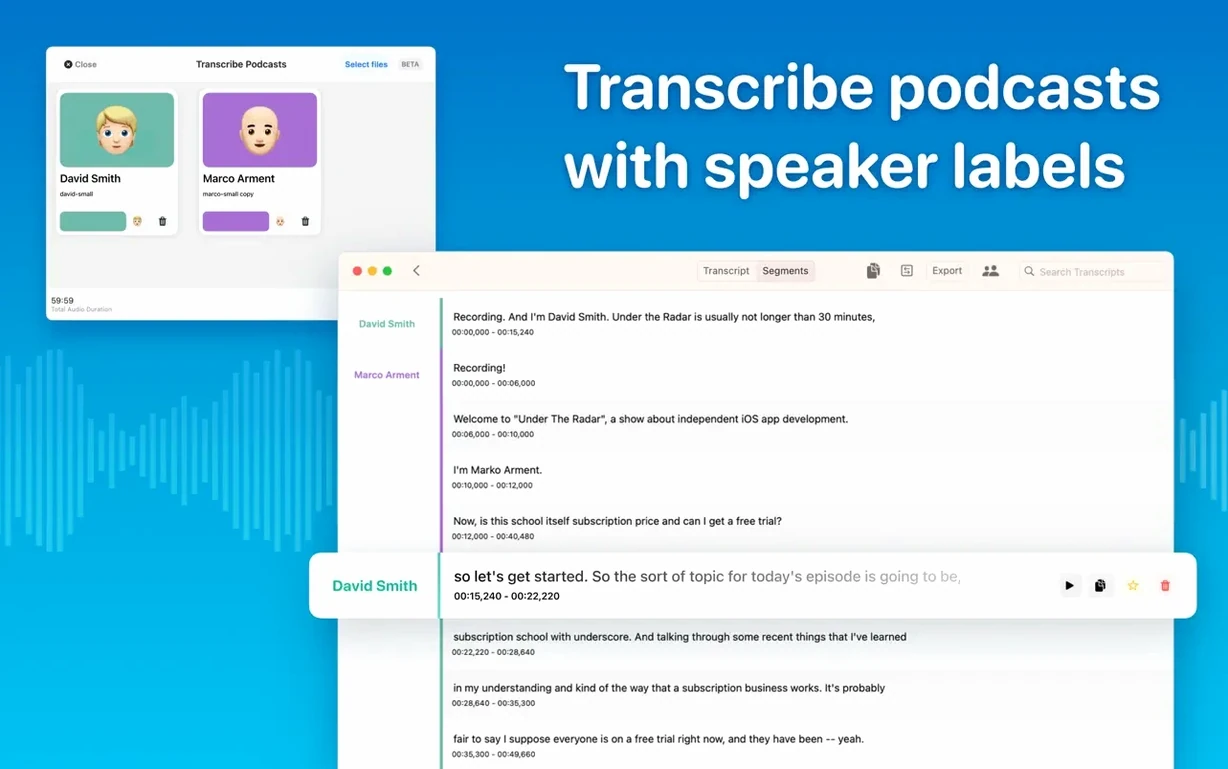
- Try speaker separation on a podcast clip. Load a conversation recording and turn on speaker diarization. Version 15.2 improved this with a new model, so multi-voice audio comes out as labeled segments rather than one wall of text.
Real-time transcripts and local organization
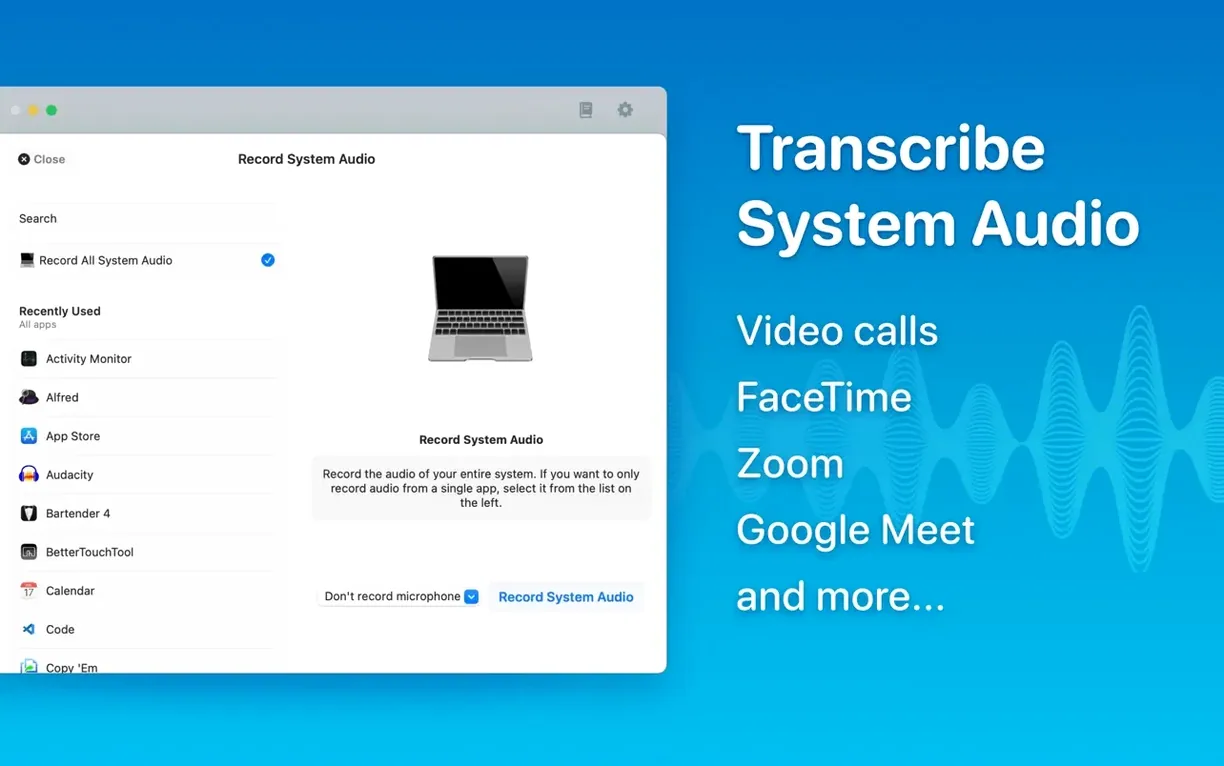
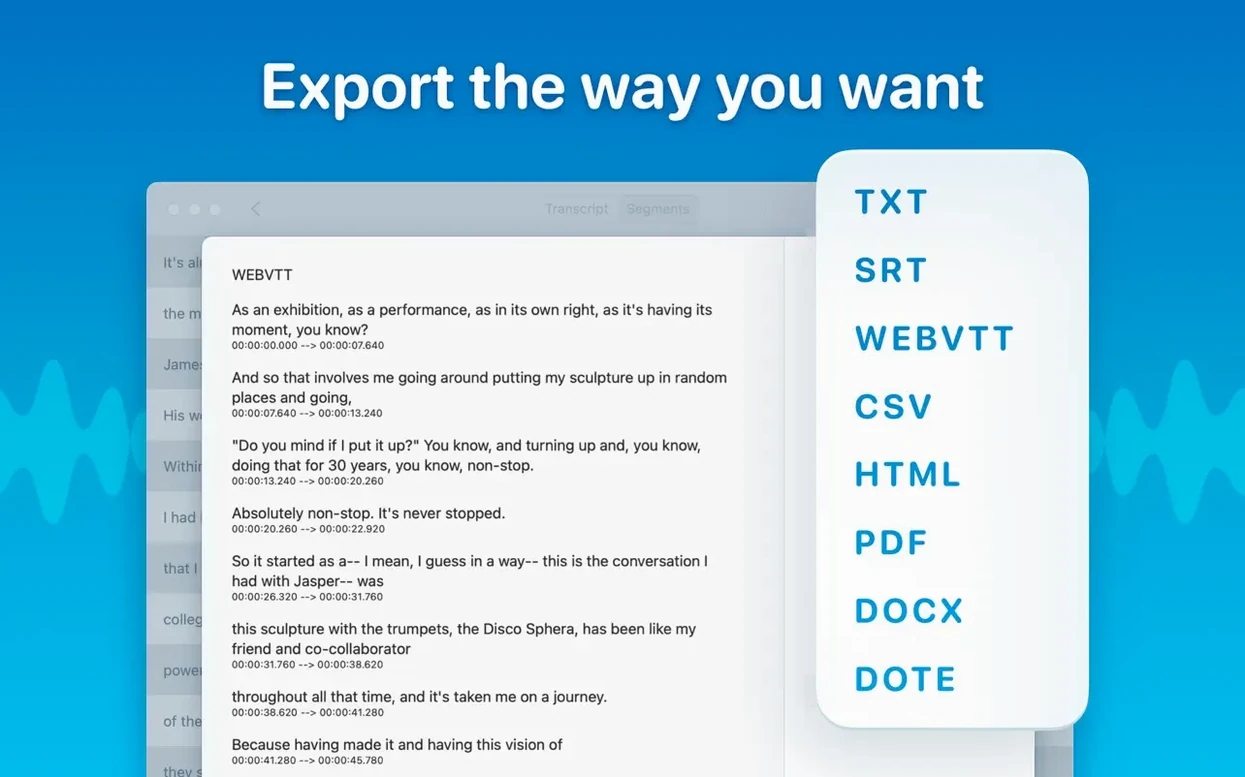
Version 15.2 added real-time meeting transcripts that capture system audio as people talk. The text appears live, and you can edit or delete segments afterward. Everything saves into folders and subfolders — a structure that keeps multiple projects from turning into a flat list of unnamed recordings. When you are done, export to Word, PDF, or HTML.
Who clicks with MacWhisper fastest
Some tools spread themselves thin trying to serve everyone. MacWhisper narrows the focus, and that focus becomes a strength for a few specific groups.
Graduate students and researchers get the most immediate payoff. A two-hour seminar recording turns into searchable text before coffee gets cold. The batch transcription feature matters here — queue up four lectures, walk away, and come back to text files you can annotate in your reference manager. Running locally means no institutional data policy headaches about uploading sensitive research interviews to a third-party server.
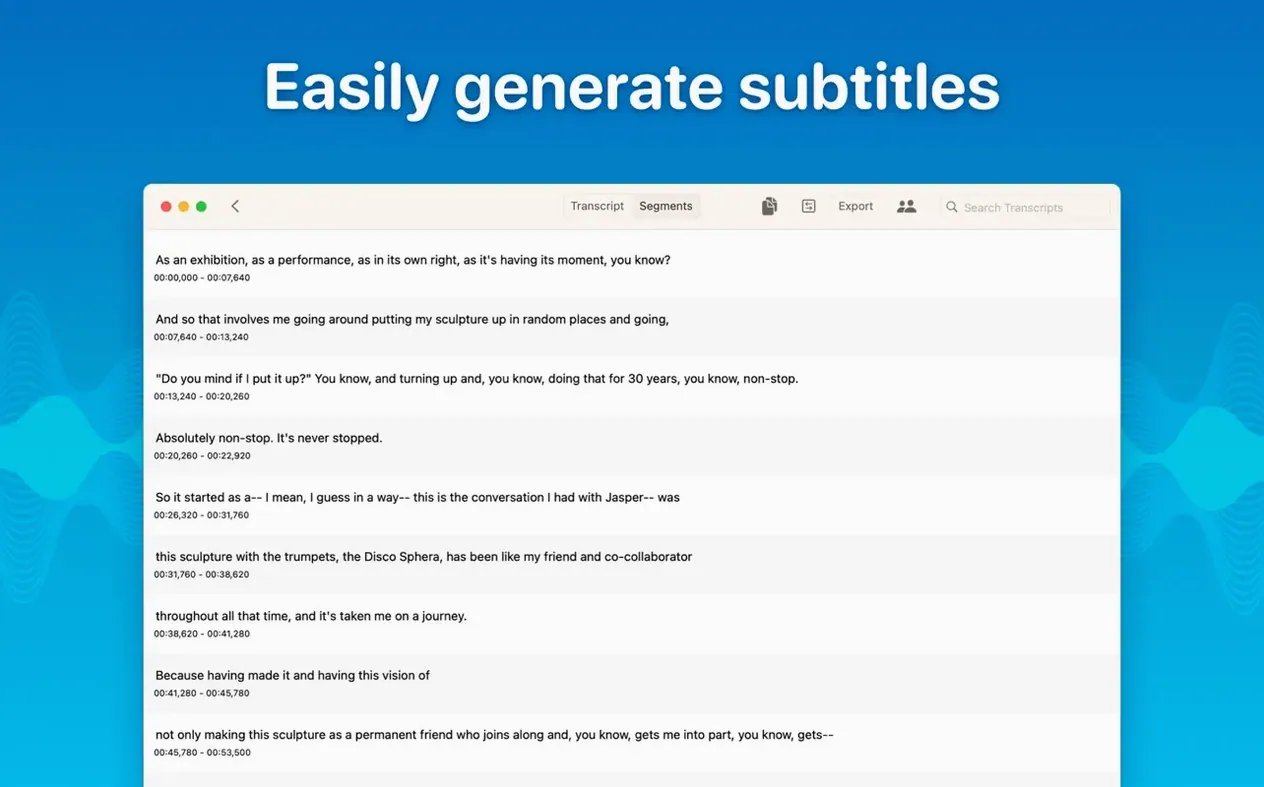
Podcast editors benefit from the speaker separation improvements in version 15.2. Loading an episode with two or three voices produces labeled segments that make editing decisions faster. Exporting directly to .srt or .vtt means the transcript doubles as caption files for video versions of the show.
Journalists and interviewers tend to value the reading mode and the segment-level editing. You can click into a misheard phrase, correct it, and the fix stays local. When a source uses a proper noun the model garbles, you fix it once instead of doing a find-and-replace dance in a word processor. Quote-checking against the original audio becomes a simple click on a segment.
Meeting-heavy teams who record internal discussions get value from the real-time transcription added in 15.2. System audio capture means the transcript builds while the conversation happens, and the folder structure keeps weekly standups separate from design reviews without forcing you to invent a naming convention on the spot.
The handoff between audio and your text editor
MacWhisper does not try to replace your text editor, note-taking app, or media player. It sits between them, doing one job well, and then hands off.
With Finder and Quick Actions. The drag-and-drop workflow means you can keep audio files wherever they live — a project folder, the Desktop, an external drive — and drag them straight onto the window. No import dialog, no library to manage. After transcription, the exported Word or PDF files land wherever you choose, ready for Spotlight to index them.
With note-taking apps. Copy all text or a selected segment, then paste into Obsidian, Bear, Notion, or Apple Notes. The plain text lands cleanly because MacWhisper is not injecting formatting you did not ask for. For researchers using Zotero or DEVONthink, the batch export to PDF or HTML creates files those tools can index and cross-reference.
With video editors. Exporting .srt or .vtt subtitles feeds directly into DaVinci Resolve, Final Cut Pro, or Premiere. The timing comes from the audio track, so subtitle blocks align with speech without manual syncing.
With macOS accessibility features. Live captions and the reading mode work alongside VoiceOver and the system-wide captioning tools. If you already rely on macOS accessibility settings, MacWhisper adds another layer without conflicting.
With QuickTime and Voice Memos. Record in either app, save the file, then drag it in. The supported formats cover everything those apps produce — .m4a from Voice Memos, .mov from QuickTime screen recordings, .mp3 from external recorders.
First days with MacWhisper: practical moves
The app is straightforward, but a few habits make the first week smoother.
Start with a model your Mac can handle comfortably. An Apple Silicon machine handles Large-V3 without breaking a sweat. An older Intel Mac might prefer Medium for interactive use. The model download happens once — after that, transcription runs offline. If your Mac struggles, drop down a size before you blame the recording quality.
Test automatic language detection early. Drop in a clip where you know the language and check whether the auto-detection gets it right. For multilingual recordings, manual selection usually produces cleaner output. The app supports around 100 languages, but detection accuracy varies with background noise and speaker count.
Organize before the list grows. Version 15.2 added folders and subfolders. Set up a structure that matches how you think — by project, by date, by speaker — before you accumulate fifty untitled transcripts. Renaming a folder later is easy; sorting a flat mess is not.
Edit segments as you review. The segment-level editing is not just for fixing errors. Click a segment to hear the corresponding audio and confirm a quote. Delete filler segments or false starts. The transcript becomes a working document, not a frozen artifact.
Batch export when a project finishes. If you need a transcript in three formats for different audiences — say, Word for a client, HTML for a web page, and .srt for a video — the batch export saves you from running the same transcription through export three separate times.
Does the audio ever leave my Mac?
Does my audio leave my Mac at any point? No. The entire transcription pipeline — model loading, inference, text generation — runs locally on your machine. You can turn off Wi-Fi and it works exactly the same. This is the single biggest reason people choose MacWhisper over browser-based alternatives. No account, no upload, no API calls to count.
How accurate is it compared to paid cloud services? With the Large-V3 model on an Apple Silicon Mac, accuracy rivals what you get from commercial speech-to-text APIs, especially for clear speech in English. Heavy accents, overlapping speakers, and poor microphone quality will challenge any system, but the local models hold their ground. The trade-off is speed on older hardware, not accuracy.
Will it slow down my Mac while transcribing? On Apple Silicon, transcription happens efficiently enough that you can keep working in other apps. On Intel Macs, larger models will peg the CPU for the duration. You learn to batch longer files for lunch breaks or overnight runs. The app does not prevent you from using other software during transcription.
Can it handle a recording with multiple speakers? Yes, and version 15.2 improved speaker separation with a new diarization model. It labels segments by speaker, though it does not identify who is who — you get Speaker A, Speaker B, and so on. For a podcast with two hosts, that is enough to make sense of the transcript. For a roundtable with six voices, you will still need to do some manual labeling.
Does it work with system audio from apps like Zoom or Teams? Yes. The system audio capture added in recent versions grabs meeting audio directly. Real-time transcription builds as people talk, and the transcript stays available for editing afterward. This works independently of whatever conferencing app you use — no plug-in required.
What happens to the models after I download them? They live on your drive in the app's local storage. There is a model management view — cleaned up in version 15.2.1 — where you can remove models you no longer need to free up space. The Large models take several gigabytes each, so pruning the ones you do not use is worth doing periodically.
- macOS 14 (Sonoma) or later
- Apple Silicon or 64‑bit Intel processor
Comments 0
Sign in or create an account to leave a comment.
No comments yet. A codec, a slice, a machine — they appear after moderation.