Magnet for macOS
Version 3.0.7 ships as a Universal binary, so the .dmg carries both ARM and x86_64 slices. That means a single download runs natively on Apple silicon and older Intel hardware without Rosetta overhead. The installer is a standard drag-to-Applications affair, and the app stays out of your way until you summon it.
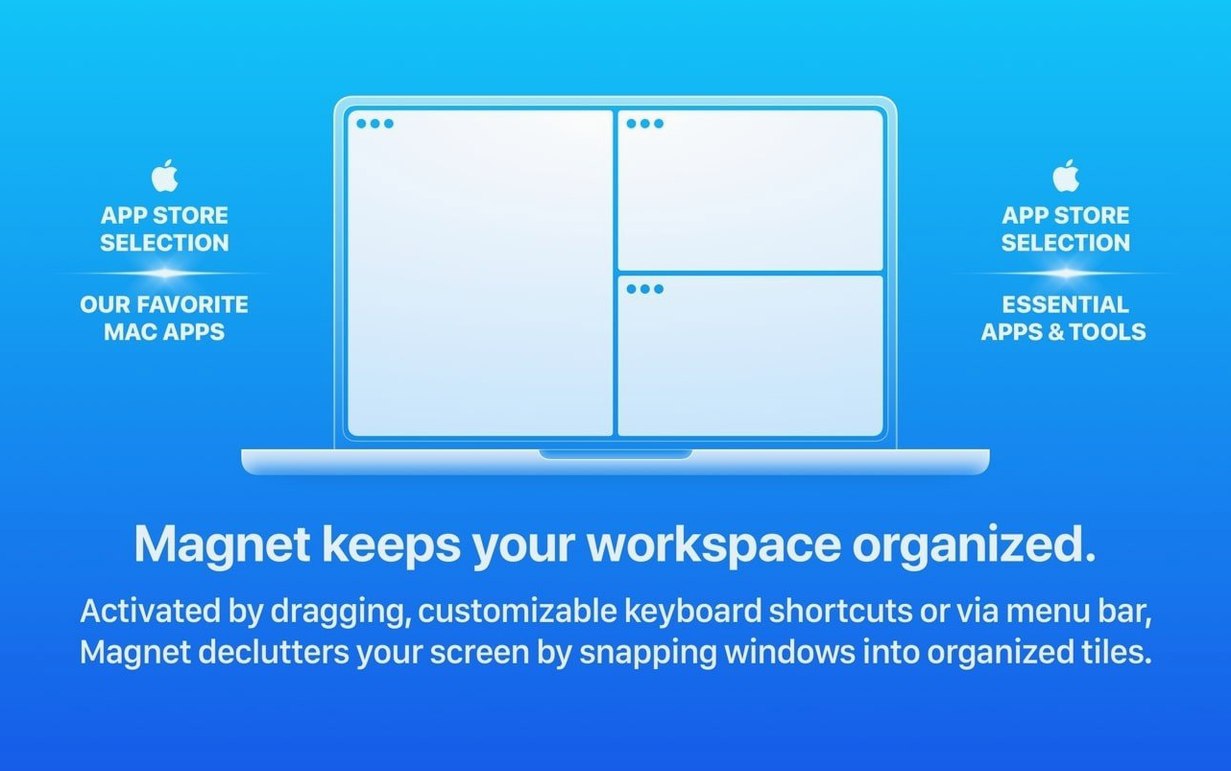
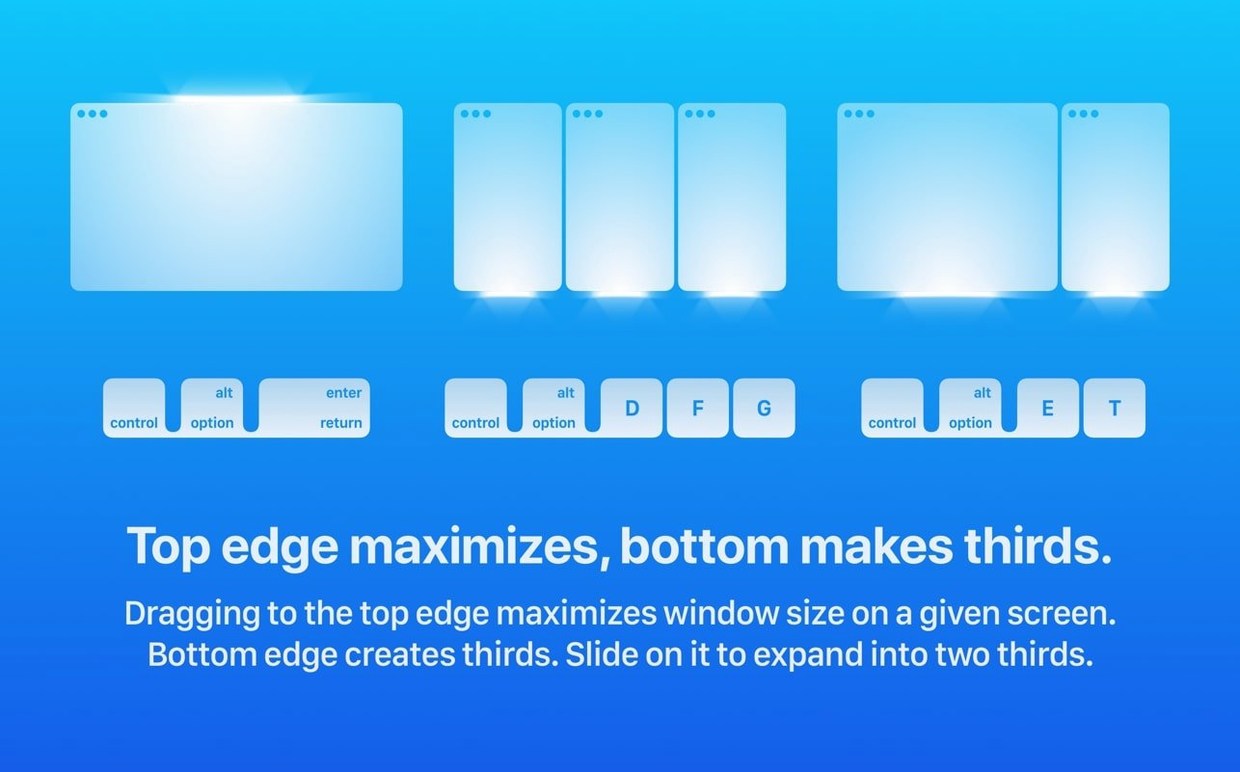
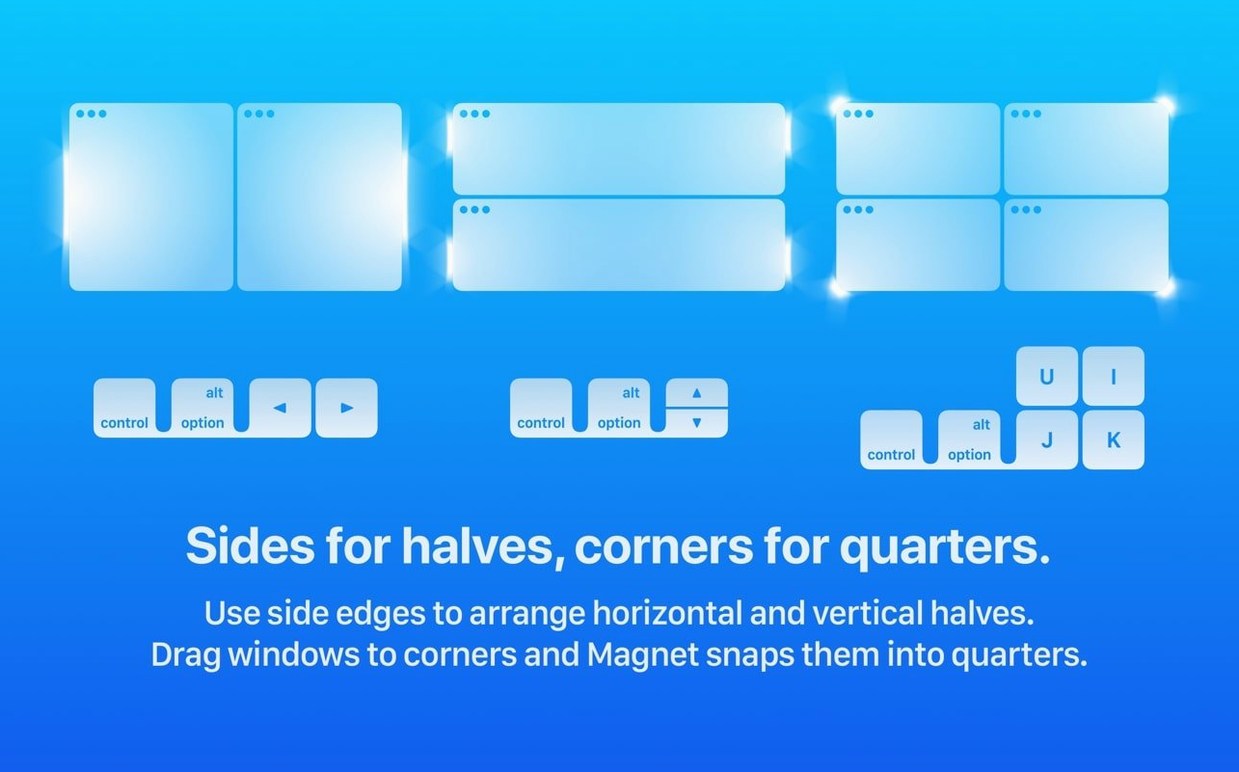
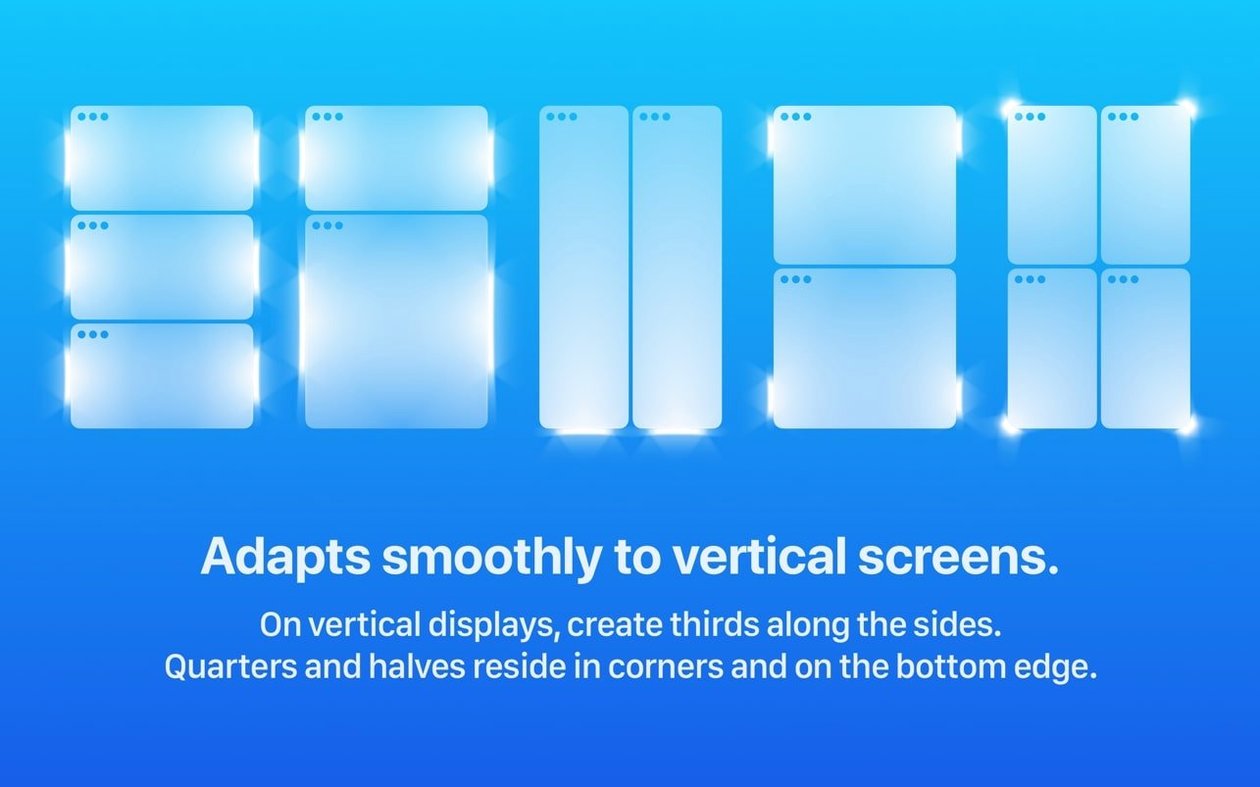
Magnet extends the sparse window-snapping that macOS offers. You can drag a window to an edge or use configurable hotkeys to push any window into halves, thirds, or quarters of the screen. It also supports custom sizes for displays where exact pixel placement matters — useful on wide or vertically stacked monitor setups. Retina and standard-density panels both render the overlay guides cleanly.
For anyone juggling terminals, browsers, and editors side by side, the quarter-screen shortcuts are the standout. A single chord can send a log tail to the bottom-left quadrant and a code editor to the top-right. No mouse, no resizing dance. It works across Spaces and respects macOS 13 Ventura’s windowing model without hooking private APIs in a way that breaks with point updates.
The interface ships in fourteen languages, from Russian and Korean to Czech and Dutch, so the menu bar icon and preference pane feel local regardless of your system language.
How does Magnet compare with Rectangle, Moom, and BetterSnapTool?
Rectangle is the closest conceptual cousin — free, open-source, and keyboard-driven. Both apps let you snap windows to screen edges with shortcuts, and both handle thirds, halves, and quarters. Where Magnet edges ahead is the drag-to-snap feel. Magnet’s overlay guides appear with zero perceptible lag, and the animation curves match what you expect from a first-party Mac feature. Rectangle’s drag behavior arrived later and still feels slightly mechanical by comparison. If you work primarily with the keyboard, the difference shrinks; if you mix dragging and shortcuts throughout the day, Magnet’s polish is noticeable.
Moom, from Many Tricks, takes a different approach entirely. It is a grid-based layout tool with a floating palette and saved window arrangements. Moom’s strength is precision — you define exact pixel coordinates and recall them later. Magnet does not store layout presets or offer a visual grid overlay; it snaps to predefined zones on demand. The trade-off is speed versus control. Magnet gets you into a half-and-half split in a quarter-second drag. Moom requires you to summon the palette, hover over a cell, and click. For developers and writers who live in a handful of arrangements, Magnet’s lighter interaction model wins the day.
BetterSnapTool, the oldest of the bunch, shares Magnet’s drag-to-edge heritage and adds per-app snap settings plus a customizable pop-up menu. It is deeply configurable. The cost is a preference window that feels like a cockpit dashboard. Magnet deliberately stays out of your way — the settings pane is one screen, and you rarely visit it after the first day. If you want to fine-tune every pixel threshold, BetterSnapTool is the deeper toolbox. If you want window management that feels like it shipped with macOS, Magnet is the one that disappears fastest into the background.
Zero CPU at rest on Apple Silicon?
On an M1 or M2 Mac, Magnet’s CPU footprint sits at zero when idle and barely registers during an active snap. Activity Monitor shows it hovering around 0.1% during a drag operation, and memory use settles between 40 and 60 MB after a full day of use. That is consistent across one display or four — the external display ceiling of six monitors creates no measurable overhead until you actually snap a window, and even then the spike is a single-digit percentage point.
Stability has been uneventful through several Ventura point releases. The app uses the Accessibility API, which means you grant permission once in System Settings and move on. No kernel extensions, no background daemons that survive a reboot. When macOS updates, Magnet either keeps working silently or, on rare occasions, asks you to re-grant the Accessibility checkbox. That is standard for any window manager on the platform and not a Magnet-specific fragility.
The one resource curiosity is that Magnet keeps a small persistent connection to the menu bar for its icon and the drop-down hotkey editor. If you are the kind of user who strips every menu bar extra, you can hide the icon from System Settings without disabling the snapping engine. The hotkeys all keep working; you just lose quick access to the preference pane. For anyone running a tight memory budget on an 8 GB machine, toggling the icon off recovers roughly 15 MB of wired memory with no functional penalty.
Can it share the screen with Stage Manager?
Does Magnet conflict with Stage Manager? They coexist without incident. Stage Manager handles window grouping and the side strip; Magnet handles position and size. A window snapped to the left half with Magnet stays inside its Stage Manager set. The two features do not talk to each other, which means you can arrange a group of tiled windows and then switch sets without things resizing unpredictably.
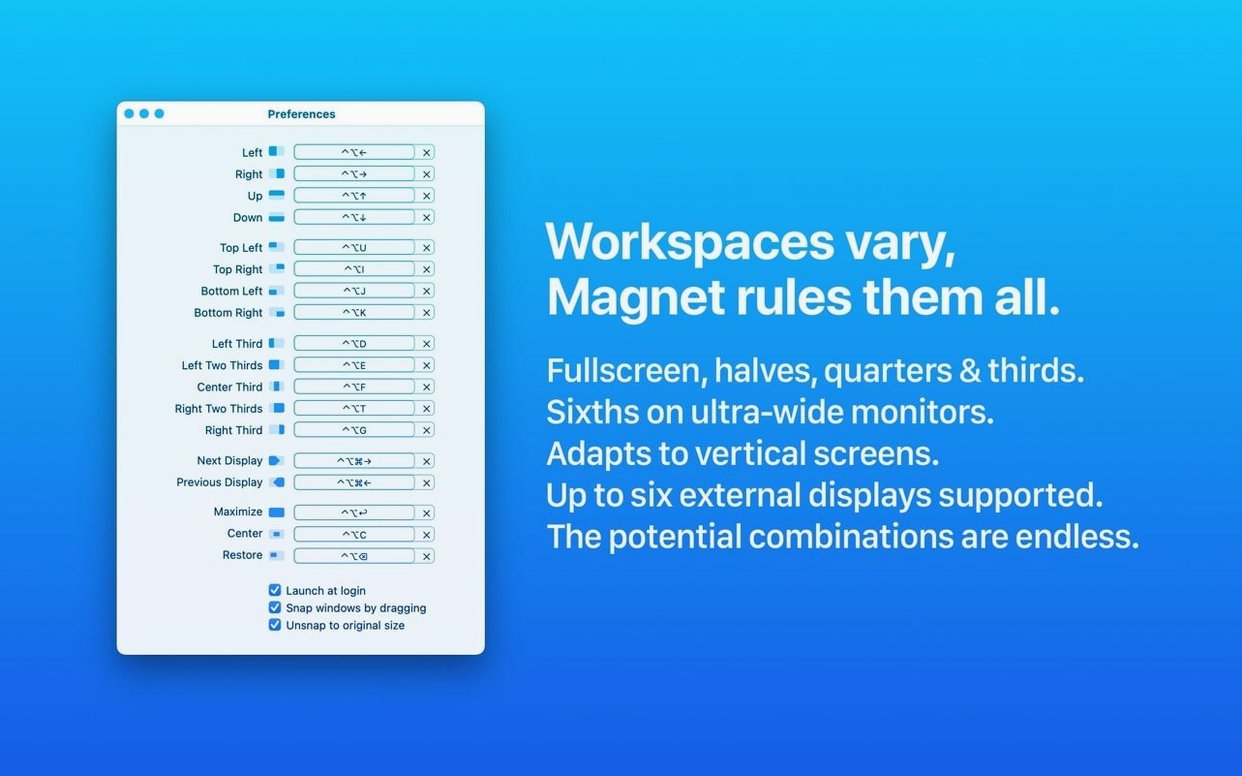
Will it break my existing macOS shortcuts? Magnet’s defaults use modifier combinations — Control+Option plus arrow keys or letter keys — that Apple does not reserve. If you already bound Control+Option+Left to something else, the conflict is visible in the preferences and easy to reassign. The app never hijacks a shortcut without showing you the collision first.
Can I use it on a locked-down work Mac? The Accessibility permission is the gatekeeper. Some managed Macs block that toggle via MDM profiles. If you can open System Settings, navigate to Privacy & Security, and flip the switch for Magnet, the app will work. No admin password is required beyond the initial install. Once the switch is on, it stays on across updates unless a major OS migration resets the privacy database — a macOS behavior, not a Magnet quirk.
Where do the hidden quarter-snap shortcuts live?
Out of the box, Magnet enables six default shortcuts that map to the common halves, thirds, and full-screen. The first stop should be the hotkey pane to add quarter-snap bindings. Control+Option+U/I/J/K is a natural choice for the four quadrants and feels like an extension of the half-snap keys. If you work on an ultra-wide display, add the left-third and right-two-thirds shortcuts — these do more daily work than the center-third bindings that ship active.
Next, open the “Snap via dragging” section and confirm that “Snap windows by dragging to edges” is toggled on. While you are there, lower the drag-to-snap delay slider by one notch from the default. The factory setting waits a fraction of a second to prevent accidental snaps; dropping it by a tick makes the drag feel more decisive without turning every edge bump into an unwanted resize.
Finally, if you use a MacBook with an external monitor that is not Retina-scaled, visit the “Displays” section and verify that Magnet recognizes the panel’s native resolution. The app reads the display’s reported bounds, not the scaled “looks like” resolution, so the quarter-snap zones land exactly on pixel boundaries. On a 1440p display running at a scaled resolution, this prevents windows from landing one or two pixels off the edge — a subtle fix that eliminates the hairline gap some users notice with other snapping tools.
- macOS 13 or later
- Apple Silicon or Intel 64-bit
$ man magnet | grep -A2 "?"
Does Magnet work on multiple monitors?
Yes, it handles full-screen, half-screen, quarter-screen, and custom layouts across Retina and non-Retina displays independently — each monitor gets its own snapping grid.
Can I use Magnet without memorizing keyboard shortcuts?
Absolutely. You can arrange windows just by dragging them to the edges or corners of the screen; Magnet shows a visual overlay so you know which layout will activate.
Is Magnet built for Apple silicon?
Version 3.0.7 ships as a Universal binary with both ARM and x86_64 architectures, so it runs natively on Apple silicon and Intel Macs from a single download.
Comments 0
Sign in or create an account to leave a comment.
No comments yet. A codec, a slice, a machine — they appear after moderation.