
Marvelous Designer for macOS
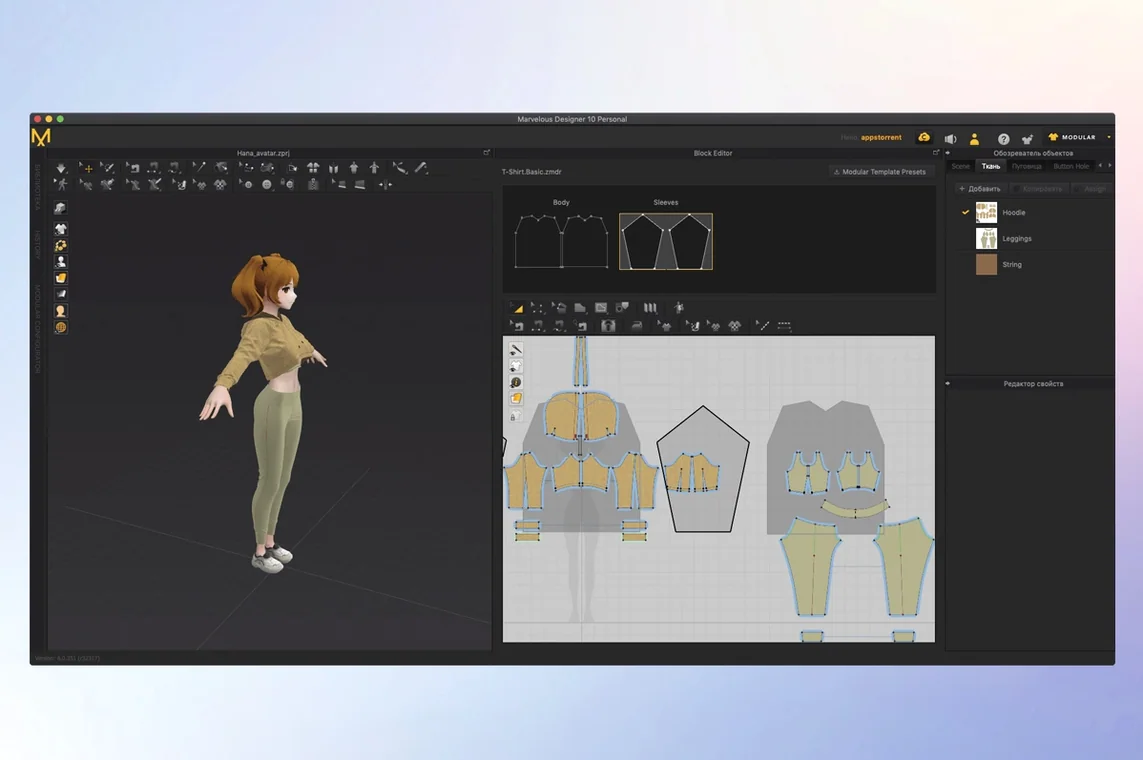
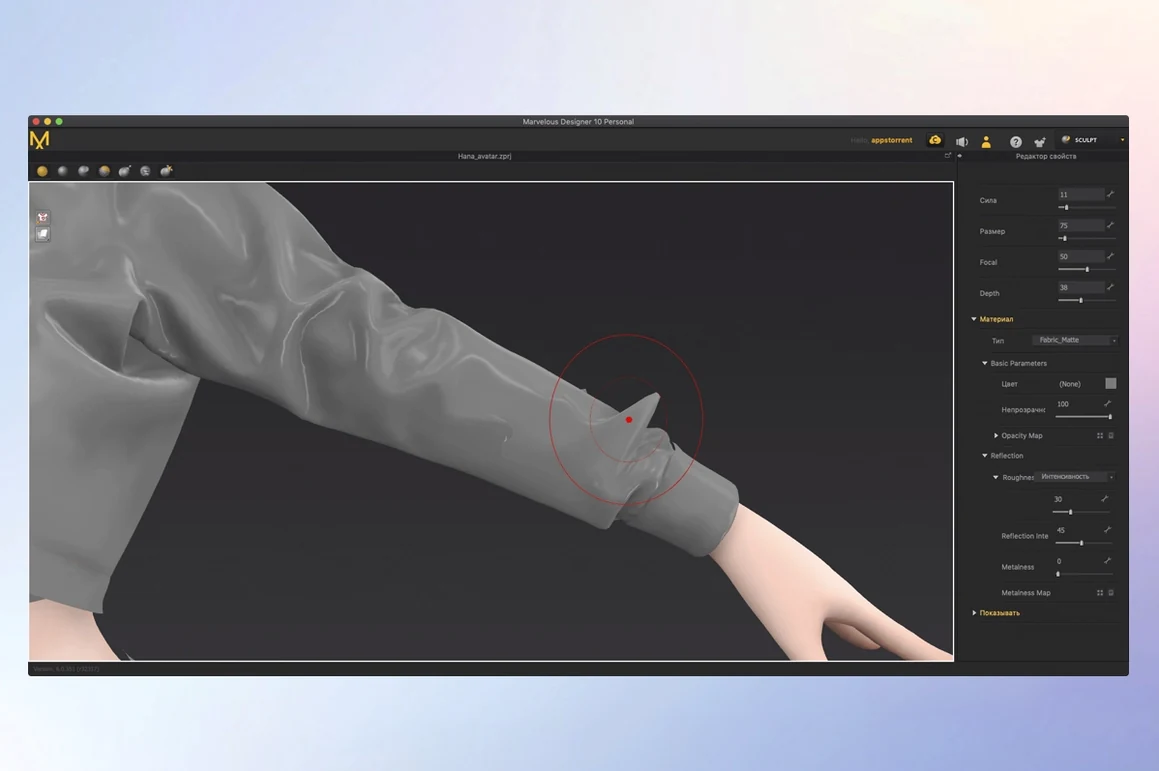
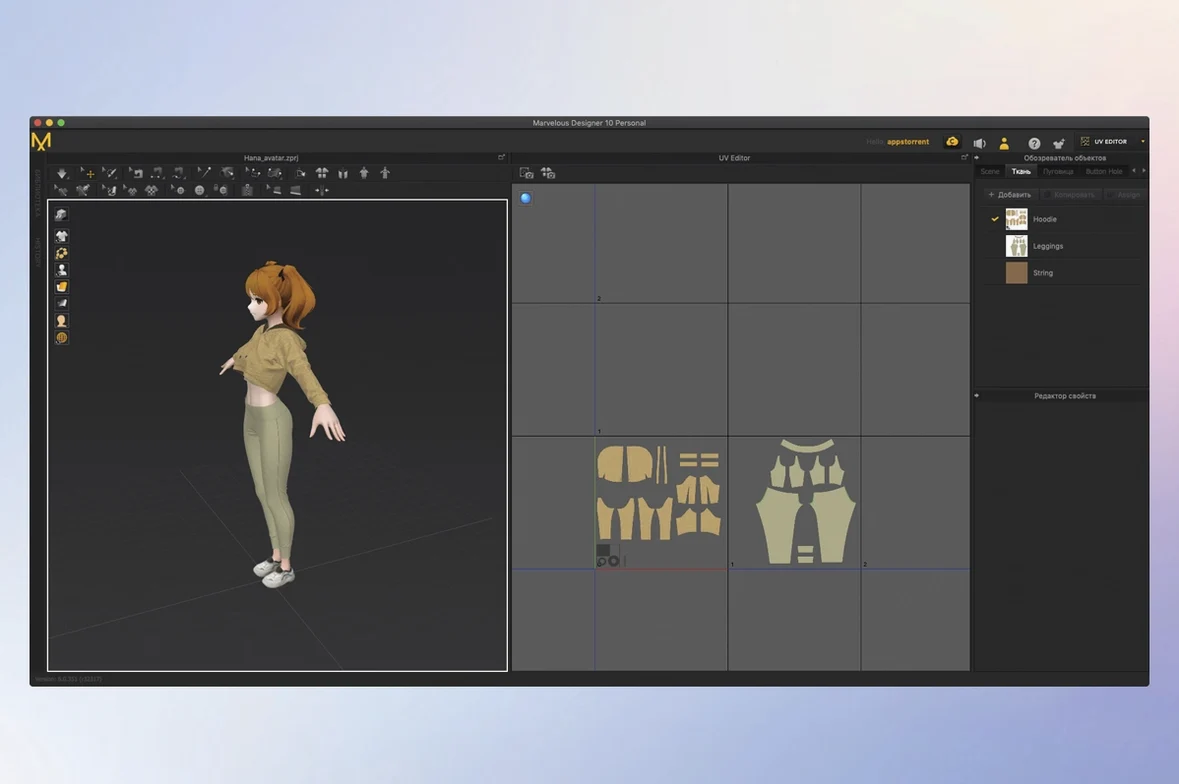
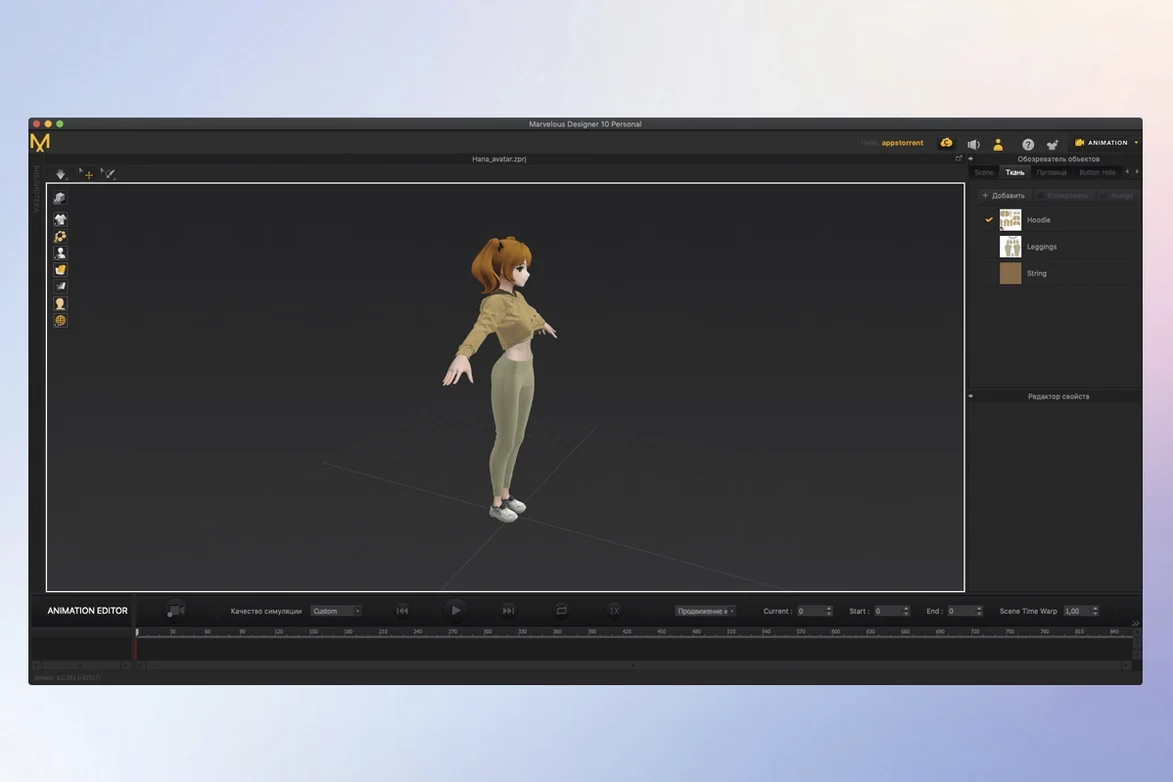
If you have ever rigged a character in Maya or Blender only to hit a wall when it comes to dressing them, Marvelous Designer is the counterpart that handles the cloth. It approaches 3D garments the way a pattern-maker approaches fabric, building shapes from 2D polygon outlines and sewing them into simulated clothing that drapes over a mesh in real time.
- Synchronous 2D-to-3D editing. Draw and edit polygonal pattern shapes on a flat canvas; the assembled 3D garment updates instantly as you adjust a seam or reshape a panel.
- Directional sewing tool. Control sewing direction and range across pattern edges, so a sleeve cap fits an armhole with the correct ease and puckering.
- Fabric-level simulation. Assign physical properties to textiles and watch them react across buttons, folds, and layered accessories—cotton creases differently from leather.
- Pipeline-friendly I/O. Exchange scenes with Maya, 3ds Max, Modo, ZBrush, and Softimage via
.usdand Alembic formats, keeping garment data intact across DCC applications. - Range of garment complexity. Build anything from a simple T-shirt to a multi-layer uniform with pleats, collars, and hardware, all within the same simulation environment.
- Built-in learning materials. Beginner-oriented resources are included, covering the logic from your first pattern draft to a finished animated drape.
Because the simulation runs live, you see cloth settle under gravity while you work—no separate baking pass required. It is a specialised tool, but for anyone needing believable clothing on a digital double, it fills a gap that general 3D packages rarely handle well.
Stop trying to push polygons—this is 2D pattern drafting that simulates into 3D
Most early frustration comes from treating Marvelous Designer like a sculpting app. You are not pushing polygons around on a 3D form; you are drafting flat pattern pieces that get sewn and simulated into shape. The moment someone tries to fix a poor drape by moving individual vertices in the 3D view instead of adjusting the 2D pattern, things go sideways.
Other common slip-ups:
- Ignoring fabric physical properties. Leaving the default cotton preset on every panel, then wondering why a silk dress behaves like a denim jacket. Each material slot matters—set them before you judge the drape.
- Skipping the arrangement points. A pattern piece dropped randomly into the 3D window will wrap around the avatar in unpredictable ways. Placing arrangement points above the shoulders or around the waist before simulation gives the solver a clear starting position.
- Over-tightening sewing lines. If a seam puckers aggressively, the problem is often a mismatched edge length, not the simulation settings. Check the 2D pattern—Marvelous Designer shows edge lengths right on the canvas.
- Animating without an inner layer. A moving character with a single-layer garment often produces clipping at the elbows and knees. A simple inner skin offset or a thin conforming layer fixes most penetration issues before you ever touch the collision thickness.
Why your avatar needs to arrive as an .fbx or .usd from another app
Marvelous Designer sits in the middle of a pipeline, not at the end. A typical flow starts with an avatar exported from Character Creator, Maya, or Blender as an .fbx or .usd file. The avatar comes in as a static mesh or with animation baked; you build and simulate the garment on top, then export the result right back out.
On macOS, the app respects the standard file dialog, so dragging an .obj from Finder straight into the viewport works the way you would expect. It also writes preference files under ~/Library/Application Support/ and uses a single .pkg installer—no scattered helper daemons or kernel extensions. If you use ZBrush for detail sculpting, the Alembic export preserves vertex-level animation and UVs across the round-trip, which means the cloth you simulated stays clean when you add surface detail later.
For game artists, the connection to Unreal Engine and Unity is indirect but well-supported: export the simulated garment as a single-frame .usd or cached Alembic, then bring it into the engine as a skeletal mesh or vertex animation. The window is self-contained enough that you can keep it running alongside Blender on a second display without either app fighting for GPU time excessively.
Draping a linen jacket so it pools on the chair and gathers at the elbows
Suppose you have a character posed in a chair, and you need a linen jacket that gathers naturally around the bent elbows and pools slightly on the seat.
- Import the avatar. Drag the
.fbxonto the viewport. Marvelous Designer reads the posed skeleton as a static mesh; no rigging needed at this stage. - Set the avatar as a collision object. Right-click the imported mesh in the scene list and select Clothing → Collision. Increase particle distance to 10 for rough drafting; lower it later for the final drape.
- Trace or import a jacket block. Either draw the front, back, and sleeve panels in the 2D window with the polygon tools, or load a pattern from the included library. Place arrangement points on each panel so they hover roughly where they belong on the body.
- Sew and simulate. Link the shoulder, side, and armhole seams with the directional sewing tool. Hit Simulate and watch the jacket drop onto the seated pose. If the sleeve collides with the chair arm, add a box collision object under the armrest.
- Refine the fabric. Switch the material to the Linen preset. Increase buckling stiffness slightly so the folds at the inner elbow stay soft. Let the simulation settle for a few seconds, then freeze the back panel if it shifts too much.
- Export. Once the drape looks right, export as
.usdwith the garment at its current frame. In Maya or Blender, the mesh arrives with UVs intact, ready for texturing or further rigging.
The simulation engine uses every core and runs natively on Apple Silicon
The simulation core is CPU-bound and uses all available cores. On an Apple Silicon machine it runs natively, and you feel that in the responsiveness of the 3D viewport—panning and rotating while cloth settles is smooth, with no perceptible lag unless you push particle count into the high tens of thousands. Intel Macs handle smaller scenes fine, but the fan becomes audible once you layer three or four garments on a high-poly avatar.
Memory consumption depends almost entirely on particle distance. At the default of 20, a single-layer dress with a few accessories sits around 1–2 GB. Dropping particle distance to 5 for a final-quality drape can push that past 4 GB fairly quickly. The app does not virtualize memory aggressively, so closing other heavy applications before a long simulation is a practical habit.
Stability is solid for a simulation tool. Crashes are rare during straightforward garment drafting; they tend to surface when importing badly scaled avatars or swapping between GPU preview modes on an external display. The auto-save writes to a ~/.MarvelousDesigner/backup directory, so losing work is uncommon. Simulation speed itself is linear with particle count—no sudden performance cliffs—and the solver handles contact between multiple fabric layers without the explosive jitter that plagues some general-purpose cloth engines.
- macOS 12 or later
- Apple Silicon and Intel Macs supported
- Interface languages: English, French, German, Spanish, Italian, Portuguese, Russian, Arabic, Turkish, Japanese, Korean, Chinese (Simplified), Chinese (Traditional)
Comments 0
Sign in or create an account to leave a comment.
No comments yet. A codec, a slice, a machine — they appear after moderation.