MAMP PRO for macOS
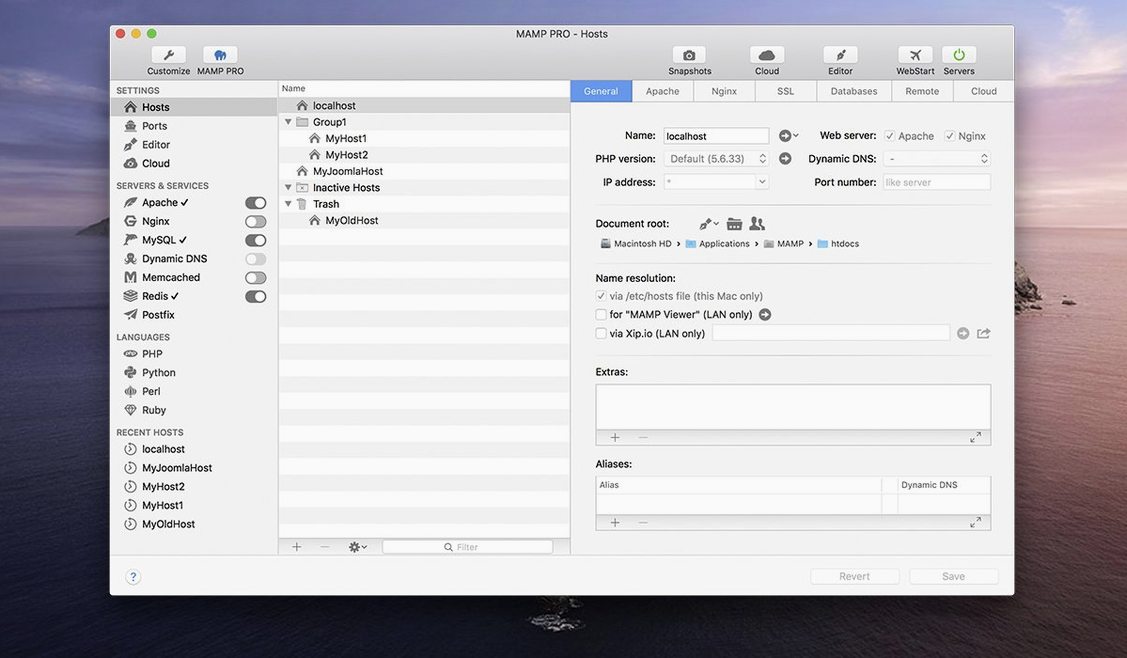
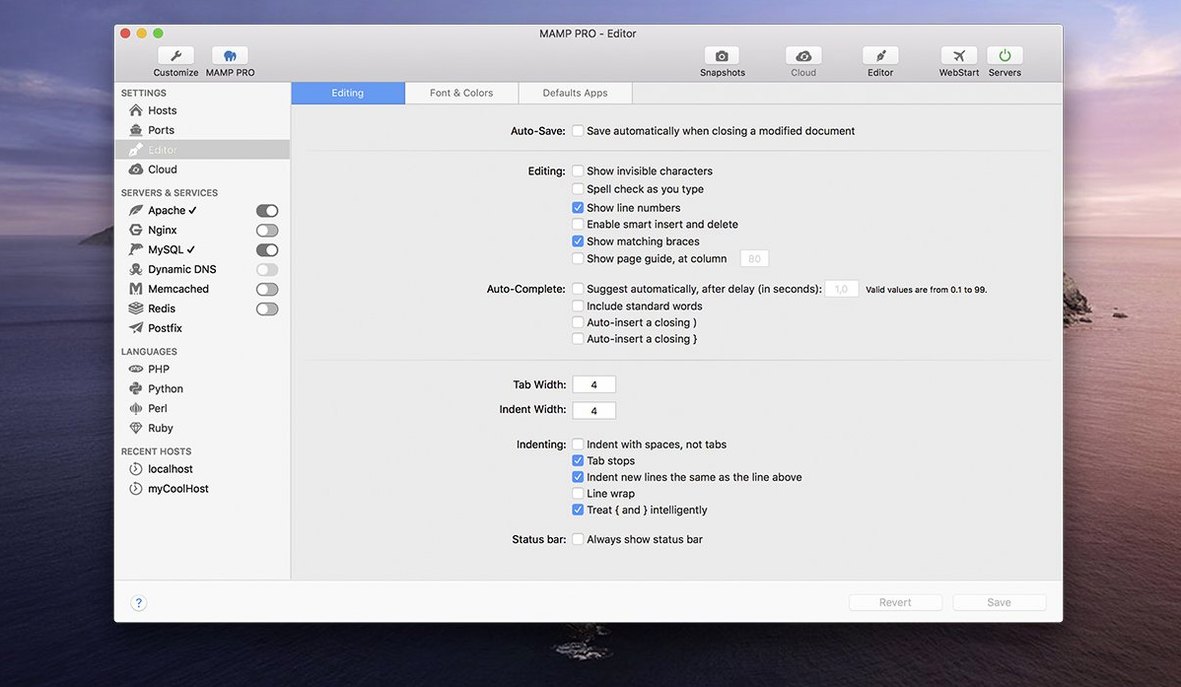
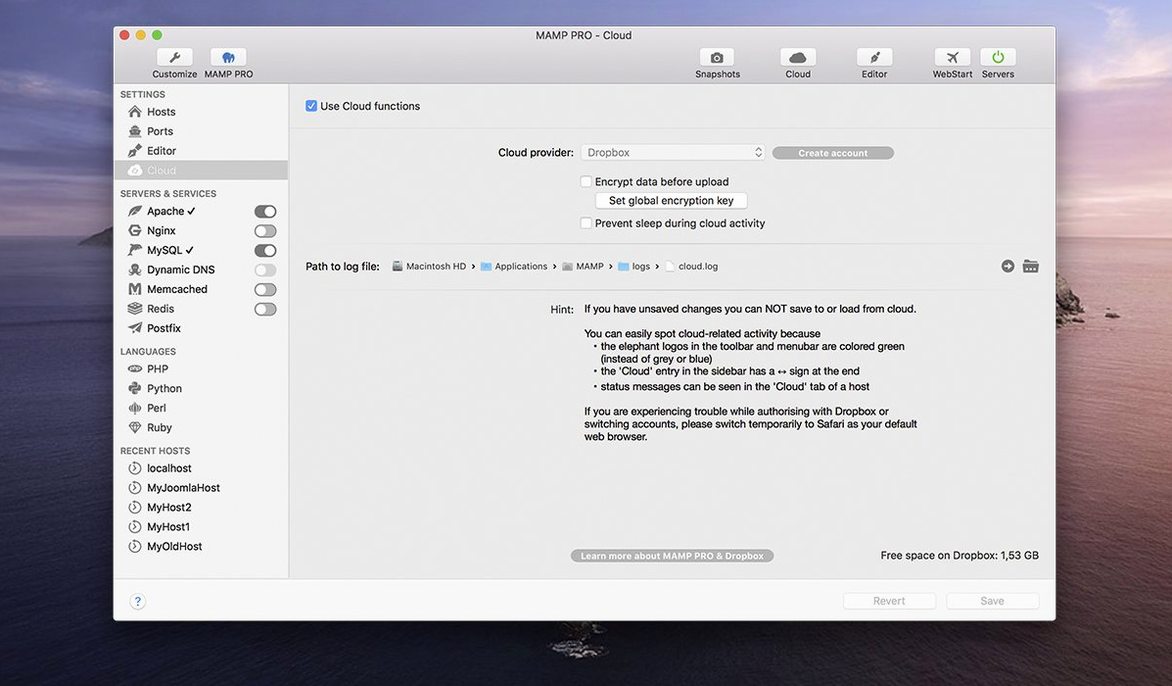
If you know the free MAMP package, think of MAMP PRO as its professional front end. It wraps the same Apache, MySQL and PHP core in a per-project control panel where every website gets its own host, its own PHP version and its own server config — no editing .conf files by hand unless you want to.
Check compatibility first
Version 6.9 requires macOS 10.12 or later and runs on both Intel and Apple Silicon Macs. The installer ships as a .dmg; once it's mounted, a Gatekeeper-friendly script helps you get past the quarantine check before you drag the app into /Applications.
Set up a local host
Each project lives in its own host with independent settings — PHP 7.4 for a legacy client site, PHP 8.2 for a new theme build, all running side by side. Host ordering keeps the list tidy as your project count grows.
Push a site live
Once a WordPress site works locally, MAMP PRO can publish it to a live server directly from the app. It also includes remote editing and a screenshot tool for quick client previews.
Rebuilding a bakery site with custom plugins in under an hour
Imagine it's a Tuesday morning and you're starting a redesign for a bakery's WordPress site. You already have their live site credentials, a folder of custom post type plugins, and a coffee. Here's what the next hour looks like.
You open MAMP PRO. Servers are stopped because you shut down cleanly last night. The host list on the left shows a dozen projects — some active, some greyed out because you've archived them. You click the plus button in the toolbar and the host creation dialog slides in. You name the host bakery.local, choose a document root inside your ~/Sites folder, and pick PHP 8.1 from the dropdown. MySQL 8.0 is already the default. You check the "Install WordPress" box, type a site name and admin password, and hit Create. About twenty seconds later the host appears in the list with a green status dot.
Now you open the host's folder from the sidebar and drop in your custom plugin files. You switch to the Remote tab and enter the live server's FTP details — MAMP PRO already knows the WordPress database prefix and table names because it set them up. You click "Import from server" and the bakery's existing content, uploads and theme files stream down to your bakery.local host. A progress bar fills and phpMyAdmin opens in a new browser tab so you can spot-check the imported tables. Everything is there.
You spend the next forty minutes tweaking the theme, adding a custom post type for daily specials, and testing it at http://bakery.local. When a permalink 404s, you open the host's Apache config through the app's UI and flip AllowOverride to All — no terminal required. You take a screenshot with the built-in tool and drop it into a Slack DM for the client. Servers keep running in the background while you move on to email.
Does MAMP PRO replace the free MAMP, or do I need both?
Does MAMP PRO replace the free MAMP, or do I need both? It replaces the free MAMP front end entirely. The underlying server binaries are shared, but MAMP PRO manages them through its own interface. You uninstall MAMP first, then install MAMP PRO. Your old htdocs folder won't be touched, but you'll want to recreate hosts inside the app rather than trying to point it at leftover MAMP configurations.
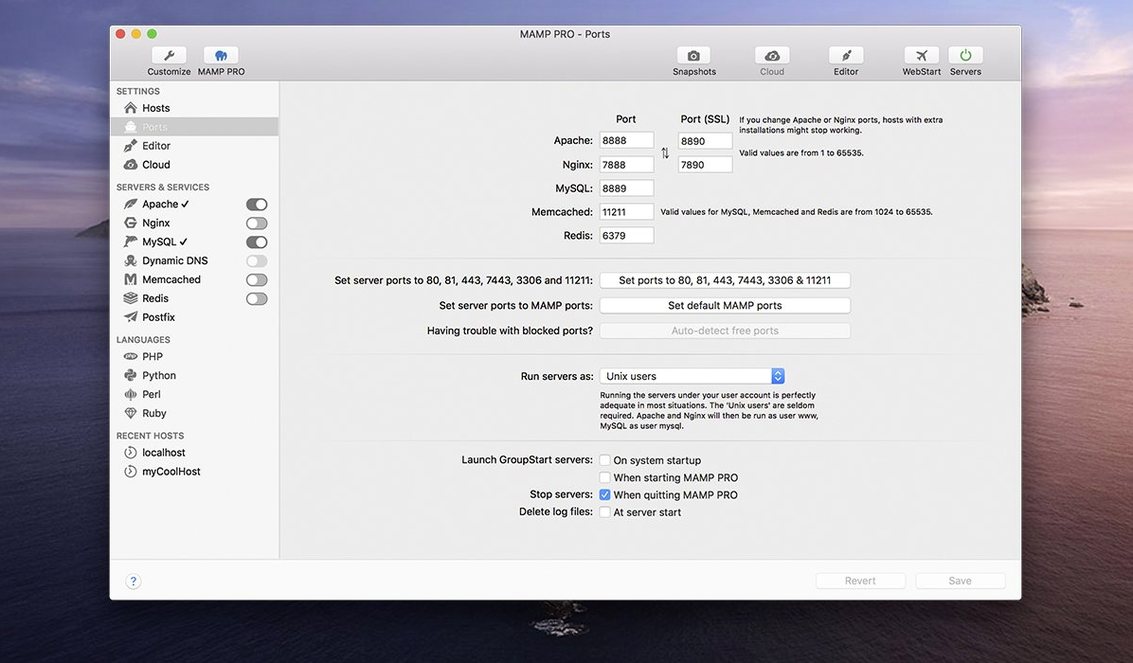
Will it fight with Homebrew MySQL or Valet? Yes, if they try to bind the same ports. MAMP PRO defaults MySQL to port 3306 and Apache to port 80 and 443. If something else is already listening there — a Homebrew mysqld or Laravel Valet's Nginx — the servers won't start. The app's dashboard shows port conflicts with a red indicator next to each service. The fix is stopping the conflicting service or changing the port in MAMP PRO's settings.
Does the "publish to server" feature handle non-WordPress sites? It's built around WordPress database and file structure. You can FTP any static site or custom PHP app manually, but the one-click publish and import workflows assume WordPress. For a plain PHP project, you'd use the host's remote tab for FTP and handle the database migration yourself.
Why dumping every project in the default htdocs folder breaks isolation
The most common one is leaving the default document root pointing at /Applications/MAMP/htdocs and dumping every project there. That defeats the per-host isolation — all your sites end up sharing one directory, one set of permissions, and one WordPress table prefix collision waiting to happen. Create a host for every project and give it a unique folder outside the MAMP application bundle, ideally somewhere under ~/Sites.
Another frequent stumble is importing a live WordPress site without first checking the PHP version. If the live server runs PHP 7.4 and your local host is set to PHP 8.2, a plugin or theme function that was deprecated in 8.0 will throw a fatal error on the first page load. Match the PHP version during import, then upgrade and test incrementally.
People also forget that the .local TLD can conflict with macOS Bonjour or certain VPN DNS configurations. If mysite.local doesn't resolve in a browser, try http://localhost:8888/mysite as a fallback, or switch the host to use a made-up TLD like .dev or .test in the host settings.
A WordPress freelancer's afternoon
Lena maintains five client sites on different hosts — one on WP Engine, two on shared hosting, and two on a VPS she barely remembers setting up. Her mamp pro workflow is the same for each. She imports the live site to her Mac, works locally for a few days, then pushes changes back. Today she's migrating a client from an old host to a new one.
She creates a host called client-migration.local, imports the site from the old server using MAMP PRO's remote tab, and tests everything locally. She then switches the remote credentials to the new server and clicks Publish. The database tables, wp-config.php adjustments, serialized URL replacements and file uploads all transfer in one go. She opens the live site in a private browser window to confirm it works, then updates the domain's DNS. Total time from import to live on the new server: under fifteen minutes.
Spinning up test hosts with different PHP versions on day one
On day one, create two or three test hosts with different PHP versions and a dummy WordPress install on each. Get comfortable with the host creation dialog, the PHP version dropdown, and the Apache vs Nginx toggle in the server settings before you import anything real. This is also the time to set your default document root to a folder you'll remember, like ~/Sites/mamp-pro, so projects don't scatter across your home directory.
On day two, import a real site that's not mission-critical — maybe your own blog or a friend's portfolio. Watch the import log carefully. If you see MySQL "max_allowed_packet" warnings or upload size limits, you'll find those under the MySQL tab in server settings. Bump them up before you work with a client's media-heavy WooCommerce store.
By day three, you'll want to have the screenshot tool bookmarked mentally. It lives in the toolbar and captures the current host's homepage at a resolution you specify — great for client check-ins without launching a separate browser extension. Also, flip through the host ordering options: drag hosts in the sidebar to keep active projects at the top, and right-click older ones to archive them. Archived hosts keep their folders and databases but don't clutter the list or start with the servers.
- Fixed a program crash when editing host-specific server configurations.
- Fixed several network-related issues in the MAMP Cloud feature.
- Improved the installation process for PHP versions.
- Opening phpMyAdmin 5 via alias now works correctly.
- macOS 10.12 or later
- Intel or Apple Silicon Mac
$ man mamp-pro | grep -A2 "?"
Can I install WordPress through MAMP PRO?
Yes, WordPress can be installed with one click from inside the app, and you can publish that host to a live server when it's ready.
Does version 6.9 fix any crashes?
The 6.9 release notes list a fix for a crash that occurred when editing host-specific server configurations, along with network improvements for the MAMP Cloud feature.
Comments 0
Sign in or create an account to leave a comment.
No comments yet. A codec, a slice, a machine — they appear after moderation.