
Moho Pro for macOS
…the physics simulation controls. Open a new project and grab a simple shape from the built-in library. Before you touch the timeline, look at the physics panel. You can assign density, gravity, friction, and elasticity to any object. Drop a ball and a box onto the canvas, tweak the gravity slider, and hit play. The objects collide and bounce without a single keyframe. It feels like a sandbox, and it's the fastest way to understand how Moho thinks about motion.
Next, try the curve animation tools. Create a vector circle, switch to the curve view, and pull the motion path into a loop. The graph editor gives you bezier handles for easing, so a bouncing ball gets realistic hang-time. Right-click any parameter to add a script from the Lua 5.1 interface—useful if you want to automate a wobble or a wave.
Now bring in something external. Drop a Poser scene into the sequencer to blend 3D reference with your 2D rig. Drag the audio track from an HD video file onto the timeline and the waveform snaps into view, ready for lip-syncing. Before you export, switch to the new glTF/GLB option in the export dialog. This format sends your animation straight into Unity, Unreal, or Godot with textures and bone weights intact.
Rig a character and block a short scene, start to finish
Let's walk through a practical task: rigging a simple cut-out character and blocking a five-second reaction shot. Open Moho Pro and import a Photoshop file with the character's parts on separate layers—head, torso, upper arm, forearm, hand, and the same for the legs. The layer hierarchy in your .psd transfers over, so group them into a bone layer immediately.
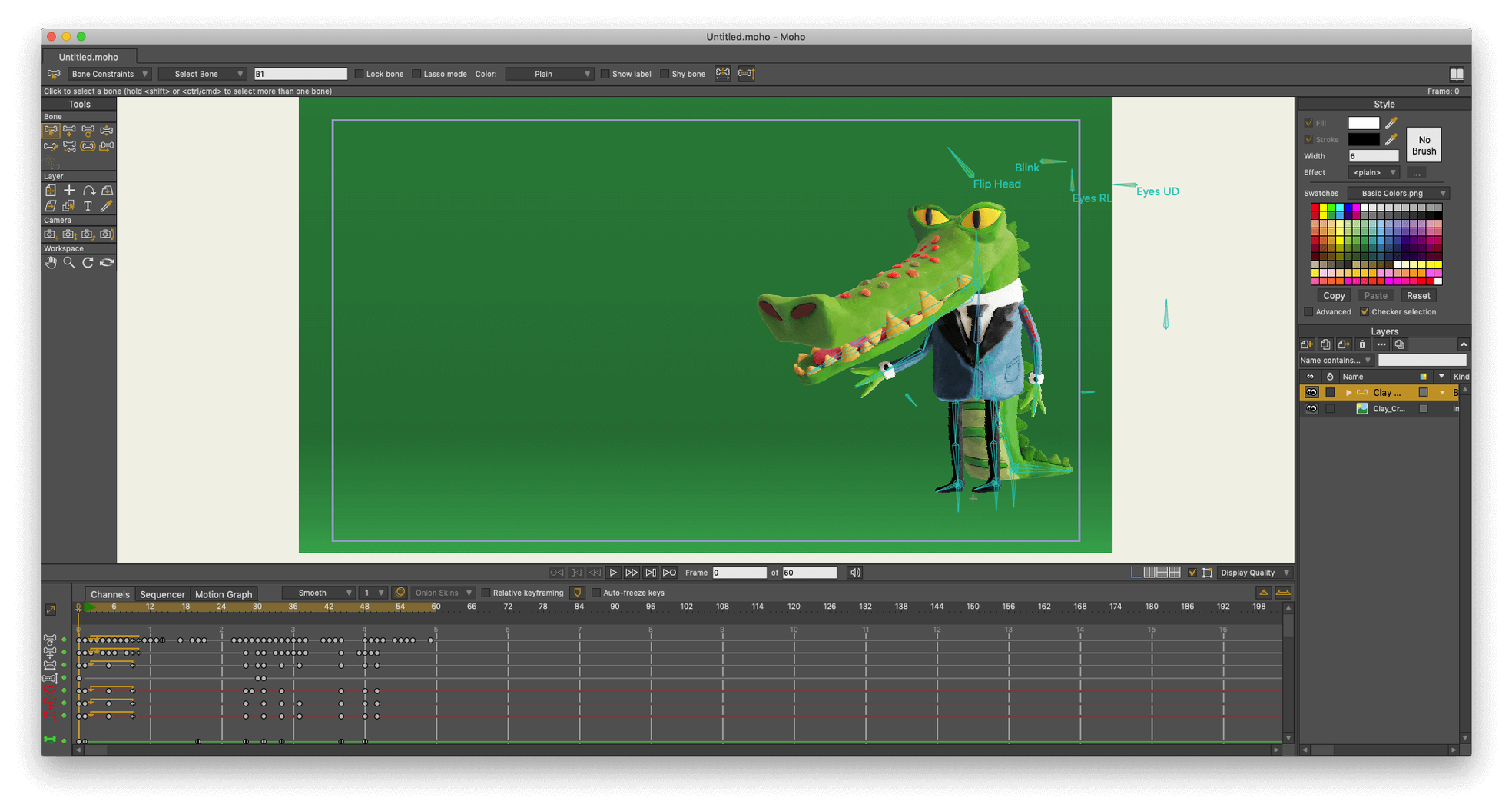
Select the bone tool and start from the hip. Draw a bone upward for the spine, then branch out for the shoulders, arms, and legs. Hold Alt while clicking a bone to reparent—useful when the forearm needs to follow the upper arm, not the torso. Switch to the manipulate bones tool and test the rig. If the elbow bends backward, open the bone constraints panel and set an angle limit of roughly -5° to 140°. That small negative value prevents hyperextension, which plagues cut-out rigs when tweening gets aggressive.
Now bind the layers. Select a vector layer, open the layer settings, and switch from region binding to layer binding. Point each part to its bone: the head layer follows the head bone, the left hand layer follows the left hand bone. For the torso, flexible binding with a few control points works better—paint the bone influence using the bind points tool so the shirt stretches naturally when the character breathes or leans.
Animate. Frame 1: the character stands neutral. Frame 18: head tilts and eyes widen, triggered by something off-screen. Set keyframes on the head bone and the eye switch layer simultaneously. Frame 40: the body leans back slightly. Open the sequencer and drag a reaction sound—a short .wav clip—onto an audio track. Scrub to the waveform peak and nudge the lean-back keyframe to hit three frames after the sound, which sells the beat. Switch to the graph editor, select the spine bone's rotation channel, and pull the ease-in handle to soften the recoil. Export through the glTF/GLB path if this shot is destined for a game engine; otherwise, render to an .mp4 through Moho's built-in encoder.
How a game animation team fits Moho Pro into their pipeline
Picture a small indie studio working on a hand-drawn platformer. The art director draws character concepts in Photoshop, already sliced into parts—head angles, arm poses, facial expressions on separate layers. The animator pulls those .psd files into Moho Pro and rigs each enemy type in under an hour. Smart bone dials control the eye blinks and mouth shapes, so the lead animator can hand off a rigged character to a junior team member who just needs to drag the dials and set keyframes on the timeline.
One afternoon, a designer realizes the protagonist's jump arc feels floaty. They open the project file, select the root bone, and pull the bezier handles on the Y-position curve to tighten the apex. No re-rigging, no redrawing. When the animation is approved, they export through the glTF/GLB exporter and drop the file into Unreal Engine. The export preserves the bone hierarchy and weight data, so the engine-side programmer hooks the animation to the state machine without reimporting or re-binding anything. Meanwhile, the animator sends a QuickTime preview to the sound designer via the built-in HD export—lip sync cues are already visible on the waveform.
How Moho Pro compares
Toon Boom Harmony targets broadcast and feature animation with a deeper toolset for traditional frame-by-frame work, nodal compositing, and studio pipeline management. Moho Pro takes a different route: its bone rigging and smart bones system is more immediate. Setting up a cut-out character in Moho Pro feels direct—fewer node-graph layers between you and the rig. Harmony's drawing engine is more responsive for frame-by-frame artists, but Moho's vector tools and curve animation are tuned for tween-heavy workflows. If your work leans on rigs, physics, and game exports, Moho Pro covers that ground with less interface overhead.
Adobe Animate shares the vector animation heritage and the old SWF export lineage, but the two have diverged. Animate emphasizes interactive content and web-based output; Moho Pro concentrates on character animation with a richer rigging model. Moho's smart bone actions—where rotating one bone triggers a switch layer or a mesh deformation—outpace Animate's bone tool, which is simpler and less configurable. Animate wins if you need to author interactive banners or web assets. Moho Pro wins when you need squash-and-stretch deformations driven by a single controller bone, or when you plan to export to a real-time engine with skeletal data intact.
Blender (Grease Pencil) is the open-source wildcard. Its 2D animation toolset lives inside a full 3D application, which means you can orbit a 2D drawing in 3D space and mix it with 3D meshes natively. That hybrid approach is powerful, but the rigging and interpolation tools for Grease Pencil objects are still maturing. Moho Pro's dedicated 2D bones, physics, and sequencer feel more cohesive for pure 2D work. Blender's learning curve is steeper if you only need a 2D character rig, whereas Moho Pro gets you there with fewer detours through a 3D viewport.
Launch and project load times on Apple Silicon
On a Mac with Apple Silicon, Moho Pro 14.4 runs natively and feels snappy. Launch time sits around four to five seconds on a recent M-series chip. Loading a project with a multi-layer rig and a full audio track takes under two seconds. Scrubbing the timeline with physics enabled stays smooth at 24 fps; the viewport only stutters when you enable real-time anti-aliasing on a scene with heavy mesh deformation and multiple particle layers active simultaneously.
RAM usage is modest for a 2D animation application. A scene with three rigged characters, a dozen switch layers, and a 48 kHz stereo audio track hovers around 1.2 GB of memory. The auto-save kicks in without locking the interface—a small detail that prevents that spike of anxiety during long rigging sessions. Crash frequency is low under normal use, though scripting with Lua 5.4.4 deserves caution. A poorly written custom script that loops through every vector point can stall the UI, but the script console catches errors cleanly and the application recovers without force-quitting.
Export times depend on the target. A five-second glTF animation with two characters and simple materials exports in under ten seconds. Rendering the same scene to .mp4 at 4K with anti-aliasing and motion blur enabled takes closer to ninety seconds, with all CPU cores engaged. GPU offloading during viewport playback helps, but final renders remain processor-bound. For daily work, the machine stays cool and responsive; you can keep a browser, a reference image viewer, and a music player open without the fans spinning up noticeably.
- New glTF/GLB export for video game engines and 3D software.
- Updates and fixes to the particle system and layers.
- The scripting interface was updated to Lua 5.4.4.
- macOS 10.15 or later
- Intel or Apple Silicon processor (64-bit OS required)
- 2.0 GHz Intel Core i3 or higher
- 4 GB RAM or higher
- 1.6 GB free hard drive space or higher
- OpenGL 4.1 supported graphics card
- Online connection required for activation
$ man moho-pro | grep -A2 "?"
What game engines does Moho Pro export to?
Moho 14.4 supports export to Unity, Unreal, and Godot through the new glTF/GLB exporter, which preserves rigging and animation data.
What scripting language does Moho use?
Moho supports scripting with Lua. The interface was updated to Lua 5.4.4 in Moho 14, while older projects may reference the Lua 5.1 API.
Can I combine 3D and 2D animation in Moho?
Yes, you can import scenes from Poser to combine 3D elements with 2D vector and cut-out animation directly inside the built-in sequencer.
Comments 0
Sign in or create an account to leave a comment.
No comments yet. A codec, a slice, a machine — they appear after moderation.