Mimestream for macOS
If you've ever set up Gmail in Apple Mail and watched labels turn into a mess of nested folders, you already know why the IMAP bridge feels wrong. Mimestream sidesteps that entirely by speaking the Gmail API natively, which means your categories, aliases, and signatures just show up the way Google intended — no extra configuration required. If you've just finished a fresh mimestream download, here's where to start exploring.
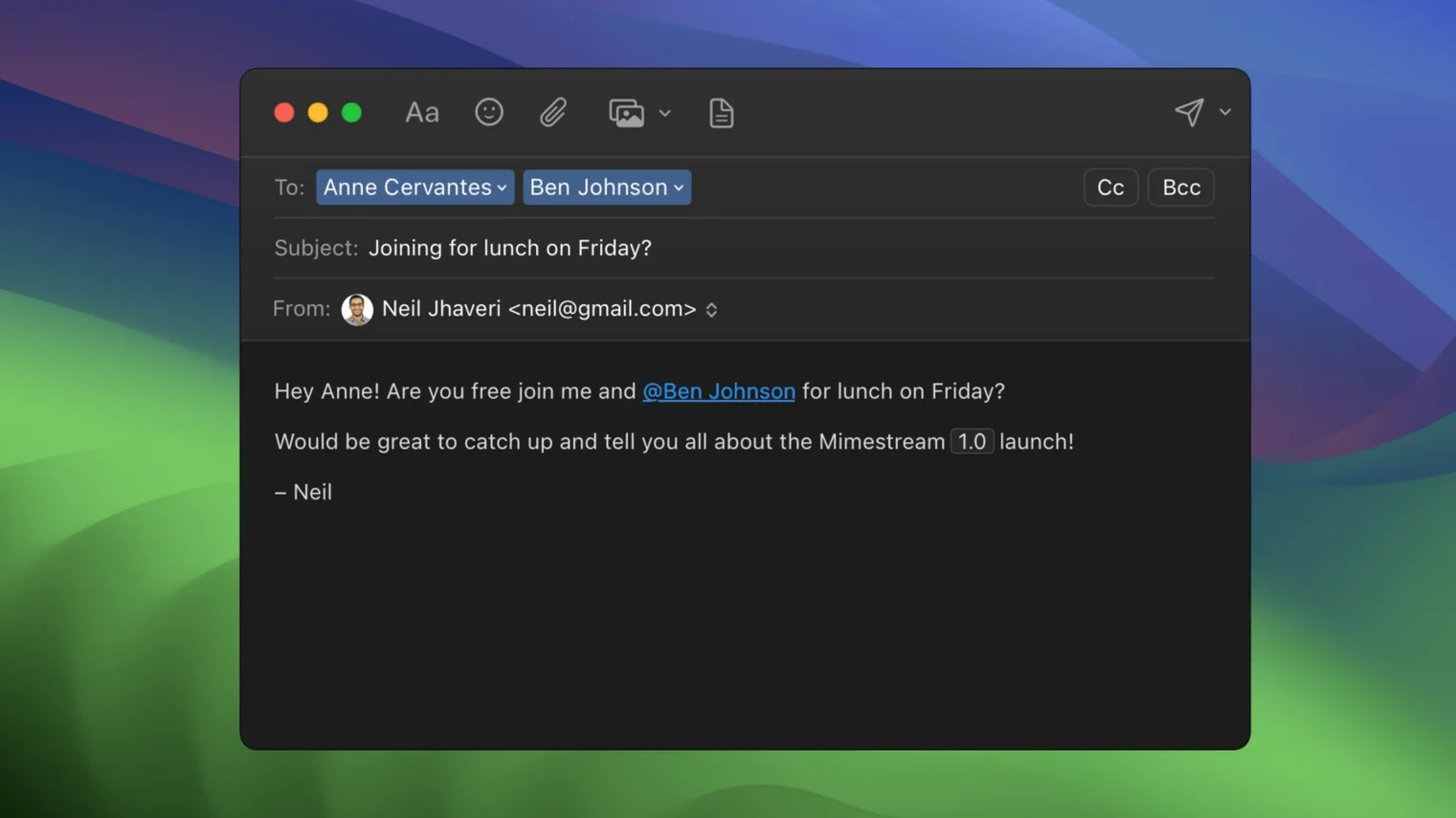
- Check your aliases and signatures. Open a compose window and look at the From field — every Gmail alias you've configured is already there. Signatures sync the same way, pulled directly from your account with zero manual setup.
- Run an offline search. Put the app in offline mode (or just cut your connection) and search for something buried deep in your archive. Because the app caches recent messages locally, you'll get results even without a connection.
- Peek at the tracker shield. Mimestream blocks tracking pixels from over 50 known tracking services by default. Open a marketing email with remote images enabled and check the banner that confirms what was stripped — it's satisfying in a quiet, privacy-nerd way.
- Try the notification actions. When a new message arrives, hover over the notification to reveal configurable actions. You can archive, delete, or reply without opening the full window — handy if you're triaging on the fly.
The app is a single native binary for both Apple Silicon and Intel Macs, and its disk footprint stays lean because it only caches what's recent. You'll need macOS 12 Monterey or newer and a Google account to sign in. Future versions will bump that requirement to macOS 14, so keep an eye on the update notes if you're holding onto an older system.
What small conveniences are easy to miss?
Some of the best touches in Mimestream don't announce themselves. Here are a few worth knowing about before you settle into a daily rhythm.
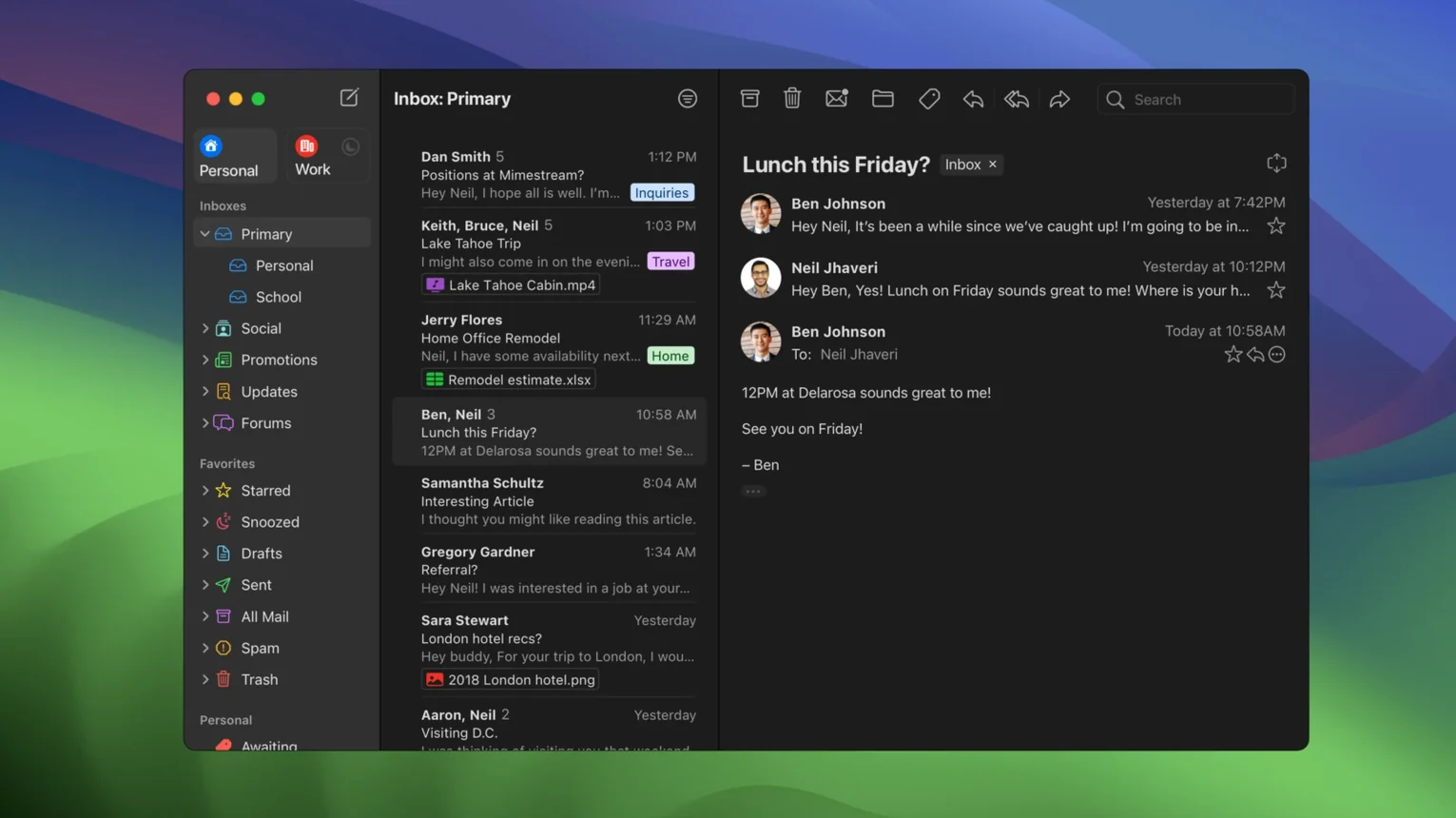
- Swipe gestures with visual feedback. In the message list, a short rightward swipe marks a conversation as done and archives it. A longer swipe gives you a second action — delete, snooze, or move — depending on what you've configured. The row tints as you drag, so you always know where the threshold sits.
- Quick label toggles. Hit
Lwith a conversation selected and start typing a label name. The autocomplete respects Gmail's label hierarchy, and you can apply or remove labels without touching the mouse. - Drag a message to the desktop. Grab any message from the list and drop it onto a Finder window or the desktop. Mimestream exports it as a clean
.emlfile, ready to hand off to a colleague or archive outside the app. - Undo send. After firing off a reply, watch the bottom edge of the window. A subtle bar lingers for a few seconds — press
⌘Zor click it to pull the message back before it truly leaves your outbox. The timing window matches what Gmail's web interface gives you. - Jump to a different profile. If you manage multiple Google accounts,
⌘1through⌘9switch between profiles instantly. No clicking through account menus.
What do people usually ask before installing?
If you've just grabbed a mimestream download mac package and you're eyeing the disk image, a few questions tend to pop up. Here are straightforward answers.
Does it work with Outlook, Yahoo, or iCloud accounts? No. Mimestream only supports Google accounts — specifically personal Gmail and Google Workspace addresses. It uses the Gmail API, which means it literally cannot talk to other providers. If you need a client that handles multiple services, this isn't the tool.
Does it store my mail on its own servers? No. The app runs entirely on your Mac. It pulls data directly from Google's servers and caches a subset locally for speed and offline access. There's no intermediary cloud service sitting between you and Gmail.
Is offline mode full or partial? It's partial by design. Recent messages — roughly those you've opened or received in the last couple of weeks — are available offline, along with search indexing for that set. You won't find every email from 2017 while disconnected, but day-to-day triage works fine on a plane or a spotty connection.
Can I run it side-by-side with Apple Mail? Absolutely. The two apps don't interfere. Since Mimestream speaks the Gmail API rather than IMAP, it won't create duplicate folders or mess with Mail's account configuration. Some people keep both open for different workflows — Mimi for Gmail-specific features, Mail for everything else.
If you're still trying things out and a mimestream free approach matters, the app's architecture means there's no server cost for the developer to carry your account — the heavy lifting happens on Google's side and on your Mac.
A quick workflow: triaging a noisy inbox to zero in ten minutes
Say Monday morning drops fifty new messages into your primary inbox — newsletters, a few replies to threads you're on, a meeting request, and one urgent request from a client. Here's one way to clear it without opening a dozen tabs.
1. Switch to the All profile. Press ⌘1 or click the unified inbox icon. This collapses all your accounts into one stream, so you're not hopping between profiles.
2. Scan with the arrow keys. Press the down arrow to walk through the list. Each message preview loads inline — no double-clicking. The tracking-pixel shield fires silently in the background as you go.
3. Archive the obvious noise. For newsletters and notifications you don't need, a quick right-swipe archives them. If you've set a longer swipe to delete, use that for the truly disposable stuff. You can process about half the list in thirty seconds this way.
4. Apply labels to the keepers. For the meeting request, hit L, type "calendar," and press Return. For a thread you need to track, apply a "Follow-up" label the same way. Labels stick instantly because the Gmail API pushes changes in real time.
5. Reply to the urgent client message. Open it, type your response, and send. If you realize you forgot something, the undo-send bar gives you a brief window to pull it back — no digging through Sent mail.
6. Snooze what can wait. For a message that needs attention but not right now, press the snooze shortcut or use the toolbar button and pick "Later today." The conversation disappears and resurfaces at the chosen time as a fresh notification.
By the time you've run through the list, the inbox reads zero, the urgent reply is out, and the rest is either labeled, archived, or snoozed to the right moment. No browser tab stayed open, and every action respected Gmail's server-side state — if you later open Gmail on your phone, everything matches.
- Private Push notifications are now the default on macOS Sequoia and later, routing notification delivery through Apple's infrastructure instead of connecting directly to Google's servers.
- An optional All profile lets you see every message from every account in a single unified view.
- Addresses for unknown senders now appear in message headers, so you can see the full sender address at a glance before opening a message.
- Notification actions are now configurable — choose what tapping a notification actually does.
- macOS 12 Monterey or newer
- Apple Silicon or Intel Mac (native binary for both)
- Google account
Comments 0
Sign in or create an account to leave a comment.
No comments yet. A codec, a slice, a machine — they appear after moderation.