
Microsoft Office for macOS
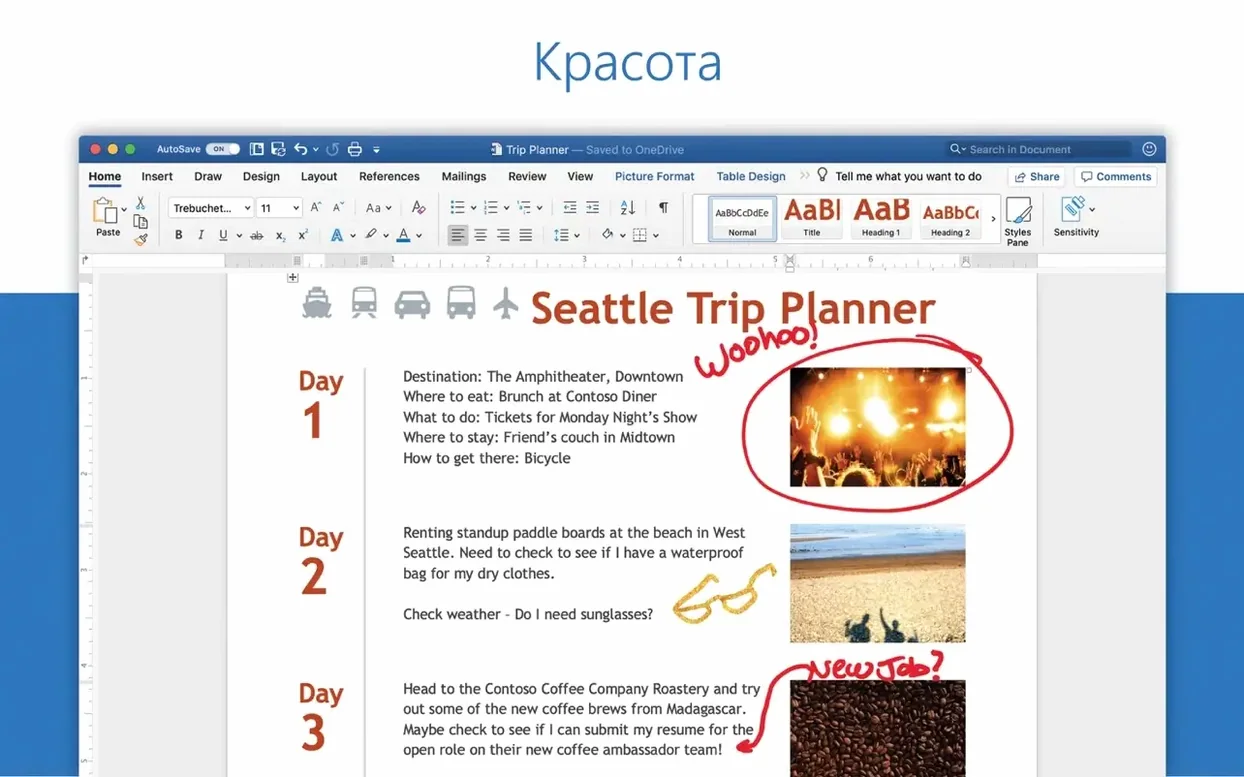
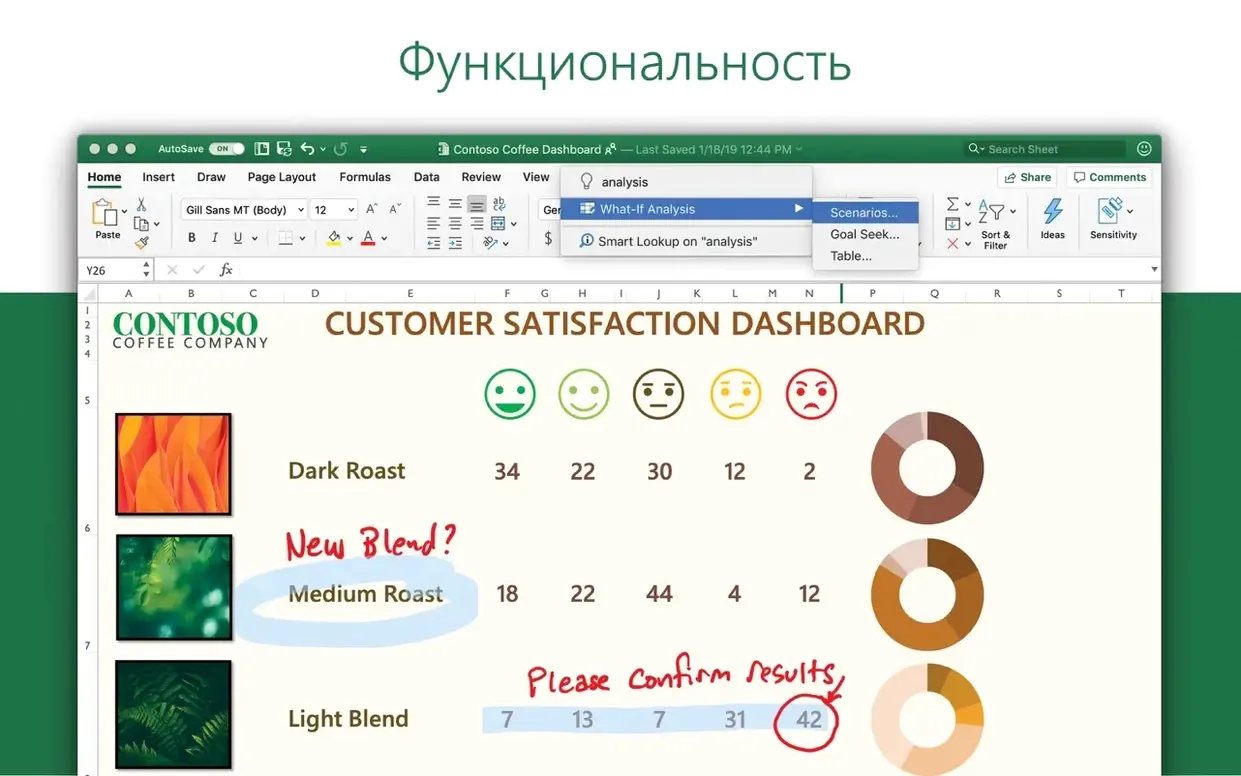
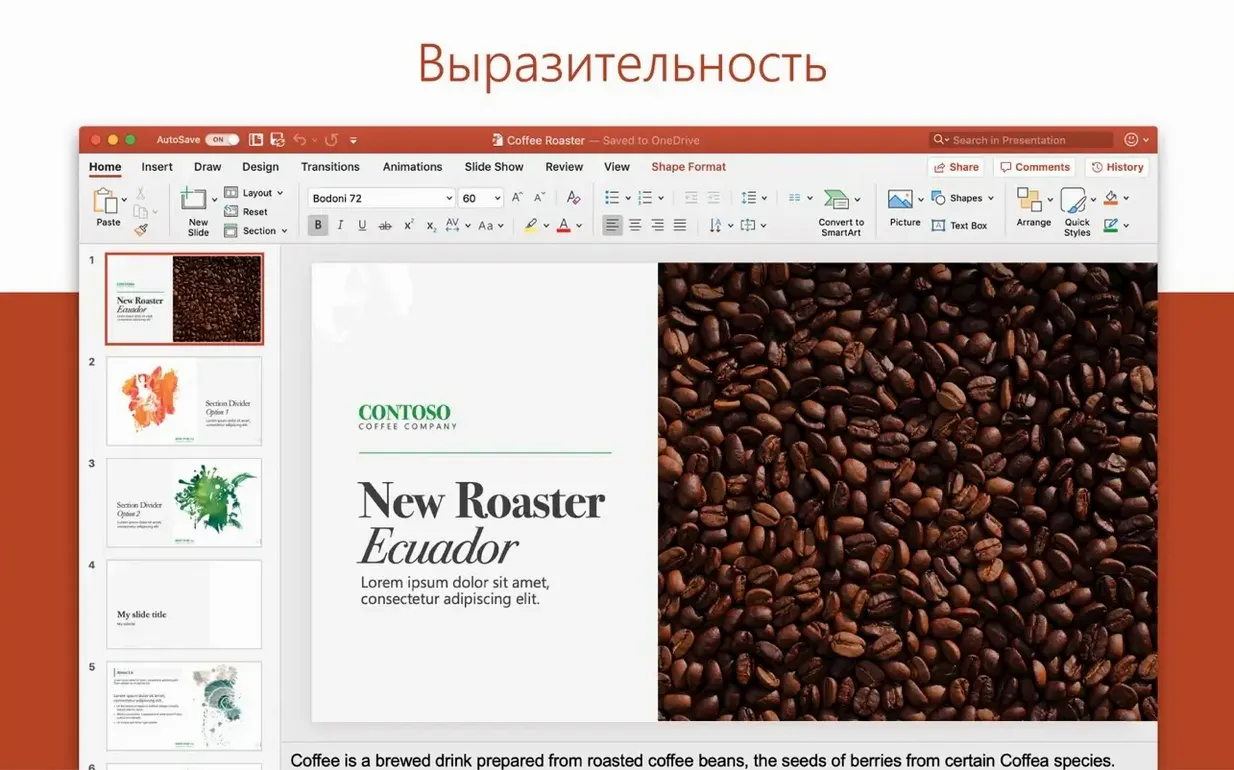
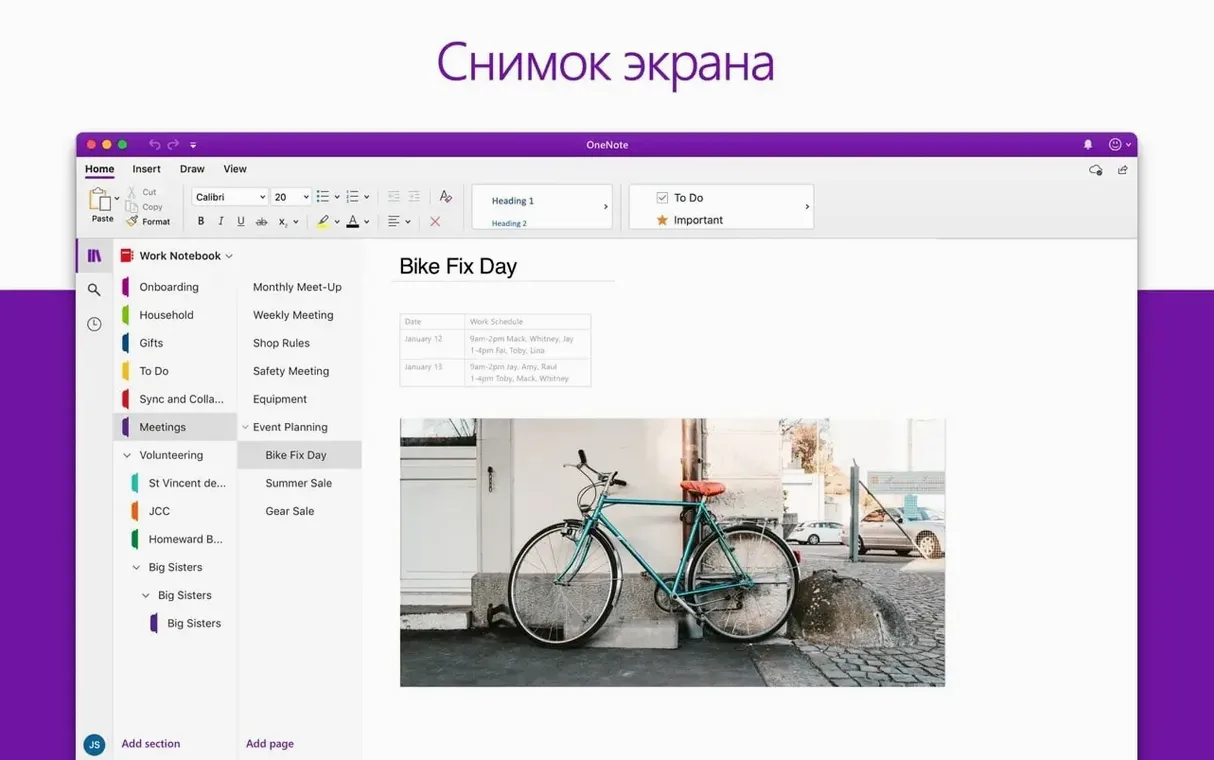
A student opens a .docx attachment from a professor, an accountant rebuilds a quarterly forecast in a spreadsheet, and a designer prepares slide animations for a conference talk. They all launch the same suite to get it done. Here is what the current Mac build of Microsoft Office delivers and where it will run.
macOS 13 Ventura and Apple Silicon required
- macOS 13 Ventura or newer
- Intel processor or Apple Silicon (64-bit only)
- Office suite version 16.93 (build 25011212, released 2025-01-14)
What applications are included
The package installs Word, Excel, PowerPoint, Outlook, OneNote, and OneDrive. Word handles document creation, viewing, and sharing directly from email. Excel brings charts and an Ideas feature that surfaces trends in data without manual setup. PowerPoint supports layouts, motion camera effects, 3D models, and icon libraries for presentation work. Outlook manages mail, calendar, and contacts, while OneNote acts as a free-form digital notebook for planning and quick notes. The bundle carries the Office LTSC Standard for Mac 2024 designation and runs natively on Apple Silicon.
Activation, fonts, and file association fixes
Even a freshly installed Office 16.93 build can throw a curveball. Most problems trace back to activation, fonts, or file associations — not broken code. Here are the ones that come up repeatedly.
Activation loops after installation
The VL Serializer sometimes misses its mark if an older Office version left remnants behind. The fix is a clean slate: remove every Office app, delete ~/Library/Group Containers/UBF8T346G9.Office and /Library/LaunchDaemons/com.microsoft.office.licensingV2.helper.plist, then install the suite and run the Serializer again. A restart before the Serializer step often prevents the loop.
Fonts looking wrong in Word documents
Macs ship with fewer Microsoft core fonts than Windows. If a .docx was authored on Windows with Calibri or Cambria, Word on Mac substitutes a close match — but kerning and line breaks can shift. Install the Microsoft Office font package separately or switch the document template to a native macOS font like Helvetica Neue before sharing.
Excel freezes on large CSV imports
Excel's default import path tries to parse every column as General format, which bogs down on files with 100,000+ rows. Use Data → Get Data (Power Query) instead of File → Open. Power Query lets you specify column types before loading and hands off a clean table to the Excel engine.
OneDrive sync conflicts
When two people edit the same paragraph in a shared Word document, OneDrive saves both versions and appends the machine name to one file. Open the conflicting copy, merge changes manually, and delete the extra file. Turning on real-time co-authoring from the Share button reduces how often this happens.
Outlook search returns nothing
Spotlight re-indexing sometimes misses Outlook's profile folder. Open Outlook, hold Option and click the Outlook menu → Sync Services, then toggle the account off and on. If that doesn't help, rebuild the profile by deleting ~/Library/Group Containers/UBF8T346G9.Office/Outlook/Outlook 15 Profiles/Main Profile and letting Outlook recreate it on next launch.
A session with Office, step by step
Imagine a Tuesday morning. A research assistant named Lena sits down with a MacBook Air M2, a coffee, and three tasks due by noon. Here is how the suite carries her through.
9:05 — Word picks up where she left off. She opens a .docx from the shared OneDrive folder. The document is a draft paper with tracked changes from two co-authors. Word opens in Reading View, then flips to Print Layout with one click. She accepts a formatting change, rejects a deleted paragraph, and types a new transition sentence. The Ideas pane sits collapsed to the right; she expands it briefly to check the readability score, then gets back to editing.
9:40 — Excel builds the evidence table. Lena switches to Excel, where a .csv exported from a lab instrument waits in her Downloads folder. She drags the file into an open workbook. The Text Import wizard previews columns; she sets column B to Date and column D to Number with two decimal places. Once loaded, she highlights the data and presses F11 — a chart appears on a new sheet. A scatter plot with a trendline takes three more clicks. She copies the chart and pastes it into the Word document as a linked object.
10:30 — PowerPoint gets the slide deck ready. The conference talk needs slides. Lena opens PowerPoint, picks a built-in template, and drops in the Word document's title and abstract. She inserts the Excel chart as a live link. On slide four, she adds a 3D model of a protein from the stock library, applies a motion camera pan, and sets it to animate on click. The Morph transition between slides two and three makes the chart appear to grow from the previous slide's placeholder.
11:15 — Outlook handles logistics. A collaborator emails asking for the updated draft. Lena opens Outlook, drags the .docx from OneDrive into the reply window — Outlook turns it into a sharing link instead of an attachment because it detects the file lives in OneDrive. She adds a quick note, hits Send, and checks her calendar. The next meeting is at 1 PM; Outlook's Time To Leave notification pops up because it reads her location from the Mac's Wi-Fi.
11:45 — OneNote catches stray thoughts. While waiting for feedback, Lena opens OneNote and jots down three bullet points for the next experiment. The notes sync to her iPad instantly — she'll read them on the bus. She closes the lid. Everything saved, nothing lost.
Academics juggling citations and track changes
Not everyone needs the full weight of this suite. Some Mac users live happily in Pages, Numbers, and Keynote. Others find Office indispensable for specific reasons tied to how they work and who they work with.
Academics and grad students. Reference management tools like Zotero and EndNote plug directly into Word's citation engine. Track Changes is the lingua franca of peer review. Excel handles experimental data without the format drift that happens when converting .xlsx to Numbers. If your advisor sends .docx files with comments, you open them in Word — anything else risks mangling the markup.
Finance and consulting professionals. Excel's Power Query, Power Pivot, and the Ideas feature exist only in the full Office Excel. Mac alternatives lack the DAX formula language and the data model layer. A consultant building a client dashboard with slicers and pivot charts stays in Excel because the file must round-trip to a Windows colleague without losing a single formula.
Cross-platform teams. When half the team runs Windows and the other half runs macOS, Office is the lowest-friction choice. A PowerPoint deck built on Windows opens pixel-perfect on a Mac, fonts aside. Shared OneDrive libraries surface in Finder on Mac and File Explorer on Windows, and co-authoring works in real time across both platforms.
People who live in Outlook. The Mac version of Outlook handles Exchange accounts, shared mailboxes, and delegated calendars. If your organization runs on Microsoft 365, Outlook on Mac integrates more tightly than Apple Mail with server-side rules, retention policies, and sensitivity labels.
Casual users who only need a document editor might find the suite oversized. Pages and Google Docs handle light word processing with less overhead. But the moment someone sends a heavily formatted .docx or a macro-free .xlsm, the free alternatives show their limits.
Why your files keep landing in OneDrive
New users coming from Windows or from Apple's iWork apps tend to trip over a few specific things. Most are easy to fix once you spot the pattern.
Ignoring the cloud save location. Office defaults to saving in OneDrive, not in the local Documents folder. Someone who hits Cmd+S and assumes the file landed in ~/Documents later wonders why it is not there when offline. Change the default save location in Word → Preferences → File Locations → Default file location, or check where the Save dialog is pointing each time.
Double-clicking .xlsx files with Numbers set as the default. macOS may open spreadsheets in Numbers if it was the last spreadsheet app installed. Right-click a .xlsx, choose Get Info, and set Open with to Excel, then click Change All. Same for .docx and .pptx.
Closing the last document window and thinking the app quit. Mac apps stay running when the last window closes. The dot under the Dock icon means Word is still consuming memory. Quit properly with Cmd+Q, especially before removing or reinstalling the suite.
Pasting formatted text everywhere. Copying from a web page into Word carries over fonts, colors, and spacing. Use Edit → Paste Special → Unformatted Text or the keyboard shortcut Option+Shift+Cmd+V to strip the source formatting. The document stays cleaner and styles apply predictably.
Skipping AutoUpdate setup. The suite ships with Microsoft AutoUpdate, but it does not always run its background daemon until the first manual check. Launch MAU once from the Help menu → Check for Updates, and let it install the latest definitions. Version 16.93 receives monthly patches that fix crashes and security holes.
Assuming OneDrive syncs immediately. OneDrive throttles uploads on metered or slow connections. Files show a sync pending icon in Finder for a few seconds to a few minutes. Dragging a file into an Outlook message before the sync completes sends an outdated copy. Wait for the checkmark badge in Finder or check OneDrive's menu bar icon before sharing.
Pin only the three apps you actually use
A few minutes of configuration after installing Office 16.93 saves hours of friction later. These tips assume a clean install with the VL Serializer activated and AutoUpdate ready.
- Pin the apps you actually use. Most people need only three of the six apps daily. Drag Word, Excel, and Outlook to the Dock; leave OneNote and PowerPoint in Launchpad. OneDrive runs from the menu bar and does not need Dock space.
- Set the default font in Word. Open the Normal template by going to File → Open and navigating to
~/Library/Group Containers/UBF8T346G9.Office/User Content/Templates/Normal.dotm. Change the font to your preferred face and size, save, and close. Every new blank document now starts with that font. - Turn off the Mini Toolbar. It pops up on text selection and gets in the way more often than it helps. Word → Preferences → General → clear "Show Mini Toolbar on selection."
- Configure Excel's calculation mode. Excel defaults to automatic calculation, which is fine for small sheets. If you regularly open workbooks with tens of thousands of formulas, switch to manual via Formulas → Calculation Options → Manual. Press F9 to recalculate on demand.
- Set Outlook notifications to something sane. Out of the box, Outlook shows a banner for every email. Go to Outlook → Preferences → Notifications & Sounds, and switch to "Badge app icon only" for folders you check manually. Keep banners for the inbox if you need them, but kill them for sent items and junk.
- Add OneDrive folders to Finder Favorites. Open OneDrive in Finder, then drag the folders you access most — maybe a shared project folder and your personal Documents mirror — to the Finder sidebar. They appear in every Open and Save dialog across all Office apps.
- Download language tools if needed. The suite ships with English proofing tools by default. For German, French, Spanish, or any of the other supported languages, go to Word → Preferences → Spelling & Grammar → Dictionaries and download the language pack. The tools include hyphenation rules and grammar checks, not just a word list.
- Check the privacy settings. Office sends optional diagnostic data. Go to any app's Preferences → Privacy and review the required and optional data collection toggles. The settings sync across all Office apps on the same machine.
- Version 16.93 ships as the unified Office suite build for Word, Excel, PowerPoint, Outlook, and OneNote.
- macOS 13 Ventura or later
- Intel or Apple Silicon Mac (64-bit only)
$ man microsoft-office | grep -A2 "?"
Does Office 16.93 run natively on Apple Silicon?
Yes, the package is a universal binary that runs on both Intel and Apple Silicon Macs.
Which applications are in the 16.93 release?
Word, Excel, PowerPoint, Outlook, OneNote, and OneDrive for Mac are included in the suite.
What macOS version does this Office build need?
You need macOS 13 Ventura or a later release; the suite is 64-bit only.
Comments 0
Sign in or create an account to leave a comment.
No comments yet. A codec, a slice, a machine — they appear after moderation.