
Microsoft Excel for macOS

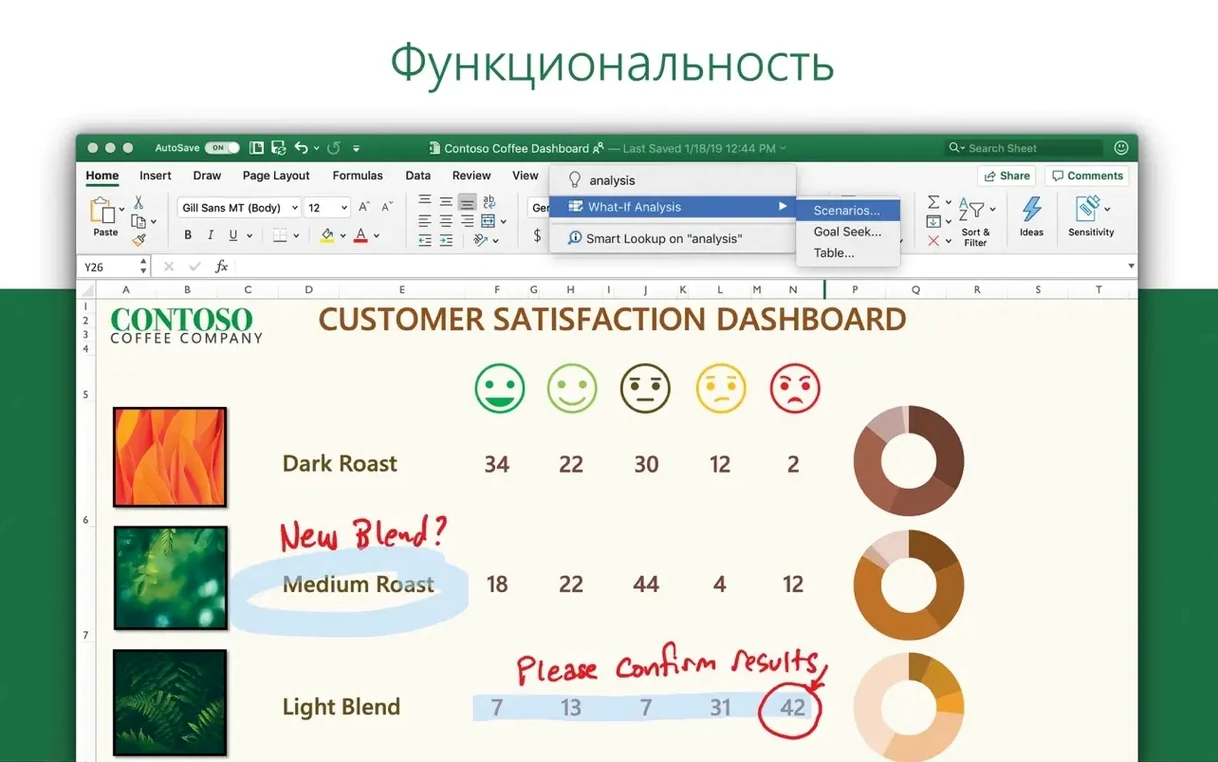


You've got a quarterly budget to clean up, and someone sent over a workbook that keeps throwing formula errors on your Mac. Before you start rebuilding it, you want to know whether Excel will even install cleanly on this machine. That question has a short answer and a longer one.
Does it need Apple Silicon or an Intel Mac?
Excel 16.93 needs macOS 13 or later. The build runs natively on both Apple Silicon and Intel, so either architecture works. Once installed, you get the standard Office toolset: charts for visualization, Ideas for spotting trends in your data, and collaboration features aimed at accounting, audit, and finance workflows. Interface languages span the usual range, from English and German to Thai and Japanese.
Why this version skips the Microsoft 365 subscription model
As part of Office LTSC Standard for Mac 2024, this is the long-term servicing release rather than the subscription flavor of Microsoft 365. The practical difference is mostly about how updates and activation are handled, not the spreadsheet features themselves.
The comma-vs-semicolon setting that breaks your formulas
I see the same handful of missteps every time someone opens Excel for Mac for the first time after switching from another platform. The biggest one is ignoring the formula separator. On a US Mac layout, Excel expects a comma between arguments by default, but if your system region is set to somewhere that uses a semicolon, you will type a comma and get nothing but a #NAME? error. You can check this under File > Options > Advanced > Separators. If your formulas look right but produce nothing, that is the first thing to verify.
Another common issue: pasting data from a website or a CSV export and wondering why numbers refuse to calculate. The text is probably formatted as, well, text. Select the range, click the warning icon that appears, and choose Convert to Number. Or use Text to Columns on the Data tab, which forces Excel to reinterpret every cell in one go. I have watched people manually retype three hundred cells because they did not know that trick exists.
The third pattern I notice is new users fighting the ribbon instead of searching it. On macOS, Cmd+Shift+P opens the Tell Me box. Type remove duplicates or freeze panes and Excel takes you straight to the command. You do not need to remember which tab hides the feature you used once last month.
The Quick Analysis tool you won’t find on Windows
Excel for Mac has a handful of shortcuts that are easy to miss because they differ from the Windows muscle memory most people bring over. A few I reach for daily:
- Quick Analysis tool. Select a data range and a small icon appears at the bottom right. Click it, and you get instant conditional formatting, charts, totals, and sparklines without touching the ribbon. If it does not appear, it is enabled under File > Options > General.
- Control+Option+Return inserts a line break inside a cell while editing. This is not the same as Alt+Enter on Windows, and I have seen people paste a newline from TextEdit just to get around not knowing it.
- Cmd+Option+V opens Paste Special. You can paste values only, transpose a row into a column, or paste formatting without the underlying data. It saves more time than any single feature I can name.
- The Name Box. That text field to the left of the formula bar is not decorative. Type
A1:C50and press Return to select a range instantly, or define a named range and jump to it from any sheet. People who work with large models tend to overlook how much scrolling this eliminates. - Flash Fill. Introduced a few versions back, it detects patterns as you type. Put a list of full names in column A, start typing just the first name in column B, and Excel fills the rest.
Cmd+Etriggers it manually if the auto-detection does not fire.
One more thing about the interface: the status bar at the bottom of the window is customizable. Right-click it and you can add Average, Count, Min, and Max so you see them without writing a single formula. I keep Sum and Count enabled, and they have saved me from opening the Function dialog for quick sanity checks more times than I can count.
What breaks when you move beyond basic .xlsx formulas?
Three alternatives come up regularly when people ask about spreadsheet work on macOS: Apple Numbers, LibreOffice Calc, and Google Sheets. They all open .xlsx files and they all do basic formulas, but the similarities thin out quickly when you move past simple budget tables.
Apple Numbers
Numbers is fast, free with every Mac, and handles Apple Silicon beautifully. Its canvas-based approach treats tables as objects you place on a sheet, which works well for presentation-ready layouts and mixed-media documents. But it falls apart for serious data work. PivotTable support arrived late and remains limited. Power Query does not exist. VBA is absent. If you open a complex Excel workbook in Numbers, conditional formatting rules, array formulas, and data validation often break or simply disappear. Numbers is excellent for a small business invoice with a chart next to a photo. It is not a tool for a 50,000-row dataset with external data connections.
LibreOffice Calc
Calc gets closer to Excel's feature set. It supports pivot tables, data validation, conditional formatting, and a macro language that resembles VBA enough to make porting possible, though not painless. The interface feels like Excel circa 2010, which some people prefer and others find cluttered. On macOS, Calc's biggest weakness is the Java dependency for certain database and formula functions, which adds an extra install step and occasional performance hiccups. It also lacks the Ideas feature for automated trend detection. For straightforward spreadsheet work with no collaboration requirements, Calc holds its own. For anything involving Teams, SharePoint, or real-time co-authoring, it is not in the same conversation.
Google Sheets
Sheets lives in the browser, so architecture compatibility is a non-issue. Its real-time collaboration is arguably smoother than Excel's, and the QUERY() function gives it a SQL-like capability that Excel does not match without Power Query. The trade-off is offline access and raw data capacity. Sheets chokes on workbooks with many thousands of rows, and its charting engine lacks the granular control Excel offers. For a distributed team editing a shared marketing tracker, Sheets is superb. For a financial model with nested INDIRECT() calls and a dozen linked sheets, Excel remains the safer choice.
How a 120 MB, 480,000-row file actually performs
On an Apple Silicon Mac, Excel 16.93 launches in under three seconds cold and stays responsive with half a dozen workbooks open. I have thrown a 120 MB .xlsx file with six sheets, each holding 80,000 rows of formula-heavy data, at this build and it did not beachball. Calculation times depend more on your formula design than on the app itself, but the multithreaded recalculation engine uses all available cores, and you can watch it distribute the load in Activity Monitor if you are curious.
Memory usage sits around 300 to 500 MB with a typical workbook open, climbing toward 2 GB with very large files and embedded charts. That is heavier than Numbers but lighter than a browser with a dozen Sheets tabs. Stability has been solid in my experience. I have not seen a crash triggered by a formula or a chart update. The one area where I have encountered instability is with older VBA macros written for 32-bit Office on Windows. Some of those call Windows-specific APIs and simply will not run on macOS. Excel does not crash; it just disables the macro and logs a warning. If you rely on VBA workflows, test them early rather than on deadline day.
One resource note: the background sync service for OneDrive and SharePoint can consume CPU cycles even when Excel is idle, especially if you have several large files in the autosave queue. If your fan spins up and Excel itself is not doing anything visible, check Activity Monitor for the Microsoft Upload Center process. Pausing sync or limiting the number of open cloud workbooks usually calms things down.
The post-activation tweaks that prevent daily friction
After you install Excel and run the standard activation through the Office LTSC 2024 VL Serializer, there are a few configuration steps that pay off quickly. None of them are required, but skipping them tends to create friction during the first real project.
Set your default file format. Go to File > Options > Save and set Save files in this format to Excel Workbook (.xlsx). The factory default might be set to an older format depending on your license channel, and you do not want to discover six months later that your files have been saving in Compatibility Mode.
Pin the AutoSave toggle. If your workbooks live on OneDrive or SharePoint, AutoSave becomes available in the title bar. Click the toggle once to confirm it is on for each document you expect to share. The Office LTSC build supports this, but it may not be on by default for all file locations.
Customize the Quick Access Toolbar. I move it below the ribbon and add Open Recent, Paste Values, and Clear All. It takes thirty seconds and keeps the tools I use constantly within a single click, regardless of which ribbon tab is active.
Test the Ideas pane. Open a dataset with a few thousand rows, click a cell inside the range, and hit the Ideas button on the Home tab. The pane scans for trends, outliers, and patterns. It is not a replacement for statistical analysis, but it is genuinely useful for spotting something you might have missed during an initial review. On the first day, run it on a file you already know well so you can judge its usefulness before relying on it for something new.
Install Microsoft AutoUpdate and run it. The VL Serializer sets up the license, but MAU handles incremental updates. Open it from the Help menu once, check the box to keep Office apps up to date, and let it fetch anything that has shipped since your installer package was built. Office LTSC gets security and stability fixes through this channel, and skipping it leaves you on the release-day build indefinitely.
Spending twenty minutes on these steps after installation saves a lot of head-scratching when a deadline is looming and something behaves unexpectedly. Excel rewards the setup investment, and the payoff is a spreadsheet environment that feels responsive and predictable.
- New chart types added to the visualization options.
- Ideas is now included for spotting trends and patterns in your data.
- macOS 13 or later
- Runs on both Apple Silicon and Intel Macs
$ man microsoft-excel | grep -A2 "?"
Is Excel for Mac available in languages other than English?
Yes, the interface supports over 20 languages, including Russian, German, Spanish, Korean, Japanese, and Czech.
Comments 0
Sign in or create an account to leave a comment.
No comments yet. A codec, a slice, a machine — they appear after moderation.