
Middle for macOS
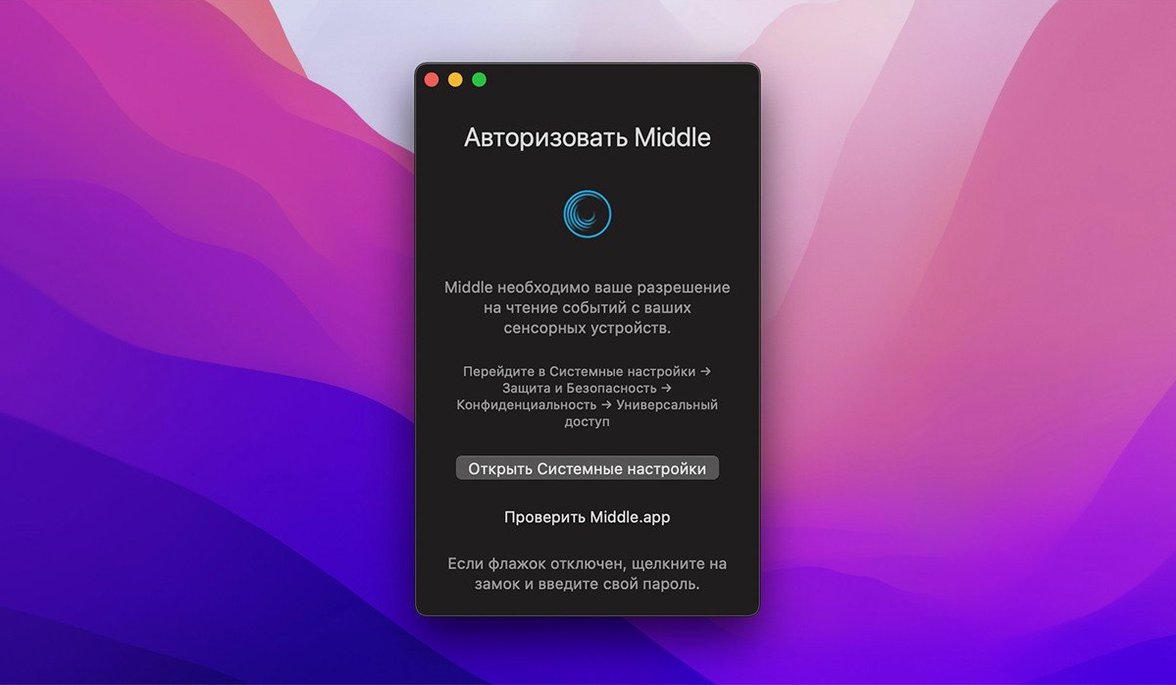
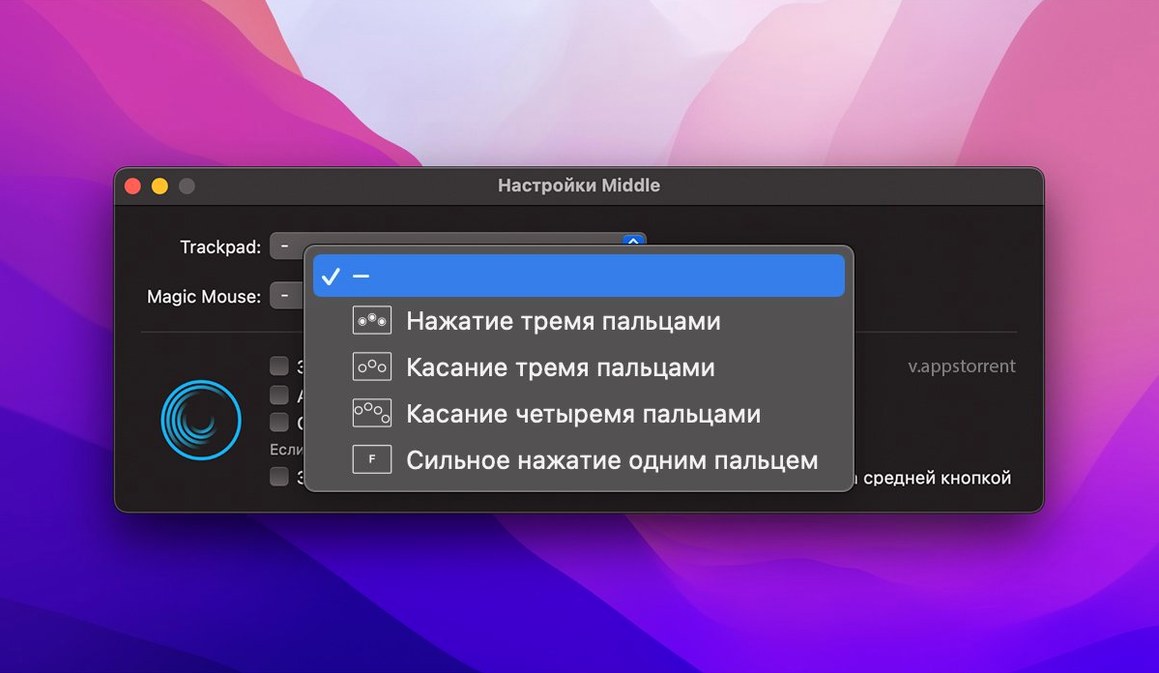
Middle runs on any Mac that can install macOS 10.15 Catalina or newer. That covers every Apple Silicon machine and a long tail of Intel models, so compatibility rarely gets in the way. The app enables a middle click on hardware that doesn't ship with one: a three-finger tap on a trackpad or Magic Mouse gets you there, and on Force Touch trackpads a one-finger force click does the same job.
| Detail | Value |
|---|---|
| Current version | 1.14.0 |
| Requires | macOS 10.15+ |
| Architecture | Apple Silicon and Intel |
What you get depends on your pointing device. The three-finger tap works on both trackpads and the Magic Mouse, which is the main reason people grab this utility. If you have a Force Touch trackpad, the one-finger force click is a nice alternative that saves a finger. The interface itself ships in a long list of languages, from English and Russian to Traditional Chinese, Hebrew, and Bosnian.
Where does Middle fit in a typical Mac setup?
Middle isn't a standalone tool you actively think about — it lives in the background and changes how a trackpad or Magic Mouse behaves at the system level. That means every app that respects a standard middle-click event benefits without any per-app configuration. Browsers close tabs and open links in new tabs. Finder has nothing built-in for middle click, but third-party file managers that use it suddenly gain that extra action on a Mac. Terminal emulators like iTerm2 can be set to paste on middle click, and Middle delivers the hardware trigger they've been waiting for.
On the macOS side, Middle plays nicely with Mission Control and gesture-heavy workflows. A three-finger tap configured in Middle doesn't collide with the system three-finger drag if you adjust the tap count or switch to force click. Accessibility-minded setups that remap clicks via System Settings also coexist, though it pays to pick one trigger method and stick with it while muscle memory forms.
Train your fingers with a deliberate middle-click week
Give yourself a week where you deliberately use the middle click even when you don't need to. Open browser tabs for articles you plan to read later with a three-finger tap on links. Close a few tabs the same way. If you use the middle click torrent approach — grabbing a quick download without leaving the keyboard — Middle turns that into a one-handed operation on a Magic Mouse.
A practical setup step: open System Settings, go to Trackpad or Mouse, and note which gestures currently use three fingers. On many Macs, three-finger swipe navigates between spaces. Middle's three-finger tap doesn't conflict with a swipe, but if you find yourself accidentally triggering one when you meant the other, toggle Middle to use force click instead. The preference lives in Middle's menu bar dropdown, and it takes effect immediately — no restart required.
The Magic Mouse center-click detection can feel narrow at first. A tip is to rest your index finger on the left edge and tap with your middle finger near the Apple logo. After two days, the motion becomes automatic.
Workflow: researching with a browser and a notes app
Here's a task where Middle changes the rhythm: compiling research from multiple web sources into a single note.
- Open your browser and a plain-text notes app side by side. I'll use Safari and Notes for this example, but Firefox and Obsidian work just as well.
- Search for a topic. With Middle running, three-finger-tap each promising search result. Every link opens in a background tab — no need to hold Command, no need to right-click and choose from a menu.
- Work through the tabs one by one. When you find a paragraph worth keeping, select the text. If your notes app supports middle-click paste (many third-party editors do, and you can configure it in terminals), a three-finger tap drops the text straight into the note. Otherwise, Command-C and Command-V still apply, but the tab management alone saves dozens of right-clicks.
- Close each tab with a three-finger tap on the tab itself. No hunting for the small "x" button, no keyboard shortcut to remember.
- When you hit a download link for a paper or a torrent — say,
middle for macrelated resources — a middle click opens the download in a background tab while you keep reading. The download progresses without interrupting the current page.
The whole sequence hinges on one gesture that macOS never offered natively. After the first session, the speed difference is noticeable: fewer context menus, fewer trips to the keyboard, just a steady tap rhythm that keeps the research moving forward.
- macOS 10.15 or later
- Apple Silicon or Intel Mac
Comments 0
Sign in or create an account to leave a comment.
No comments yet. A codec, a slice, a machine — they appear after moderation.