
Microsoft PowerPoint for macOS
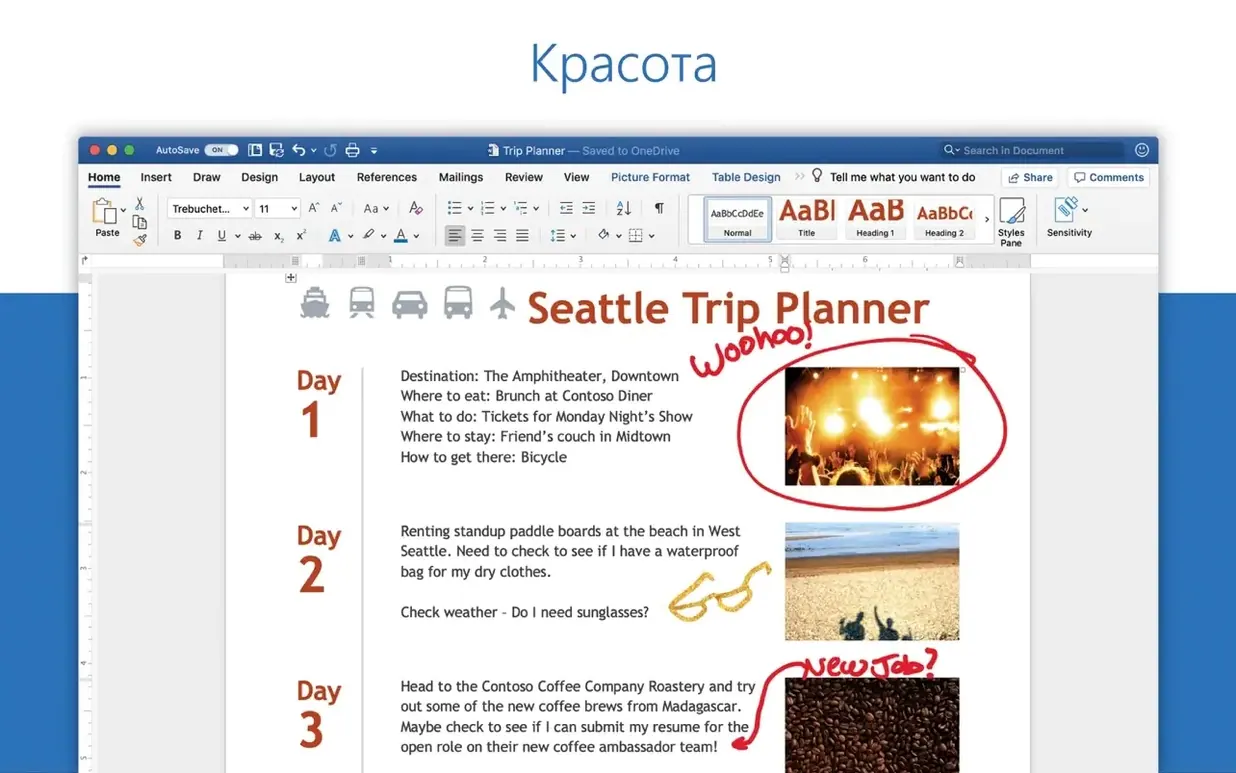
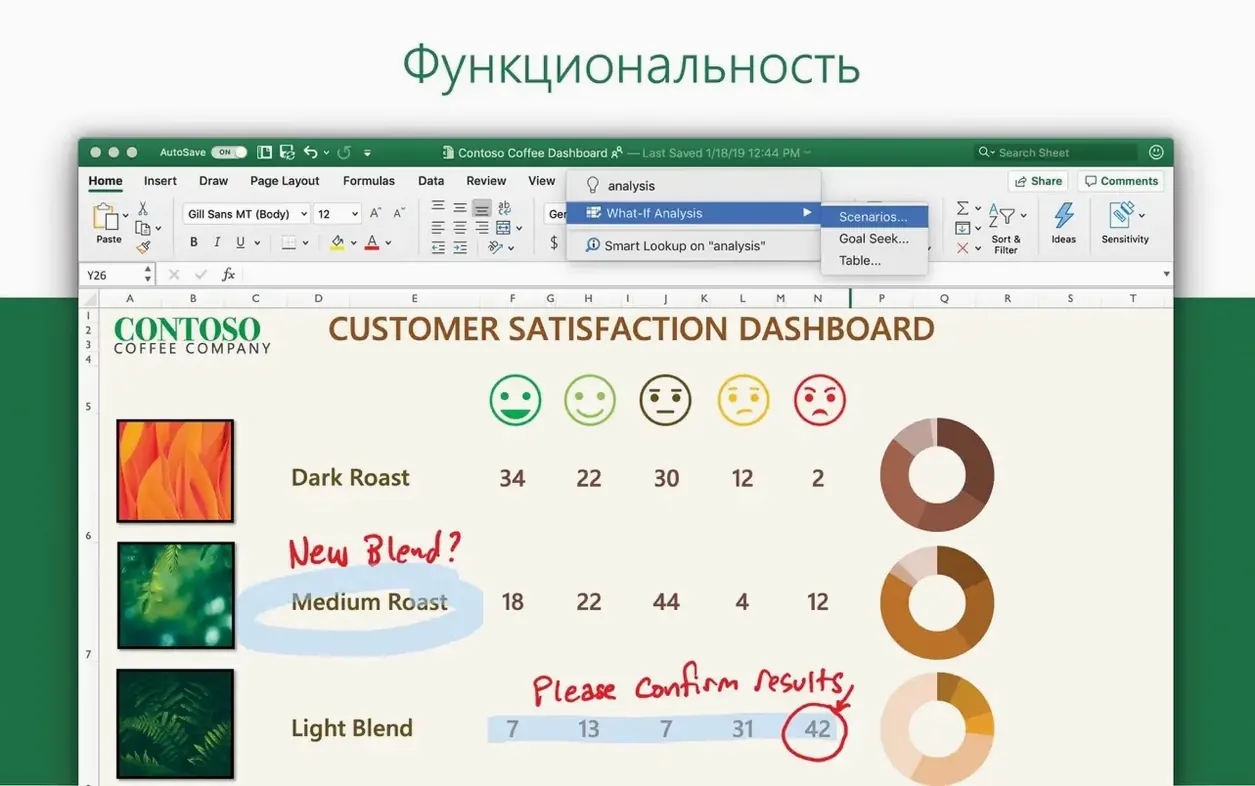
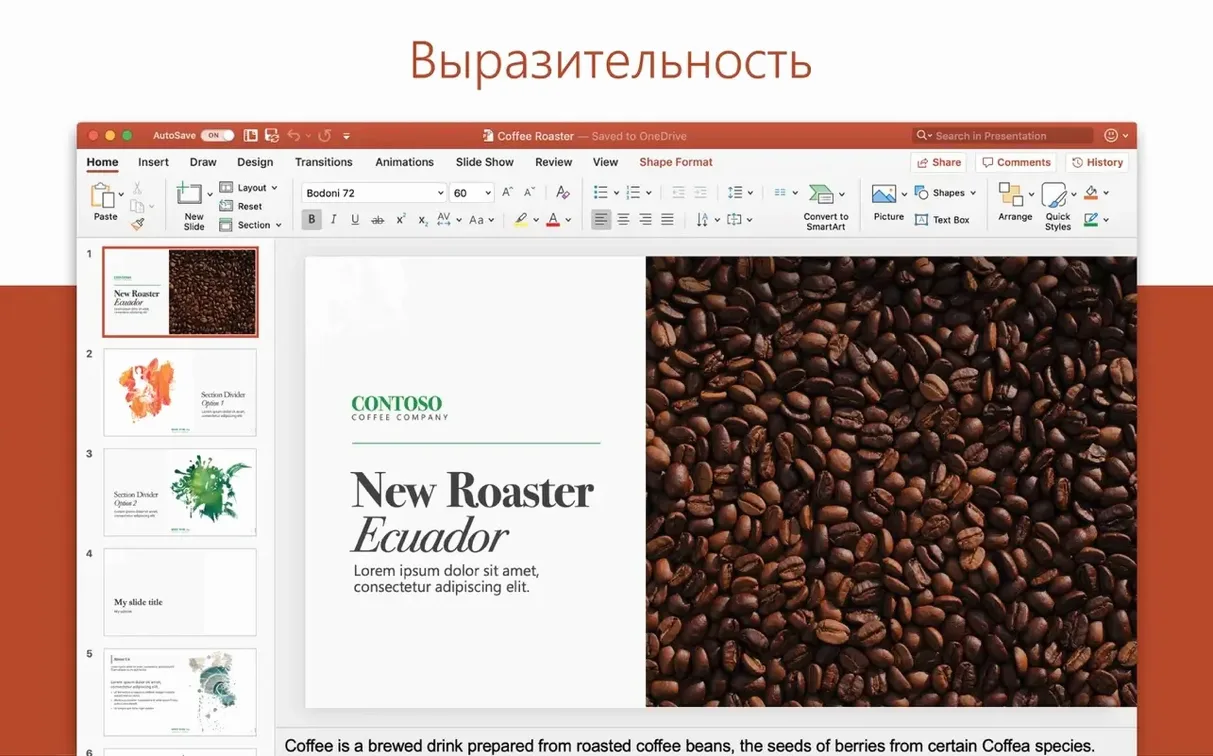
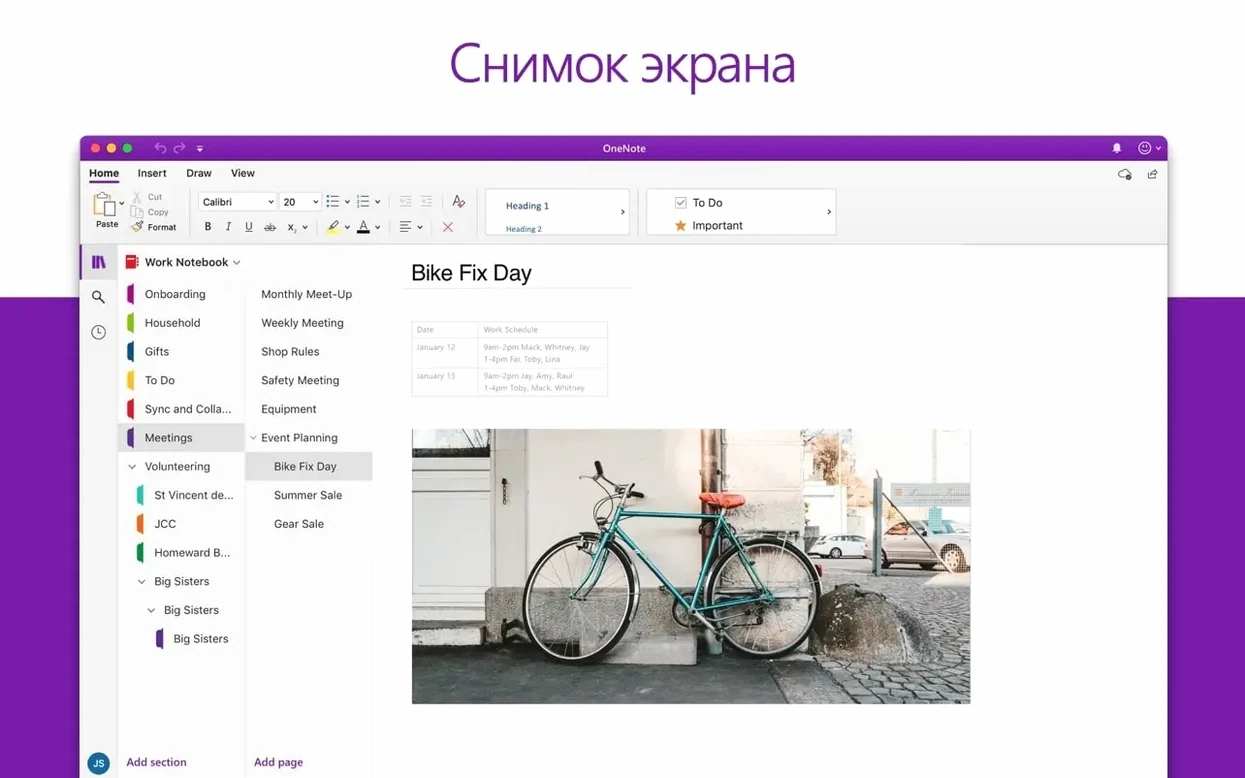
PowerPoint for Mac runs on any machine that meets its baseline: macOS 13 Ventura or newer, and it's a universal binary, so it runs natively on both Intel processors and Apple Silicon chips. That hasn't changed. What you get with version 16.93 is the current snapshot of Microsoft's slide deck editor, delivered as part of the Office LTSC Standard for Mac 2024 package.
What's in the current toolkit
The feature set has been stable for a while, and that's not a bad thing. Everything you'd expect from a modern presentation app is present: layout guides that snap objects into alignment, a full animation timeline with motion path effects, and a library of 3D models and scalable icons. The interface will feel familiar if you've used PowerPoint on another platform—the ribbon, the slide sorter, the formatting panes are all in their usual places. Smart design suggestions try to speed up slide creation by proposing visual arrangements as you drop in content.
The package it ships in
This isn't a standalone download in the traditional sense. PowerPoint 16.93 arrives through the Office LTSC 2024 installer, sharing its version number with Word, Excel, Outlook, and OneNote from the same release. The app speaks a long list of interface languages—from Japanese and Korean to Russian, Greek, and Czech—reflecting how broadly it's deployed across organizations that still rely on the .pptx format for meetings, lectures, and reports.
Pasting logos onto every slide instead of opening the slide master
Most early frustration with PowerPoint comes down to three things. The first is ignoring the slide master. I see decks where someone manually pastes a logo onto forty slides, then has to change it later. Open View > Slide Master and set up your layouts once. The second is treating bullet points as the only way to structure ideas. PowerPoint's design suggestions work better when you give them a heading and a supporting visual—an icon, a screenshot, a diagram—rather than seven lines of 10-point text. The third is using the default theme without adjusting the color palette. A quick trip to the Design tab, picking a variant, and tweaking the accent colors can make a deck look intentional instead of generic.
Another habit worth breaking: resizing images by dragging corner handles without holding Shift. PowerPoint constrains proportions by default now, but older habits die hard. If you're pulling in photos from a phone at 4032×3024, the file size balloons. Right-click an image and choose Compress Pictures—select 150 ppi for screen presentation and apply it to all pictures in the document. No one will see the difference on a projector, and your .pptx will shrink by half or more.
What trips people up and how to fix it
Font substitutions between Mac and Windows
The Mac version ships with a different font set than Windows Office. Calibri is there, but if someone on Windows used a corporate font like Segoe UI or a licensed typeface you don't have installed, PowerPoint silently substitutes it—often breaking line wraps and alignment. Check File > Fonts whenever you open a deck from a colleague. If a font shows as missing, either install it or replace it globally using Format > Replace Fonts.
Video and audio that won't play
Embedded media is picky about codecs. PowerPoint for Mac prefers H.264 video in an .mp4 container and AAC audio. A .wmv file from a Windows machine simply won't play back—you'll see a static placeholder. The fix: convert it with HandBrake or Finder's built-in encode to H.264 before dropping it onto a slide. Also, check Slide Show > Playback settings; the default is "On Click," and many presenters don't realize their video won't auto-start.
Exported PDFs with jagged text or missing slides
When a deck goes to PDF and the text looks blocky, it's usually because "Bitmap text when fonts may not be embedded" is checked in the save dialog. Uncheck that, or embed the fonts beforehand under File > Properties > Fonts. If a slide is missing from the PDF entirely, it's almost always a hidden slide. Check the slide thumbnails in the left pane—hidden slides have a strikethrough on their number.
Cold-launch speed and animation timeline smoothness on Apple Silicon
On an Apple Silicon Mac, PowerPoint launches in about two seconds cold and under a second warm. The universal binary means no Rosetta translation overhead, and I notice that especially when scrubbing through the animation timeline or rendering slide transitions with 3D models. Memory use hovers around 300–400 MB for a typical 30-slide deck with images. That climbs past a gigabyte if you're working with multiple high-resolution videos embedded, but the app releases memory promptly when you close a file.
Stability has been uneventful in the best sense. I've left the app open across sleep/wake cycles on macOS 14 and 15 without a crash. AutoSave to OneDrive works in the background, and the recovery pane has brought back unsaved work after a forced quit—though I wouldn't rely on that as a workflow. The one place where smoothness dips is collaborative editing. When two or three people are in the same deck, typing latency appears—maybe a quarter-second lag—while changes sync. It's workable, but it reminds you this is a document editor with collaboration layered on, not a real-time canvas like some web-native tools.
Export speed is worth mentioning. A 40-slide deck with charts and compressed images exports to PDF in under four seconds on an M1 Pro. The same file to .mp4 video at 1080p takes about a minute per slide if you've used timed transitions—so budget accordingly before a deadline.
The AutoFit text settings that resize your copy without asking
Open PowerPoint > Settings > General and turn off "Show the Start screen when this application starts." It saves a click every time. Under AutoCorrect, disable "AutoFit title text to placeholder" and "AutoFit body text to placeholder"—these are the settings that shrink your font to 8 points when you add a fifth bullet, and they're impossible to undo cleanly. You want to know when text is overflowing, not have the app hide it from you.
Under Save, check "Embed fonts in the file" if you share decks with Windows users. Set the default save location to a local folder if you don't use OneDrive—PowerPoint defaults to cloud locations, and that adds a network dependency to every Save. Finally, head to the Quick Access Toolbar and add Align, Distribute Horizontally, and Selection Pane. The first two make object placement precise; the third lets you see every element on a slide in a list and rename them, which is essential once you have overlapping shapes and want to animate specific ones without guessing which is which.
Why Keynote wins on out-of-the-box polish and cascading builds
Apple Keynote is the obvious comparison, and it wins on visual polish with almost no effort. The default themes look cleaner out of the box, and the animation model—builds that cascade across objects with a single drag—is more intuitive than PowerPoint's timeline-based approach. But Keynote stumbles on compatibility. Open a complex .pptx from a colleague and you'll often find misaligned charts, missing SmartArt, or font substitutions that Keynote handles less gracefully than PowerPoint's own font-mapping logic. If your workflow involves round-tripping files with Office users, PowerPoint is the safer bet. If you're presenting from your own Mac to an audience and never need to share editable files, Keynote feels faster and lighter.
Google Slides lives in the browser and requires zero installation, which makes it the natural choice for quick collaborative decks. Its real-time co-editing is genuinely smooth—smoother than PowerPoint's desktop sync—and version history is built in. The trade-off is feature depth. Slides has no equivalent to PowerPoint's motion path editor, its charting tools are basic, and you can't work offline without Chrome and a plugin. For a student group project where three people are editing simultaneously, Slides works. For a conference talk with timed animations and embedded 3D models, the gap widens quickly.
LibreOffice Impress is the open-source alternative that runs on macOS and handles .pptx files reasonably well for simple decks. It supports slide masters, transitions, and basic animations. Where it falls short is rendering fidelity: complex layouts with overlapping transparency, gradient-filled shapes, or custom fonts often shift by a few pixels. Impress also lacks any collaboration features and feels heavier on system resources than its feature set would suggest. It's a competent tool for building a presentation from scratch on a machine without Office, but opening and editing existing .pptx files is a gamble on whether the layout survives intact.
PowerPoint's edge across all three comparisons is format fidelity. When someone sends you a .pptx created on Windows with corporate templates, embedded Excel charts, and custom animations, this is the app that opens it with the fewest surprises. That's not flashy, but it's the practical reality that keeps it installed on Macs alongside the alternatives.
- Office suite release 16.93 rolls PowerPoint into the current LTSC 2024 channel.
- macOS 13 or later
- Intel or Apple Silicon Mac
Comments 0
Sign in or create an account to leave a comment.
No comments yet. A codec, a slice, a machine — they appear after moderation.