Sensei for macOS
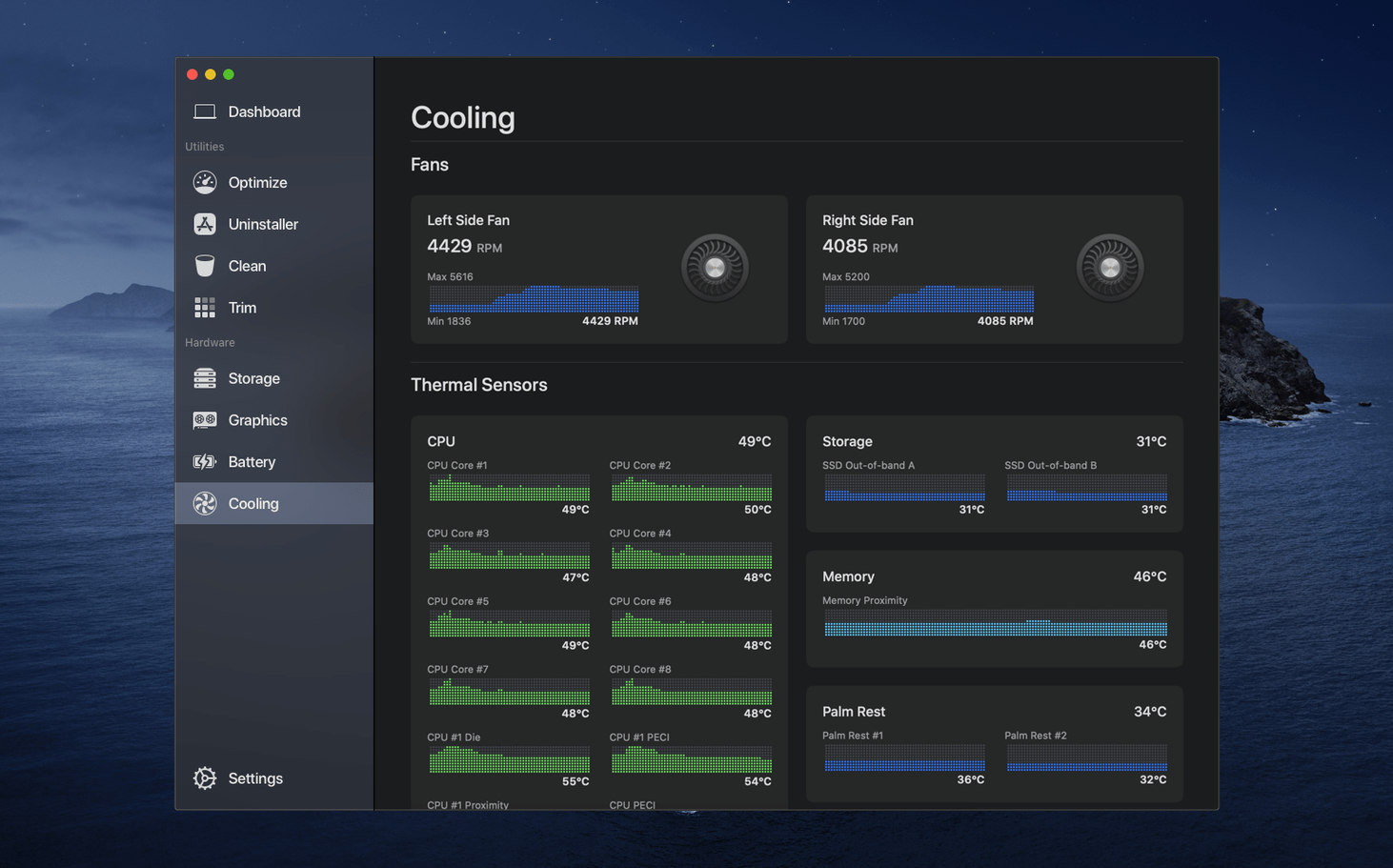
You suspect a background process is eating CPU cycles, so you glance at the menu bar. A compact readout shows your processor is actually fine—but the SSD temperature is climbing during a large file transfer. That is a typical moment with Sensei. Before diving into the toolset, let's confirm it will launch on your machine.
Does it need Apple Silicon or a specific macOS version?
Sensei 2.1.2 requires macOS 14 or later. It runs natively on both Apple Silicon and Intel Macs, so you get full performance without Rosetta translation on M-series chips. The app is distributed as a standard .dmg. If you are on an older OS, the updater won't offer this build.
What live hardware stats appear in the menu bar?
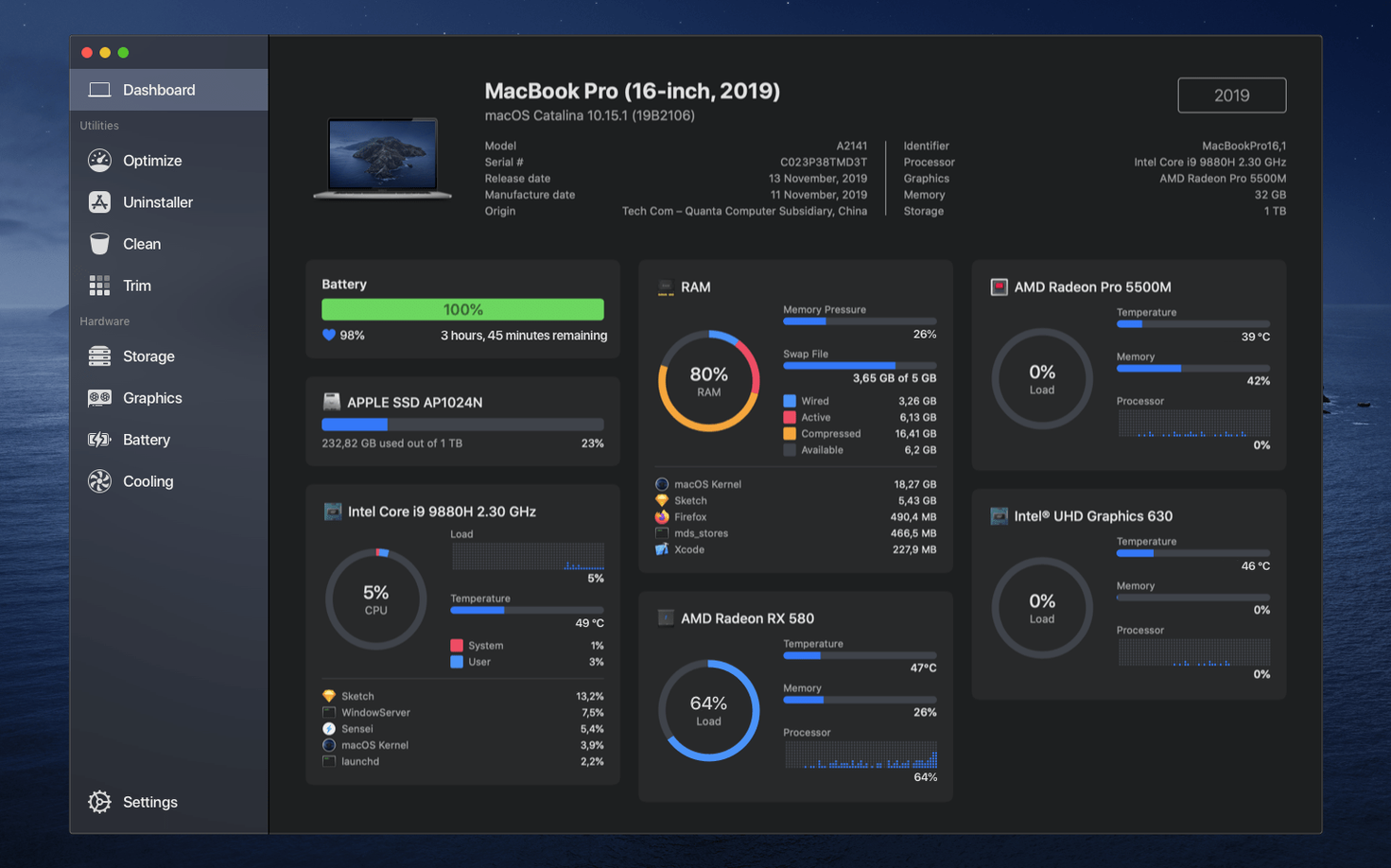
Beyond the clean Dashboard that surfaces GPU, CPU, and RAM activity, the always-visible menu bar Monitor is the real daily driver. From there you can track hardware vitals at a glance. When you need to act, the same app handles application uninstallation and SSD maintenance—including a toggle to enable TRIM, which helps non-Apple SSDs maintain write performance over time. It bundles monitoring and cleaning into one utility without splitting functions across separate modules.
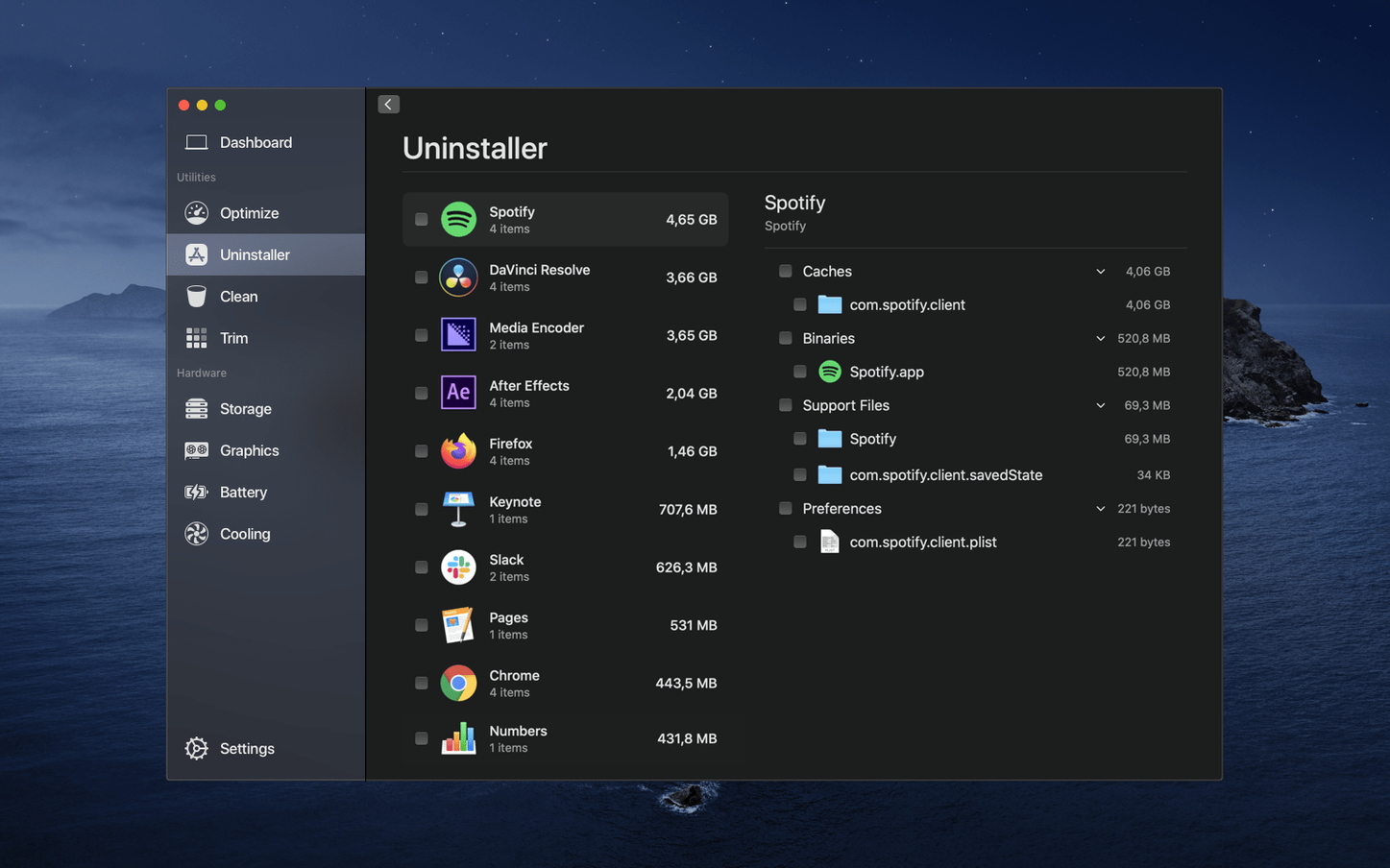
Sensei casts a wider net than a simple temperature widget, but it really lands with two groups. The first is anyone who lives in the menu bar and wants hardware numbers without opening a full dashboard—freelancers watching thermals during renders, developers chasing memory pressure, or just someone who noticed the fans spinning up and wants to know why. The second group is Mac owners with upgraded or external SSDs. TRIM support alone attracts people who swapped a third-party NVMe drive into an older enclosure, because macOS can be conservative about enabling it automatically. If neither of those sounds like you, the app can still earn its keep as a tidy uninstaller that catches leftover preference files that .app-trashing leaves behind.
Which menu bar widgets give you temps and drive health at a glance?
- Menu bar widget layout. Open preferences and decide which stats appear in the bar. The default set includes CPU and memory; adding GPU temperature or SSD health turns it into a genuinely useful at-a-glance panel without screen clutter.
- Temperature unit. Celsius is the default. If you think in Fahrenheit, switch it before you misinterpret a perfectly normal 55°C reading as a crisis.
- Launch at login. The menu bar Monitor only earns its keep if it is always running. Enable the login item toggle, then optionally hide the Dock icon so Sensei behaves like a background utility rather than a foreground app.
- Fan control safety net. If you plan to use manual fan curves, set a maximum temperature threshold early. The app will let you override system fan logic, and a sensible ceiling keeps you from accidentally cooking a chip during a long export.
One under-the-radar setting: the Dashboard update interval. The default strikes a balance between responsiveness and CPU overhead, but on Apple Silicon Macs you can drop it to one second with negligible power impact and noticeably snappier graphs.
Why does a daily deep clean make your Mac slower?
The biggest one is treating the cleaning tools like a daily ritual. Sensei can purge caches, logs, and temporary files, but macOS manages most of that on its own. Running a deep clean every morning can actually slow down your first launch of apps as they rebuild legitimate caches. A monthly pass is plenty for most users; after a major OS update is another sensible moment.
Another trap: enabling TRIM without checking whether your SSD already has it active. Open the SSD panel and look at the current status line before you click the toggle. Third-party drives that use a modern NVMe controller often have TRIM negotiated automatically by macOS 14. Forcing it a second time is harmless, but the habit of toggling without checking leaves you guessing about what actually changed.
On the fan control side, newcomers sometimes set a flat curve that locks RPMs low for silence. That works right up until the GPU kicks in and the SoC hits its thermal limit, at which point the system throttles hard. A better approach is a gentle ramp: keep idle speeds quiet but let the fans respond above 70°C. The hardware already knows what it needs; you are nudging the curve, not rewriting it from scratch.
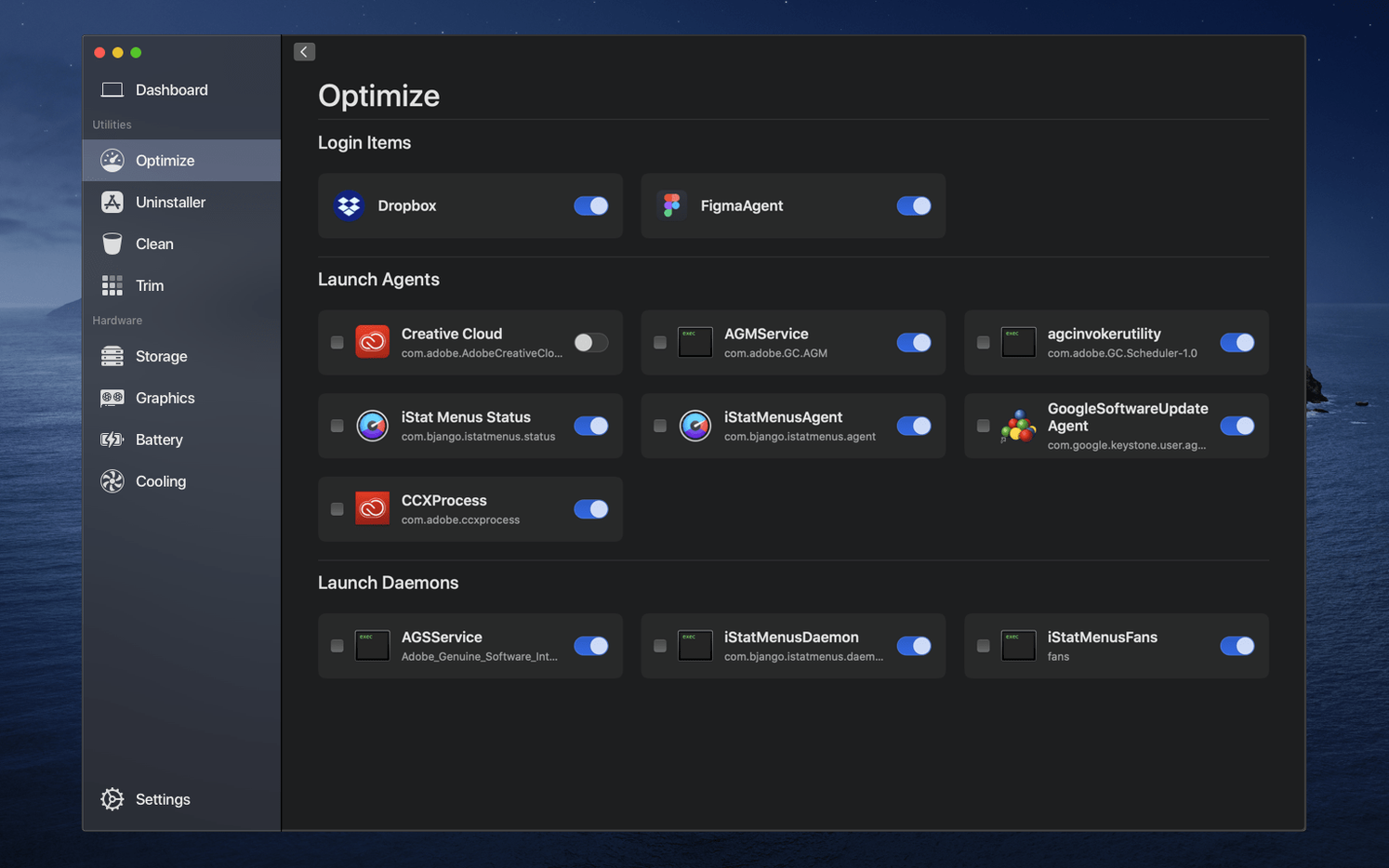
Finally, the uninstaller lists items you might not recognize—helper tools, launch daemons, components from long-deleted apps. Deleting something whose name you cannot place is a good way to break a piece of software you still use. When in doubt, search the item name online before you remove it.
- macOS 14 or later
- Apple Silicon or Intel Mac
Comments 0
Sign in or create an account to leave a comment.
No comments yet. A codec, a slice, a machine — they appear after moderation.