
Smooze Pro for macOS
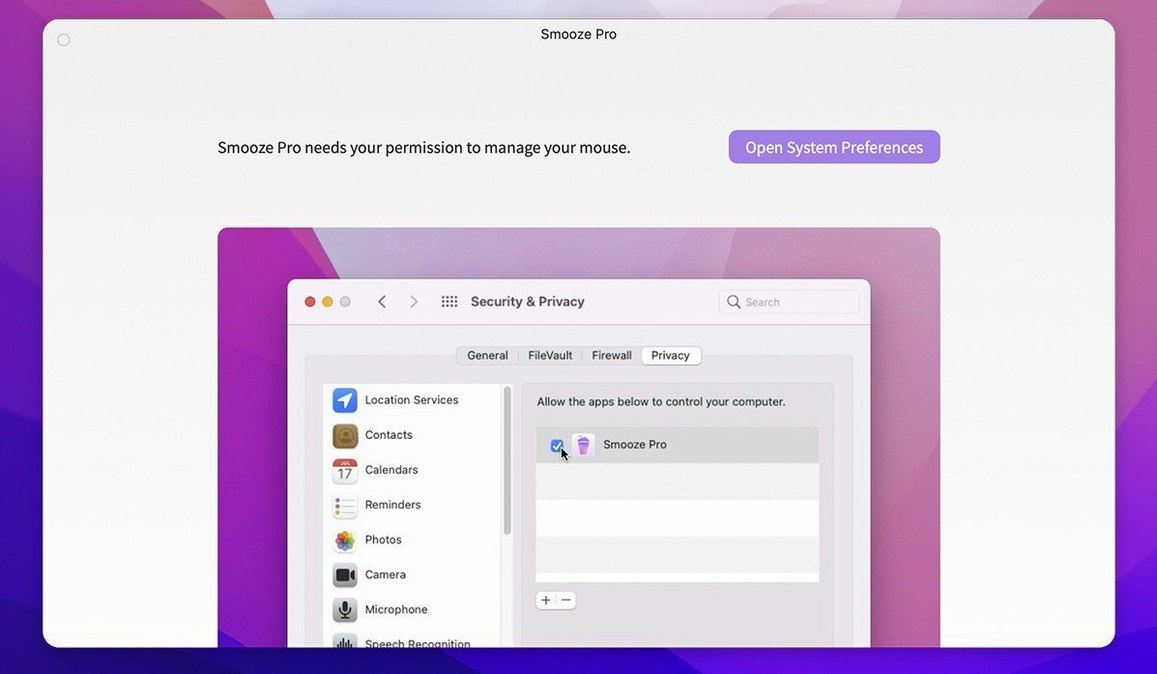
Native on Apple Silicon and Intel 64-bit Macs
The app requires macOS 14.6 or later and ships as a universal binary, so it runs natively on both Apple Silicon and Intel 64-bit Macs.
How do you set up per-display scrolling?
Open the menu bar item and look under the scrolling tab — the app lets you assign different scroll behaviors like grab, drag, or throw to individual displays.
Can you disable mouse acceleration?
I barely thought about the mouse all morning
I spent a morning with the app wired into my usual tools — a few browser windows, Xcode, a terminal, and a long PDF in Preview. The most immediate change was how little I thought about the mouse. Scrolling across a 1440p timeline in DaVinci Resolve didn’t jump or stutter; the wheel just moved the playhead at a steady, predictable rate. That’s mostly the disable scroll acceleration toggle doing its job.
Memory sat around 35 MB with three per-app profiles active — negligible on any Mac that can run macOS 14.6. CPU use stayed at zero when idle and barely registered during fast flings. I never saw a beachball, even when switching between apps that had conflicting scroll-line counts assigned. The helper process reattached cleanly after sleep, which isn’t always a given with input-modification tools.
One surprise: throwing a long webpage on an external 4K display felt smoother than on the built-in trackpad. The app seems to cap the animation curve sensibly, so you don’t get that seasick overshoot some third-party scroll engines produce. If you ever grabbed a Smooze Pro torrent Mac build from a forum to test whether it still works on Sequoia — yes, this version handles it without glitches I could find.
A typical first session, step by step
- Launch the app from
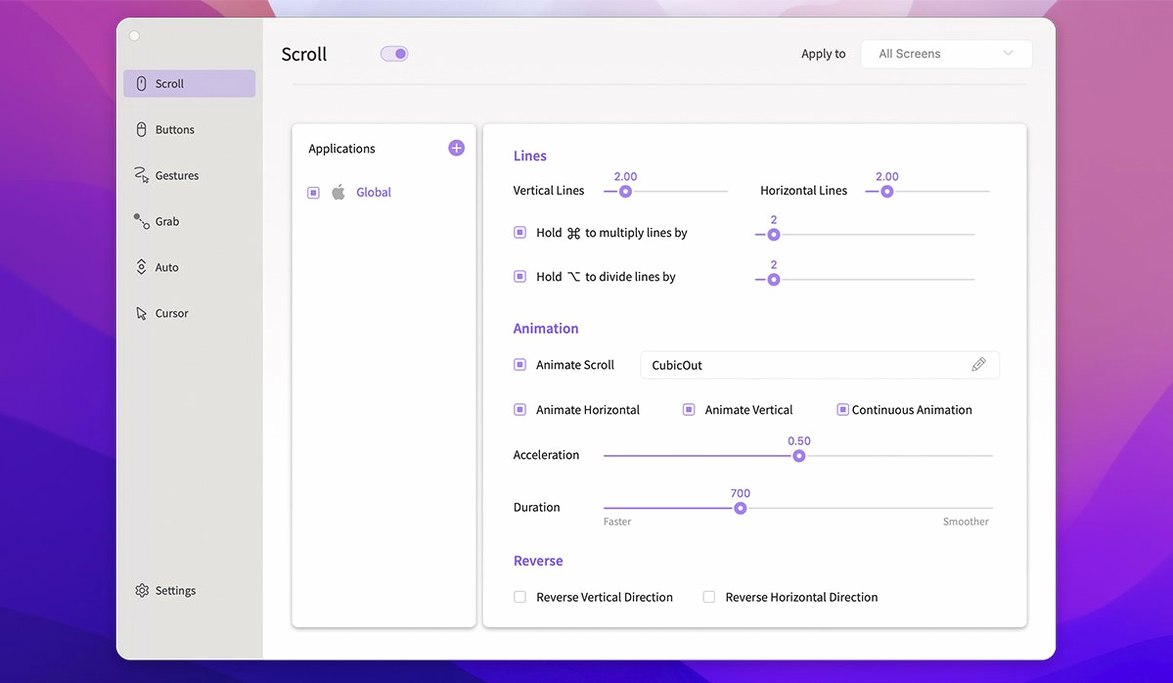
/Applications. The menu bar icon appears immediately — a small, unobtrusive indicator. - Open the scrolling tab and uncheck Enable Scroll Acceleration. This alone makes most mice feel more direct.
- Switch to the General tab and check Launch at login so you don’t have to think about it again.
- Pick an app where you want different behaviour — say, Chrome. In the per-app list, add it and set Scroll lines per tick to 5 instead of the default 3. Scrolling long articles now covers more ground per flick.
- Enable Auto Scroll and assign it to the middle button. Click the middle button anywhere on a page; a small anchor icon appears. Move the mouse slightly in any direction and the page scrolls automatically at a speed proportional to the distance from the anchor. Click again to stop.
- Head to the gestures tab, create a new gesture for Right button held + wheel down, and bind it to Cmd+W. Now you close tabs by holding right-click and scrolling down — muscle memory builds fast.
Shift-lock auto-scroll for wide spreadsheets
- Holding Shift while auto-scrolling locks the direction to horizontal or vertical, whichever you started first. Useful for wide spreadsheets.
- The grab scrolling mode turns any mouse into a hand tool — hold a button you assign, then drag the page like you’re pulling paper across a desk. Works in apps that don’t normally support it.
- Per-display settings aren’t just about scroll style. You can set different line counts for your laptop screen and your external monitor, which helps when display densities differ.
- Gestures can chain: one gesture can fire a keyboard shortcut, pause 50 ms, and fire another. The delay is configurable in milliseconds, hidden under an advanced disclosure triangle most people skip.
- If the menu bar icon bothers you, the app can hide it completely while keeping all functionality running. The toggle is in the General tab, not the menu itself — easy to overlook.
Quick tweaks that make it feel personal
Out of the box, the app is conservative. A few quick tweaks make it feel more personal.
1. Kill scroll acceleration
Found under the scrolling tab, this is the single setting that makes a wheel mouse feel predictable. Without it, macOS applies its own acceleration curve on top of the app’s smoothing, which can feel muddy.
2. Raise the scroll line count per app
The global default of 3 lines per tick is fine for dense text, but in browsers or code editors, bumping it to 5 or 6 cuts down on repetitive finger movement. Set it per-app so Finder stays precise while Chrome gets speed.
3. Assign auto-scroll to a thumb button
If your mouse has side buttons, map auto-scroll to one of them. It’s faster than reaching for the middle click and turns any long document into a one-hand navigation task — no wheel needed.
4. Review the gesture conflict list
When you add a gesture, the app shows a small warning triangle if that combination is already used by another rule. Spend two minutes cleaning up overlaps before they frustrate you mid-workflow.
5. Enable per-display profiles early
The default behaviour applies the same settings to every screen. If you use a high-refresh-rate external monitor, the throw-scroll physics can feel too fast. Dial it down for that display alone under the per-display section.
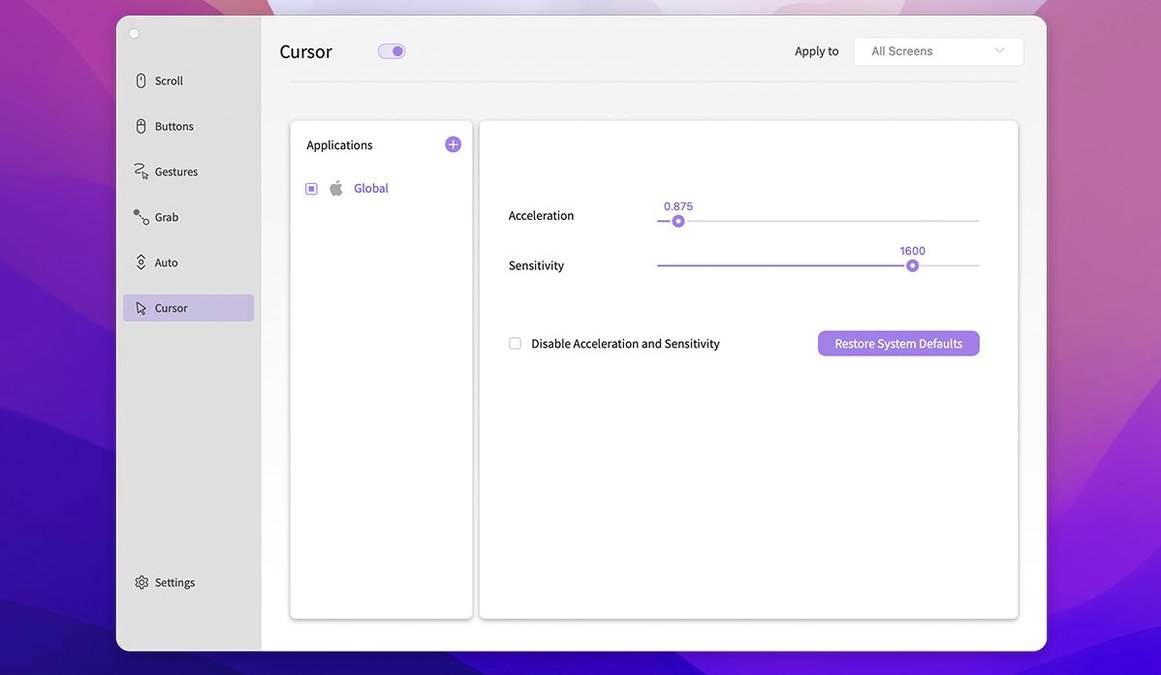
Yes. The settings include a toggle that turns off scroll acceleration system-wide, which is handy when you want linear, predictable wheel movement across apps.
- macOS 14.6 or later
- Apple Silicon and Intel 64-bit
$ man smooze-pro | grep -A2 "?"
Does it handle mouse gestures and button remapping?
Yes, you can assign custom actions to mouse buttons and trigger them with gestures, all configured from the menu bar panel.
Comments 0
Sign in or create an account to leave a comment.
No comments yet. A codec, a slice, a machine — they appear after moderation.