SpeakMe for macOS
AIFF is the one and only export format. SpeakMe 3.4.5 writes a self-contained AIFF file straight to disk — no real-time routing, no intermediate encoder settings to tweak. For anyone building a spoken-word library from raw .txt sources, that single-format pipeline means predictable, uncompressed output every time.
Plain text to AIFF, no DAW needed
- Generating clean, uncompressed AIFF files from plain text without touching a DAW.
- Quickly auditioning macOS speech synthesis with different voices on Apple silicon and Intel hardware.
- Users who need a no-frills export button rather than a multi-tab audio toolbox.
AIFF-only export with English interface text
- Output is locked to AIFF; there is no AAC, MP3, or WAV export path.
- The interface shows English text only; no localization is available.
Pasting 2,200 words without formatting fuss
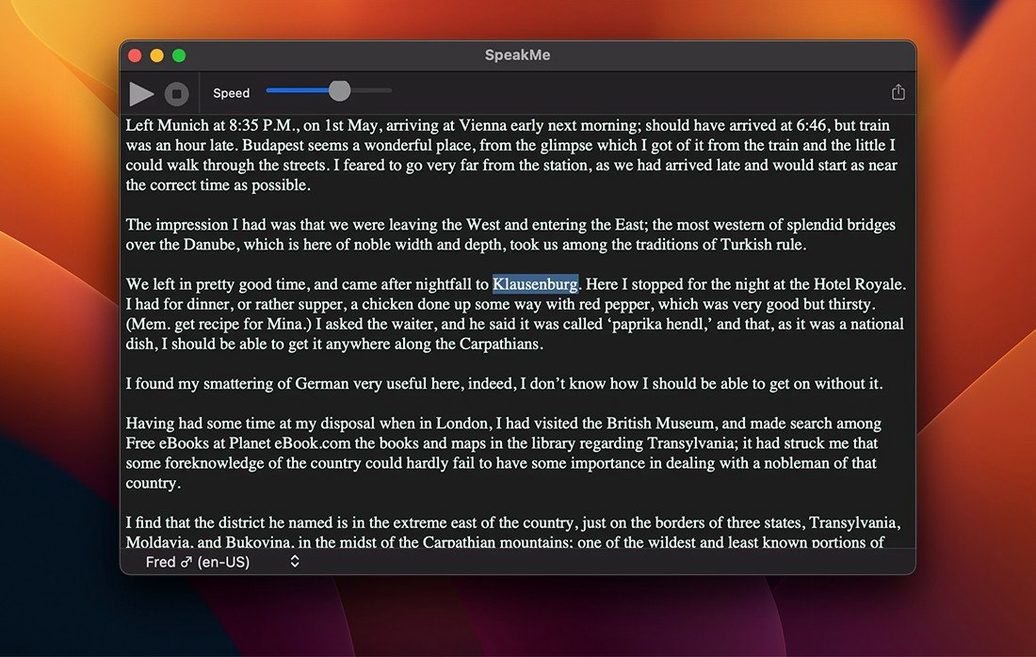
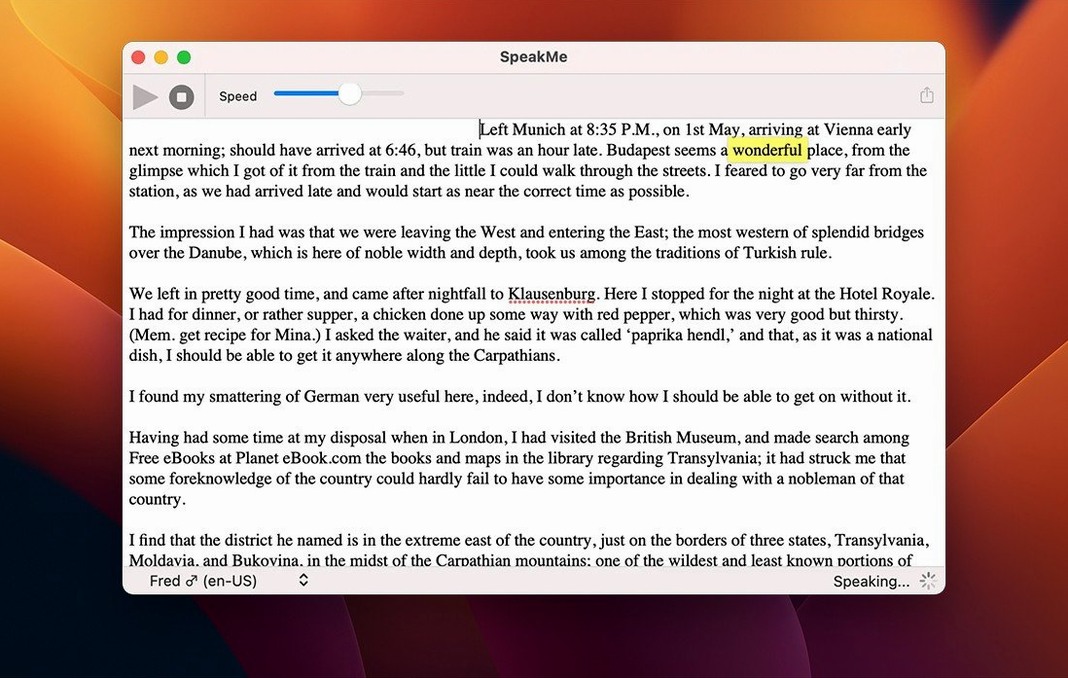
Last Thursday I threw a 2,200-word draft at it — a chapter from a public-domain novel in plain .txt. Opened SpeakMe, pasted the whole thing, and the text landed in the main panel without any formatting fuss. The app doesn't care about rich text; it strips everything down to the words.
I picked a voice from the macOS library — Samantha, because her pacing works for long passages — and nudged the speed slider slightly faster than default. You learn quickly that "normal" speed in a screen reader feels sluggish when you're producing a file meant for listening at 1× in a media player.
Then I hit export. SpeakMe asked for a filename and a destination. I named it chapter-04.aiff and pointed it at a folder on the desktop. The progress bar crawled for about four minutes — reasonable for that word count on an M1 Mac. What dropped into the folder was a single AIFF file, 44.1 kHz, ready to drop into a video timeline or a podcast project. No metadata, no chapter markers, just clean audio from start to finish. I pulled it into QuickTime Player to spot-check the last paragraph and it matched the text exactly.
If you're working with shorter snippets — say, a single paragraph or a few sentences you've highlighted — the workflow is even faster. Select, click the speaker icon to audition in-app, then export only when you're happy with the voice and speed. That's the loop: paste or select, audition, tweak the slider, export.
Start with a single paragraph to learn the speed slider
Start small. Don't throw a 50-page manuscript at it on day one. Feed it a single paragraph, export it, and open the AIFF in whatever you normally use for playback. Get a feel for how the speed slider translates to real-world timing before you commit to a long export.
Name your files with care right from the start. SpeakMe won't embed track titles or author metadata in the AIFF container, so chapter-04.aiff is a lot more useful three weeks later than export.aiff. If you're building a library, a consistent naming convention now saves a headache later.
Check your available voices before you begin a project. Open System Settings > Accessibility > Spoken Content and look at what's installed. macOS ships with a handful of voices, but many of the higher-quality ones need to be downloaded. Do that first, then restart SpeakMe so it picks up the new voices. If a voice you downloaded doesn't appear, a quick restart of the app usually fixes it.
For video narration work, write your script with natural pauses. SpeakMe reads what you give it — it won't insert dramatic beats on its own. A double line break in the text source becomes a slight pause in the output, which is often enough for basic pacing.
The speech speed slider you’ll adjust constantly
There aren't many knobs to turn, which is kind of the point. But the speech speed control is the one you'll adjust constantly. The default is conservative — fine for proofreading, too slow for a produced audio file. Bump it up a notch, export a test clip, and listen. Repeat until the cadence feels right for your material. Fiction often wants a slower pace than instructional copy.
If you grabbed the SpeakMe Mac torrent and are setting it up fresh, take the thirty seconds to test your system voice list. Open the app, click the voice dropdown, and cycle through every option while a short sentence is loaded. Mark the two or three voices you'll actually use. Some voices handle punctuation better than others; some stumble on uncommon proper nouns. Knowing which ones work for your content saves re-exporting later.
One hidden macOS tip: if you want the AIFF files to land in a specific folder every time, create that folder first and keep a Finder window open to it. SpeakMe remembers the last save location during a session, but it resets after you quit. Dragging the destination folder into your Finder sidebar makes the export dialog quicker to navigate when you're running through multiple files.
- macOS 12 or later
- Apple silicon or Intel Mac
- English interface
$ man speakme | grep -A2 "?"
What file format does SpeakMe export?
It exports a standard AIFF audio file that any Mac can play back without additional codecs.
Does SpeakMe run on Apple silicon Macs?
Yes, version 3.4.5 runs natively on both Apple silicon and Intel Macs and requires macOS 12 or later.
Comments 0
Sign in or create an account to leave a comment.
No comments yet. A codec, a slice, a machine — they appear after moderation.