Super Vectorizer Pro for macOS
You can run Super Vectorizer Pro on any Mac that boots OS X 10.10 Yosemite or later. The binary is universal — it ships with both ARM code for Apple Silicon machines and 64‑bit x86 code for older Intel Macs, so Rosetta 2 never enters the picture. No special GPU is required; the tracing work happens on the CPU.
From pencil sketch to clean vector art in one step
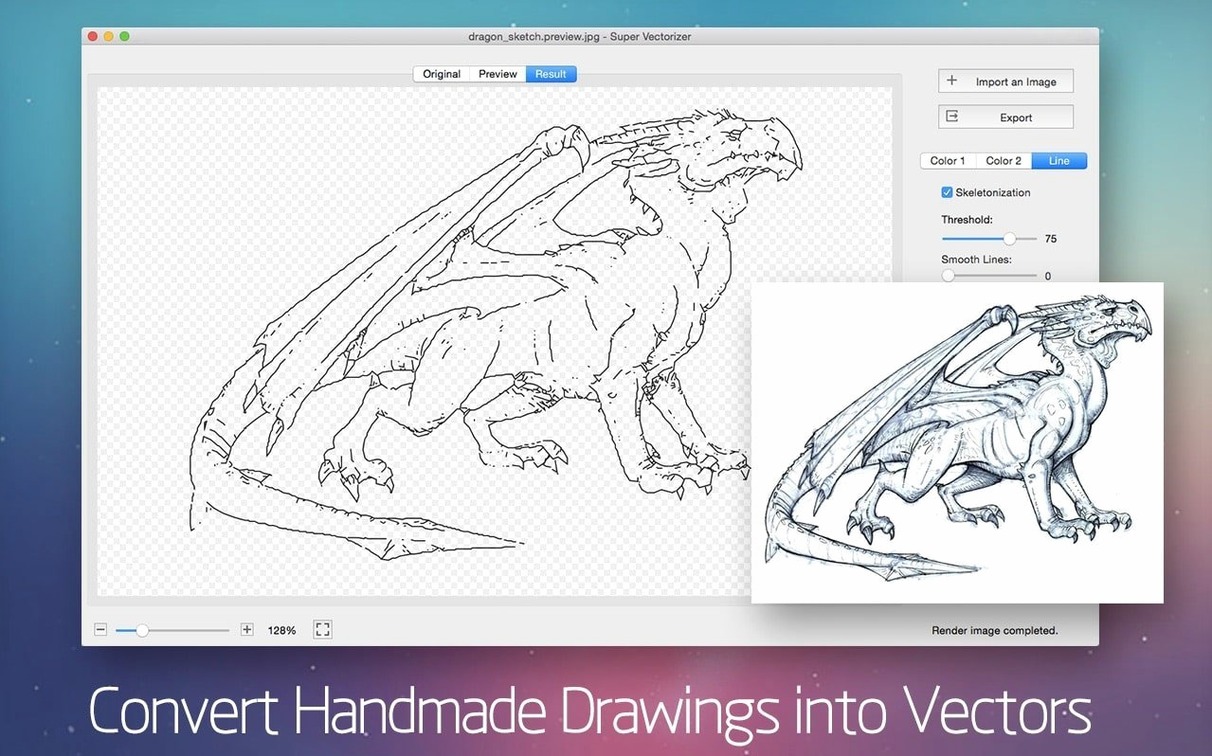
- Turning a pencil sketch or ink drawing into clean, resolution‑independent vector art.
- Tracing logos where you need transparent backgrounds in the output.
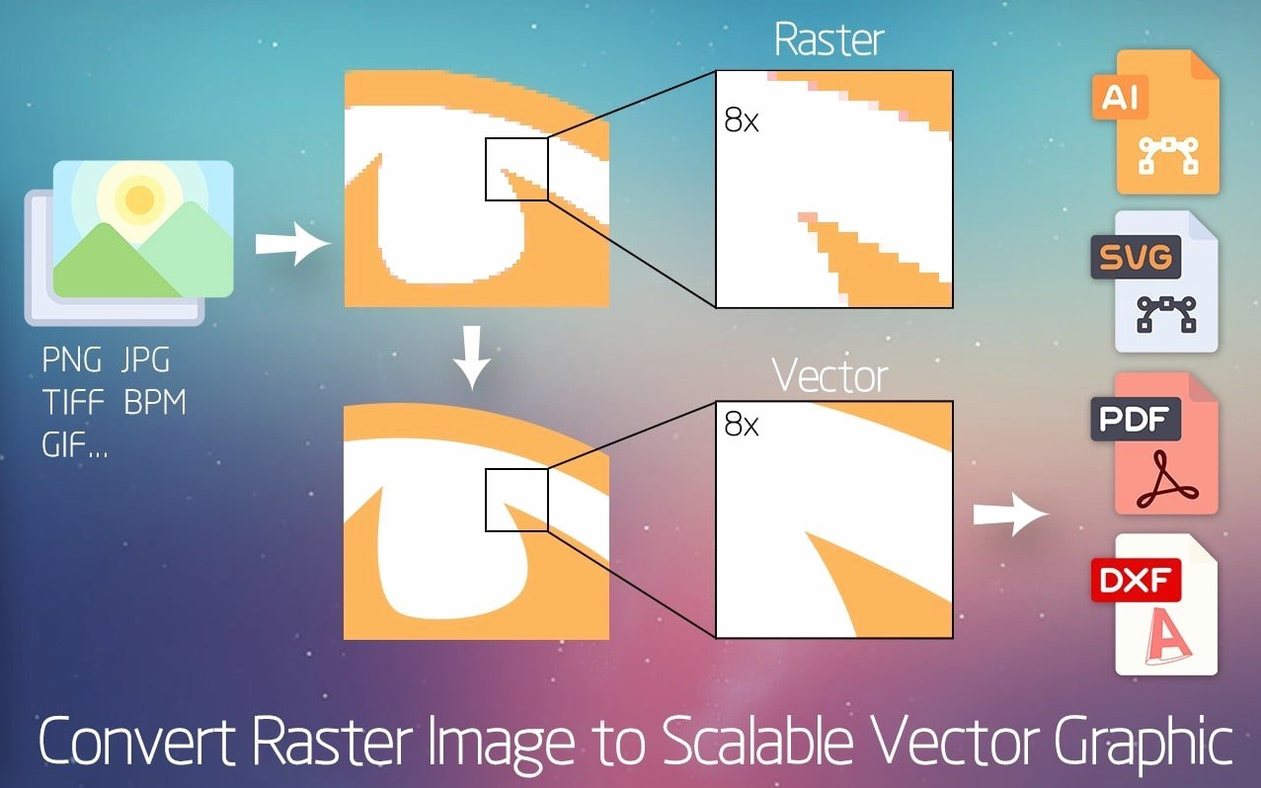
- Batch‑opening odd raster formats — the app reads over 70 input image formats.
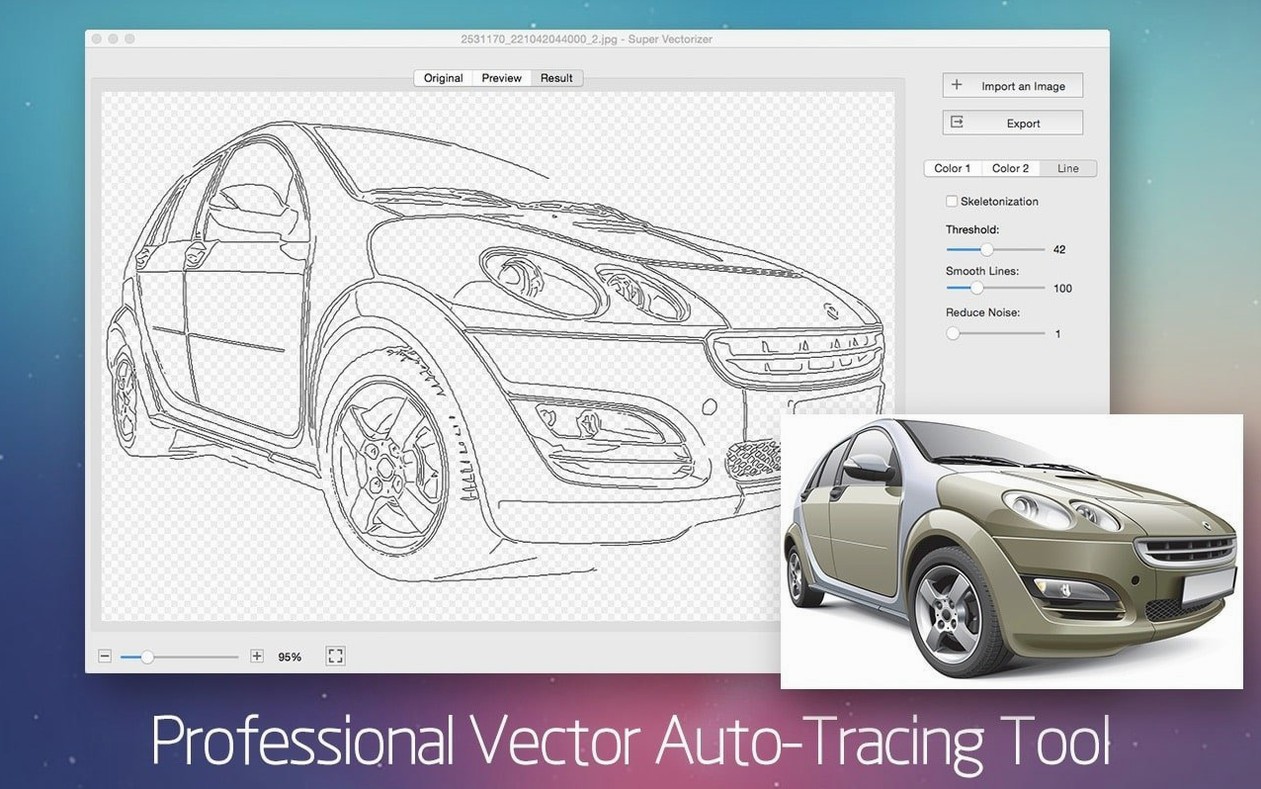
- Generating a simplified line‑art skeleton with the skeletonization function.
64-color cap means photos turn posterized
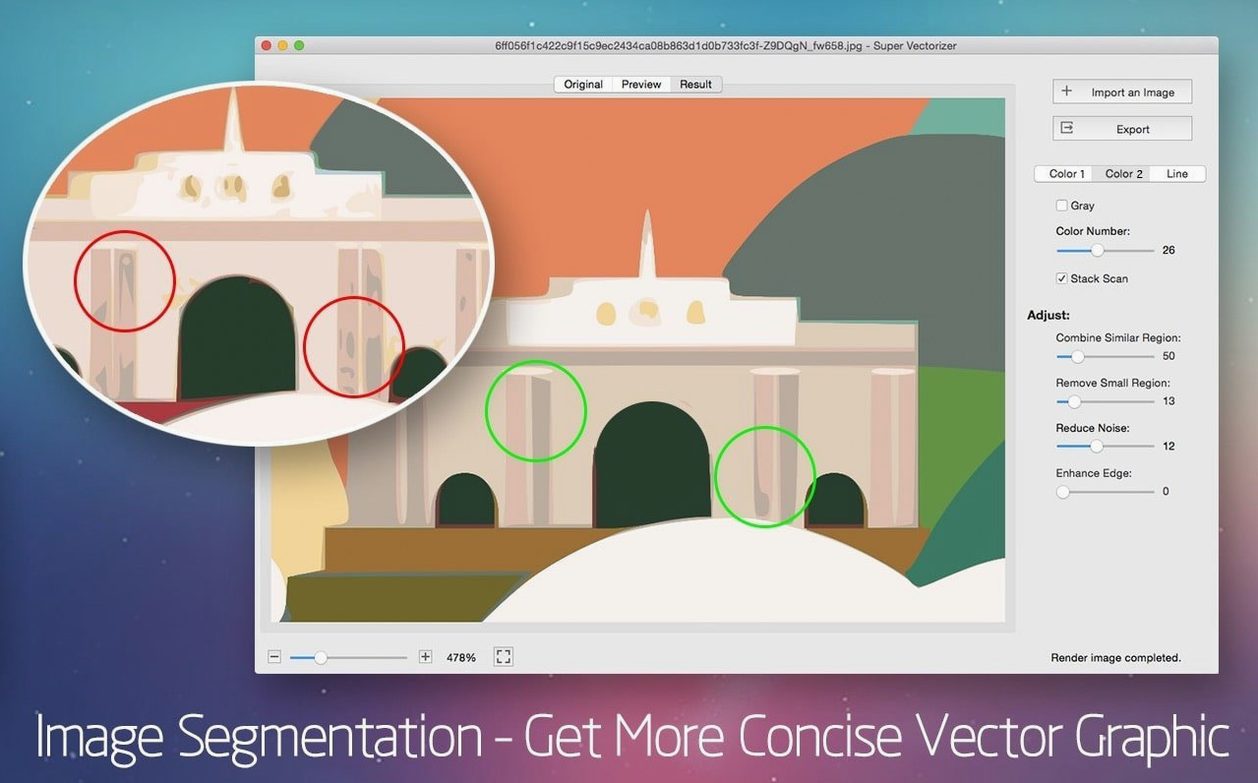
- Color vectorization tops out at 64 colors per trace; it will posterize a photograph, not reproduce continuous tone.
- The interface relies on Gatekeeper‑workaround steps during a manual install — not a standard notarized
.dmgdrag‑and‑drop flow.
DXF export keeps CorelDRAW layers and stroke widths intact
Designers who split their time between a Mac and a Windows machine running CorelDRAW tend to reach for the DXF export constantly. That format moves into Corel with layers intact and stroke widths preserved, so a logo traced on a MacBook ends up in a signage layout without a round‑trip through Illustrator first. Mac users who do a lot of sims 2 super collection custom‑content creation — re‑coloring objects, making wall art from photographs — also benefit: the SVG output slots straight into packages that expect editable vectors, and the real‑time preview lets them see the 64‑color limit before committing.
Illustrators who scan pencil roughs on an all‑in‑one printer get a direct path from a quick sketch on copy paper to a clean AI file, because the app’s skeletonization mode turns a thick pencil stroke into a single‑weight centerline. That saves the hour of manual redrawing in Illustrator that a live‑trace preset would still demand. Anyone who regularly receives client files in obscure raster formats — old Silicon Graphics .sgi files, Amiga IFFs, raw camera formats — will appreciate that the “over 70 formats” claim really does cover the deep‑cuts that Preview won’t open.
One toggle removes the checkerboard and exports true transparency
- The transparency toggle lives in the output panel, not in a preferences menu. When it’s on, the background checkerboard disappears from the preview and the exported AI or SVG file carries no white rectangle behind the art. If you trace a logo and send it off without checking that toggle, the printer gets a white box — that’s the single most common support thread on the developer’s forum.
- Double‑clicking a color swatch in the vectorization palette opens a system color picker so you can nudge a traced color without re‑running the whole trace. Small thing, but it turns a three‑minute re‑trace into a five‑second tweak.
- The file‑open dialog remembers the last format you used, but holding Option while clicking “Open” flips it back to “All readable formats.” Handy when you’re bouncing between a folder of PNG screenshots and a folder of JPEG scans.
- Skeletonization has its own sensitivity slider, hidden behind a disclosure triangle next to the mode selector. At its lowest setting it ignores paper texture; at the highest setting it pulls lines out of nearly invisible pencil marks. The default sits in the middle, which is why some people try skeletonization once, get a noisy mess, and never touch it again.
- Dragging the output preview sideways with a two‑finger swipe on a trackpad toggles between the original bitmap and the vector result. No button to click — you either discover it by accident or you don’t.
A typical tracing session, step by step
You’ve just pulled a sims 2 super collection mac download off a community site — a hand‑drawn neighborhood map someone scanned as a 300‑dpi TIFF. The file opens in Super Vectorizer Pro with a double‑click. The preview window shows the grayscale original, and the app defaults to a 16‑color trace that turns the pencil shading into a mess of flat polygons. You drop the color count to 2 — black line on white — and switch the mode to “Line Art.” The preview updates in half a second: the pencil strokes firm up into clean Bézier paths, and the smudged eraser marks disappear because the threshold slider ignores anything below 30% gray.
You notice a street label that came through as a filled blob instead of a letterform. Zooming in with a pinch gesture, you nudge the threshold up by five percent; the blob resolves into readable text on the next preview refresh. Satisfied, you tick the transparency checkbox, set the output format to SVG, and hit “Save.” The file lands on the desktop at 120 KB — small enough to bundle with the neighborhood mod. Dragging it into Safari confirms the background is transparent and the strokes scale cleanly at any zoom level.
Later, the same session, you open a JPEG of a band logo pulled from a super vectorizer pro crack forum — just the art, no context. This time you choose “Photo — 64 colors,” toggle the transparency on immediately, and let the app chew for about four seconds on an M1 machine. The result simplifies a noisy gradient into 64 flat shapes, each selectable later in Illustrator. You export to AI, open the file in Illustrator, ungroup twice, and delete the three shapes that picked up JPEG artifacts near the edges. Total time from raster to clean vector: under two minutes.
64 colors on a line drawing wastes processing on empty slots
- Leaving the color count at 64 for a line drawing. The app will spend processing time trying to find color boundaries that don’t exist, and the result will be a single‑color shape with 63 empty slots. For ink or pencil work, set the count to 2 or 4 and switch to a line‑art or skeletonization mode.
- Expecting a photograph to trace into a photorealistic vector. Super Vectorizer Pro posterizes — it builds flat color regions. A 64‑color trace of a face looks like a paint‑by‑number kit, not a vector photograph. That’s the nature of the tool, and no amount of slider‑tweaking changes it.
- Skipping the transparency checkbox on logos. The white background gets baked into the AI or SVG as a solid rectangle. If the file goes straight to a T‑shirt printer or a sign shop, someone downstream has to delete that rectangle. Check the box every time you trace a logo.
- Installing without reading the Gatekeeper note. The disk image is not notarized the way App Store packages are. If you mount the
.dmg, drag the app to Applications, and launch it without the Terminal step, macOS blocks the launch. The fix is a one‑line Terminal command — the download page spells it out — and once you run it, the app launches normally. If you’ve ever set up a Super Duper! torrent that needed similar quarantine removal, the process is identical. - Never touching the skeletonization slider. The default sensitivity picks up every grain of paper texture on a scan made at 600 dpi. Drop it low for clean line art, raise it only for genuinely faint drawings. Most beginners try it once at default, get a spiderweb, and write off the feature entirely.
- macOS 10.10 or later
- Apple Silicon and Intel 64‑bit
$ man super-vectorizer-pro | grep -A2 "?"
What input formats does it handle?
Super Vectorizer Pro supports more than 70 bitmap formats as input, so you can trace from a wide range of source files without pre‑converting them.
Can it export with a transparent background?
Yes, transparent background output is supported, which is particularly useful when tracing logos or illustrations that need to sit on different backgrounds.
Comments 0
Sign in or create an account to leave a comment.
No comments yet. A codec, a slice, a machine — they appear after moderation.