
Tahoe Cache Cleaner for macOS
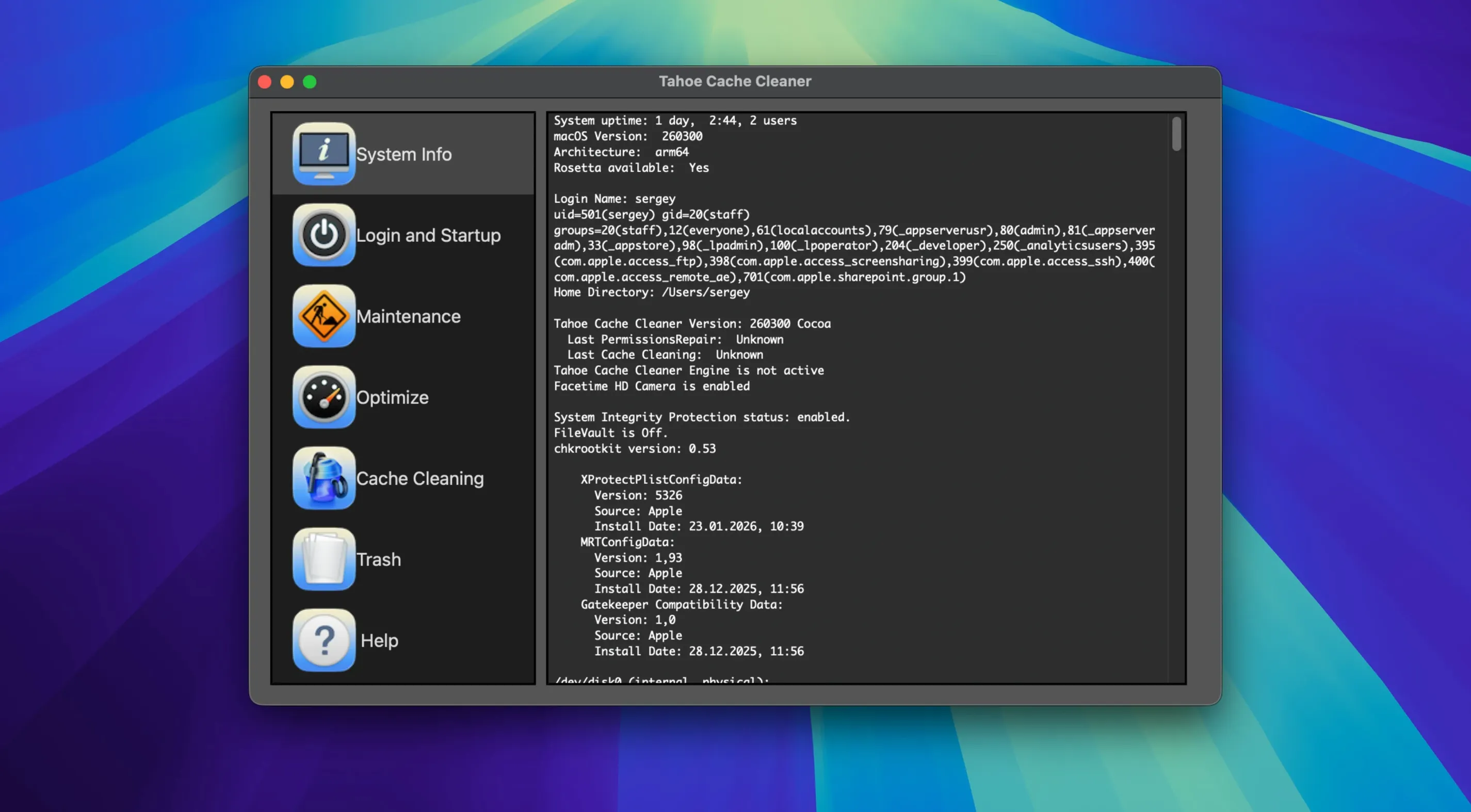
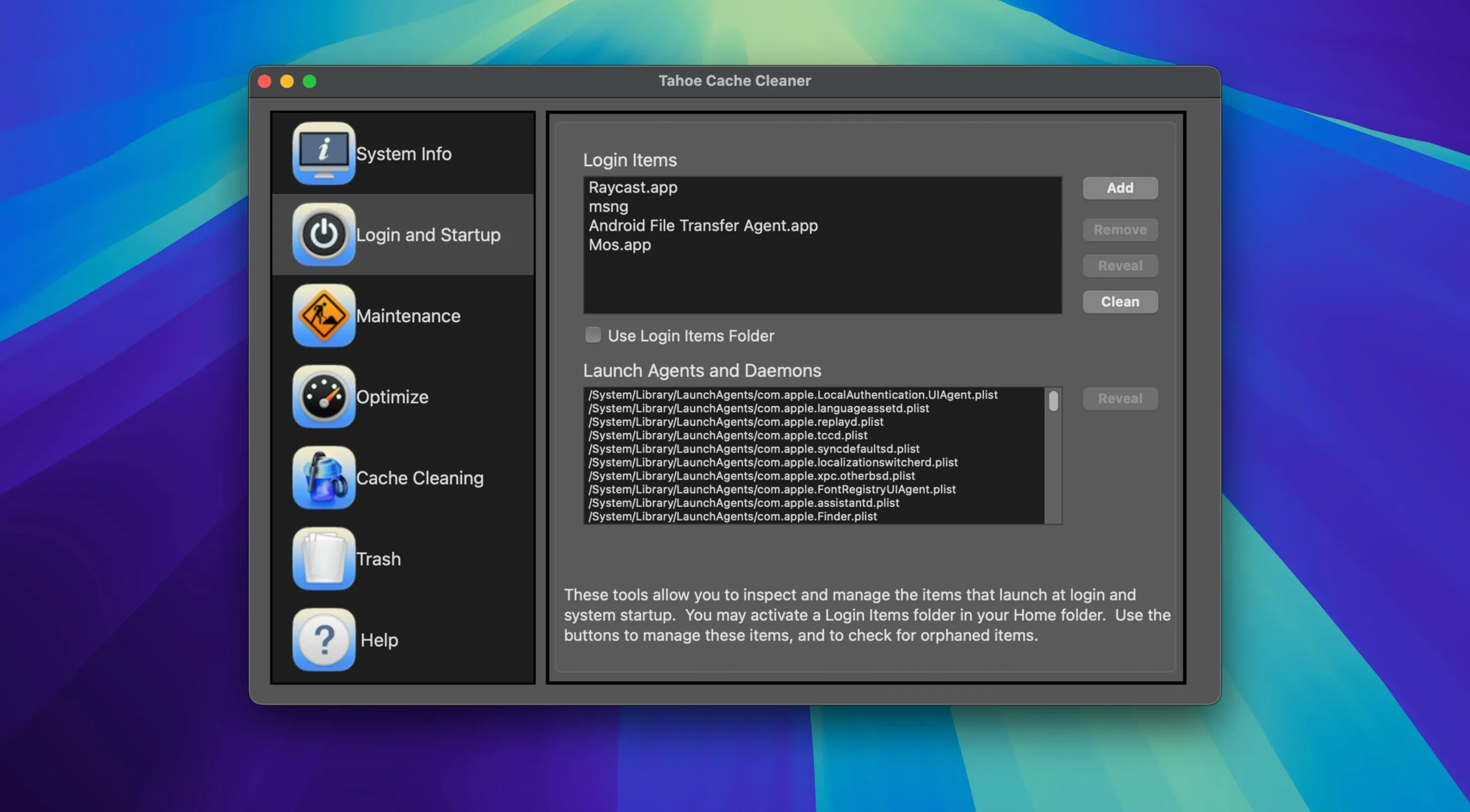
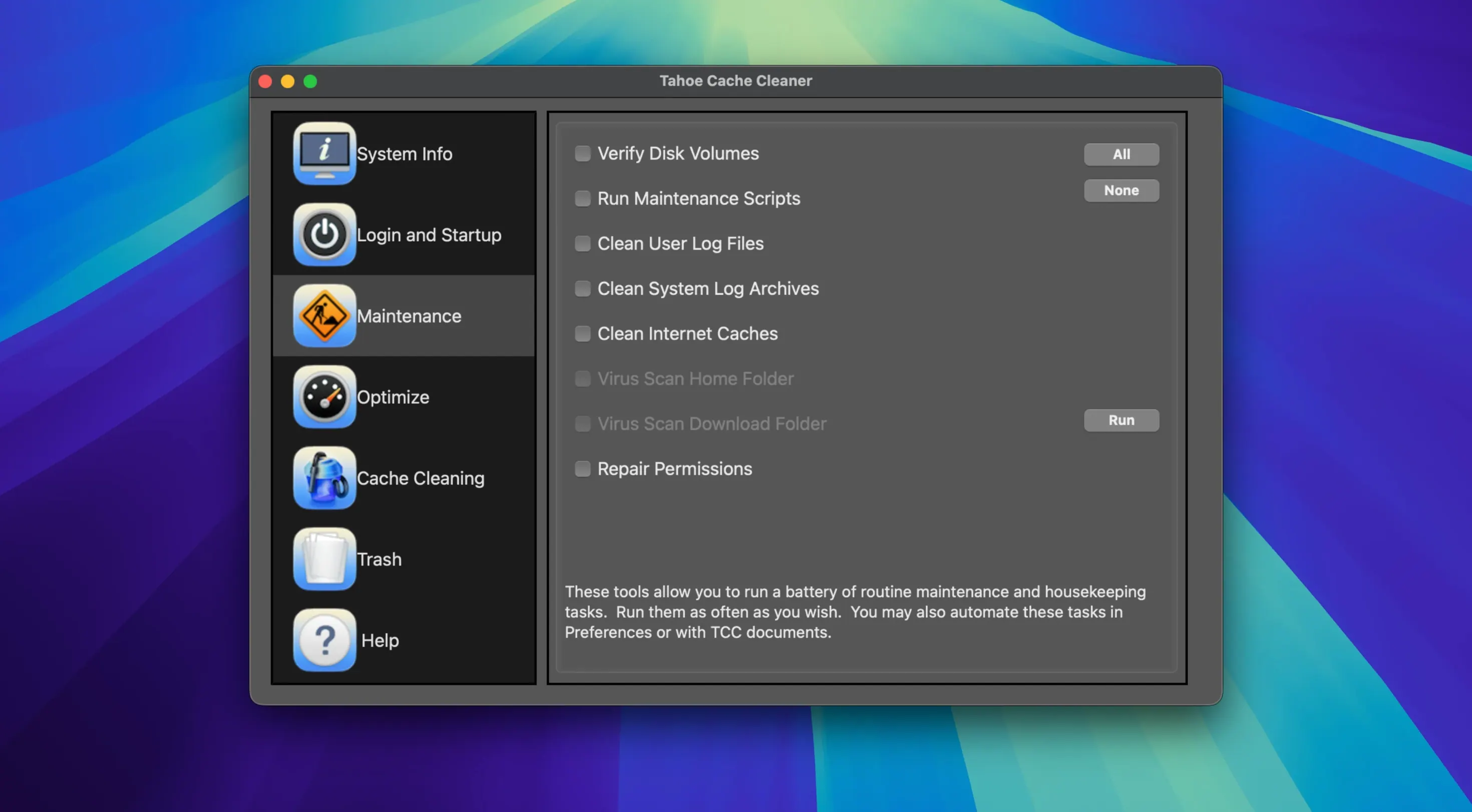
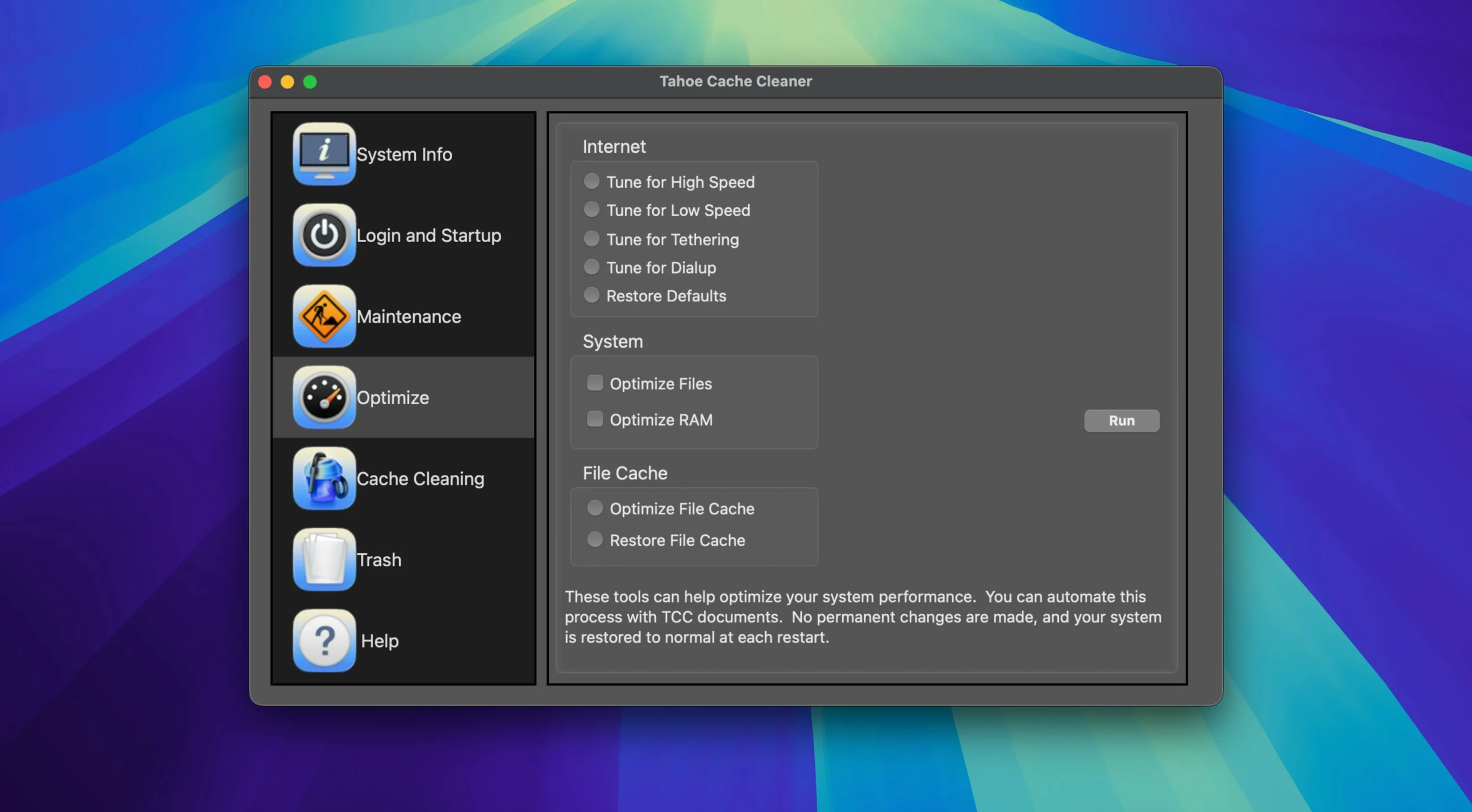
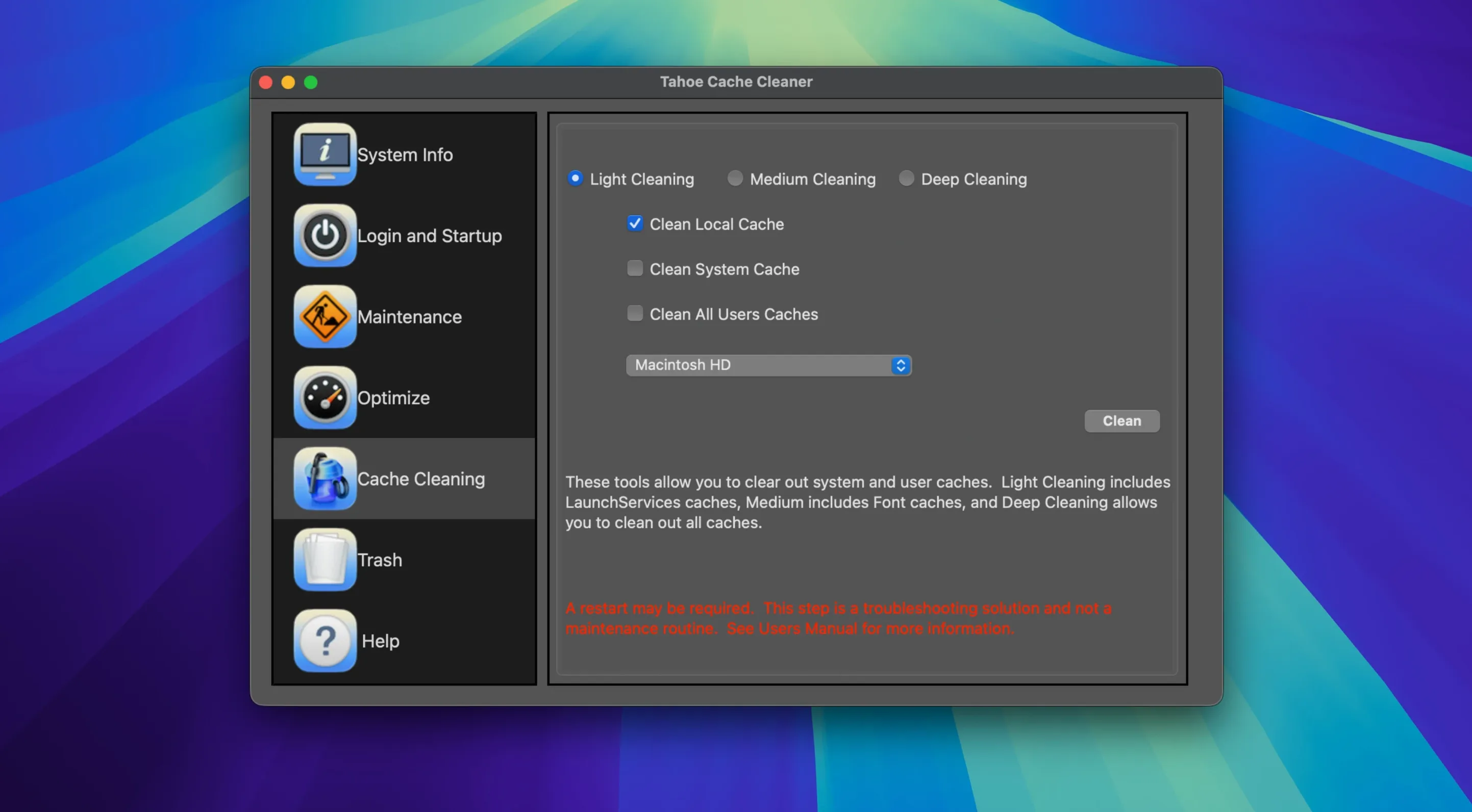
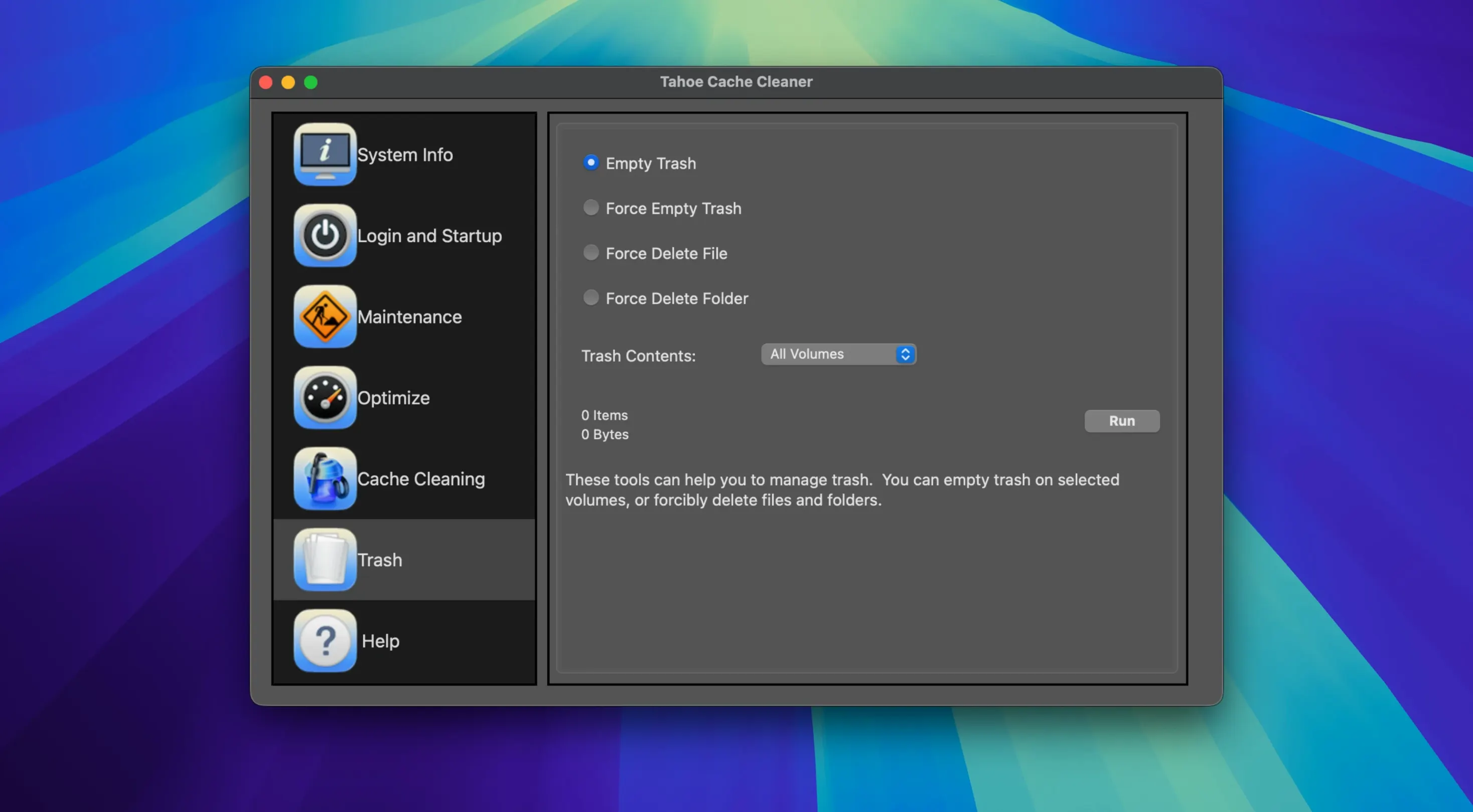
macOS cache folders can silently balloon past 15 GB of stale data without a single system notification. Getting that space back without digging through hidden ~/Library/Caches directories is where a dedicated cleaner earns its keep.
Running a full cache sweep with Tahoe Cache Cleaner
- Launch Tahoe Cache Cleaner and choose Cache Cleaning from the main window.
- Click Scan to inventory user and system cache directories. The scan lists each folder, its path, and how much space it occupies.
- Review the results. Uncheck any item you want to preserve — some apps rebuild their caches slowly, so skimming the list is sensible.
- Click Clean. The tool removes selected cached and stale data immediately, no reboot required.
- To prevent future buildup, open the Background Engine pane and schedule a recurring clean. You set the interval; the engine handles the rest silently.
Disable Spotlight or build a RAM disk from the same window?
Beyond cache sweeping, the same interface gives you switches for system-level tasks. You can disable Spotlight entirely if you prefer a third-party launcher, create a RAM disk for scratch storage, or build a bootable emergency disk that bundles recovery utilities with the cache-cleaning tools. A built-in antivirus scanner checks downloaded files — not a replacement for dedicated endpoint protection, but a useful second look at anything arriving via .dmg or .zip. The app is a direct successor in Northern Softworks’ Cache Cleaner line, running natively on Apple Silicon and Intel 64-bit Macs back to macOS 10.10.
Exclude build folders before your first deep scan
The defaults work, but two tweaks make the tool fit a development machine better. Head into the Preferences window — the gear icon in the toolbar — and work through these:
- Exclude build folders. Under the Cache Cleaning tab, add
~/Library/Developer/Xcode/DerivedDatato the exclusion list. Xcode regenerates that folder on the next build, but waiting through a full recompile because the cleaner wiped your module cache is a headache you can avoid with two clicks. - Raise the RAM disk default size. The RAM Disk pane proposes a modest 64 MB. If you keep scratch files or a browser profile on a RAM disk, bump it to 512 MB or more. The slider goes higher than you think — just leave enough physical memory for the apps you run.
- Audit the Background Engine triggers. The engine can fire on login, on a schedule, or when free space drops below a threshold. The space trigger is the one worth activating: set it to 5 GB and the cleaner sweeps before you ever see a “disk full” dialog.
Trades Onyx’s per‑folder surgical control for raw speed
Onyx gives you deeper granularity — per-folder cache selection, verbose logs, parameter tweaks for individual system services — but it demands you know what com.apple.coresymbolicationd does before checking its box. Tahoe Cache Cleaner trades that surgical control for speed: a single scan, a single clean button, and a background engine that does not ask questions.
CleanMyMac wraps maintenance in a layer of polish and bundles malware scanning from its own database. Tahoe Cache Cleaner ships a ClamAV engine instead — open-source, signature-based, and transparent about what it flags. No telemetry, no assistant asking if you want to review “privacy items.”
Cocktail sits closest in spirit, but it ties itself to specific macOS versions; each major OS update means waiting for a new Cocktail build. Tahoe Cache Cleaner runs on everything from Yosemite forward, which makes it the pragmatic pick for a mixed fleet or an old Mac that still does one job well.
A typical session: Sunday morning cleanup before a project build
It is 9:30 AM. You have a pot of coffee, a fresh Tahoe Cache Cleaner Mac torrent of source data to archive, and a massive Xcode build scheduled for noon.
You open Tahoe Cache Cleaner. The Background Engine already ran at 3:00 AM — the log confirms it cleared 4.2 GB of stale QuickLook thumbnails and browser caches — but you want a manual pass on the user cache before the build. You click Scan. Twelve seconds later the list populates: 1.8 GB in ~/Library/Caches from three apps you uninstalled last month, plus 900 MB of old Mail attachment previews.
You uncheck the Xcode derived data folder — your exclusion rule caught it, but you double-check anyway — and hit Clean. The space frees instantly. You then switch to the RAM Disk pane, spin up a 2 GB disk, and point the build’s intermediate output there. The RAM disk shaves minutes off compile times and saves wear on the SSD. By 10:00 AM the machine is lean, quiet, and ready for the heavy lift. No restarts, no permission dialogs, no surprises.
- macOS 10.10 or later
- Apple Silicon or Intel 64-bit processor
$ man tahoe-cache-cleaner | grep -A2 "?"
Can Tahoe Cache Cleaner disable Spotlight indexing?
Yes, it includes a toggle to disable Spotlight system-wide, which stops themds and mdworker processes and frees the resources they consume.
Comments 0
Sign in or create an account to leave a comment.
No comments yet. A codec, a slice, a machine — they appear after moderation.