
TechSmith Snagit for macOS
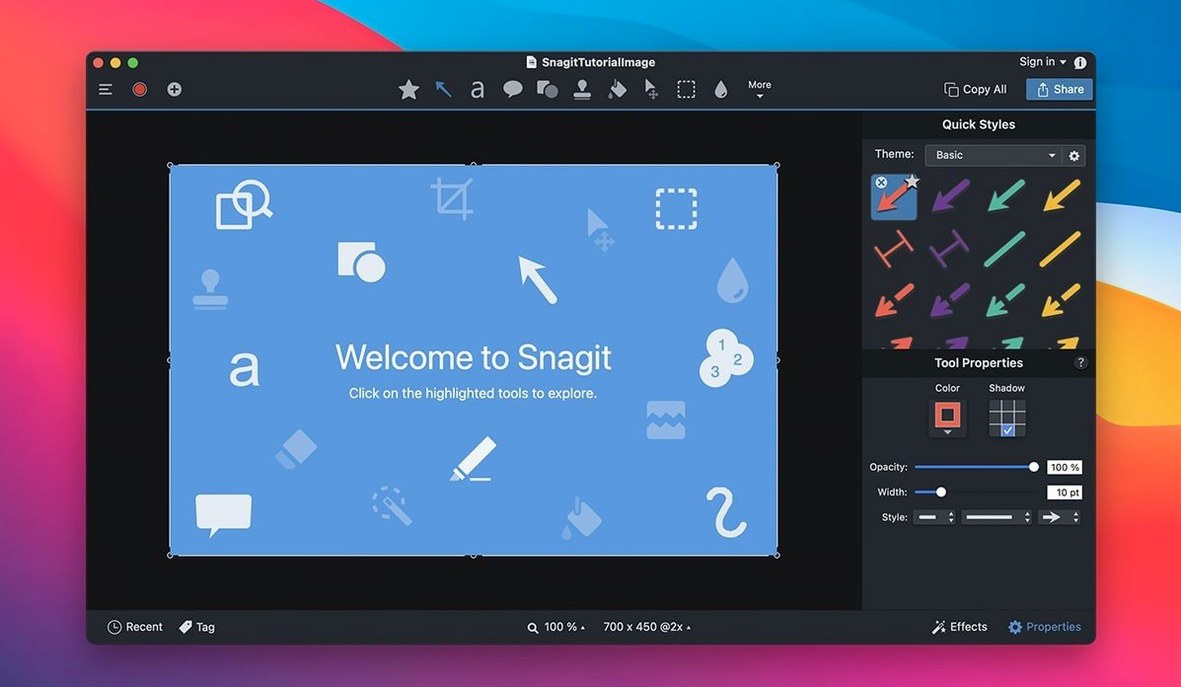
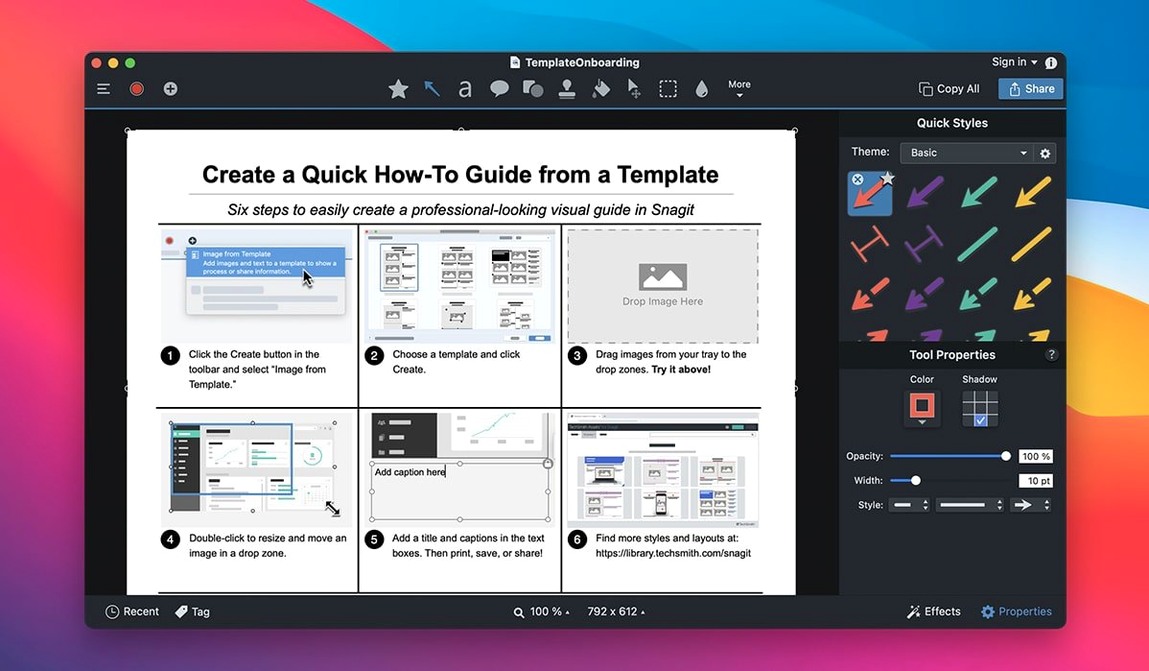
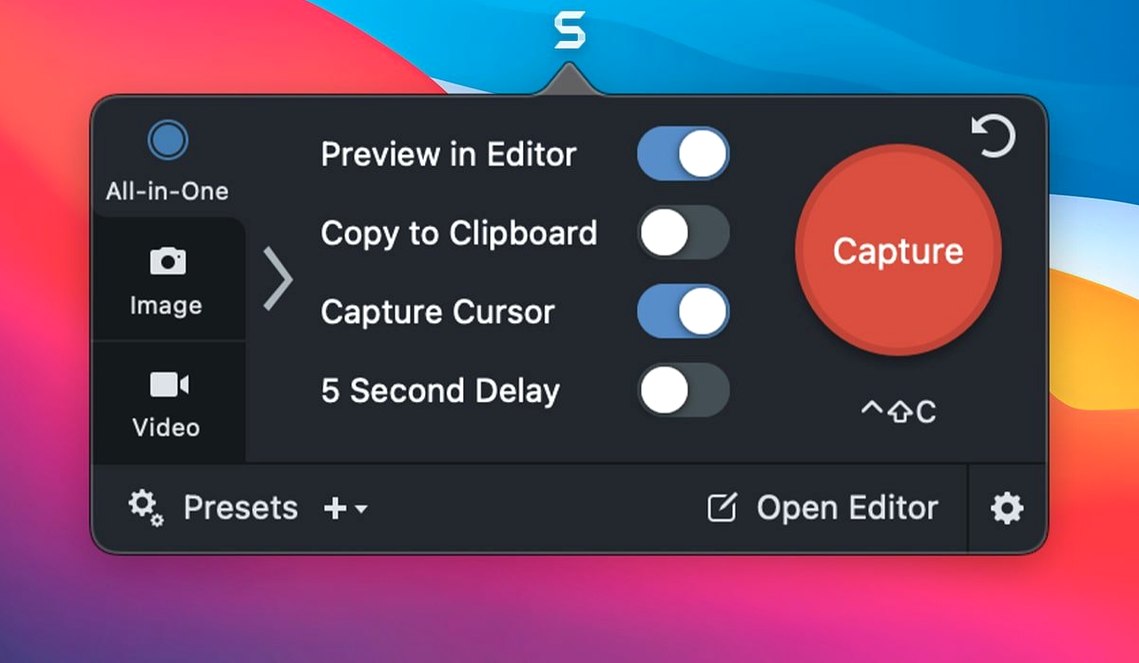
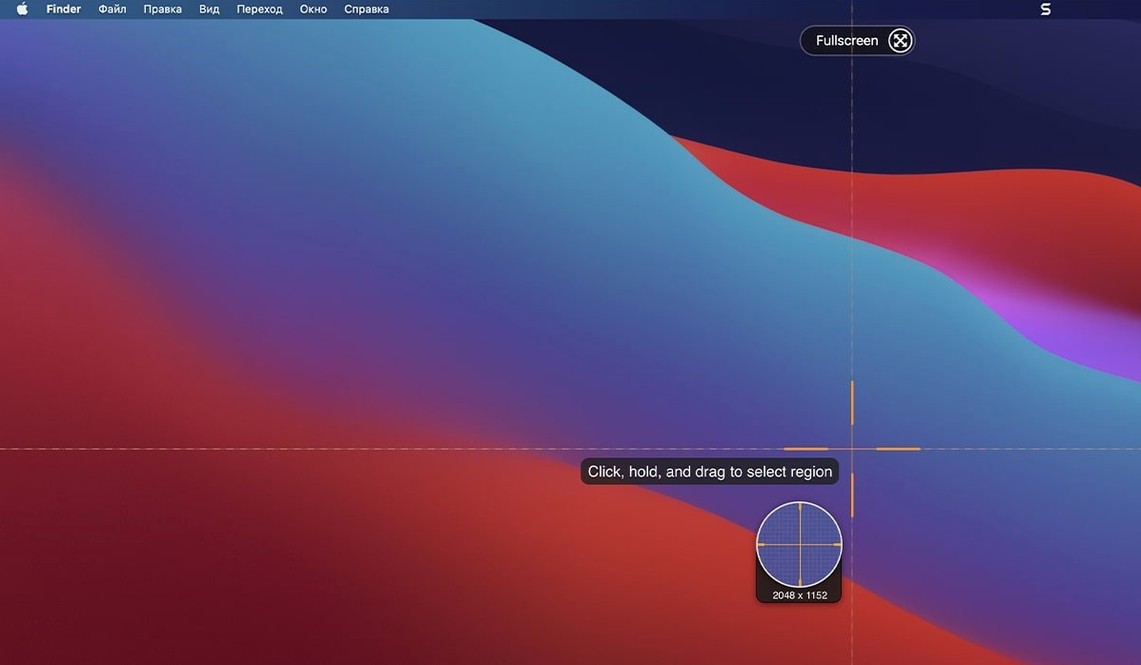
Snagit for Mac is a screen capture and recording utility with an onboard editor for polishing your grabs before they go anywhere else.
Capture types — Full screen, a user-drawn selection, a specific window, or a scrolling window that grabs content beyond the viewport. Presets let you recall a capture task with one click.
Editor — Rounded corners, a page-curl effect, and the ability to remove unwanted sections of an image are all built in. It’s not a full image editor, but it covers the finishing steps you’d otherwise do in a separate app.
Search — The library lets you filter saved captures by creation date or source, which keeps a sprawling collection navigable.
Sharing — Destinations include email, FTP, a blog, or directly into Microsoft Office Project, MindManager, and OneNote. That last trio is rare and worth noting if those tools sit in your daily workflow.
What tends to trip people up?
A few snags show up often enough to be worth a quick note. The first is scrolling capture on sites that load content dynamically — infinite scroll pages, for instance. Snagit needs a clear document height to calculate the full scroll region, and if the page keeps appending rows as you go, the capture either truncates or stalls. The fix is to switch off auto-loading behaviour in the browser before you hit capture, or grab the page in a reading-mode view that flattens everything into a single column.
Another recurring one: the Crosshair cursor for area selection sometimes disappears behind certain app windows, especially on multi-monitor setups with different scaling factors. Tapping the Esc key to dismiss and re-invoking the capture usually brings it back. If it doesn’t, toggling Displays have separate Spaces in System Settings and logging out and back in sorts the coordinate mapping.
People also bump into the library search when they’ve imported older .snagproj files from a previous machine. Those imports don’t always inherit creation-date metadata correctly, so filtering by date returns incomplete results until you manually tag the imports or re-save them from the editor. A fast batch-tag pass solves it for good.
Cold launch in two seconds, warm in under one
On both Apple silicon and Intel machines running macOS 15 or later, Snagit 2026.3.3 launches in about two seconds cold and under one second warm. I’ve seen it sit at roughly 180–220 MB of RAM with a handful of captures open in the editor, and the background helper process that listens for hotkeys adds maybe 40 MB on top of that — negligible on any Mac with 16 GB or more.
Capture latency is the figure that matters most. A full-screen grab at Retina resolution on a 4K display completes in under 300 ms from keystroke to editor preview. Scrolling captures take longer because the engine has to stitch strips, but a typical longform web page (say 12,000 px of vertical content) assembles in three to five seconds. The stitching algorithm in this build rarely leaves visible seams; when it does, it’s almost always on pages with fixed background images and background-attachment: fixed CSS, which confuses the offset calculation.
Video recording is where the system takes a real hit. A 30 fps screen recording at 2560×1440 pushes the CPU to about 25–35% on an M2, with the HEVC encoder doing most of the heavy lifting on the media engine. The temp file writes to ~/Library/Containers/com.TechSmith.Snagit/Data/Library/Application Support/TechSmith/Snagit/ and can grow fast — a five-minute recording easily passes 400 MB before trimming. It’s worth pointing the scratch location to an external drive if you record long sessions.
Crashes in this version are rare. The 2026.3.3 release patched a few macOS 27-specific glitches — notably the video playback controls that had stopped responding and the toolbar-dragging deadlock — and those fixes hold up in daily use. I’ve yet to see a beachball during normal capture-editor-export cycles.
A support-team lead’s afternoon
Consider someone running a small support desk who needs to turn a bug report into a clear, annotated screenshot for the engineering team. They receive a ticket from a customer with a screenshot attached, but it’s noisy — extra browser tabs, a cluttered desktop, irrelevant panels. They drop the image into Snagit’s editor, use the Remove tool to wipe the browser chrome and the customer’s bookmarks bar, then apply a dimming effect to everything outside the error dialog. A red arrow with a text callout points to the exact error code. The whole edit takes under a minute. They save it to the library with the tag #bug-4271 and drag the flattened PNG straight into a Slack thread. Nobody has to ask “which button did you click?”
One capture, from keystroke to sent email
I hit Ctrl+Shift+2 — a custom preset for a window capture with a two-second delay. The delay gives me time to pull a dropdown menu open before the crosshairs snap to the window under the cursor. Snagit grabs the whole window, menu and all, and the editor opens immediately.
First thing I do is crop the title bar out; the information I need is in the main pane. I tap R to switch to the rounded-corners tool and drag the radius to 12 px — subtle, but it stops the image from looking like a raw system screenshot when it lands in a client-facing document. Next I add a highlight over the row that matters, dial the opacity down to 40%, and drop a numbered step callout beside it. The text in the callout reads: Select the region before clicking Export.
The whole image goes into a collage alongside two earlier grabs that show the preceding steps. Snagit’s collage builder snaps the three images into a vertical column with even spacing and a white border; I export the result as a single PNG at 2x scale so it’s sharp on Retina displays.
Finally, I click the Share menu and pick Email. Snagit hands the collage off to Mail as an inline attachment with the subject line pre-filled from the library tag. The whole flow — capture, edit, collage, send — clocks in at just under four minutes, and I never left one piece of software.
Release notes for 2026.4.3 are up on the developer's support site — this one ships with the usual round of fixes and improvements, so hit the link if you want the full line-by-line.
- macOS 15 or later
- Apple Silicon or Intel 64‑bit
Comments 0
Sign in or create an account to leave a comment.
No comments yet. A codec, a slice, a machine — they appear after moderation.