TG Pro for macOS
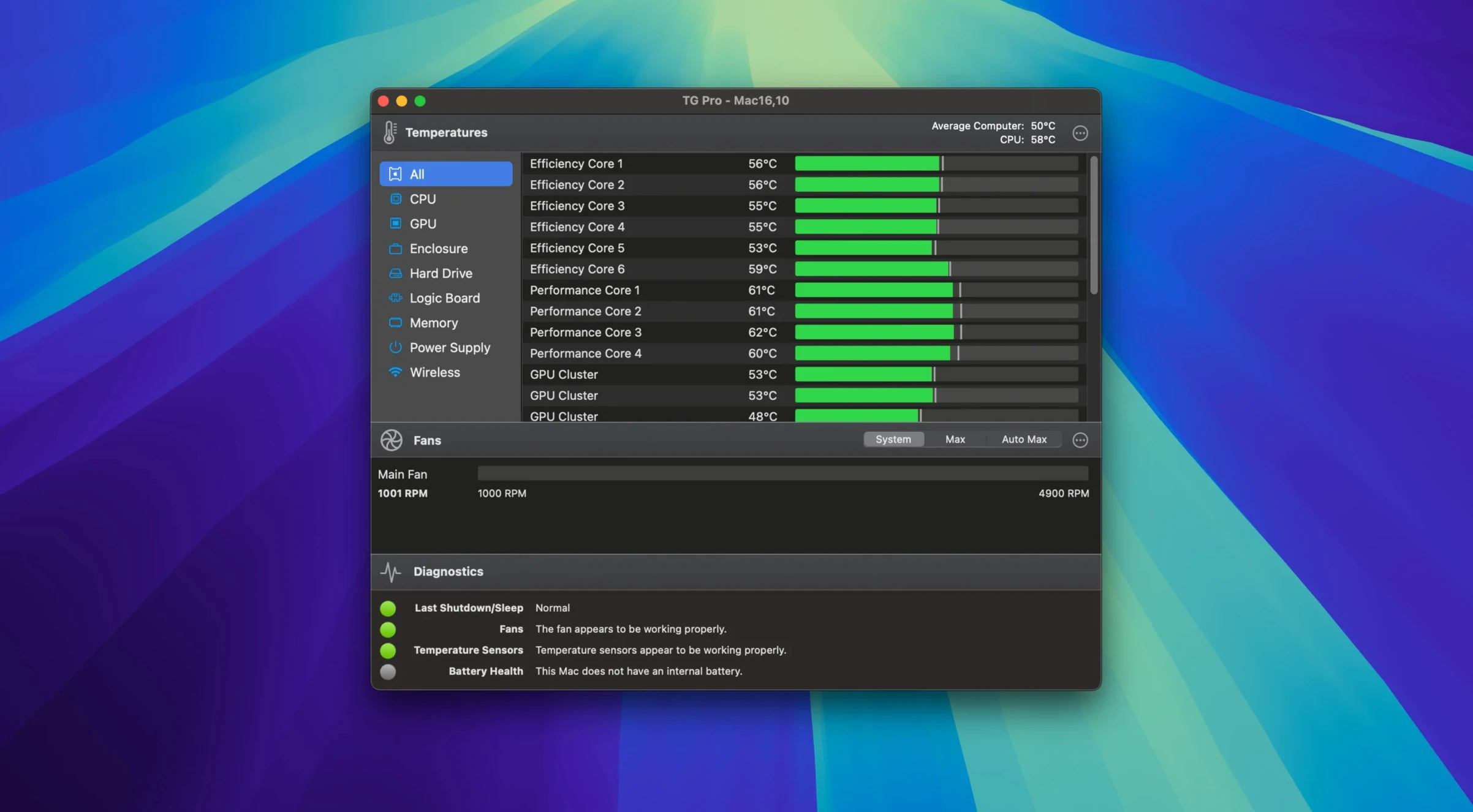
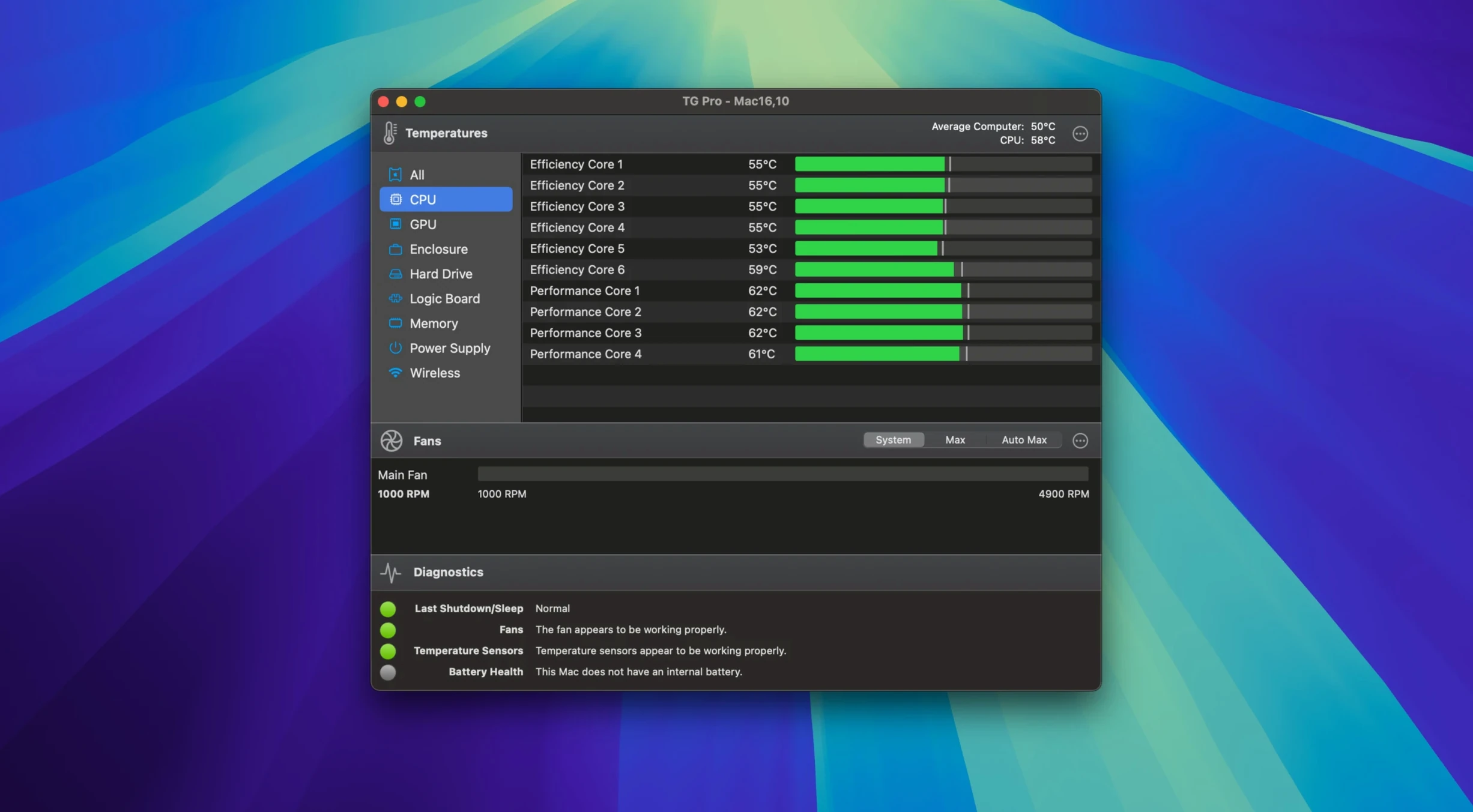
TG Pro runs on practically any Mac that can install macOS 10.13 High Sierra or later, from an old Intel workhorse to an M4 Max. It lives in the background reading every temperature sensor your machine exposes and giving you direct control over the cooling fans. Here's what that lets you do.
- See component temperatures in real time. The main window shows individual sensor readings for the CPU, GPU, SSD, and battery. Each sensor is labelled by its actual hardware name, not some vague grouping, so you know exactly what's running hot.
- Diagnose thermal problems. The built-in diagnostics push all fans to maximum, report failing sensors, and log temperature events. If a machine is throttling under load, you can check whether a fan is stuck or a sensor has gone silent.
- Set manual fan curves. Drag a few points to define exactly when each fan ramps up. It works per-fan, not just a single master slider, and it holds those rules even when the Mac sleeps and wakes.
- Keep an eye on things from the menu bar. You can pin a fan RPM and a sensor temperature right to the menu bar. No need to open the app to spot a cooling fault.
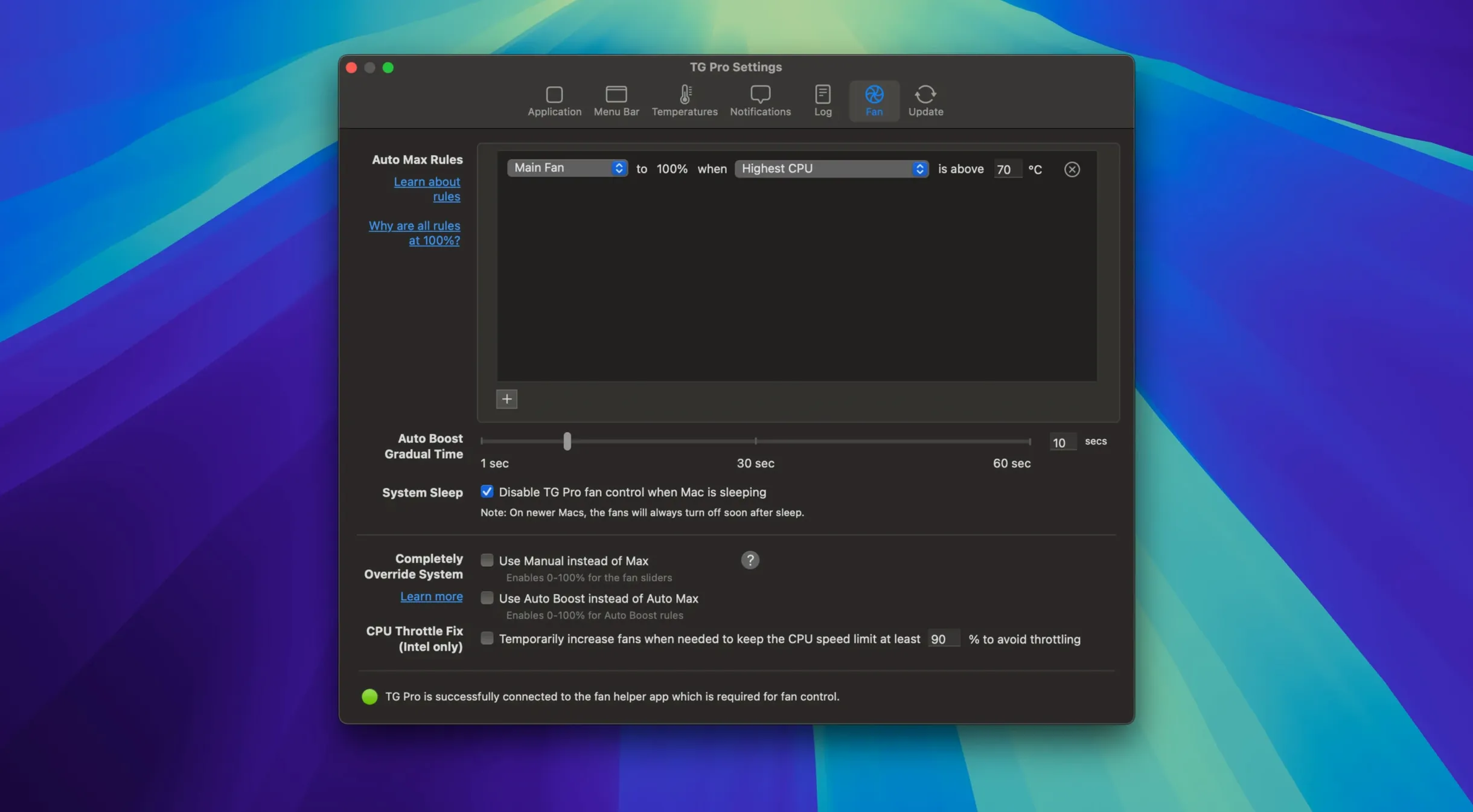
Auto Boost rules apply fan presets instantly when a temperature crosses a threshold, and the latest update fixed a bug where those rules could fail on battery power. It's a single-purpose tool that does its job without eating CPU cycles.
Let it idle for an hour under your normal workload
After dragging TG Pro.app into Applications and launching it, there are a couple of things worth doing before you close the window and forget about it.
Let it sit for an hour under your normal workload. Open the main window, switch to the All Sensors tab, and just watch. You'll spot which components idle warm on your particular machine — some Macs have an SSD sensor that sits at 40 °C while the CPU is at 32 °C, and that's completely normal. Knowing your baseline makes an abnormal spike obvious later.
Set one menu bar item. Pick the sensor that matters most for your use case. If you compile large projects, pin the CPU proximity sensor. If you move big files around all day, pin the SSD controller temperature. The fan RPM is a good second choice because it tells you instantly whether the system is working hard without even looking at a temperature number.
Export a snapshot of your fan presets. Before you start dragging the fan curve points around, hit the cog menu and save the current Auto settings. It takes ten seconds and gives you a known-good state to fall back on if a manual curve turns out too aggressive or too lazy.
If you are on a Hackintosh, open Preferences and flip the toggle that exposes extra PC-style sensors. Skip it on a real Mac — the option does nothing useful there and can clutter the sensor list.
Worked example: silencing a Mac mini during audio recording
A common scenario: you have an Intel Mac mini in the same room as a microphone, and the fan spins up audibly halfway through a take. Here is how to handle that with TG Pro, step by step.
- Identify the noisy fan. Open TG Pro and watch the fan speeds while the machine is idle. On most Mac mini models there is a single blower, but some i7 units have two. Note which one ramps first — that is the one you need to tame.
- Check the trigger sensor. Switch to the All Sensors tab and sort by temperature. Run a quick export of audio or open a moderate Logic session — whatever normally sets the fan off. Watch which sensor climbs fastest. It is usually CPU Core PECI or CPU Proximity.
- Build a custom fan rule. Go to the Fans tab, select the noisy fan, and switch its mode from Auto to a manual rule. Add three points: one at 35 °C (set it to 1500 RPM, which is near- silent on most Minis), one at 65 °C (maybe 2500 RPM, audible but not distracting), and one at 85 °C (max it out — the take is already ruined at that point, so cooling matters more than noise).
- Lock it to that rule during recording. TG Pro holds manual fan rules across sleep and wake, so you can set it once and leave it. When the recording session ends, switch the fan back to Auto with two clicks.
- Add an Auto Boost rule as a safety net. If you are uncomfortable running a quiet curve, add an Auto Boost rule that forces all fans to maximum at 95 °C on the CPU sensor. It will override the manual curve only in genuinely dangerous territory.
The whole setup takes about five minutes the first time. After that you can toggle between the quiet recording profile and normal Auto mode from the menu bar in seconds.
Recurring points of confusion worth addressing
Nothing is flawless, and TG Pro has a few recurring points of confusion worth addressing.
Fan speed reads zero on an Apple Silicon machine
This is not a bug with the software. Many M1, M2, M3, and M4 Macs keep their fans stopped entirely at low temperatures, and the sensor correctly reports 0 RPM. Run something that warms the chip up — a few minutes of HandBrake encoding will do it — and the reading should appear once the fan actually spins. If it stays at zero under sustained load, check that the fan is not physically obstructed.
Auto Boost rule ignores the power source change
This was the exact bug fixed in version 2.103. If you are running an older build downloaded from a TG Pro torrent or an outdated archive, Auto Boost rules can fail when you unplug the charger. The fix is straightforward: make sure the build you have installed actually says 2.103 in the About window. Older TG Pro cracked copies floating around rarely include the latest update, so you may want to grab a newer archive that bundles 2.103 or simply apply the sensor calibration manually.
Sensor names do not match what you expect
TG Pro reads whatever label the SMC or Apple Silicon controller exposes. On some Macs the GPU sensor shows up as "GPU Core 1" and on others as "GPU Die." Both are the same measurement point. If a sensor name looks odd, cross-check its temperature against a known-good reading — if the CPU Proximity sensor and the core average sensor both climb together under load, the naming quirk is cosmetic and you can ignore it.
Menu bar icon disappears after login
If TG Pro is in your login items but the menu bar icon occasionally vanishes, the helper process has not launched cleanly. Remove the app from System Settings > General > Login Items, reboot, then add it back. That rewrites the launch services plist and almost always solves it.
Idles at less than 1% CPU on M2 and Intel Macs
I ran TG Pro alongside a typical development stack — Xcode, Safari with too many tabs, a couple of Docker containers — on an M2 MacBook Air and an older Intel iMac. On both machines the app idles at less than 0.2 % CPU and sits in about 45 MB of RAM. The sampling interval defaults to one second, which is fast enough to catch a fan ramp as it happens but not so aggressive that it wakes the CPU from low-power states unnecessarily.
Menu bar updates are smooth. There is no perceptible lag between a sensor change and the displayed value, even when the machine is under thermal pressure and the numbers are updating every second. The app does not beachball when switching tabs, and the diagnostics that spin all fans to maximum complete in about ten seconds.
On Apple Silicon the app runs natively — there is no Rosetta translation involved — so the energy impact on battery is negligible. On an M2 Air doing light browsing, the Energy tab in Activity Monitor typically attributes less than 1 on the 12-hour scale to TG Pro. That is easy to confirm yourself if you happen to have a tg pro license key or a working installation.
Stability has been uneventful across the 2.x releases. The only crash I could reproduce involved unplugging an external monitor while the diagnostics were running, and even that was a one-time cosmetic hang rather than a kernel panic. The fan control daemon that runs in the background recovers gracefully from sleep-wake cycles, and the Siri-related fix in 2.103 means fans no longer drop to idle after a dictation session.
If you find an older tg pro mac build that lacks the M4 fan control, you may notice the fans on an M4 Pro or Max running a fixed default curve with no manual override. That was the gap the current version closed, and it is the main reason to care about which build you actually have installed.
- macOS 10.13 (High Sierra) or later
- Intel 64-bit processor
Comments 0
Sign in or create an account to leave a comment.
No comments yet. A codec, a slice, a machine — they appear after moderation.