Tenorshare UltData for macOS
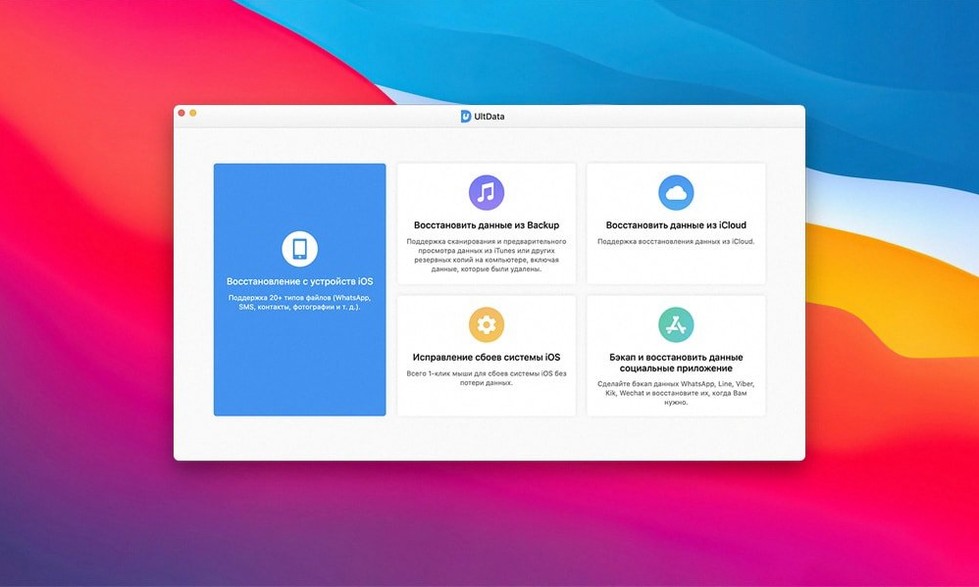
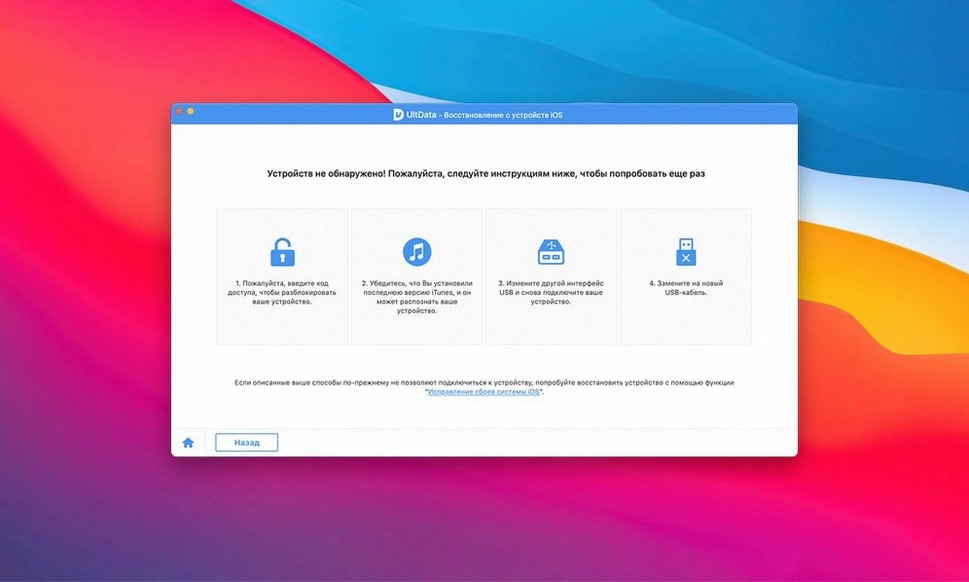
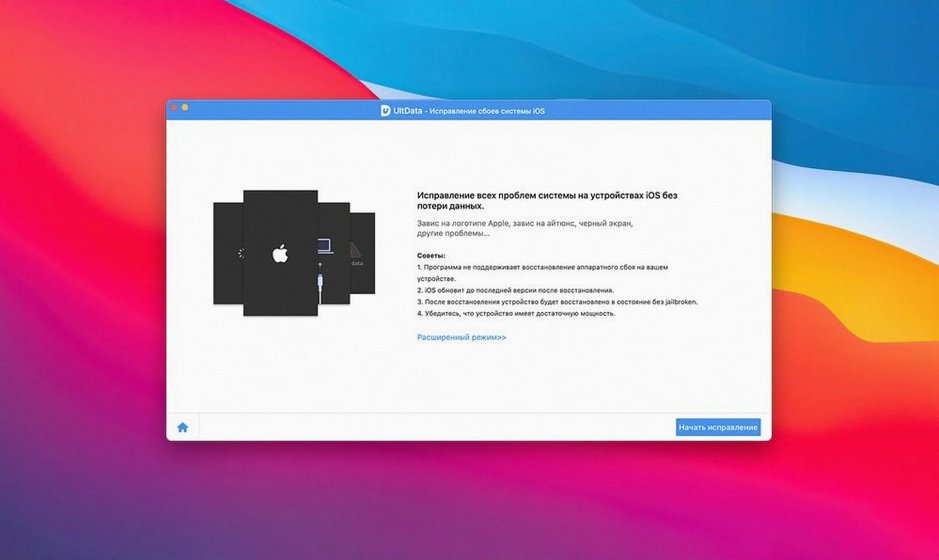
Tenorshare UltData is a desktop recovery utility that pulls lost or deleted files directly from iOS devices and iTunes backups. The 9.5.0 release didn’t introduce flashy new features—it’s a stability and compatibility refresh—so the focus remains on the recovery engine that has been in place, unchanged in scope but still covering a wide spread of data types and older hardware.
- Recovers the standard trio—contacts, messages, and photos—plus reminders, notes, voice memos, and music.
- Pulls app-specific data from Kik, Viber, WeChat, WhatsApp, Tango, and LINE conversations.
- Handles app media including app photos, videos, documents, and audio files.
- Supports iBook content, letting you retrieve books and PDFs that were stored in the app.
- Built for a long tail of hardware: everything from an iPhone 4s and iPad mini up through the iPhone XS Max and all iPad Pro models.
- Interface is localized into eleven languages, including Russian, Arabic, Japanese, and Portuguese.
The code is Intel 64-bit, not a universal binary, so Apple Silicon Macs run it through Rosetta 2. System requirements on the box say macOS 10.8, though the developer’s own product page bumps that to 10.10. Functionally, it’ll launch on either, but anything beyond recovery speed won’t differ—the scanning logic is I/O-bound, not CPU-bound. If you’re digging through an old iTunes backup on an APFS volume, the app reads the Manifest.db directly, so file system permissions matter more than the macOS version.
What a typical first session looks like
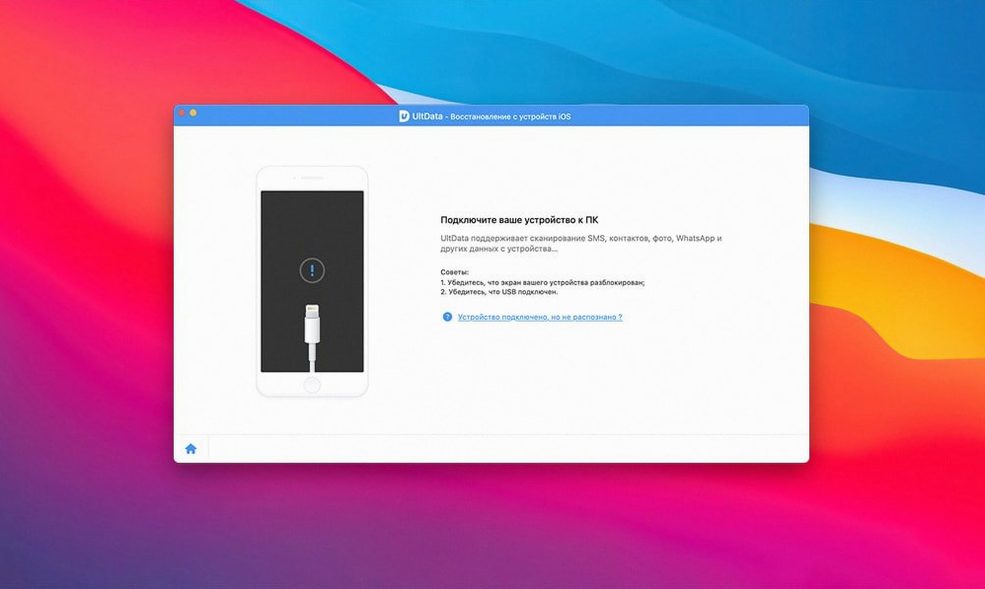
Imagine a photographer who just wiped a four-month iMessage thread with a client. The conversation contained location drops, photo approvals, and a contract revision sent as a PDF. iCloud hadn't synced the thread to another device, and the last iTunes backup was six weeks old. They download tenorshare ultdata for mac, plug in the iPhone, and start a "Recover from iOS Device" scan. Within a few minutes UltData has surfaced the entire thread—text, images, and the PDF attachment—sorted under Messages and App Documents. The photographer exports the thread as individual files, re-saves the PDF to a project folder, and is back to work before the client even notices the gap. That’s the use case UltData is built for: a single-device loss where the backup chain has a hole, and the data is still physically on the flash storage because iOS hasn’t yet reallocated the blocks.
Why adjust scan depth before connecting a device?
The defaults are sensible for a quick scan, but a couple of tweaks make a real difference on the first serious recovery run. Open Preferences before you connect a device and adjust these:
- Scan mode depth. The default scan skips sectors iOS has marked as free. Switch to the deeper scan option—it takes longer but catches items that were deleted weeks ago and haven’t been overwritten yet. For a device you actively use every day, run the deep scan the same evening you realize data is missing.
- Export format for messages and contacts. Out of the box, contacts export as a single VCF and messages as an HTML thread view. If you’re feeding data into a CRM or a spreadsheet, change contacts to CSV and set messages to plain text. The CSV column mapping isn’t editable, but it lines up correctly with most import wizards.
- Temporary file location. UltData writes extracted previews to your boot drive by default. If you’re scanning a 256 GB iPhone and your Mac’s internal SSD is tight, point the temp folder to an external volume in
Preferences > Storage. The app won’t warn you when space runs low mid-scan. - iTunes backup path override. If you keep your iOS backups on a non-default volume (common with
Tenorshare UltData torrentusers who archive old backups), set the custom path before clicking "Recover from iTunes Backup." The file picker defaults to~/Library/Application Support/MobileSync/Backup/— point it to your archive location so the app scans the right dataset straight away.
Does it need a subscription to recover anything?
Does it need to jailbreak the phone?
No. All three recovery modes—direct device scan, iTunes backup extraction, and iCloud backup download—work on stock iOS. UltData reads the device through a standard USB lockdown connection, the same one iTunes uses for sync. The deeper scan mode accesses raw sectors through the same interface; it doesn’t require filesystem-level root. What you lose without a jailbreak is access to live database files that iOS holds open, so a handful of in-transit message drafts might not appear. For completed messages, photos, and app documents, the lockdown connection is enough.
Will it overwrite anything on the phone?
UltData operates read-only on the device. It pulls data into memory, builds a preview index on your Mac, and writes nothing back to the iPhone except the standard pairing token that any trusted computer exchanges. The biggest risk to recoverable data happens before you even launch the app: every minute you use the phone after deletion increases the chance iOS reuses those storage blocks. That’s why the install instructions emphasize launching ultdata mac as soon as you realize something is missing—not because the software is destructive, but because the phone’s own background I/O is.
Why does the app ask for Terminal access during install?
The .dmg ships with a Gatekeeper-friendly launcher script that handles the unsigned developer identity. When you see the Terminal window open during setup, it’s running a one-time quarantine removal on the app bundle before you drag it to /Applications/. Pressing Enter executes xattr -cr on the bundle path—no shell profile changes, no persistent daemons. After that single step the app launches normally through Finder, and macOS treats it like any other third-party binary.
Can it pull data if the screen is cracked and the phone won’t unlock?
Only through a previously created iTunes backup. The direct device scan requires you to tap "Trust This Computer" on the iPhone, so a dead digitizer blocks that path unless the phone was already paired with that specific Mac. If a backup exists—even an old one—UltData can parse its Manifest.db and extract individual files without the phone being connected. For iCloud mode, you’ll need the Apple ID credentials and, if two-factor authentication is enabled, access to the trusted device that receives the verification code.
- macOS 10.8 or later (developer lists 10.10 on the product page)
- Intel 64-bit processor
$ man tenorshare-ultdata | grep -A2 "?"
Which iPhones can UltData recover data from?
It supports models ranging from the iPhone 4 and 4s through the iPhone XS and XS Max, including all SE, Plus, and 'S' variants in between.
What types of app data can it restore?
Beyond the built-in apps, it can retrieve conversations and media from third-party messengers like WhatsApp, WeChat, LINE, Viber, Kik, and Tango.
Comments 0
Sign in or create an account to leave a comment.
No comments yet. A codec, a slice, a machine — they appear after moderation.