SSH Config Editor for macOS
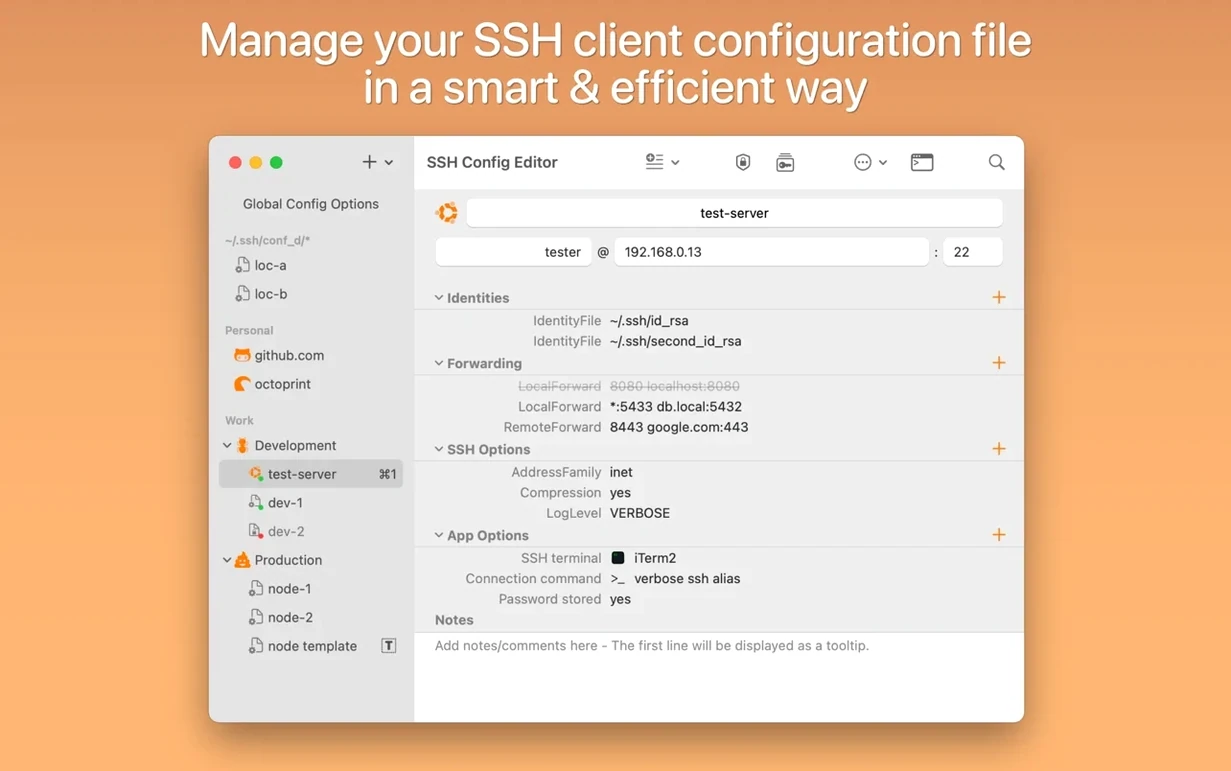
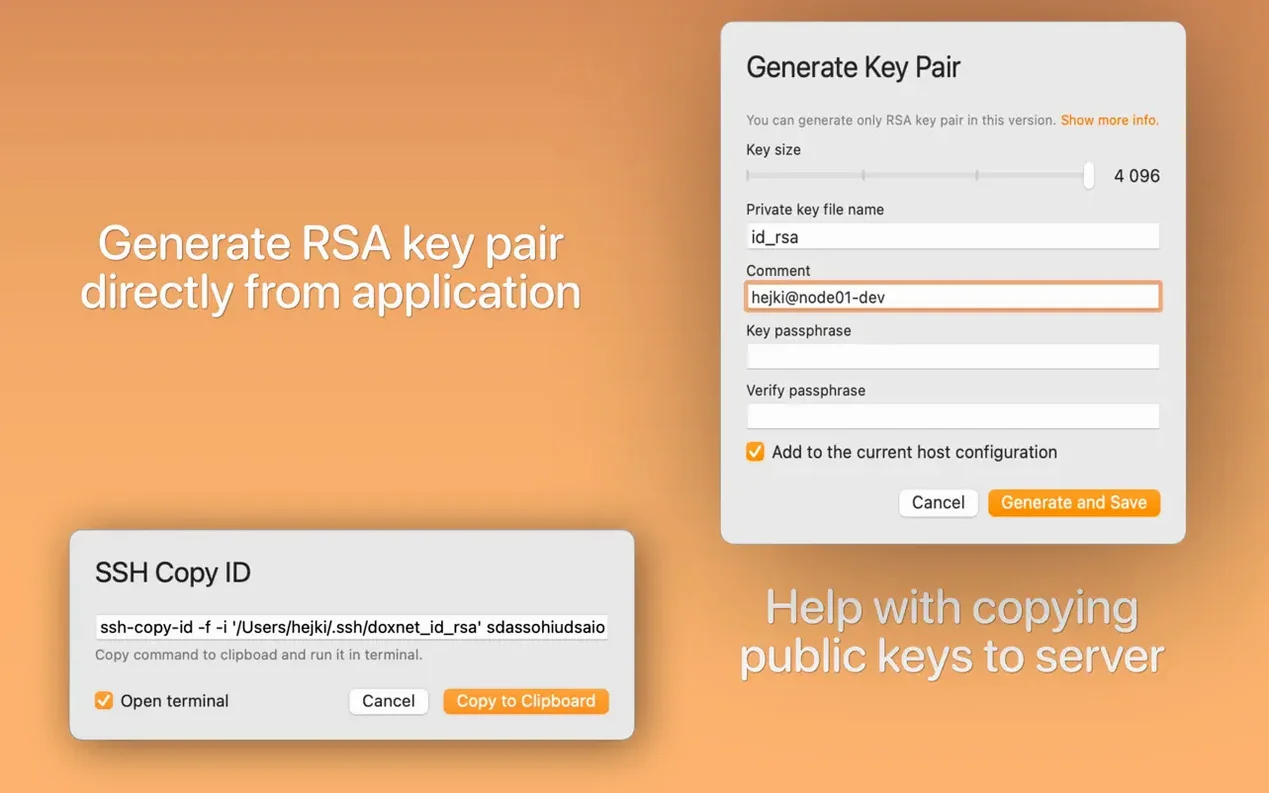
Keeping track of dozens of server aliases, keys, and port forwards in a plain text file gets old fast. SSH Config Editor wraps the OpenSSH client config in a structured Mac interface so you stop grepping through ~/.ssh/config by hand.
Architecture — Universal binary. The app ships with both ARM (Apple Silicon) and x86 (Intel) slices, so it runs natively on whichever Mac you have.
macOS floor — macOS 14. Anything older won't get past the installer checks.
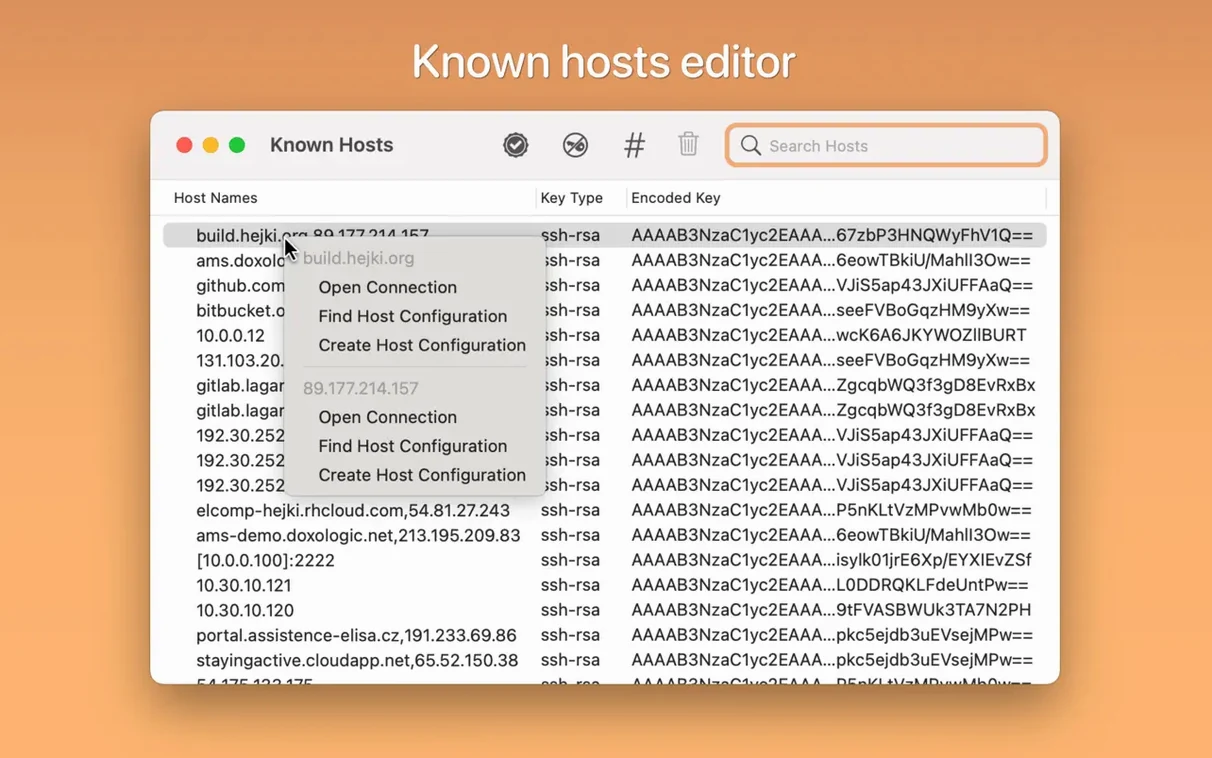
Known Hosts editor — A dedicated panel for known_hosts entries, rather than having to touch that file directly.
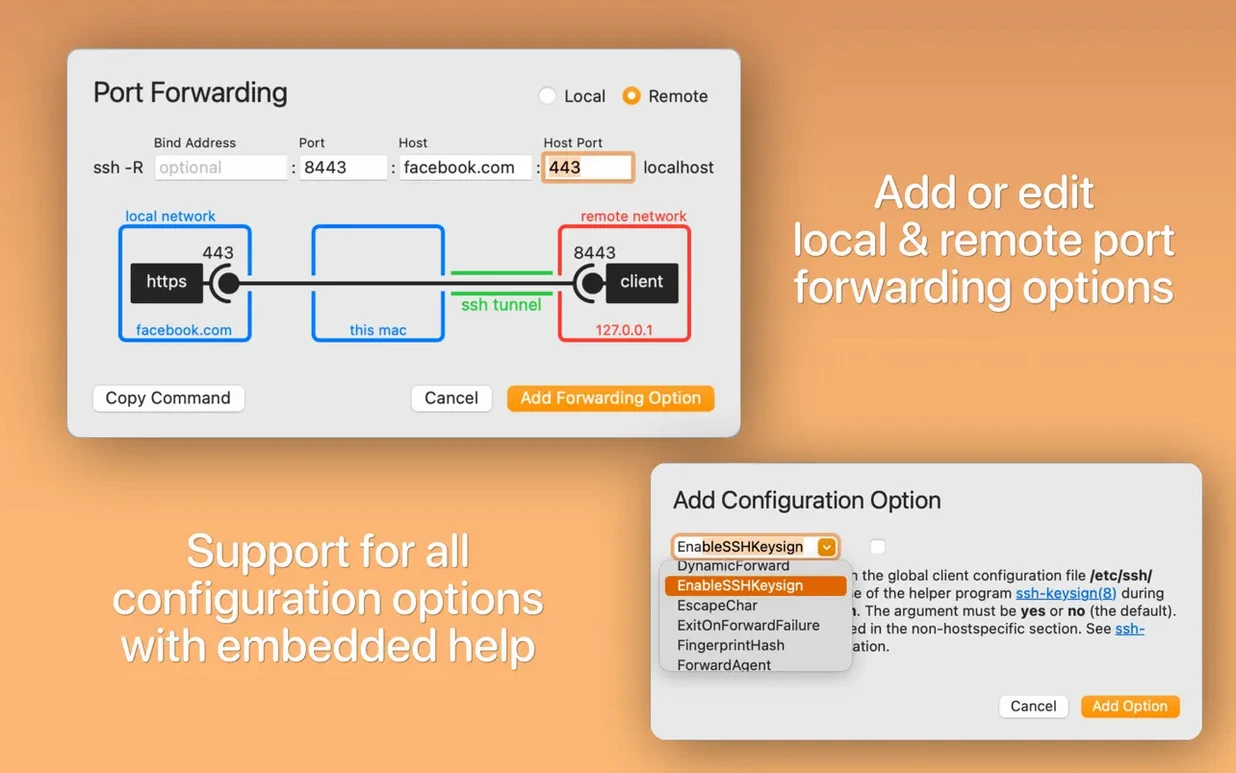
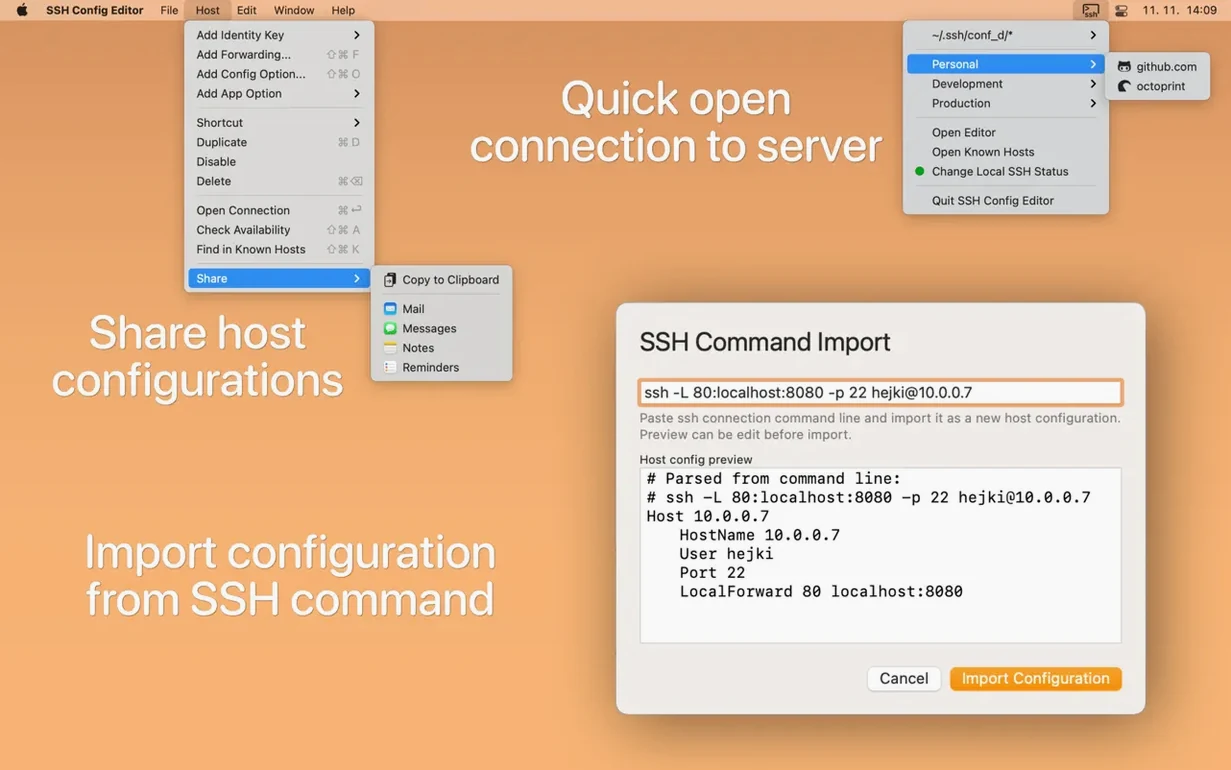
Port forwarding helper — Local and remote forwarding rules get a graphical preview while you build them, which is genuinely useful for spotting a flipped local vs remote before you connect.
Grouping — Config entries can be sorted into collapsible groups. Handy when you manage clusters or separate work from personal hosts.
Menu bar — A small icon sits up top for quick connections without opening the main editor window.
Pro features — The installed app includes an extended set of editing tools beyond the basics; the exact line between free and Pro is handled inside the app.
Which tools actually compete with it on macOS?
There aren't many dedicated SSH config editors on macOS, but three names come up in conversation.
Shuttle is the minimalist alternative — a tiny menu bar app that reads your existing ~/.ssh/config and shows hosts as a clickable list. It doesn't edit anything. You still write config by hand. If all you want is a quick connection launcher and you already know the directives, Shuttle does exactly that and nothing else. SSH Config Editor covers the same ground with its menu bar icon but adds the editor side, so you're not switching between tools.
Termius goes the other direction: a full graphical SSH client with a built-in config manager, cross-device sync, and a terminal emulator. It's a much heavier app. If you live inside Termius for sessions anyway, its config management might feel redundant to SSH Config Editor. But if you prefer the native macOS Terminal or iTerm2 and just want a clean way to maintain the config those apps read, a standalone editor keeps things simpler — no extra terminal layer, no sync accounts, just the file.
Core Shell sits somewhere in between, with a config editor, key manager, and terminal built in. Its config panel covers the basics well, though the grouping and port forwarding preview in SSH Config Editor are more visual. Which one fits depends on whether you want one app that does everything or a focused tool that slots into your existing setup.
Why open your existing config before touching anything else?
- Point it at an existing config first. If you already have a populated
~/.ssh/config, open the app and let it parse everything. Don't start from scratch — seeing your own entries in the structured view immediately shows where groups and comments will help. - Group aggressively. Select a few related hosts, right-click, and create a group. Clusters, staging vs production, client projects — whatever split makes sense. Collapsing groups you're not touching today cuts visual noise.
- Use the port forwarding preview deliberately. Add a forward rule you know works and study how the preview lays out the chain. That's the fastest way to internalize the visual language so you catch mistakes on new rules later.
- Clean up
known_hostsearly. Open the Known Hosts editor and remove stale entries — old IPs, long-decommissioned VPS instances. The editor makes it easy to spot duplicates and conflicts you'd never notice in a text editor. - Let the menu bar icon earn its place. Pin a handful of frequent hosts. After a day or two, muscle memory for reaching the icon instead of opening a terminal and typing
ssh whateverkicks in.
What does a jump-host port forward look like inside the editor?
It's late afternoon and you need to forward a local port to a staging database through a jump host. You open SSH Config Editor from the dock — the main window shows your groups, with "Staging" collapsed from yesterday and "Production" expanded.
You unfold Staging, select the jump host entry, and hit the Port Forwarding tab. A new local forward: source port 5432, destination db-staging.internal:5432. The graphical preview draws the chain — your Mac on the left, the jump host in the middle, the database server on the right — with arrows showing traffic direction. Good, nothing's flipped.
You save and glance at the raw config view just to confirm the line reads LocalForward 5432 db-staging.internal:5432. It does. You switch to the menu bar icon, pick the staging jump host, and connect. A terminal opens; you run psql -h localhost -p 5432 and get a prompt. Done.
Before closing, you open the Known Hosts editor because that staging jump host rotated its key during maintenance. You find the old fingerprint, delete it, and close the app. The whole thing took under two minutes, and you never opened ~/.ssh/config in a text editor or typed an ssh command with a long forward flag by hand.
- macOS 14 or later
- Apple Silicon or Intel Mac
- Interface language: English
Comments 0
Sign in or create an account to leave a comment.
No comments yet. A codec, a slice, a machine — they appear after moderation.