Sublime Text for macOS
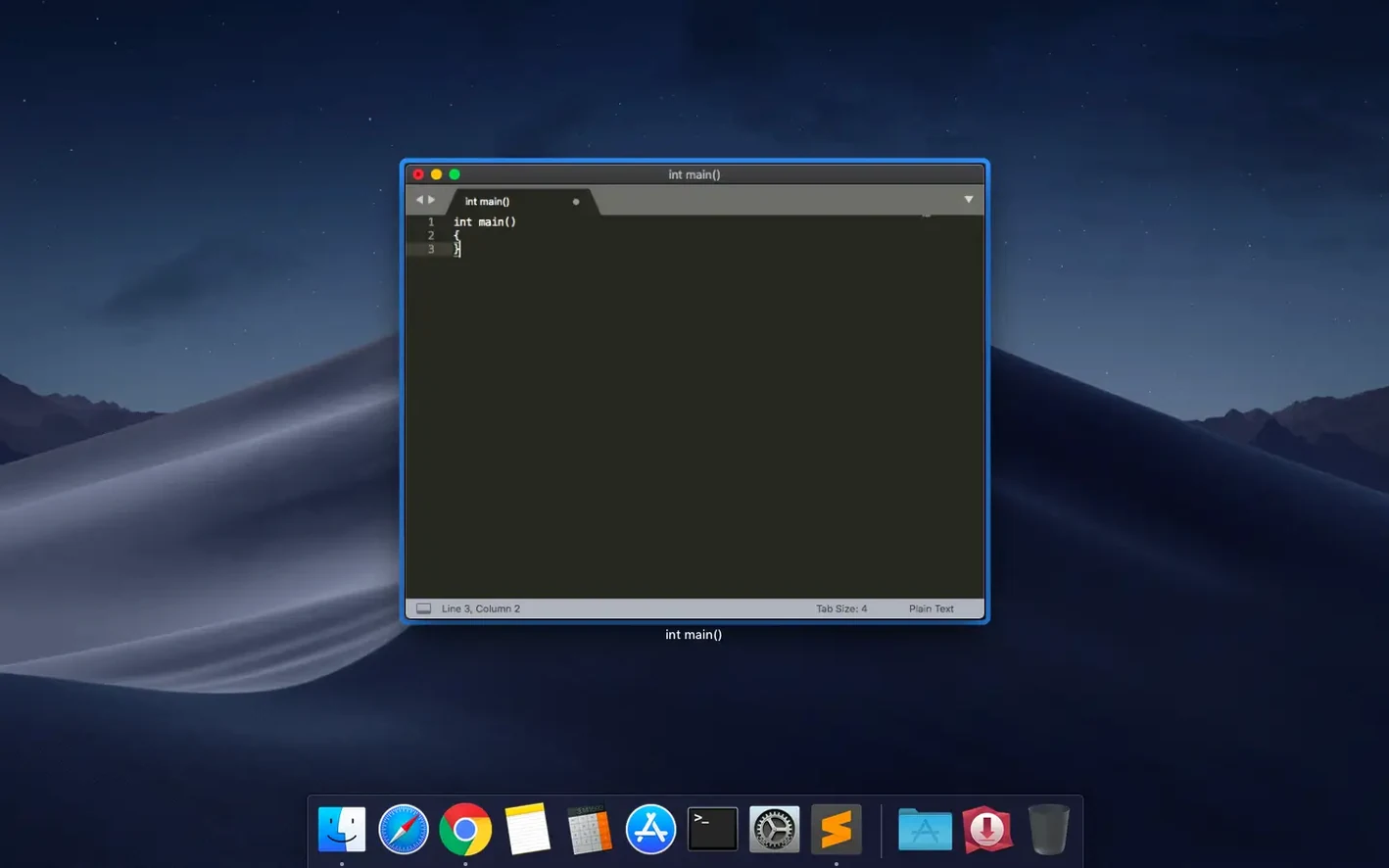
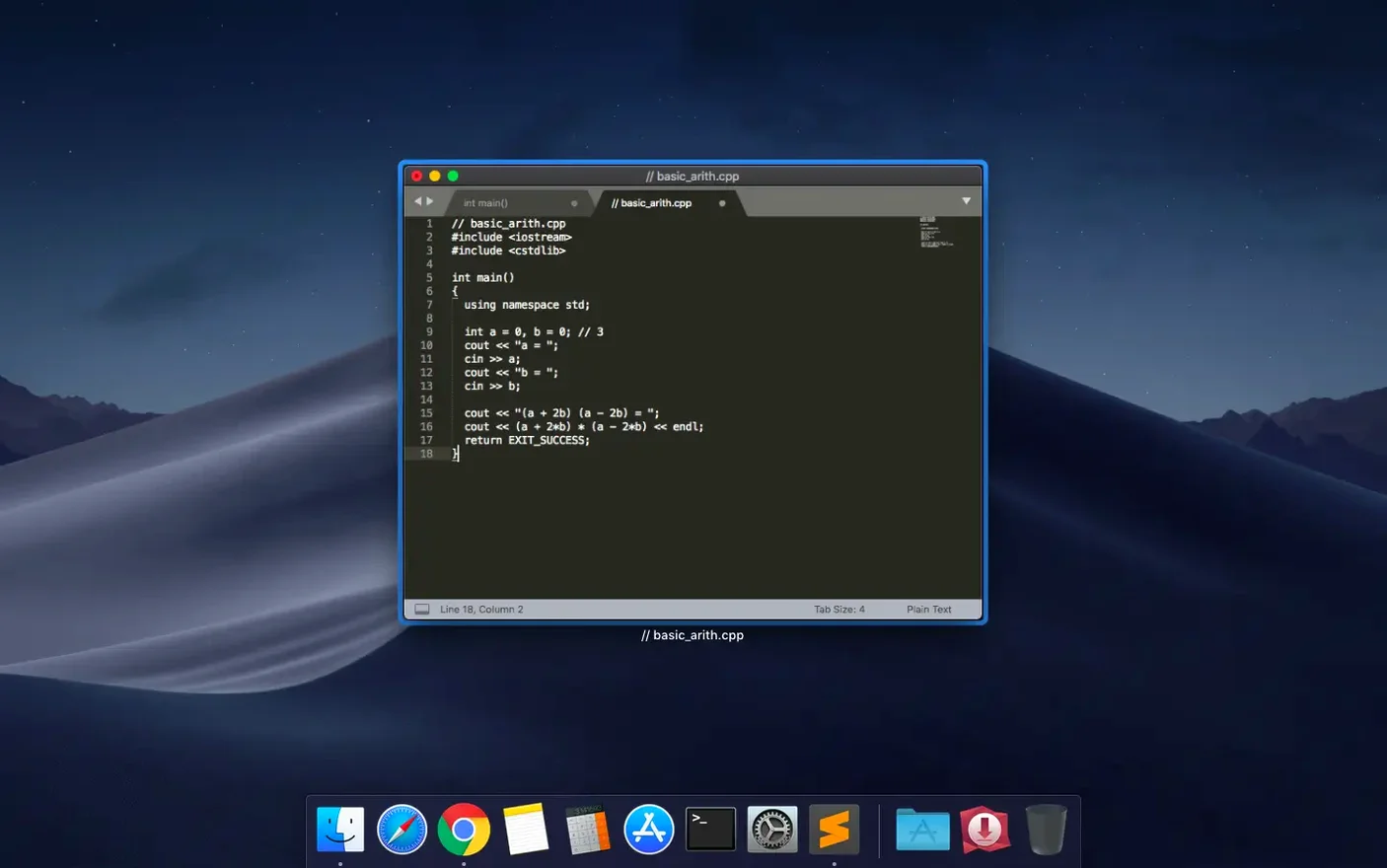
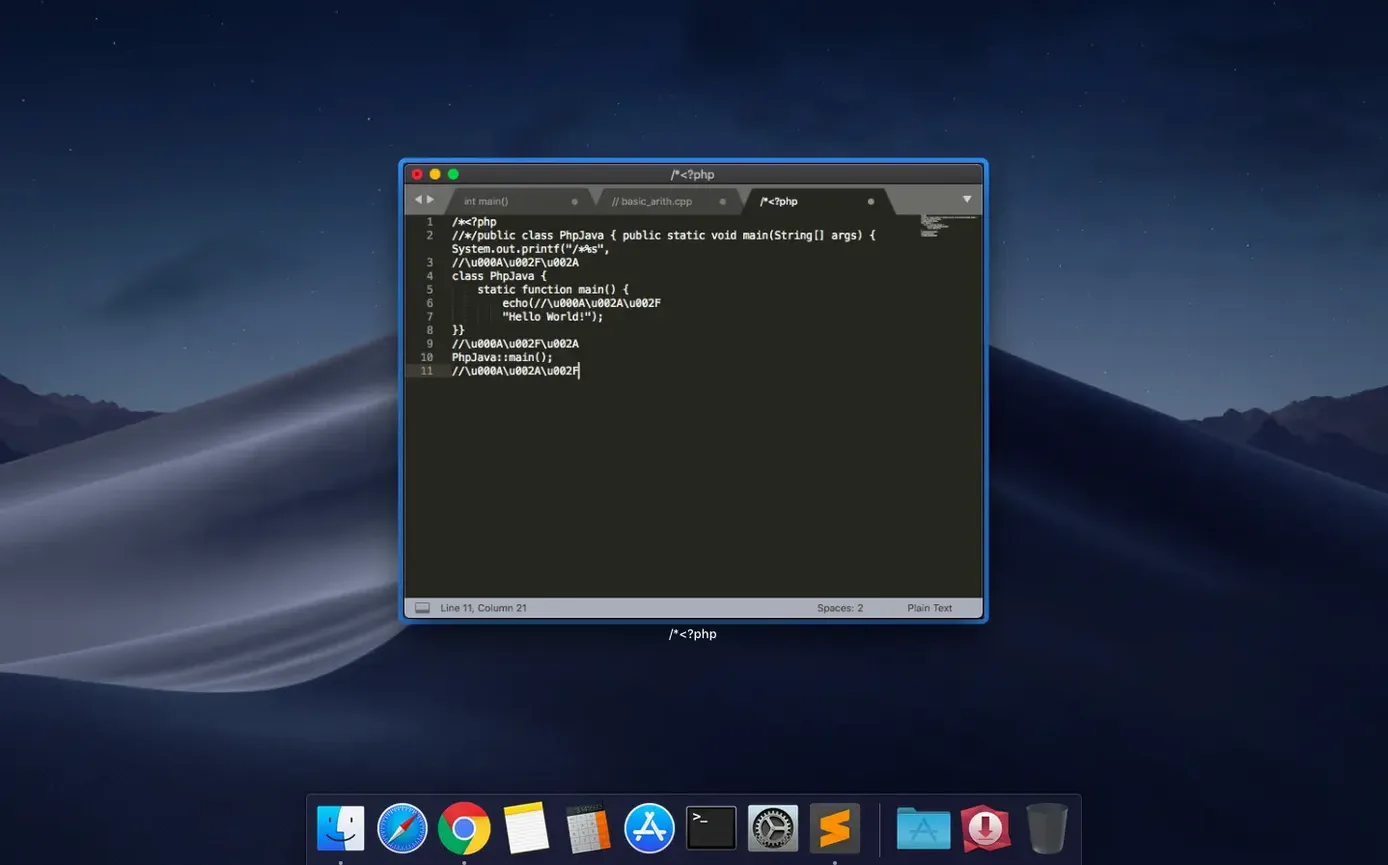
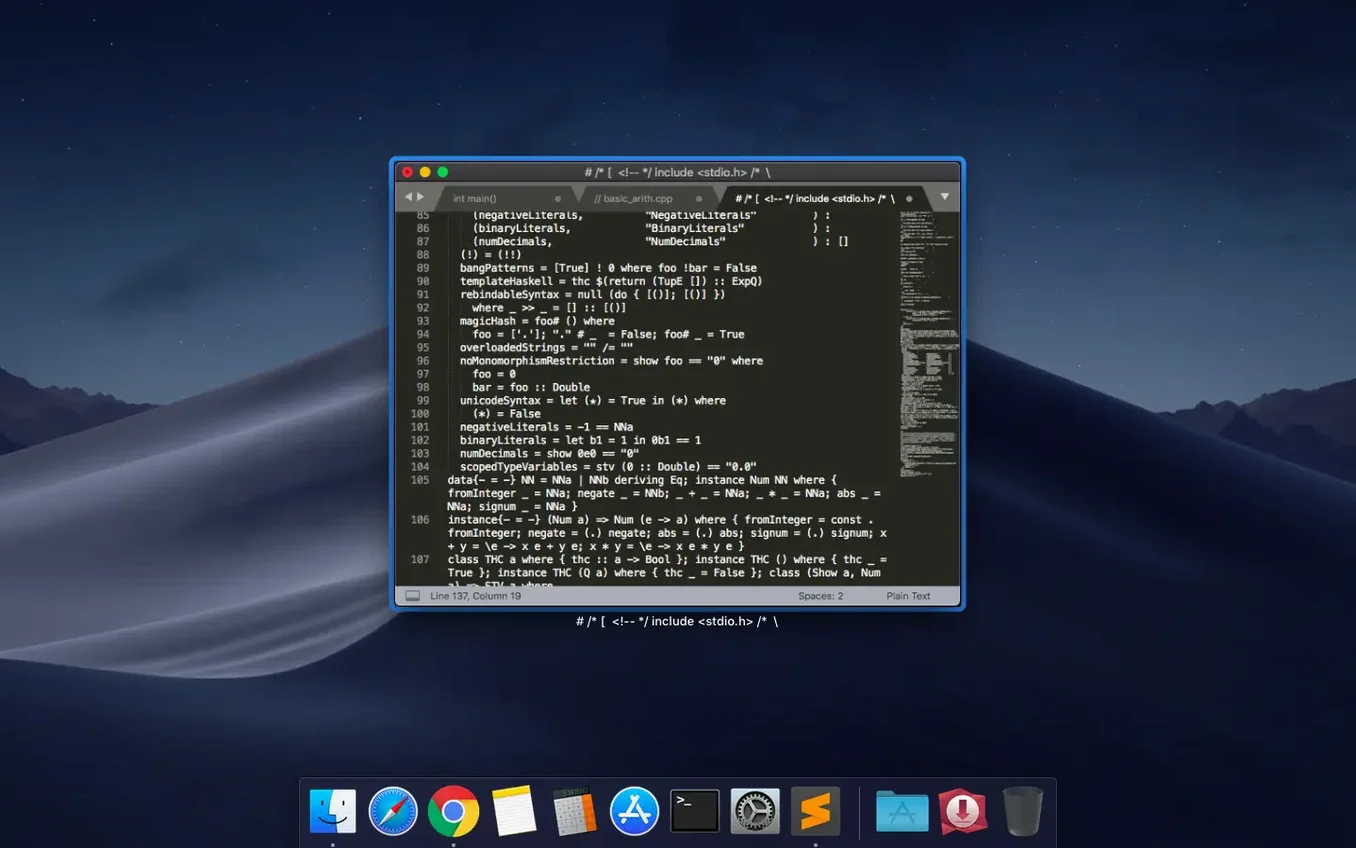
Sublime Text is a text editor built for writing code, markup, and prose, running natively on both Intel and Apple Silicon Macs as a Universal 2 binary. It doesn't try to be an IDE, but it fits neatly beside your current tools—Terminal, Xcode, a web browser—by staying fast and getting out of your way.
Navigation and editing that feels local
Moving through a file leans heavily on the minimap on the right edge, giving you a zoomed-out view of your entire document for quick jumps. Fuzzy file search means you type a few characters of a filename and land there instantly, without digging through folders. Once you're in, you can record macros to repeat multi-step edits, and the search bar updates as you type so you see matches before you even finish the query.
Building a toolkit around it
The editor keeps itself small while the community fills in the gaps. You can install plugins for extra language support, and the app will automatically fetch new versions of them from their repositories so you aren't manually chasing updates. For your own snippets—those reusable blocks of boilerplate you paste into every other file—the built-in snippet system lets you store them with tab triggers. Auto-save makes sure your work lands on disk without you thinking about it, which matters when you're flipping between this and a compiler or a local server.
Why drop into Terminal for "subl ."?
The subl command-line helper is the quiet bridge between Sublime Text and Terminal. Once you symlink it into your $PATH, a quick subl . opens the current directory as a project, and subl ~/.zshrc drops you straight into a dotfile. That same shortcut works from inside other editors and tools—many command-line utilities let you set EDITOR to subl -w so git commit messages and merge conflict resolutions open in your panes, not in nano or vim.
On the Finder side, Sublime Text registers as an opener for text files and unknown plain-text formats. Right-click a .json, .yaml, or .conf file and pick Open With—the app remembers it next time. Drag a folder onto the Dock icon and you get a fresh project with that folder as the root, the sidebar already populated. macOS Services integration is sparse, but the Open Selected Path command inside Sublime Text understands file:// URLs you paste from a browser or a log, which is a small thing that saves you from re-navigating.
Build systems tie the editor to compilers and interpreters you already have installed. The default build configs know about make, python3, and node; you can add your own .sublime-build files for anything that runs on the command line, including Swift Package Manager commands that talk to Xcode's toolchain. Output appears in a bottom panel, with error lines clickable to jump straight to the problem. No project file format lock-in either—the editor reads directories as they are, so your Xcode project, your package.json, and your Makefile all coexist without Sublime Text demanding its own metadata.
Does the vintage m command work again?
Build 4215 landed on 2026-09-25 with two fixes. The vintage M command—which sets a mark in Vim-style modal editing—was broken and is now working again. For anyone who keeps vintage mode enabled and uses marks to jump between buffer positions, that bug meant losing a navigation habit that had been muscle memory for years. The other fix targeted a compatibility issue on macOS 10.13 and 10.14; if you're holding onto a Mac that can't move past High Sierra or Mojave, the editor no longer trips over whatever API call had gone stale.
Earlier in the version 4 cycle, the move to a Universal 2 binary was the shift you felt immediately. Launch time on Apple Silicon dropped to a single bounce in the Dock, and the minimap redraws no longer hitch when you scroll through a 3,000-line file. Projects with a few hundred files load their sidebar listings without the brief beachball that Intel-only builds sometimes showed on M-series Macs. The package manager's background update checks also feel quieter now—they run without stealing focus or spawning terminal windows, which used to happen on older macOS releases when Python-based plugins called out to git.
Dragging a Jekyll folder onto the Dock icon
Say you're tweaking a Jekyll site—a handful of Markdown posts, a _config.yml, and some Liquid templates. Start by dragging the project folder onto the Dock icon. The sidebar populates instantly; the fuzzy file picker with Cmd+P gets you to _config.yml by typing conf.
With two panes open (Cmd+Option+2), put _config.yml on the left and a Markdown post on the right. Make a column selection in the YAML file to adjust indentation across several list items—hold Option and drag straight down. On the Markdown side, the minimap shows you the structure at a glance; click roughly where the third heading sits and you land near it. Hit Ctrl+Shift+K to delete the current line of YAML frontmatter you don't need anymore.
Now you want to rebuild the site without leaving the editor. A custom .sublime-build file in the project root runs bundle exec jekyll serve. Cmd+B triggers it; the output panel shows the regeneration log. A Liquid syntax error line is clickable—click it, fix the missing curly brace, Cmd+S to save, and auto-save's backup is already there if you want to revert. Hit Cmd+B again. The site builds clean, and your browser refresh shows the fixed layout. The whole round-trip—navigate, edit across two files, build, catch an error, fix, rebuild—stays inside one window with no mouse-heavy context switching.
- Fixed the vintage M command not working.
- Fixed a compatibility issue with macOS 10.13 and 10.14.
- macOS 10.13 or newer
- Intel or Apple Silicon Mac
$ man sublime-text | grep -A2 "?"
Which macOS versions does Sublime Text 4 require?
It requires a minimum of macOS 10.13.
Does Sublime Text 4 run natively on Apple Silicon?
Yes, it is a Universal 2 binary, so it runs natively on both Intel and Apple Silicon Macs.
Comments 0
Sign in or create an account to leave a comment.
No comments yet. A codec, a slice, a machine — they appear after moderation.