Loopback for macOS
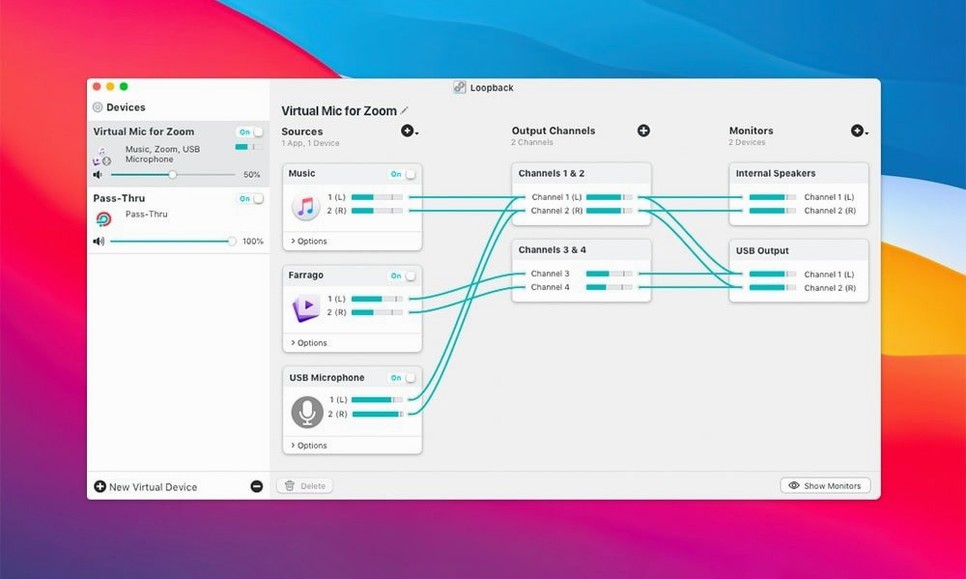
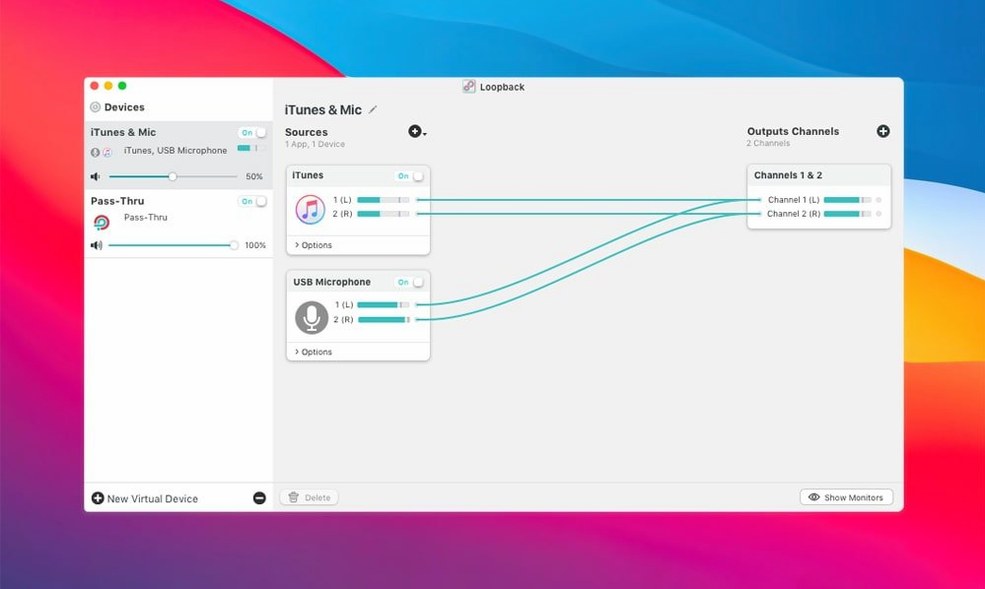
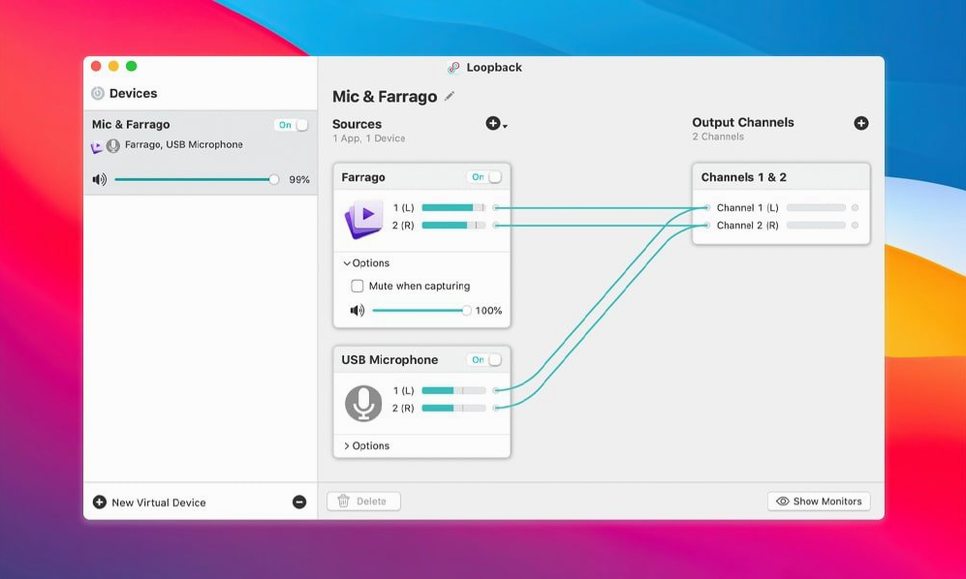
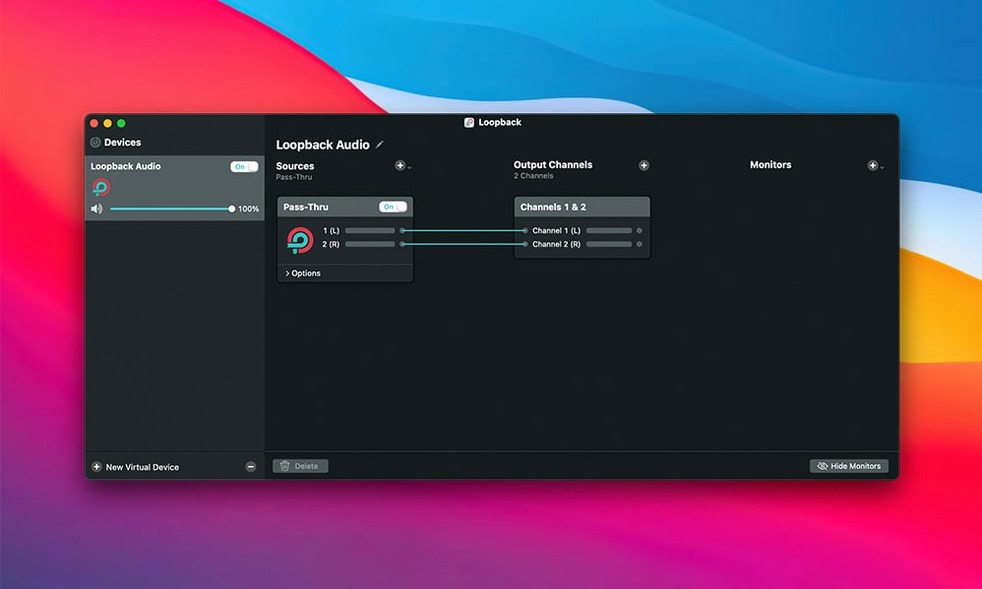
Getting microphone audio and game sound into the same recording app used to mean a mixer and a tangle of cables. Loopback replaces all of that with a virtual patch panel right on your Mac. You create a virtual audio device that mixes inputs from hardware mics and software sources, and every other app sees it as a standard microphone.
What does it run on?
The current download, Loopback 2.5.0, requires a Mac running macOS 11 or later. It runs natively on both Apple Silicon and Intel processors. The developer officially supports it through macOS 27, and the 2.5.0 update removed a launch warning that appeared on that system version.
What can I route together?
Any application that produces audio and any connected hardware input. A common setup sends microphone audio and Elgato Game Capture console sound into a single virtual device, which OBS or another recorder picks up as one clean source. You can also use Loopback as a pass-through output for Audio Hijack, feeding a processed audio chain back into your routing setup.
How do you configure it?
Routing is handled through a wired interface—you drag connections between physical input blocks, application sources, and a virtual output. There is no scripting or text-based configuration. The resulting virtual device shows up in any app’s audio input list immediately.
Does the virtual device feel like real Core Audio?
Audio drivers that slow down or crash are a dealbreaker, and Rogue Amoeba has been writing low-level audio plumbing on the Mac for a long time. The virtual device Loopback creates shows up as a standard Core Audio input, so apps treat it like any other microphone. In practice that means no extra latency you can feel—voice chat still sounds in real time, and recordings stay in sync without manual offset tweaking.
CPU use is modest. On an M1 machine, a two-source virtual device (microphone plus a music app) barely nudges the Activity Monitor needle past 2–3%. The ACE kernel extension that handles the actual routing runs at the system level, not inside a user-space wrapper that would add buffer copies. Memory footprint sits around 30–50 MB for a typical routing setup, and it does not creep upward over hours-long sessions.
Stability is where the architecture matters most. The 2.5.0 update shipped an updated ARK plugin (version 13.5), which is the shared audio-handling component Rogue Amoeba uses across their apps. That update fixed a compatibility edge case on newer macOS builds where the plugin could fail to register the virtual device after waking from sleep. In everyday terms, you no longer need to quit and reopen the app after your Mac naps.
Why did the macOS 27 launch warning disappear?
Version 2.5.0 was a compatibility release aimed squarely at keeping Loopback running on the latest macOS. The headline item is official support for macOS 27, including the removal of a launch warning that the system displayed on that version. That warning was harmless but annoying—clicking through it every time you opened the app broke the set-it-and-forget-it feel Loopback otherwise maintains.
The ARK plugin bump to 13.5 is the other concrete change. For users, this is mostly invisible except that it quietly fixes the wake-from-sleep registration issue mentioned above. No new routing features or interface changes landed in this release, which is typical for a point update from Rogue Amoeba—they tend to separate feature work from compatibility work cleanly.
What do people ask before installing?
Why does the kernel extension prompt appear?
Yes, but the situation is simpler than it sounds. Loopback uses the Audio Capture Engine (ACE), a signed system extension that handles audio routing at the kernel level. On installation, macOS prompts you to allow it in System Settings under Privacy & Security. Once approved, you do not see the prompt again. The extension is notarized and signed by a developer with a long public track record, which means Gatekeeper does not block it.
Will it break my system audio?
No. Loopback creates new virtual devices; it does not intercept or replace your default output. If you quit the app, the virtual devices disappear. If you uninstall it, everything reverts. The worst that happens if something crashes is the virtual device vanishing from your audio input list, and restarting the app brings it back.
Can I record the virtual device and monitor it at the same time?
Yes, because the virtual device presents itself as a standard input. Set your recording app to use the Loopback device as its microphone, then set your monitoring app (or the recording app's own monitoring feature) to output through your headphones or speakers. There is no feedback loop unless you deliberately route the output back into the same virtual device, which the interface makes hard to do by accident.
A real morning for a streamer
Someone running a weekly Twitch show with remote guests opens Loopback first thing. They have a saved configuration called "Live Show" that combines a USB microphone, a Discord audio source for the co-host's voice, and Safari for playing viewer-submitted clips. That virtual device is already selected as the audio input in OBS from last week's setup, so they do not touch the OBS audio settings at all.
Five minutes before going live, a viewer sends a sound clip they want played on air. The streamer drags QuickTime Player onto the Loopback canvas, wires it into the existing mix, and the clip plays through the stream without any routing change in OBS. After the clip, they remove the QuickTime source and the virtual device goes back to its saved state. The whole adjustment takes under a minute and does not interrupt the recording layout.
First days with Loopback
Start by saving every working configuration. The app stores them as named presets, and one click loads a complete routing setup. If you run multiple recurring sessions—a podcast, a game stream, a screencast with voiceover—give each its own preset immediately. You will thank yourself on the third day when switching setups takes one click instead of rewiring everything.
Name your virtual devices descriptively in the app's device settings. "Loopback Audio" tells you nothing when you are scanning the mic dropdown in Zoom, OBS, or QuickTime. Call it "Podcast Mix" or "Stream + Discord" and those names appear everywhere the system shows audio inputs, including the menu bar.
Check the monitor function on each source block early. The small headphone icon toggles local monitoring for that source, letting you hear it through your selected output without relying on the recording app's monitoring feature. This is useful for verifying audio levels before you open your recording software.
If you use Audio Hijack alongside Loopback, set up the chain in Audio Hijack first and select Loopback as the output device in that chain. The processed audio then appears as a Loopback source you can mix with other inputs. This two-app workflow replaces what a hardware mixer and outboard processor would do, entirely inside the Mac.
- Added support for macOS 27.
- Removed the launch warning when running on macOS 27.
- Updated the ARK audio handling plugin to version 13.5.
- macOS 11 or later
- Apple Silicon or Intel Mac
$ man loopback | grep -A2 "?"
Does Loopback work on macOS 27?
Yes, version 2.5.0 added official support for macOS 27 and eliminated a warning that previously appeared at launch on that system.
Comments 0
Sign in or create an account to leave a comment.
No comments yet. A codec, a slice, a machine — they appear after moderation.