MainStage for macOS
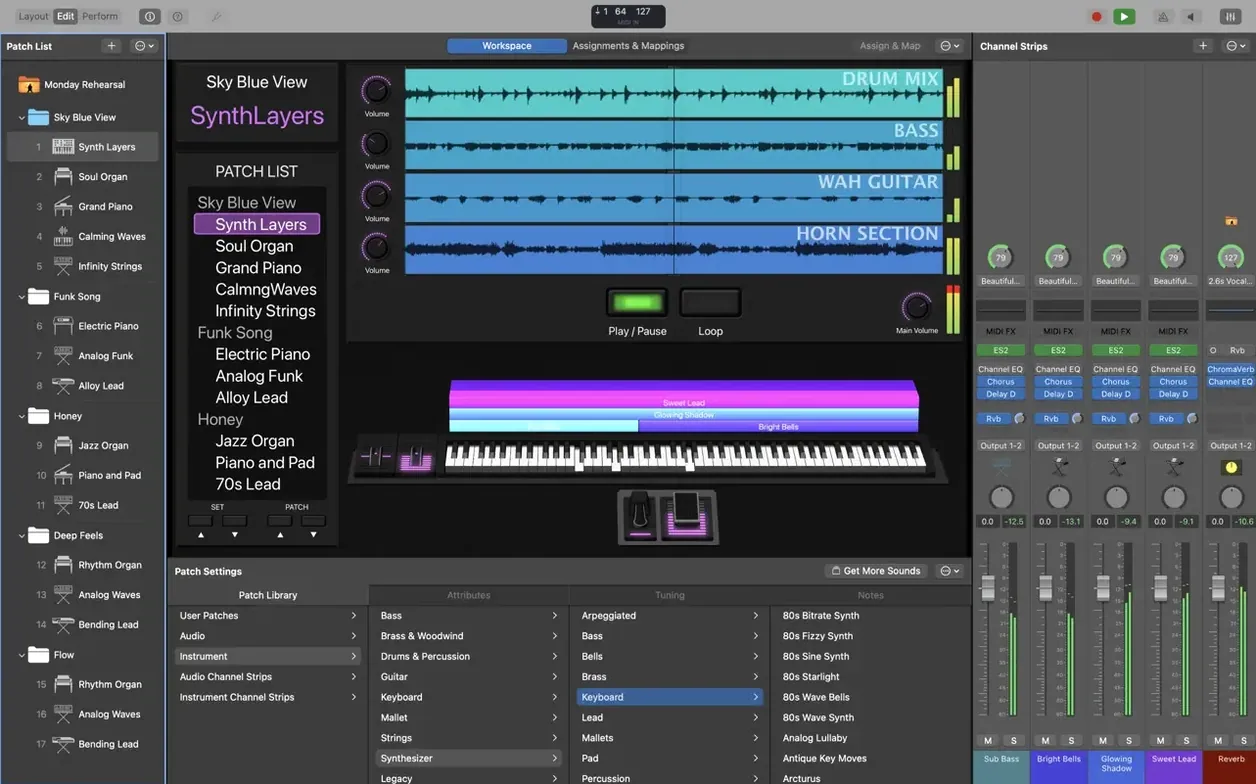
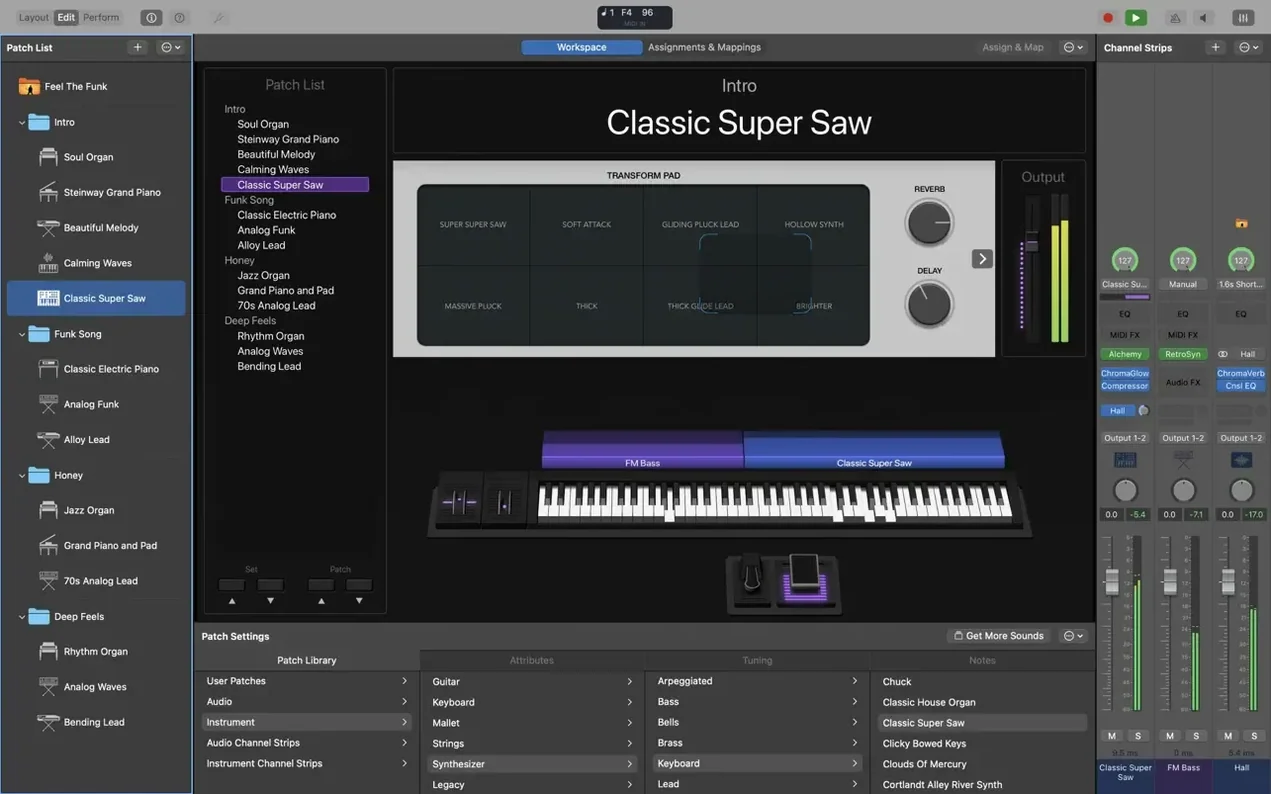
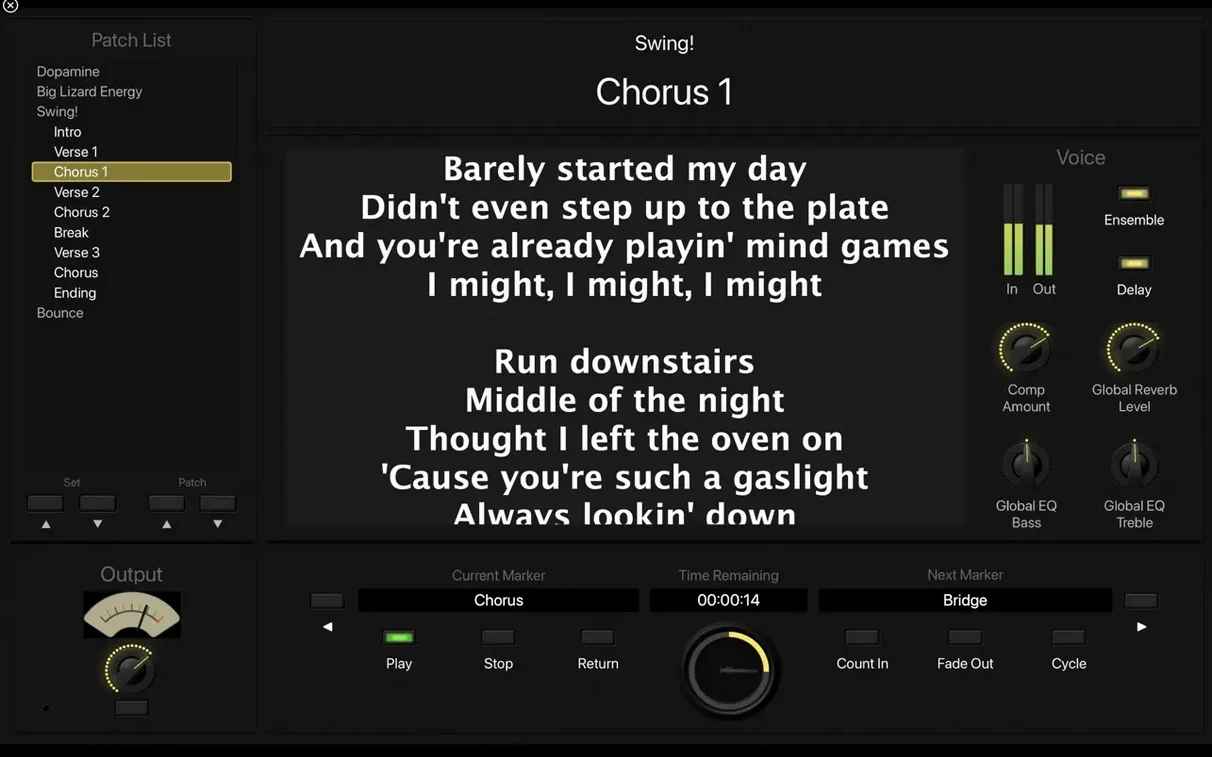
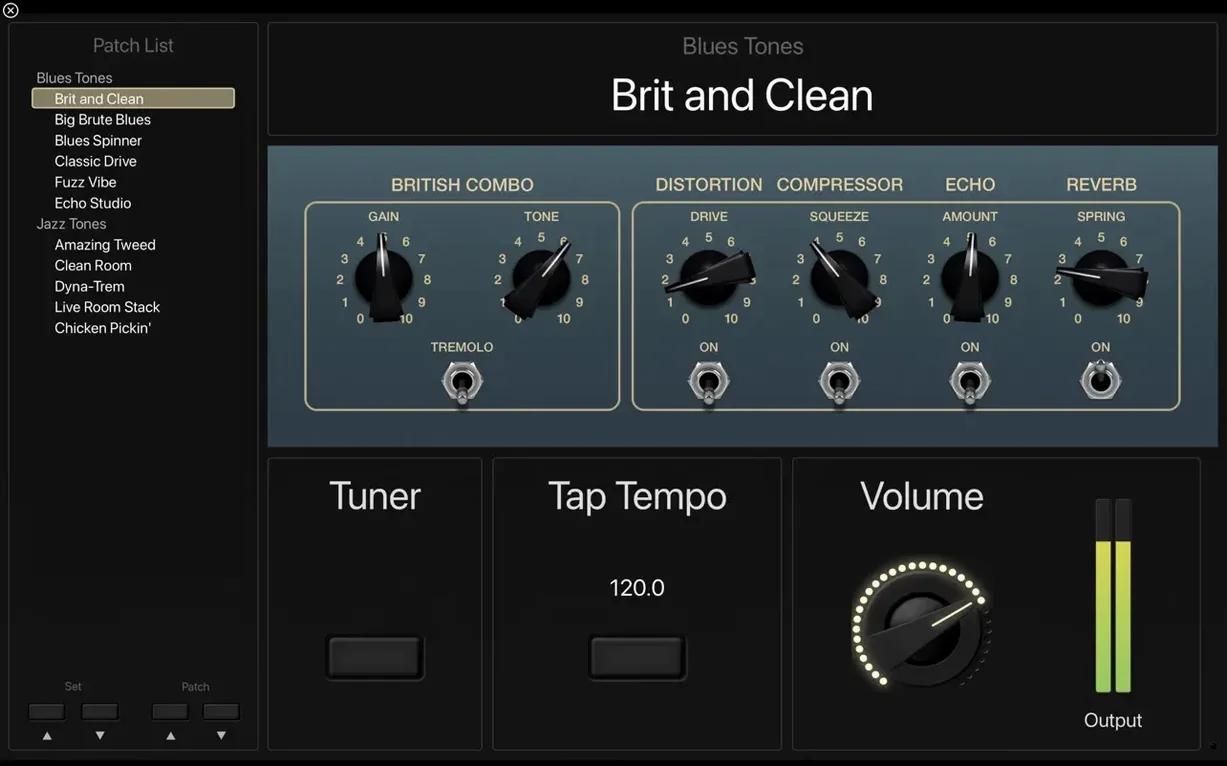
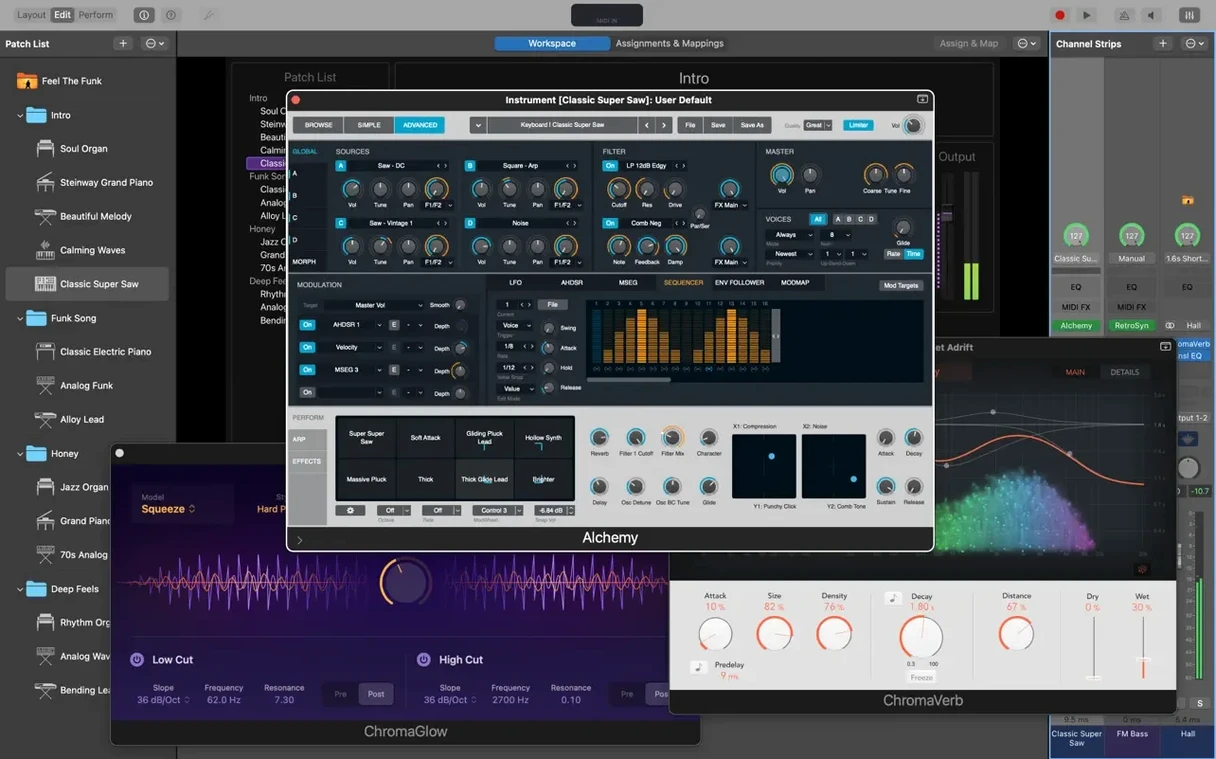
Keyboard players, guitarists, worship bands and touring acts reach for MainStage when they need a live rig that won't fold under pressure. It turns a Mac into a full-screen instrument rack — no timeline, no arrange window, just patches and controls built for the stage.
Getting a show file together, step by step
- Build a concert. A concert holds all your setlist patches. Each patch can be a single keyboard split, a stacked synth pad, or a complex channel strip with effects chains.
- Assign controls. Map knobs and faders on your MIDI controller to Smart Controls. Screen layout adapts to what's mapped — no menu diving mid-song.
- Set up patch switching. Move between patches via a footswitch, a key command, or the patch list. Sound tails from the previous patch ring out naturally — there's no audio glitch when you switch.
- Run full screen. Hit the Perform button and the Mac becomes a stage-only display. Lyrics, chord charts, and patch info stay visible while the desktop disappears.
The Sound Library pulls from the same sample pool as Logic Pro — over 750 sampled instruments and 1,800 instrument and effects patches ship with the app. Retro Synth, Vintage B3, Vintage Electric Piano and Vintage Clav are all in there, plus MIDI plug-ins like Arpeggiator, Chord Trigger and Transposer for real-time manipulation. If you already own Logic or GarageBand, MainStage sees those sounds too.
Set your I/O buffer before the first rehearsal
The mainstage dmg installs clean, but the default configuration is not stage-ready. A few tweaks in the first hour save awkward silences later.
Open MainStage > Settings > Audio and set your I/O buffer. The factory default is often 128 samples — fine for noodling at home, but for a live set with layered patches and convolution reverb, 64 or even 32 samples keeps latency under 5 ms on Apple Silicon. Test with your heaviest patch, not an empty piano. If you hear clicks, bump it to 128 and move on; nobody in the audience notices 6 ms.
Next, go to Settings > MIDI and confirm your controller is listed. MainStage auto-detects class-compliant devices, but if your keyboard uses vendor-specific drivers, install those before launching the app. While you are there, uncheck any unused MIDI inputs — virtual ports from other apps can send stray note-ons during a show.
Create a template concert with one empty patch per song slot in a typical set. Save this as Template.concert somewhere outside the default concert folder. Every new setlist starts from that template; you skip the repetitive layout work and keep channel strip naming consistent across gigs.
One more thing: in Layout mode, drag a text box onto the workspace and type your monitor mix notes or a quick reminder like "capo 3." Screen real estate in full-screen Perform mode is precious, and a small text object tucks useful metadata where you glance during a song without switching views.
A complete vocal-and-keys patch, start to finish
Say you sing lead and play a stereo electric piano, and you need a self-contained patch for a ballad where the vocal gets a plate reverb with a long tail and the piano runs through a subtle chorus. Here is the full workflow.
- Add the keys. Hit the plus sign at the channel strip area, choose Software Instrument, and load Vintage Electric Piano from the instrument slot. Dial in the Suitcase model with a little bell tone and set velocity sensitivity to taste.
- Add the vocal strip. Click the plus sign again, this time picking Audio Input. Under the input routing dropdown, select your audio interface's mic channel — say Input 1. The strip shows a fader, a meter and empty insert slots.
- Shape the vocal. Insert a Channel EQ first. Roll off low end below 80 Hz with a high-pass filter to kill stage rumble. Then insert Space Designer and load a medium plate impulse response — the "Rich Plate" preset works, but pull the dry/wet mix back to around 30% so the vocal stays intelligible.
- Add the piano effect. On the electric piano channel strip, insert Modulation > Chorus. Set rate to roughly 0.4 Hz, depth to 20%, and mix to 25%. This widens the Suitcase sound without turning it into a wobbly vintage cliché.
- Balance levels. Play the keys and sing a sustained note into the mic. Watch the meters on both channel strips. Bring the vocal fader up until it sits just above the piano in the output bus. Add a multipressor on the main output if the low mids from the piano and the vocal body clash around 200–300 Hz.
- Build the layout. Switch to Layout mode, drag two large fader-style Smart Controls to the screen. Map one to the vocal strip's volume, one to the electric piano's output. Label them clearly. In Perform mode you can ride the vocal fader during quiet passages without touching the Mac keyboard.
Save the concert. Switch to another patch, play a chord, switch back. The reverb tail from the vocal does not chop off — MainStage holds the audio buffer across patch changes, so the wash of the plate carries naturally into silence.
A worship keyboard player's Sunday morning
Consider a keyboardist running keys and click tracks for a four-song worship set. The band uses Ableton on a separate machine for stems; the keyboard player's job is acoustic and electric pianos, a pad layer, and one big synth lead for the bridge in song three.
She arrives at 7:30 AM with a MacBook Air M2 and a 61-key controller. The mainstage free download that someone in the community pointed her toward sits on her machine alongside Logic — she already pulled Alchemy pads from Logic's library into her MainStage concert. Her concert file contains four patches, one per song, each with two or three keyboard splits.
Patch one layers a Yamaha grand (from the Sampler instrument) with a soft string pad mapped to the upper half of the keyboard. The lower half triggers a muted bass from a third-party Audio Unit synth — MainStage sees any 64-bit AU plug-in, so the rig is not limited to Apple's stock sounds.
Song three is the one with the synth lead. She programmed Chord Trigger to fire a four-note voicing from a single key, freeing her right hand for filter sweeps on a Retro Synth instance. The hardware knob assigned to cutoff frequency sits on her controller's first encoder, and the Perform screen shows a giant horizontal fader labeled "Cutoff" so she cannot miss it under stage lights.
Between songs, she advances patches with a footswitch mapped to "Next Patch" in the concert's MIDI assignments. Sound check finishes by 8:15. The Playback plug-in handles a stereo guide track — clicks panned hard left, cues hard right — sent to the drummer's in-ears through a separate output pair on the interface. No external click box required.
The set runs without a single patch change hiccup. After the service she closes the laptop, no reboot needed, and packs the controller. The whole rig fits in a backpack.
What version 4.3.1 changed for everyday use
The 4.3.1 update is a maintenance release, but the fixes land squarely in workflows that touring musicians rely on. The Scripter plug-in — the one that lets you run custom JavaScript to transform MIDI data in real time — now receives incoming MIDI messages on patch change. Before the fix, a Scripter instance would miss the first few events if you switched patches mid-phrase. For anyone using Scripter to remap controllers or generate arpeggios from a single note trigger, the difference is immediate: the first chord triggers the script reliably.
The blocked SysEx issue was a showstopper for guitarists and keyboardists who send patch dump requests to external hardware synths. Incoming MIDI SysEx messages were simply dropped. With 4.3.1, a hardware synth can respond with its patch data and MainStage passes it through — useful for those who run a hybrid rig with a Prophet or a Nord Stage sending parameter data back to the Mac.
A smaller but equally annoying bug: typing a number into a field — say, setting a precise delay time in milliseconds — could suddenly switch the selected patch in the Patch List. The keystroke was interpreted both as text entry and as a patch list shortcut. That behavior is fixed, so editing values during rehearsal no longer risks jumping to the wrong song.
Sampler instruments not loading the correct sounds was a regression that crept into an earlier build. Opening a concert could map a piano sample to a drum zone or simply load silence. Version 4.3.1 restores the expected sample-to-zone mapping, which means the concert you saved on Tuesday sounds identical on Saturday without reloading every Sampler instance manually.
How much room does the full Sound Library take?
Does MainStage work without Logic Pro?
Yes, it is a standalone application. You download the mainstage dmg, drag the app into /Applications, and launch it — no Logic Pro purchase or installation required. The Sound Library ships inside MainStage, so you get 1,800 patches and 750 sampled instruments without owning anything else. If you do own Logic or GarageBand, MainStage sees those sounds automatically, but that is additive, not a requirement.
Can it run third-party plug-ins I already own?
Any 64-bit Audio Unit plug-in shows up in MainStage's instrument and effect menus. AUv3 plug-ins are supported on Apple Silicon. VST and VST3 formats are not recognized — this is an Audio Unit host, consistent with Apple's ecosystem. If your plug-in collection is primarily AU, everything transfers. If you rely on VST-only instruments, you need a wrapper or a separate host, because MainStage does not scan VST paths at all.
What audio interface latency should I expect?
Latency depends on your buffer size and interface drivers, not on MainStage itself. On an Apple Silicon Mac running a Class Compliant interface at 64 samples and 44.1 kHz, roundtrip latency is typically around 3–5 ms. That figure covers analog-to-digital conversion, the buffer, and digital-to-analog conversion. The app's own processing adds negligible overhead — the audio engine is the same one that runs Logic Pro, and it prioritizes live throughput over track count.
Why the full Sound Library needs 57 GB
A minimal install needs 6 GB. The full Sound Library — all sampled instruments, all Apple Loops, all effects presets — requires 57 GB. You choose during installation; you can also install the minimal set and download additional content later through MainStage's Sound Library Manager. The 4,600 Apple Loops in dance and electronic genres are part of that larger install, so if you do not use loop-based backing tracks, skip them and save 15–20 GB.
Does it handle backing tracks with separate click outputs?
The Playback plug-in does exactly that. Load a stereo or multitrack audio file, then route the click channel to a different physical output on your interface. The band hears the click in their in-ears; the audience never hears it. Multichannel playback supports up to eight separate outputs, so you can send a stereo mix to front of house, a click to the drummer, and a cue mix to the bass player — all from one Playback instance inside a single patch.
Is there a safe place to get the installer?
People search for mainstage download on various sites. The disk image is a standard Apple distribution; once mounted, you drag the app bundle to the Applications shortcut in the mounted volume window and launch from Launchpad. Some community sources offer the mainstage dmg for users who need a specific version. The app runs on macOS 15.6 or newer and requires Apple Silicon — there is no Intel build for this version. If you are still on an Intel Mac, you need an older MainStage release that matches your hardware.
- Incoming MIDI SysEx messages are no longer blocked.
- Typing numbers into the Add Channel Strip window works again.
- Sampler instruments now load the correct sounds instead of defaulting to a sine tone or silence.
- macOS 15.6 or later
- Apple Silicon Mac
- 64-bit Audio Unit plug-in support
- 6 GB free disk space (minimal install) / 57 GB free space (full Sound Library)
$ man mainstage | grep -A2 "?"
Can I use Logic Pro and GarageBand sounds inside MainStage?
Yes. MainStage loads the same Sound Library content, and any instruments or patches installed for Logic or GarageBand appear inside the MainStage browser automatically.
Does MainStage work with third-party Audio Units?
It requires 64-bit Audio Unit plug-ins. Any AU instrument or effect that meets that spec will show up in the channel strip inserts alongside the built-in effects like Space Designer and the tape and stereo delays.
How much drive space does the Sound Library need?
A minimal installation asks for 6 GB. Pulling down the complete Sound Library with all sampled instruments takes roughly 57 GB of free space.
Comments 0
Sign in or create an account to leave a comment.
No comments yet. A codec, a slice, a machine — they appear after moderation.