AnyTrans for iOS for macOS
You have an old iCloud account holding years of photos and a new one you use for everything else. Dragging that library across manually means exporting, downloading, and re-uploading for days. AnyTrans can move the entire photo library directly between the two accounts in one go.
Sign into both iCloud accounts
Open AnyTrans, click the iCloud Manager, and sign into the source account. Then add the destination account the same way—the app holds both sessions open side by side.
Select and transfer the photo library
Choose Photos in the source account, pick the albums or the full library, and set the destination account as the target. The transfer copies the originals across without altering the source.
Verify on the destination
Why the installer gets blocked on first launch
Most of the trouble I see comes down to three things people skip on the first launch. The installer for AnyTrans for iOS download packages ships inside a disk image, and macOS will flag it because the developer isn't notarized. Dragging the app straight into /Applications and double‑clicking gives you the "unidentified developer" dialog with no obvious Open button. The correct sequence is: mount the .dmg, right‑click the app, choose Open, and confirm in the dialog that appears. That dialog does include an Open button. People who use the Terminal method described in the install notes sometimes hit Return before Gatekeeper has finished its scan, which leaves the quarantine flag in place and blocks the app silently later.
The second trap is connecting a device before the helper components have loaded. AnyTrans installs a small background service the first time you launch it, and if you plug in an iPhone while that service is still spinning up, the device appears in the sidebar with a yellow dot or not at all. Closing the app, waiting ten seconds, and reopening it with the device already connected almost always fixes this. It is not a driver issue—the service just needs a clean handshake.
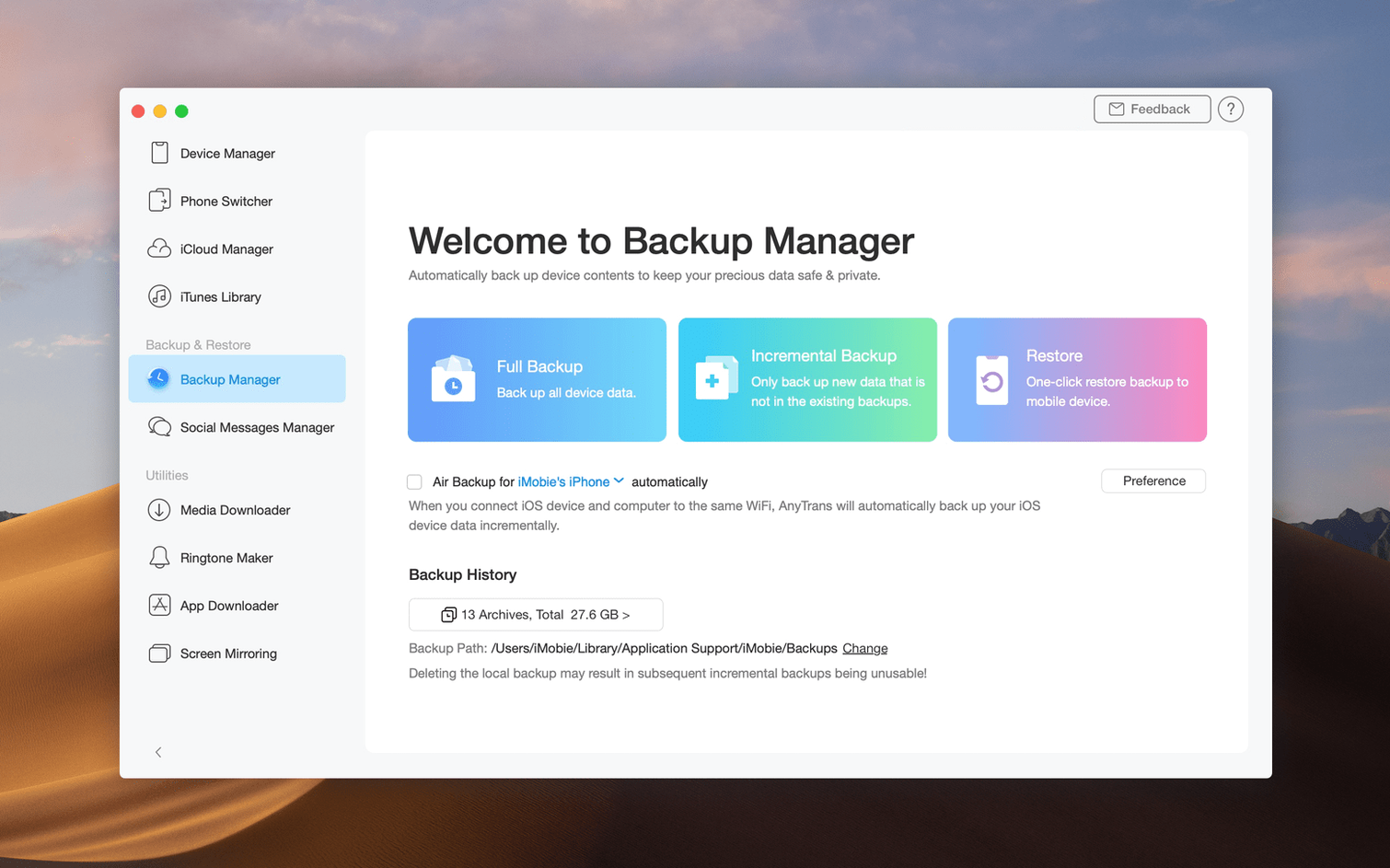
The third mistake is treating an iCloud transfer like a local backup. When you move data between iCloud accounts, AnyTrans downloads content from Apple's servers to a temporary cache on your Mac, then uploads it to the destination account. If you put the Mac to sleep mid‑transfer or let the disk fill up, the session breaks and you get a cryptic "error 207" that really means the cache was interrupted. Keep the Mac awake and make sure you have at least twice the transfer size free on the startup volume.
Getting a giant 4K video off your iPhone with a cable
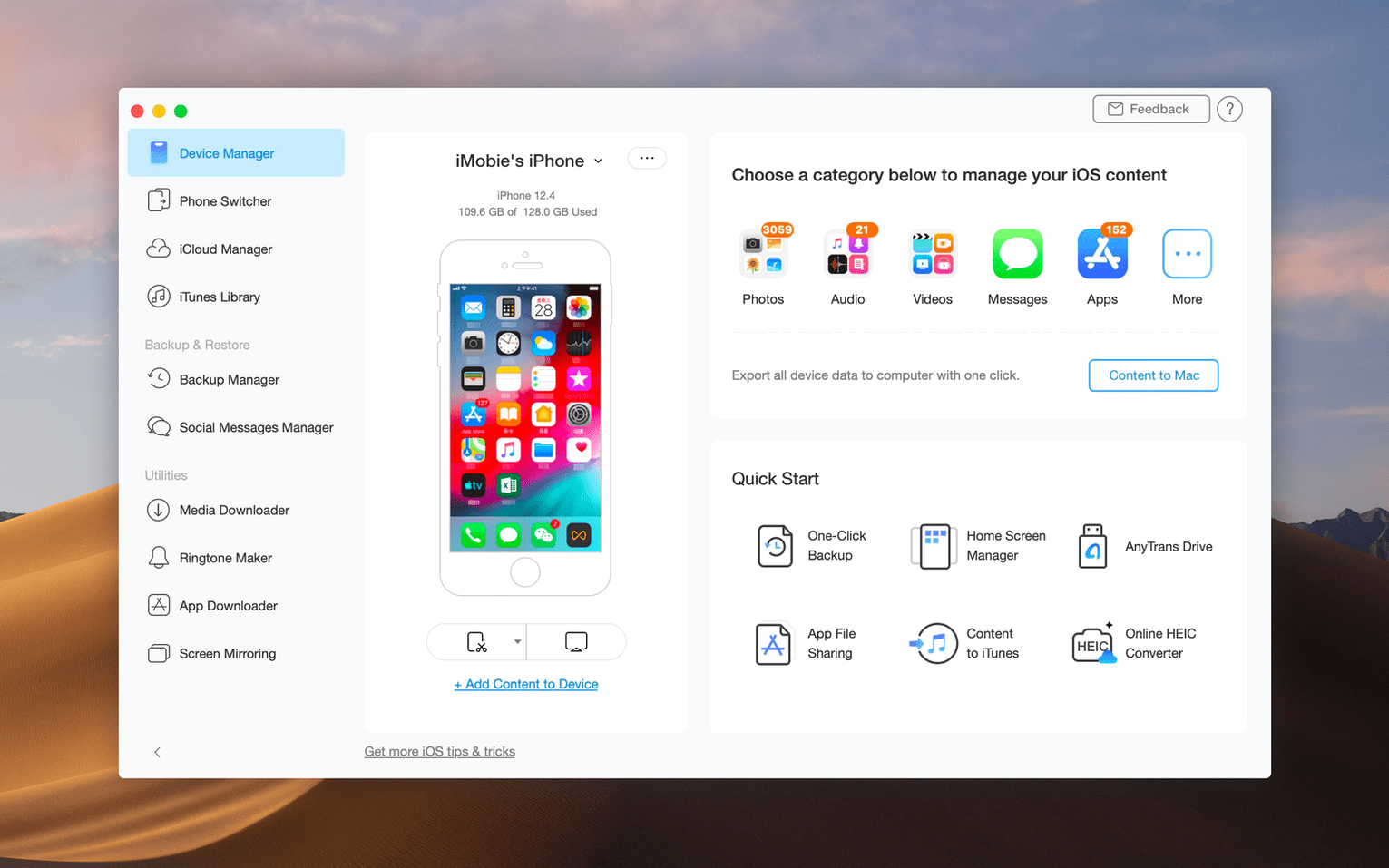
You sit down because you just shot a 40‑minute 4K video on an iPhone and the file is too large for AirDrop. You plug the phone into the Mac with a USB cable. The phone asks for the passcode and you tap Trust. AnyTrans detects it within a few seconds and shows a device panel with a color‑coded storage bar across the top—the Video slice is dark red and bulging.
You click Device Manager in the sidebar, then Videos. The main pane populates with a thumbnail grid of every video file on the phone, sorted by date added. You spot the monster file at the top, select it, and click the "Send to Mac" button in the toolbar. A sheet drops down asking for a destination folder. You pick ~/Movies/ProjectFootage/ and hit Choose. A progress ring appears over the thumbnail. The file copies at USB 3 speed—noticeably faster than a Wi‑Fi transfer—and the storage bar on the phone drops a shade of red. When the ring finishes, the file is on your Mac with its original creation date and metadata intact.
While you are there, you notice six old screen recordings you forgot to delete. You select them, right‑click, and choose Delete. AnyTrans asks once for confirmation, then removes them from the device. The whole session takes under four minutes and you never opened Photos or Finder.
Dragging photos straight to a remembered folder
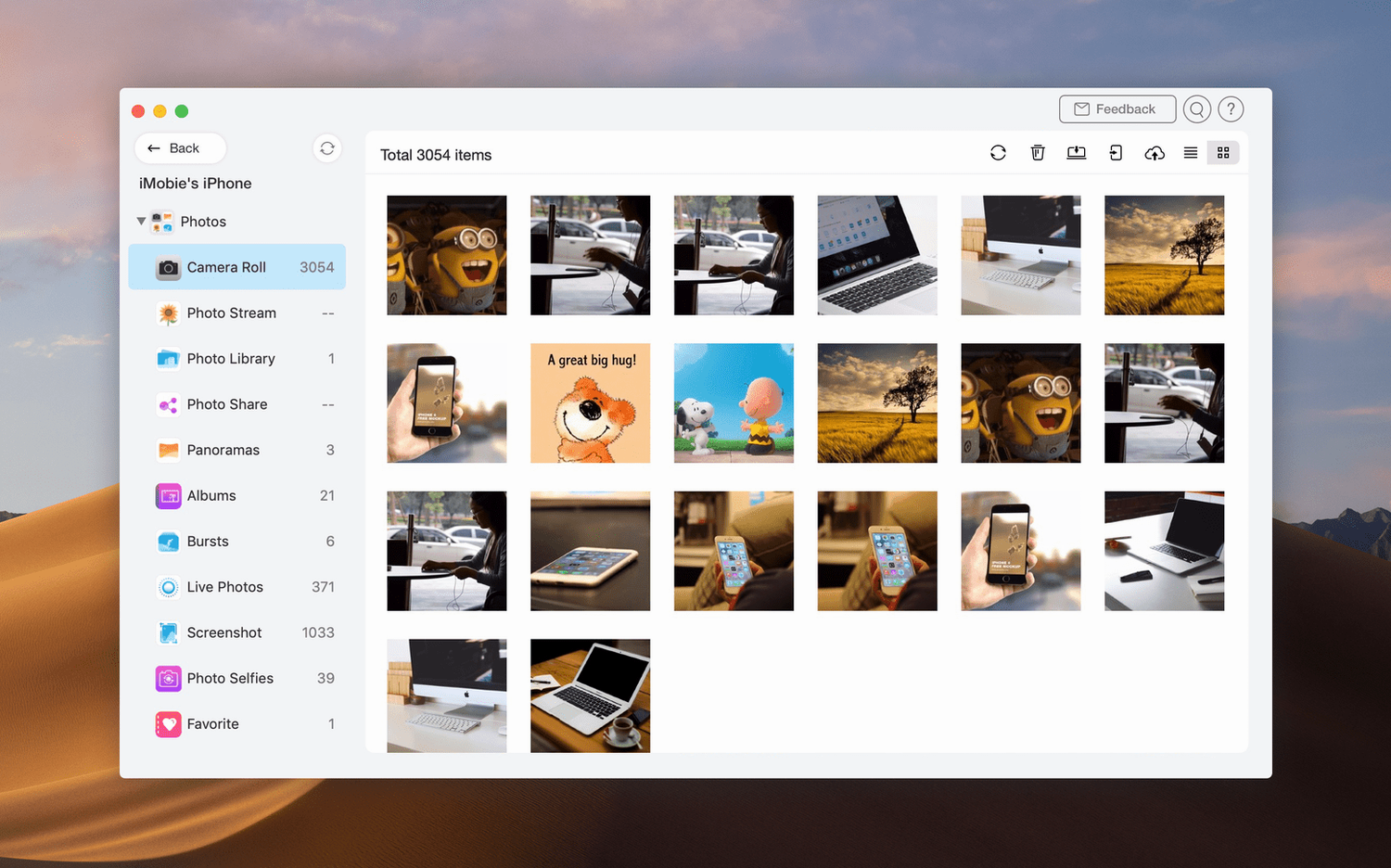
The sidebar has a Quick Transfer area that remembers your last three destinations. If you routinely dump photos into the same folder, you can drag a selection of images onto that destination label without opening any menus. The label shows the folder name, not a generic icon, so you know exactly where things land.
In the Music section, holding the Option key while dragging a playlist from an iPhone onto the Mac sidebar copies the playlist as an .m3u8 file instead of copying the actual tracks. That file contains relative paths you can edit later. If you drag without Option, you get the audio files themselves.
The media downloader has a paste‑and‑go shortcut that nobody reads about: copy a URL from Safari, switch to AnyTrans, and press Command‑N. The download dialog opens with the URL already filled in. It works for the 900‑plus supported sites, and it skips the step of clicking the URL field manually.
When you are browsing a large photo library in icon view, typing a date like "2024‑03" jumps the view to that month. There is no visible search field for it—just start typing while the grid has focus. It is a small thing, but it saves endless scrolling when you know roughly when a shot was taken.
Finally, the app supports dragging multiple categories at once. If you need to pull Photos, Music, and Contacts from an old iPhone to the Mac in one move, you can Command‑click the three category names in the device panel and drag the whole stack onto the Mac label in the sidebar. One transfer session, three data types, no repetition.
Workflow: moving from an old Android phone to a new iPhone
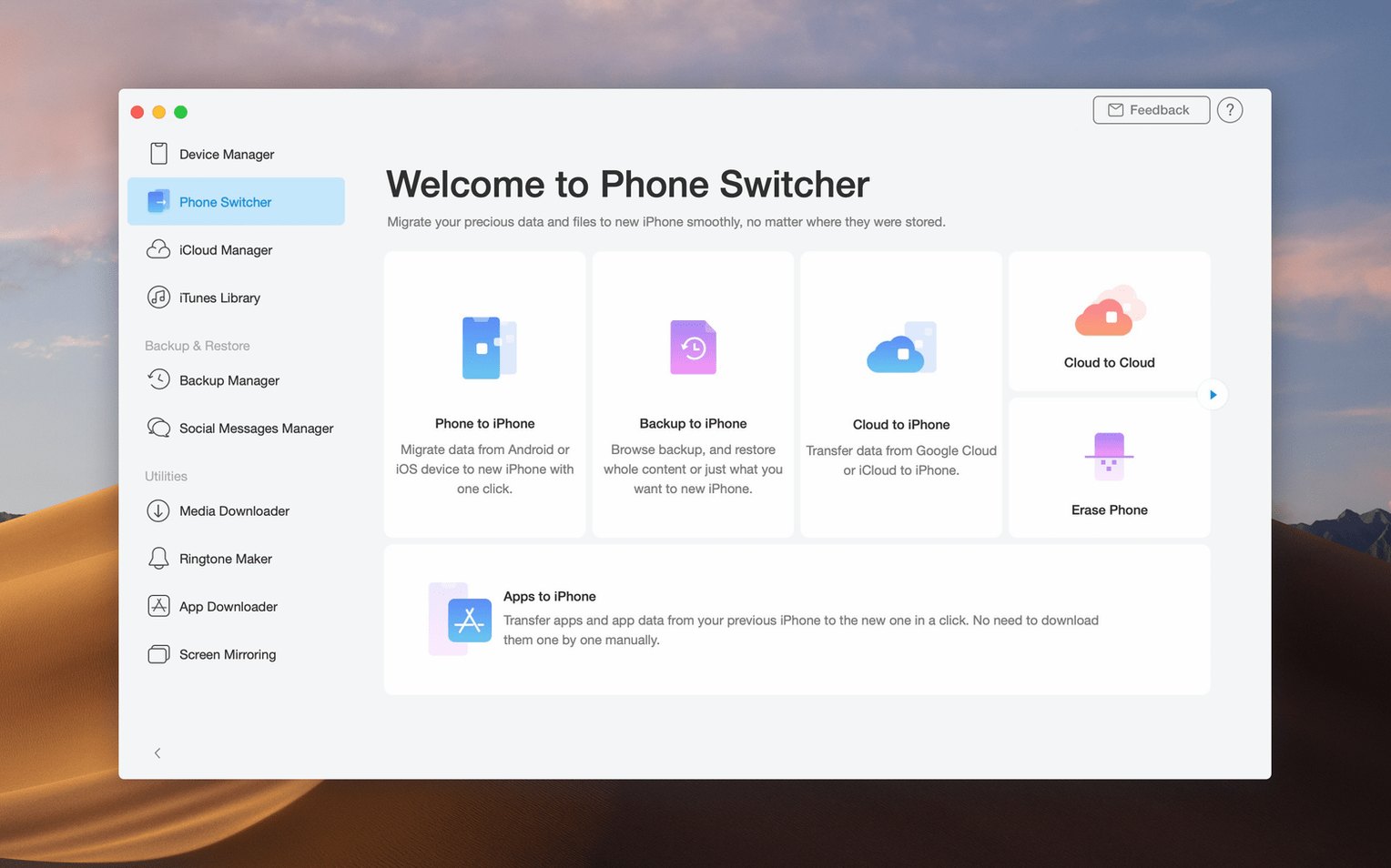
The scenario is common: you have been on Android for years and just switched to an iPhone. Your contacts, messages, photos, and music are scattered across Google services and the old device's internal storage. AnyTrans can pull most of that across in a single afternoon, and the order of operations matters more than people expect.
Start with the Android device. Install the Android version of AnyTrans from the developer's site and connect the phone to the same Wi‑Fi network as the Mac. On the Mac, open AnyTrans, click the Android Mover tab, and scan the QR code that appears. The Android app links to the Mac session and displays its content categories.
Select Contacts first. AnyTrans reads the local contact database and Google account contacts at the same time, merges duplicates, and shows a unified list. Deselect anything you do not want, then set the target to the new iPhone—already connected via USB. The transfer writes the contacts directly into the iOS Contacts app, not into a third‑party container.
Next, Messages. The app exports SMS and MMS threads as an archive on the Mac first, then pushes them to the iPhone. Because iOS handles message imports differently than Android stores them, the transfer converts threads into a readable format that the iOS Messages app can display. Group chats with mixed media attachments come across with images inline.
For photos, connect both devices over USB if you have two ports. AnyTrans shows the Android camera roll and the iPhone photo library side by side. Drag the folders from the Android panel onto the iPhone panel. The app preserves EXIF data and album structure. Videos under 4 GB transfer directly; anything larger gets a prompt asking whether to compress or copy as‑is.
Music is the trickiest category because Android music folders often mix purchased tracks, recordings, and ringtones. Use the Music tab on the Android side, filter by file type—.mp3, .flac, .aac—and select only the songs you actually want. AnyTrans converts FLAC to ALAC during transfer so the iPhone Music app can play the files natively. The tracks land in the iPhone's Music library with album art if it was embedded in the files.
The whole process, for a typical 30 GB migration, takes roughly forty minutes over USB. At the end, the new iPhone has a populated Messages app, a full contact list, the photo library you built on Android, and a clean music selection without ringtones mixed in. The old Android device remains untouched, so you have a natural backup while you verify things on the iPhone for a few days.
Log into the destination account through the app or a browser and confirm that albums, dates, and file formats arrived intact.
- macOS 10.13 High Sierra or later
- Intel-based Mac
Comments 0
Sign in or create an account to leave a comment.
No comments yet. A codec, a slice, a machine — they appear after moderation.