
AppKiller for macOS
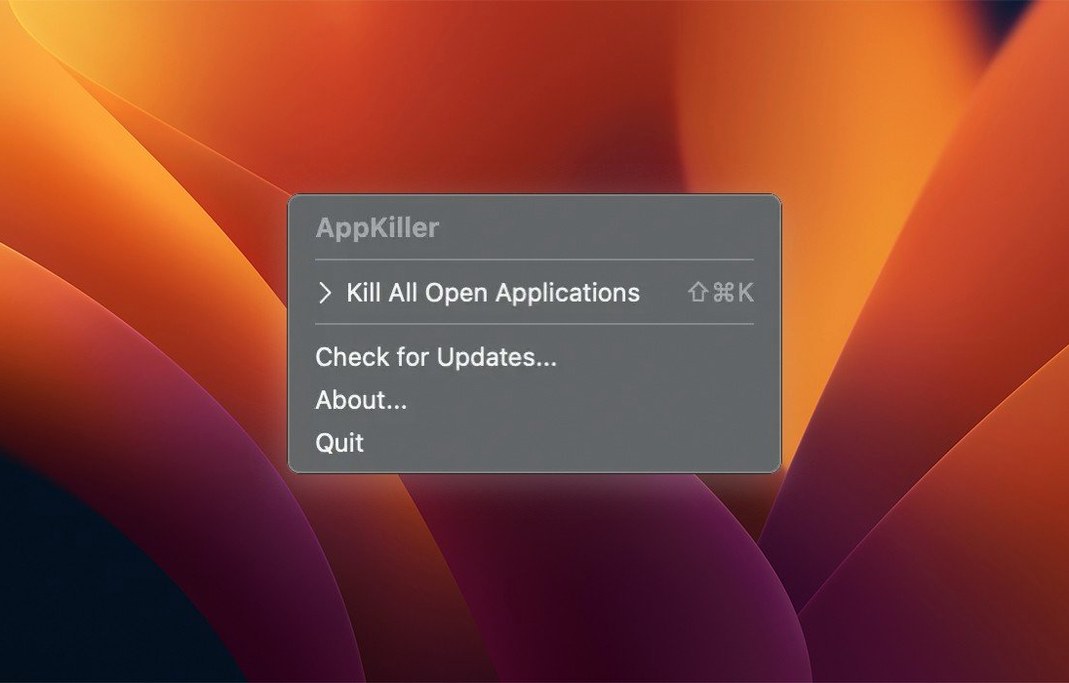
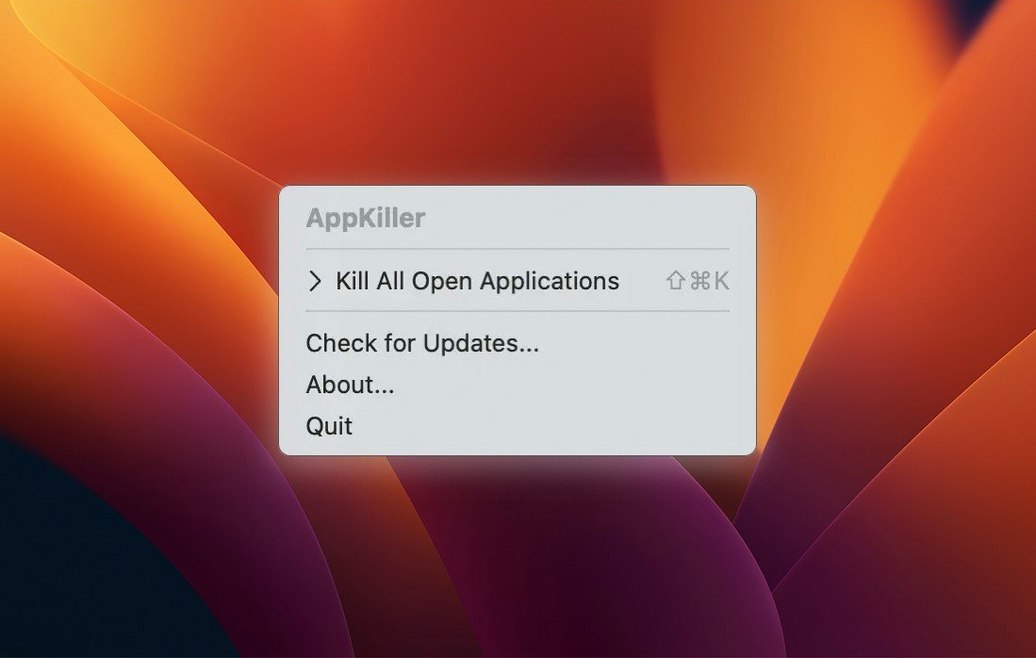
You've just wrapped a recording session. Logic Pro is closed, but a dozen other apps are still idling—Finder windows, a text editor, maybe a browser with 30 tabs you meant to close. Clicking through each one to hit Cmd-Q feels like tidying up after a party you didn't attend. AppKiller lives in your menu bar for exactly this moment.
Quit every app with one click from the menu bar
The job is singular and direct: shut down every running application with one action. No dialogs, no per-app prompts—just a clean slate.
- Menu bar control. Click the status menu icon and choose to quit all apps. The interface stays out of your way until you need it.
- Keyboard shortcut. Assign a global hotkey to trigger the mass quit without touching the mouse. For anyone who keeps their hands on the keyboard, it's the faster path to a clear desktop.
- Speed. The process is near-instant, sending quit AppleEvents to every GUI app in one pass.
A fast reset button before presentations or handing over your Mac
This isn't a session manager or a deep system cleaner. Think of it as a quick-reset button—useful before a presentation, after a batch export, or when you're handing your Mac to someone else and don't want your whole digital life sprawled across the screen. The app is a native universal binary, running on Apple Silicon and Intel Macs from macOS 10.12 onward, and the entire control surface is a single menu. Simplicity is the whole point.
Does it force-quit or just send a normal Cmd-Q signal?
Does it just force-quit everything? No—AppKiller sends a standard quit AppleEvent to each running application, the same signal your Mac sends when you press Cmd-Q. If an app has unsaved work, you'll still see the familiar "Do you want to save" dialog. The process pauses there, waiting for your response, rather than steamrolling past it. That matters if you're closing a text editor with a draft in it.
What about background helpers and menu bar utilities? Those are typically background processes or agents, not full GUI applications. AppKiller targets only the apps visible in your Dock and app switcher, so your clipboard manager or cloud sync tool stays running. If you want something more surgical—say, closing only a subset of apps—this isn't the tool for that single-click scenario, though you can always reopen what you need right after.
A menu bar icon that confirms when all apps have closed
The Cmd+Shift+K shortcut is the obvious speed gain, but a few other details reward the observant. The menu bar icon changes briefly after a mass quit—a small visual confirmation that the apps are all closed, so you're not left guessing whether the action took. If you tend to work in full-screen spaces, launching the shortcut from anywhere avoids the trip back to the menu bar entirely.
Another workflow worth knowing: AppKiller plays nicely with LaunchBar and Alfred. Because it's a standard macOS application, you can trigger it from those launchers by name, then let it do its job—no need to dedicate a permanent menu bar spot if you prefer a cleaner bar. Just search, launch, and the apps close.
Fix a shortcut conflict with screenshot tools or window managers
The shortcut doesn't work. Check System Settings under Keyboard Shortcuts for conflicts. Other apps—screenshot tools, window managers, clipboard history—sometimes claim Cmd+Shift+K. Reassigning the AppKiller shortcut or the conflicting one resolves it. The macOS System Integrity Protection doesn't block this; it's a standard user-level key assignment.
Gatekeeper blocks the app on first launch. The install path involves mounting the .dmg and running the "Open Gatekeeper friendly" script, which opens a Terminal window. Pressing Enter grants the necessary bypass, then you drag AppKiller.app to /Applications. This is a one-time step. After that, the app launches normally from the Applications folder without further prompting.
Some apps don't close. A small number of applications—usually those with custom window behavior or background persistence—may ignore standard quit events. Force-quitting those is outside AppKiller's scope. If you repeatedly see the same holdouts, they're likely using non-standard termination handling, and you'll need to close them manually or via Activity Monitor. The appkiller mac approach works best when your running apps respect normal macOS quit conventions, which the vast majority do.
- macOS 10.12 or later
- Apple Silicon and Intel 64-bit
$ man appkiller | grep -A2 "?"
Does it force-quit apps or send a normal quit command?
AppKiller sends a standard quit command, the same as choosing Quit from the app's menu or pressing Cmd-Q.
Can I exclude specific apps from being closed?
The current version quits all open GUI applications with a single action and does not include an exclusion list.
Comments 0
Sign in or create an account to leave a comment.
No comments yet. A codec, a slice, a machine — they appear after moderation.