App Cleaner & Uninstaller for macOS
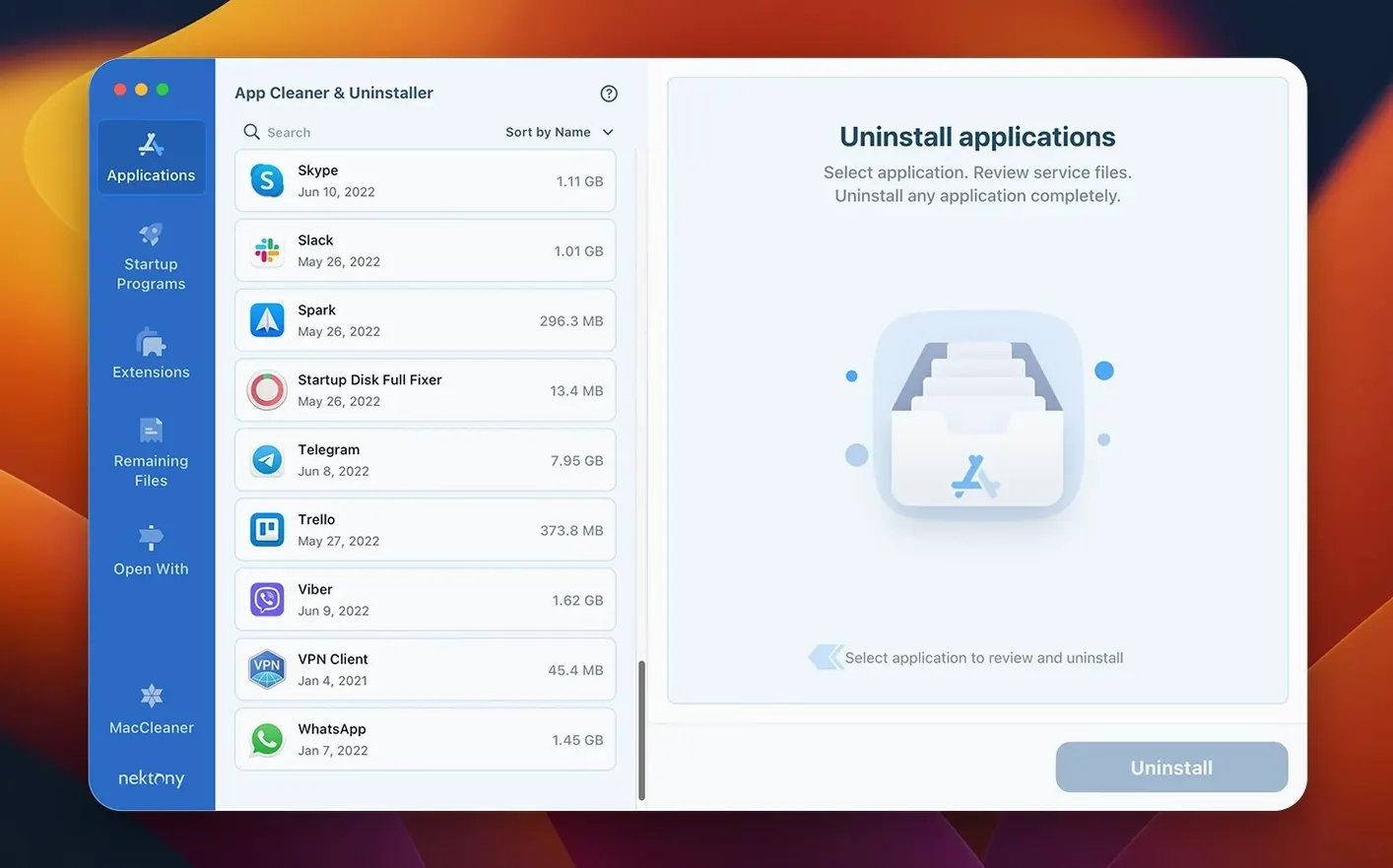
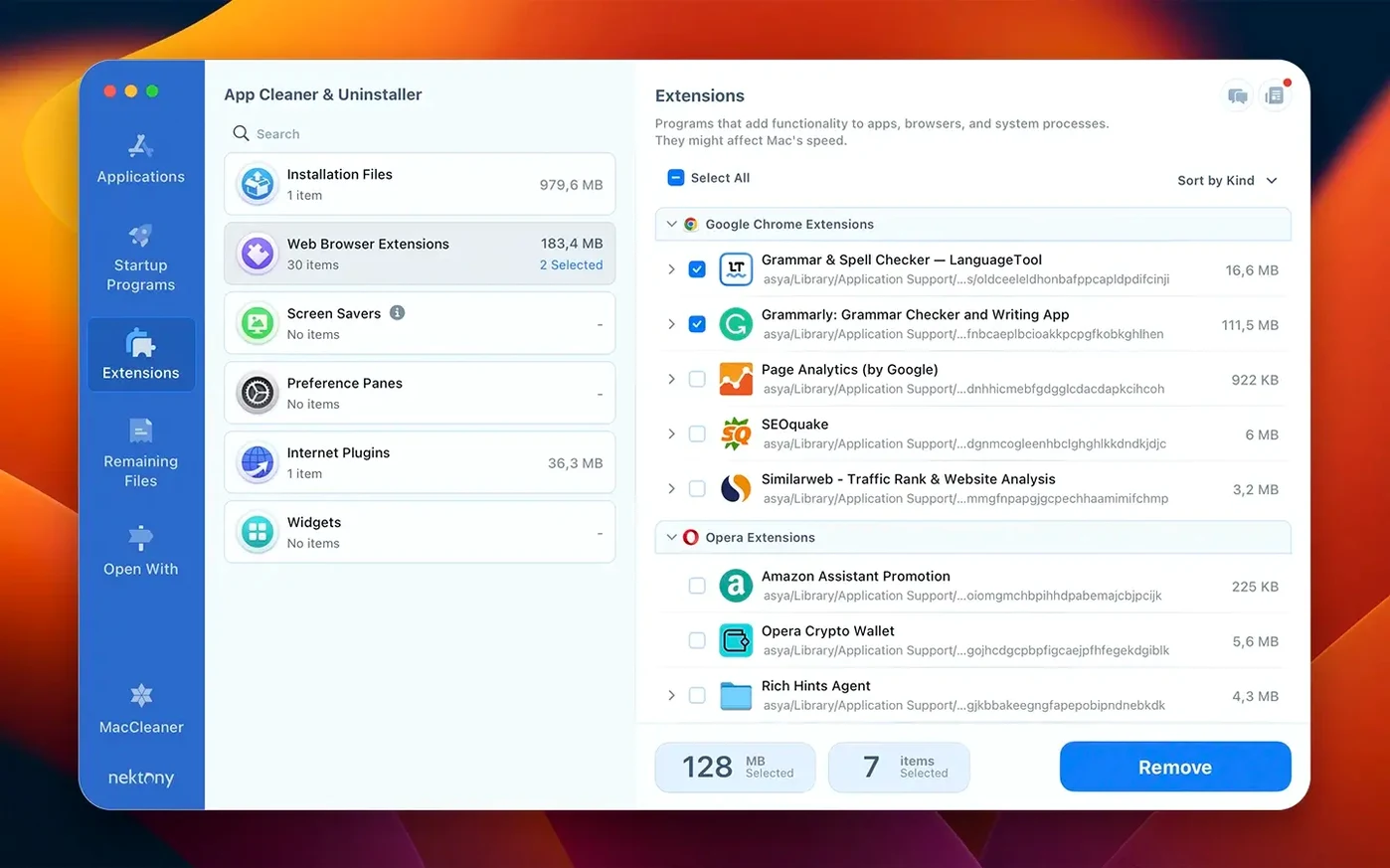
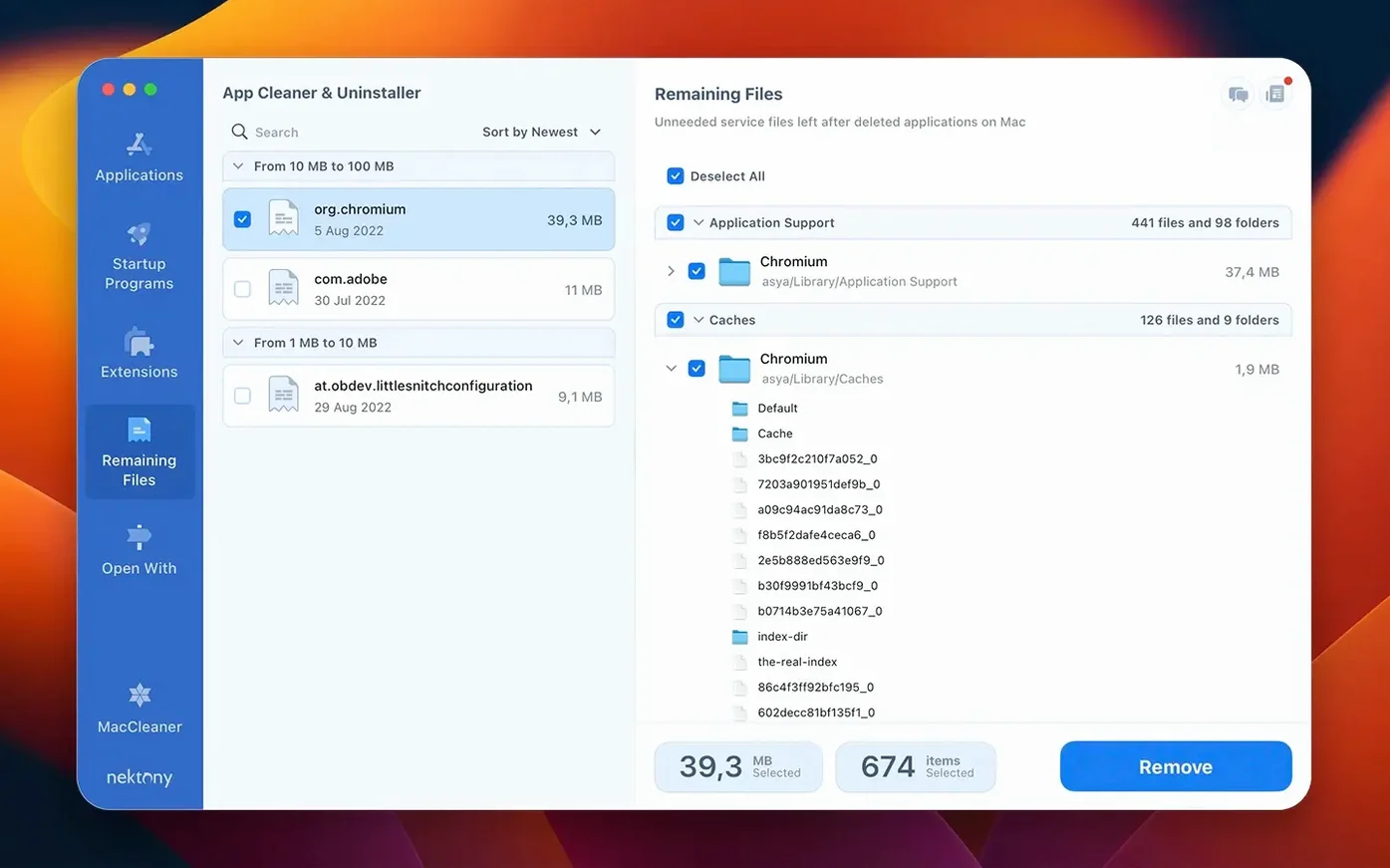
If you've ever dragged an application bundle to the Trash and wondered why preference panes and caches keep piling up, a dedicated uninstaller is the missing piece. App Cleaner & Uninstaller handles that cleanup and also acts as a system manager for startup items and extensions.
Runs native on Apple Silicon and Intel from macOS Monterey onward
It requires macOS 12 (Monterey) or later. The app is a universal binary, so it runs natively on both Apple Silicon and Intel Macs without Rosetta translation overhead.
What does it remove?
It completely removes applications by finding their related service files scattered across the Library folders. It also scans for leftover files from apps that were previously deleted by moving them to the Trash.
Control login items, launch agents, and system extensions from one window
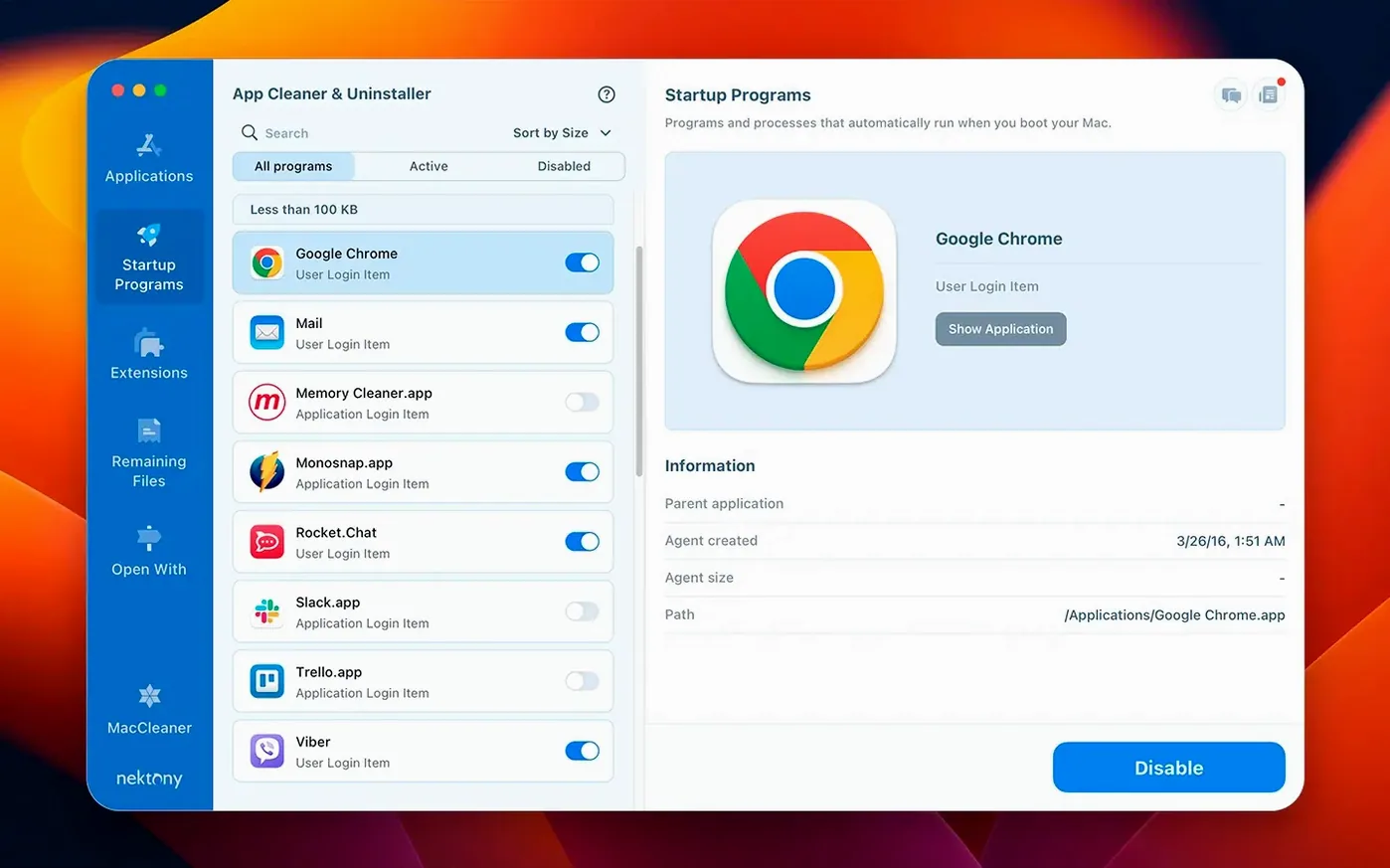
Beyond uninstalling, it gives you a single window to control login items, launch agents, and system extensions. It also tracks available updates for your installed apps.
Will it break apps that share support folders, like Adobe CC?
One concern I hear from fellow students is whether an uninstaller will interfere with apps that share components — think Adobe Creative Cloud or anything with a shared support folder. App Cleaner & Uninstaller scans per-application and follows the bundle identifier to link service files, so deleting one app does not touch files owned by another. It does not blanket-delete from /Library/Application Support; the scan scope is tied to what the selected app actually registered.
Another question: does it remove system apps like Mail or Safari? It skips anything signed by Apple and flagged as protected, so you cannot accidentally gut built-in parts of the OS. The interface grays out system processes, and the “incompatible applications” filter added in version 10.0 helps you spot apps that do not play nicely with your current macOS build — useful after a major system upgrade when old utilities break silently.
People also ask whether the leftover scan finds cruft from apps deleted months ago. It digs through the standard ~/Library/Caches, ~/Library/Preferences, ~/Library/Application Support and a few other well-known sandbox locations. It will not reach into random directories you created yourself, but for normal app detritus it is thorough.
See which apps are phoning home without opening Little Snitch
The network access tab is the standout addition. Before, you had to open something like Little Snitch or Radio Silence to see which apps were phoning home. Now there is a tab right inside the app that lists active network connections per process, and the redesigned menu bar app gives you a quick view of traffic without opening the main window. For a student on a metered dorm connection or a mobile hotspot, that is genuinely useful — you can spot a background updater burning through your allowance and quit it from the same panel.
The updates tracker got broader too. It used to cover only standard .app bundles from known sources. Now it also checks Safari extensions and Homebrew command-line tools. If you maintain a brew setup for compilers and utilities, seeing a unified list of what is out of date saves you from running brew outdated in Terminal as often. The menu bar badge quietly shows a count; you can click through and update directly where the app has a mechanism for it.
Performance-wise, the scan engine feels snappier on Apple Silicon — the universal binary avoids any Rosetta lag — and the results pane populates incrementally instead of waiting for a full directory walk to finish. Small change, but it means you can start reviewing and checking items while deeper folders are still being indexed.
Cleaning up a large app with extensions: a start-to-finish workflow
Say you want to remove an old video editor that installed QuickTime components, a preference pane, and a login helper. Here is how a typical session runs:
- Launch App Cleaner & Uninstaller. The left sidebar shows every application it detects, grouped by source: Applications folder, system, and any leftovers it has flagged from previous incomplete deletions.
- Select the video editor from the list. The right pane populates with a tree view: the main
.appbundle at the top, then groups for caches, preferences, saved application states, crash logs, and any launch agents or daemons it registered. - Before hitting remove, switch to the Extensions tab to check for the QuickTime component and preference pane. Untick anything you want to keep — perhaps the codec is shared with another editor you still use.
- Back in the main view, click Remove. The app asks for confirmation and lists the total size it will reclaim. Confirm, and it moves everything to the Trash in one batch, then optionally runs a quick re-scan to verify nothing was left behind.
- Open the Leftovers tab afterward. If the editor had scattered files outside the standard locations — some older apps dump logs in
/private/var/log, for example — the scan picks those up and offers to delete them separately.
The whole process takes maybe thirty seconds, most of that spent reviewing what gets removed. The key difference from dragging an app to the Trash is that you see the daemon and the preference pane listed explicitly — things you would otherwise hunt down manually in /Library/LaunchAgents and forget about for six months.
Deleted files land in the Trash first, so Time Machine still has your back
App Cleaner & Uninstaller does not replace Finder; you still install apps the normal way and browse files normally. It works next to Time Machine without conflict — the files it deletes go to the Trash first, so a quick Put Back recovers them if you act fast, and your hourly snapshots still have the old state.
For users who run app cleaner & uninstaller pro alongside a clipboard manager or a window manager like Rectangle, there is no overlap — it does not hook into those subsystems. The menu bar app sits in the same strip as your other utilities; its network traffic light is a small colored dot that fits next to battery monitors and clock widgets without adding visual noise.
If you use Launchpad to organize apps, note that removing an app through this tool also removes it from Launchpad immediately — the .app bundle disappearance triggers the same refresh that dragging to the Trash would. No extra steps.
The Privacy Audit and AI Summary features are newer additions. Privacy Audit checks what permissions each app has requested — camera, microphone, location, full disk access — and lets you revoke them by opening the relevant System Settings pane. It does not change settings itself; it is a shortcut to the right part of System Settings, which follows Apple’s security model correctly. The AI Summary generates a plain-language description of what an app does based on its bundle metadata and description, which is handy for deciphering obscure helper processes you do not remember installing.
Click a column header to spot apps you haven't opened since 2023
- Sort by size or last used date. Clicking the column headers in the app list re-sorts everything, so you can immediately spot the biggest space hogs or applications you have not opened since 2023. That is often faster than hunting through System Settings > General > Storage.
- Batch removal. You can select multiple apps with ⌘-click and remove them all in one pass. The file list merges intelligently — if two selected apps share a framework folder, it shows the overlap and does not double-count the space.
- Drag-and-drop uninstall. If you have a stray
.appon the Desktop or in a non-standard folder, just drag it onto the App Cleaner & Uninstaller window. It resolves the bundle, finds its service files, and presents the same removal options. - Login item management without digging through hidden panes. The startup section surfaces launch agents and daemons that macOS’s built-in Login Items list in System Settings does not show. You can disable a background helper without deleting it — useful when troubleshooting slow boot times.
- AppleScript and Shortcuts support. The app responds to basic scripting commands, so you can include a “scan leftovers” step in an automation workflow. Nothing fancy, but nice if you already run weekly cleanup scripts via Shortcuts.
A lot of people download app cleaner and uninstaller mac to solve one specific problem — removing a stubborn app that left a menu bar item behind — and then gradually discover the startup manager and extension browser. The tool covers more ground than its name suggests, and the version 10.0 network additions push it further into system-utility territory without bloating the interface.
- A new network access tab shows connection activity per app.
- The redesigned menu bar app now includes network traffic control.
- The updates database expanded to cover Safari extensions and Homebrew command-line tools.
- An incompatible applications filter flags software that may not work on your current macOS version.
- macOS 12 (Monterey) or later
- Apple Silicon or Intel Mac
$ man app-cleaner-uninstaller | grep -A2 "?"
What is the current version of App Cleaner & Uninstaller?
The current version is 10.0.1, though version 10.0 is listed for September 2026.
Comments 0
Sign in or create an account to leave a comment.
No comments yet. A codec, a slice, a machine — they appear after moderation.