AppZapper for macOS
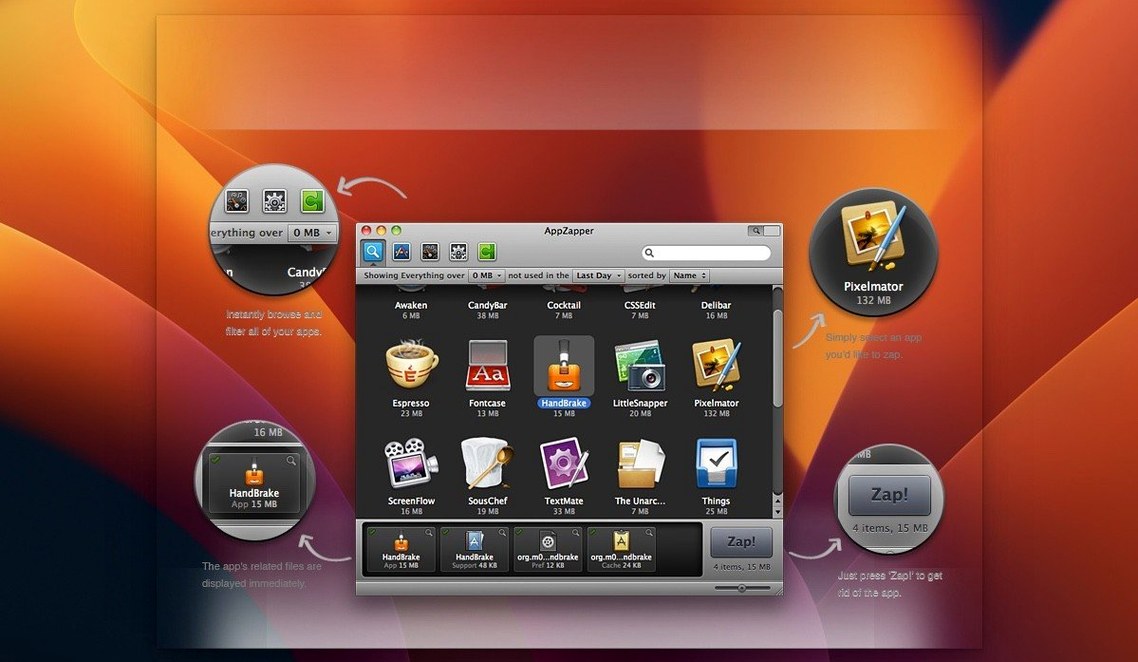
AppZapper is for people who know that dragging an app to the Trash on a Mac leaves a trail of preference files, caches and support folders behind. If you have ever dug through ~/Library hunting for leftovers after uninstalling something, this utility was built with you in mind.
Does it really find every related file?
It finds what the app has registered and what falls into common locations. When you select an application, AppZapper queries the system and scans known directories for associated items — .plist files in ~/Library/Preferences, caches in ~/Library/Caches, application support folders, and similar. It shows you the list before anything is deleted, so you can decide what to zap. Nothing is permanent until you empty the Trash; a zapped file goes straight there and can be restored if you change your mind.
What is the actual install process on a modern Mac?
The app is Intel 64-bit, built for OS X 10.9 and later, and it predates Apple's notarization requirements. The developer ships it inside a disk image with a helper script called "Open Gatekeeper friendly." Running that opens a Terminal window and asks you to press Enter to bypass Gatekeeper. After that, you drag the app into /Applications and launch it. It is a straightforward, if slightly old-school, manual override that gets the binary running on anything from Mavericks up to current Apple Silicon Macs under Rosetta 2.
Why zapping a running app leaves its process behind
Zapping an app you are actively running is the most common one. AppZapper will let you do it, but the system may hold locks on files the app has open. The app disappears from /Applications while its process sits in Activity Monitor, ghosting along until you force-quit. Quit the app first. Every time.
Another mistake is treating the list of related files as optional extras. New users sometimes uncheck everything except the .app bundle, thinking they are being careful. What they end up with is the same leftover cruft they were trying to avoid. The whole point of AppZapper is that it already identified the safe-to-delete support files; trust its list, or at least read it before you start unchecking items.
The third slip-up is forgetting that zapped items land in the Trash. People run AppZapper, watch the animation, then wonder why their free disk space did not budge. The files are not gone until you empty the Trash. On the flip side, this is also a safety net — if you zap the wrong thing, you can drag it right back out of the Trash, provided you catch it before a scheduled cleanup runs.
Some folks also assume AppZapper works on anything with an icon. It targets standard macOS application bundles. Dragging a standalone Unix binary, a Python script wrapped in an Automator action or a badly packaged port will usually turn up nothing beyond the file itself. The tool relies on bundle identifiers and known directory structures; if the "app" has neither, there is nothing for AppZapper to trace.
Drag two Markdown editors in and watch the hit list populate
You have just finished trying three different Markdown editors and picked one. The other two — let us call them MarkdownPro and WriteWell — need to go. You quit both, open AppZapper, and the main window appears with a simple prompt: drag apps here. You grab MarkdownPro from /Applications and drop it onto the window.
AppZapper thinks for a second, then populates a list. There is the .app bundle at the top, and below it half a dozen related items: a preference file in ~/Library/Preferences, a cache folder, a small application support directory and a saved state folder the app left behind. You scan the list — nothing looks like it belongs to anything else — so you leave every checkbox checked and click the Zap button. The items shrink away with a brief animation and a puff sound. You repeat the process for WriteWell, this time unchecking a user template folder you want to keep, then zap the rest. Two minutes, no leftover plists.
Afterward, you open the Trash to confirm what landed there. The deleted items sit in a stack; AppZapper bundled them under the app name so they are easy to spot. You empty the Trash, and the disk space is genuinely reclaimed. The whole session took less time than finding and reading a single uninstaller Readme.
Workflow: cleaning up before a system migration
Suppose you are about to migrate to a new Mac and you want a lean home folder for Migration Assistant — no orphaned preference files from apps you discarded years ago. AppZapper is good for this, but you need to be methodical.
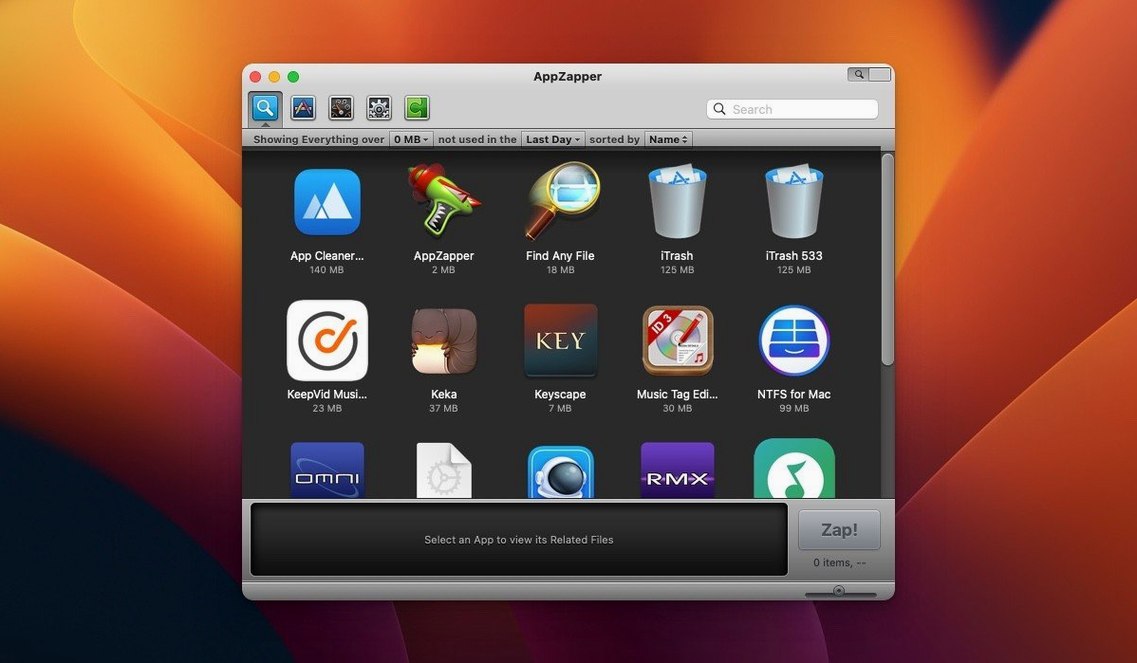
First, you open the ZapGenie view, which was added in version 1.5.0. It shows your installed applications as a browsable list, sortable by name or by date last used. You sort by last-used date and scan for anything you have not launched in over a year. Old games, trialware you forgot to remove, that utility you installed for one project in 2019. You note a dozen candidates.
For each one, you quit the app if it happens to be running, then drag it from the ZapGenie list into the zapping area. AppZapper assembles the related files. You check the list quickly — never skip this step when cleaning in bulk, because an old app may have stored documents or database files in its support folder that you actually want. If you see something ambiguous, uncheck it or move it elsewhere first. Zap the rest. Move to the next candidate.
After working through your list, you open the Trash one last time, verify nothing important got caught, and empty it. Your ~/Library is now lighter by dozens of orphaned folders you would have otherwise carried to the new machine. The Migration Assistant transfer will be smaller, and your new Mac starts with a cleaner set of preferences.
Does it catch every log and kernel extension?
Does AppZapper remove every trace of an app? It removes what it can find — preference files, caches, application support folders, saved states and the bundle itself. Some applications scatter logs into shared system log directories or install kernel extensions that AppZapper will not touch. It is thorough for standard Mac apps, but it is not a system-level forensic clean.
Will it work on an Apple Silicon Mac? Yes, under Rosetta 2. The binary is Intel 64-bit only, compiled for OS X 10.9 and up, and it runs without complaint on current Apple Silicon hardware. Performance is perfectly fine for a utility that spends most of its time scanning the filesystem.
Is it safe to delete everything it finds? Generally, yes, because the files it surfaces are tied to the app you selected. The safety mechanism is the checkbox list: if you see a folder with a name that looks shared — something like a common plugin directory — you can uncheck it. And since everything goes to the Trash, you have a second chance.
Does it handle apps installed outside of /Applications? It does. You can drag an app bundle from any directory — ~/Applications, a subfolder on your Desktop, even a mounted external drive — and AppZapper will trace its related files in your home Library. The location of the bundle itself does not limit the search.
- Switched the app browser to a grid layout with large, tappable icons for scanning through installed applications.
- macOS 10.9 (Mavericks) or later
- Intel 64-bit (runs on Apple Silicon via Rosetta 2)
Comments 0
Sign in or create an account to leave a comment.
No comments yet. A codec, a slice, a machine — they appear after moderation.