Apple Remote Desktop for macOS
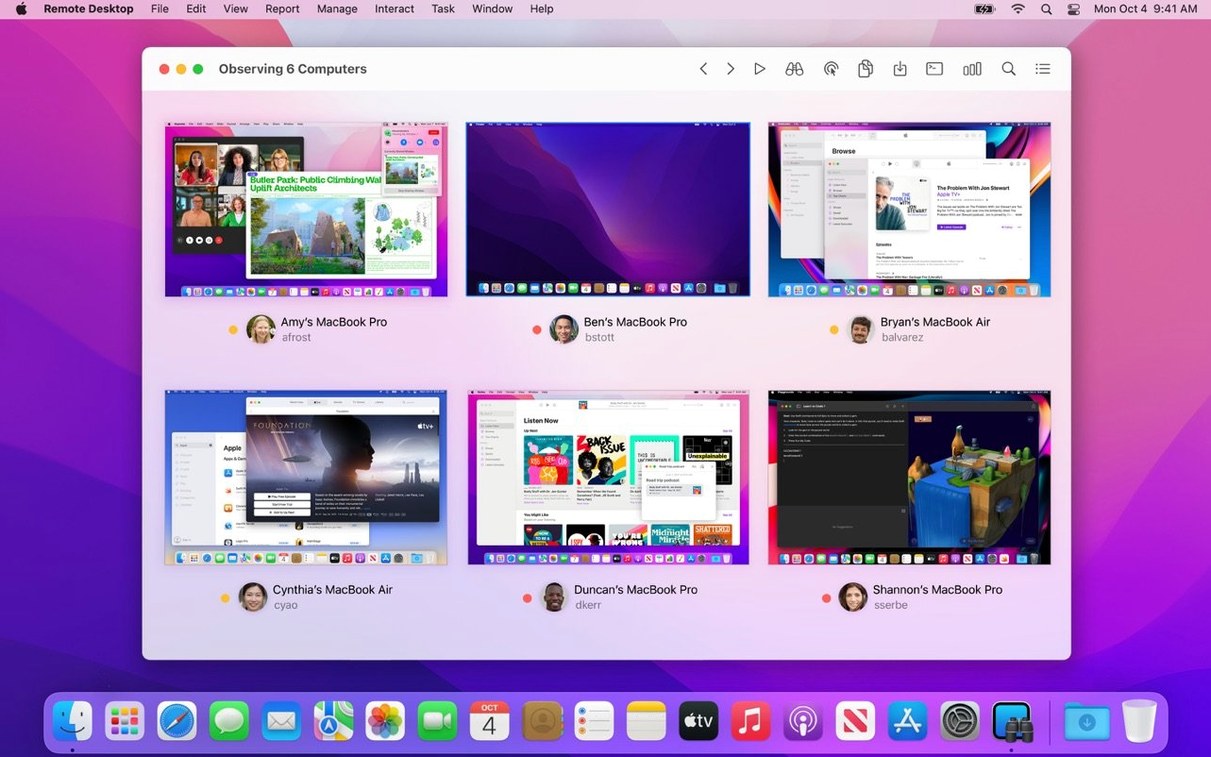
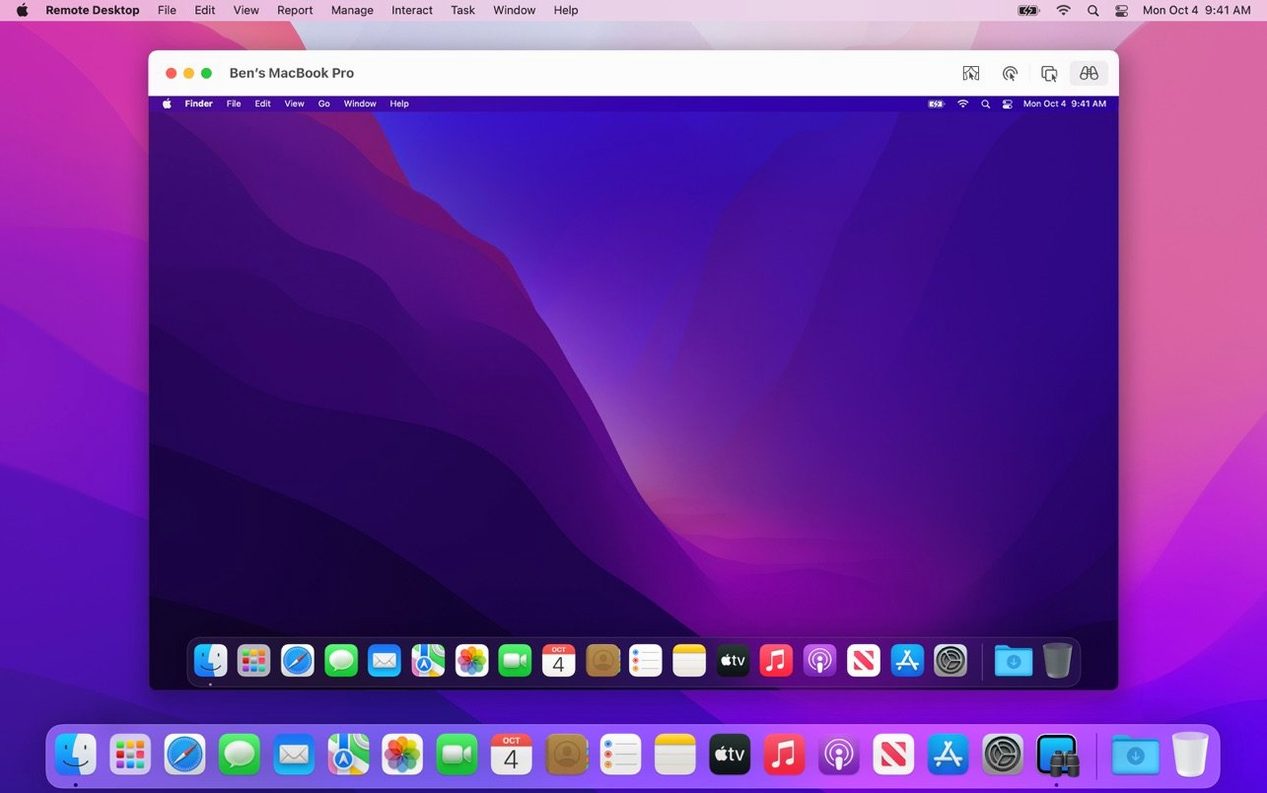
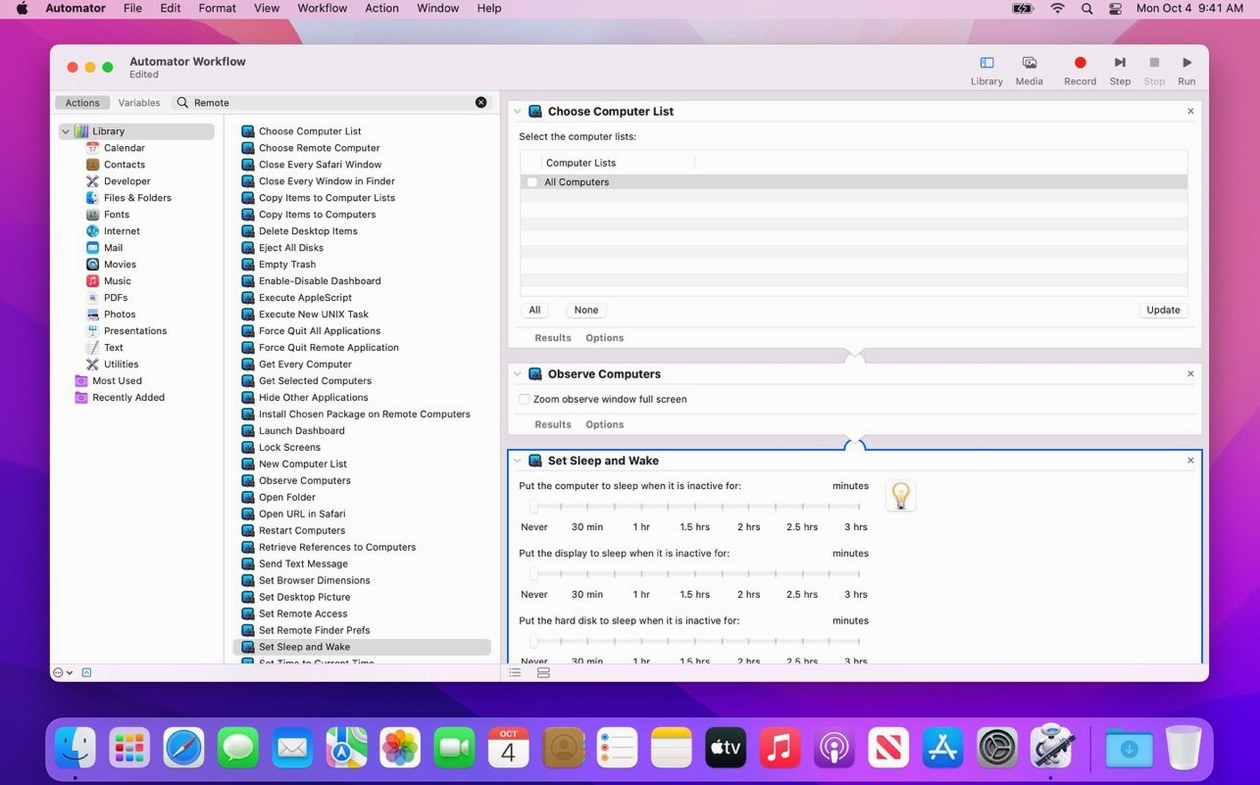
When you need to push a configuration profile to thirty iMacs in a lab or install an update on a colleague’s Mac without walking across campus, Apple Remote Desktop handles the heavy lifting. It’s Apple’s own tool for observing, controlling, and automating tasks on other Macs across your network. Before you download it, a few fundamentals help clear up what the app actually does.
Remote control vs. remote assistance — Control takes over the screen and input; assistance shares control so you and the user can both move the mouse. Both work over a local network or a VPN tunnel.
Curtain Mode — Hides the remote display while you work, showing a lock screen or a plain gray background on the client Mac. Useful when you’re handling sensitive data and don’t want passers‑by watching.
Task server — A dedicated Mac that queues software installations for computers that are asleep or offline. The next time they wake up and check in, the package installs automatically.
System reports — Collect data on user logins, application usage, hardware specs, and storage across every managed Mac. Reports export as CSV so you can feed them into your own inventory spreadsheets.
Copy and paste — Text, files, and encrypted packages move between your admin station and a remote Mac with a standard clipboard operation. Drag a .pkg into the Remote Desktop window to copy and install it in one step.
Pushing a printer driver to twelve lab Macs in one window
Let’s walk through a morning where you’ve just been handed a list of twelve lab Macs that need a new printer driver and a security update. You’ve already added them to your computer list, so everything happens in one window.
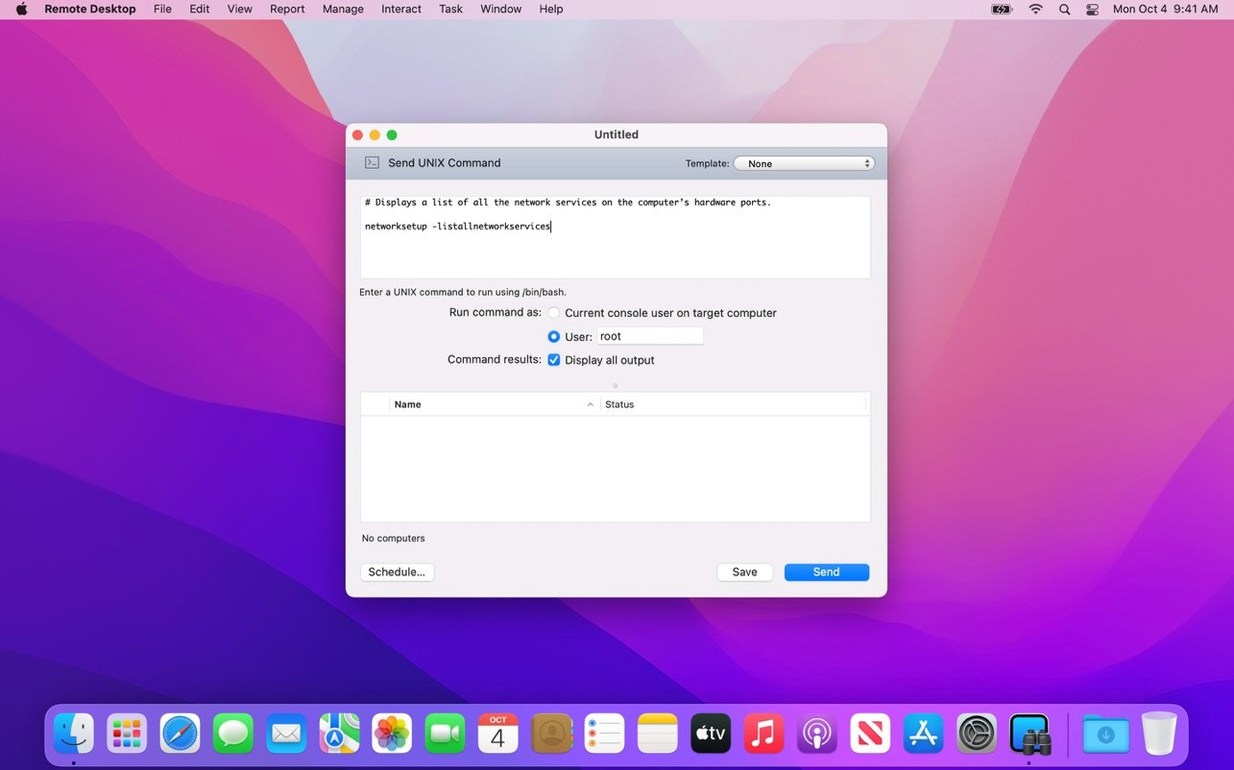
You start by selecting all twelve machines in the sidebar. A quick Send UNIX Command runs softwareupdate -l across the group so you can see which ones are behind. The output streams back into the main pane — each machine tagged with its hostname — and you spot six that need the update right now.
You drag the update’s .pkg from your desktop onto those six machines in the list. The Copy Items dialog opens. You check “Automatically install after copying” and leave the destination at /var/tmp. Because you’re pushing to six machines at once, the “Encrypt network data” checkbox stays ticked — that’s the default anyway, but you confirm it. You schedule the task for now and hit Copy. A progress bar fills while the package lands on each disk, then installs quietly.
While that runs, you open the printer-driver installer separately on three other machines that users are currently logged into. You use Curtain Mode on each one so the screen blanks while the .pkg finishes — no one accidentally moves a window mid-install. The users see the lock screen, you see the install, and by the time you close the curtain the printers are ready.
Finally, you pull a System Report on the whole lab group to confirm the update version is consistent. In the Report window you pick “Installed Applications” from the hardware and software category tree, sort by version, and export the results as CSV. The spreadsheet lands on your desktop with every machine accounted for, and you’re done before second coffee.
Filling the empty computer list with a local network scan
When you first open Apple Remote Desktop you get an empty computer list. The immediate task is populating it, and the fastest way is a network scan. Use the Scanner — set to Bonjour, local network range, or a custom IP range — and let it discover every Mac running the Remote Desktop client. If you’re managing a large subnet, restrict the range to the DHCP scope your clients actually sit in. Scanning a /16 subnet will take forever and give you results you don’t need.
Once the machines appear, rename them in the list so they match something useful: room numbers, asset tags, user names, whatever your team actually says out loud. The Bonjour name a Mac broadcasts is rarely the name you want in a crisis. Right-click any entry and choose “Get Info” to set a custom display name that won’t change when a user renames their machine.
Group early. Create folders for labs, floors, or functional roles, and drag computers into them. A flat list of sixty machines is manageable; a flat list of two hundred is a headache. Grouping also lets you target tasks — a single folder drag for “Install Adobe” beats selecting thirty machines one by one.
Finally, designate a task server if you manage machines that sleep or travel. Any always‑on Mac on the same network can serve the role. Go to Apple Remote Desktop > Preferences > Task Server and point it at that machine. This matters more than it seems: without a task server, a scheduled package push will simply fail on a machine that’s asleep at the scheduled time.
Setting task history to 30 days for your troubleshooting cycle
Enable the All Computers history log. By default, Remote Desktop keeps a task history, but you want it set to a timeframe that matches your troubleshooting cycle. Open Preferences > History and set “Keep task history” to 30 days. Now when someone asks “did we push that security update to the art lab?” you can answer with data instead of memory.
Change the default data rate. In Preferences > Security, you’ll find “Encrypt network data” — keep that on — and the data rate slider. The default is “Moderate,” which balances responsiveness with CPU use. If you’re on a wired gigabit LAN and frequently push large packages, bump it to “High.” Over Wi‑Fi, leave it alone; pushing too fast over a congested channel gives you timeouts and retries, not speed.
Add your admin credentials to the keychain. When you connect to a remote Mac, you need a local admin account on that machine. In Preferences > Security, check “Remember passwords in keychain.” The first time you authenticate to a machine you tick “Remember this password in my keychain,” and from then on connections are instant. Just be sure your own admin machine locks its screen when you step away.
Set the default control quality. Under Preferences > Control, set “Default color depth” to “Thousands” if you’re on a fast LAN and need accurate screen colors for design labs. For help‑desk work over a slower link, “256 colors” makes the remote cursor follow yours with less lag. You can override this per‑session, so pick the default that covers most of your day.
Clearing giant video projects from twenty-four iMacs at term’s end
Imagine a media lab coordinator responsible for twenty‑four iMacs across two rooms. Students log in with their own accounts, save enormous video projects to the local drive, and occasionally install things they shouldn’t. At the end of each term the machines need to be wiped, re‑imaged, and locked down again.
Before Apple Remote Desktop, this meant two evenings with a USB installer. Now the coordinator builds one clean image, saves it as a .dmg, and uses the Copy Items command to push it to every machine after hours — with Curtain Mode on each so students staying late don’t see the restore in progress. Once the image lands, a scheduled UNIX command runs sudo asr restore overnight. By morning all twenty‑four machines are fresh.
Mid‑semester, an instructor reports that five machines are sluggish. The coordinator runs a Storage Report across the lab, sorts by free space, and spots three iMacs with under 20 GB remaining — each one has a giant iMovie library left behind by a previous user. She uses Send UNIX Command with rm -rf pointed at the orphaned folders, clears 400 GB in under a minute, and emails the report CSV to the instructor as documentation. No one had to walk to the lab.
- Adds compatibility with macOS Tahoe 26.
- Accessibility and Remote Keyboard items appear in the menu bar and toolbar on macOS Tahoe 26 or later.
- VoiceOver now works when controlling a remote Mac on macOS Tahoe 26 or later.
- Includes bug fixes and performance improvements.
- macOS 15.5 or later
- Apple Silicon or Intel 64-bit
$ man apple-remote-desktop | grep -A2 "?"
What macOS version does Apple Remote Desktop 3.10 require?
Version 3.10 requires macOS 15.5 or later and adds compatibility with macOS Tahoe 26.
Comments 0
Sign in or create an account to leave a comment.
No comments yet. A codec, a slice, a machine — they appear after moderation.