Bartender for macOS
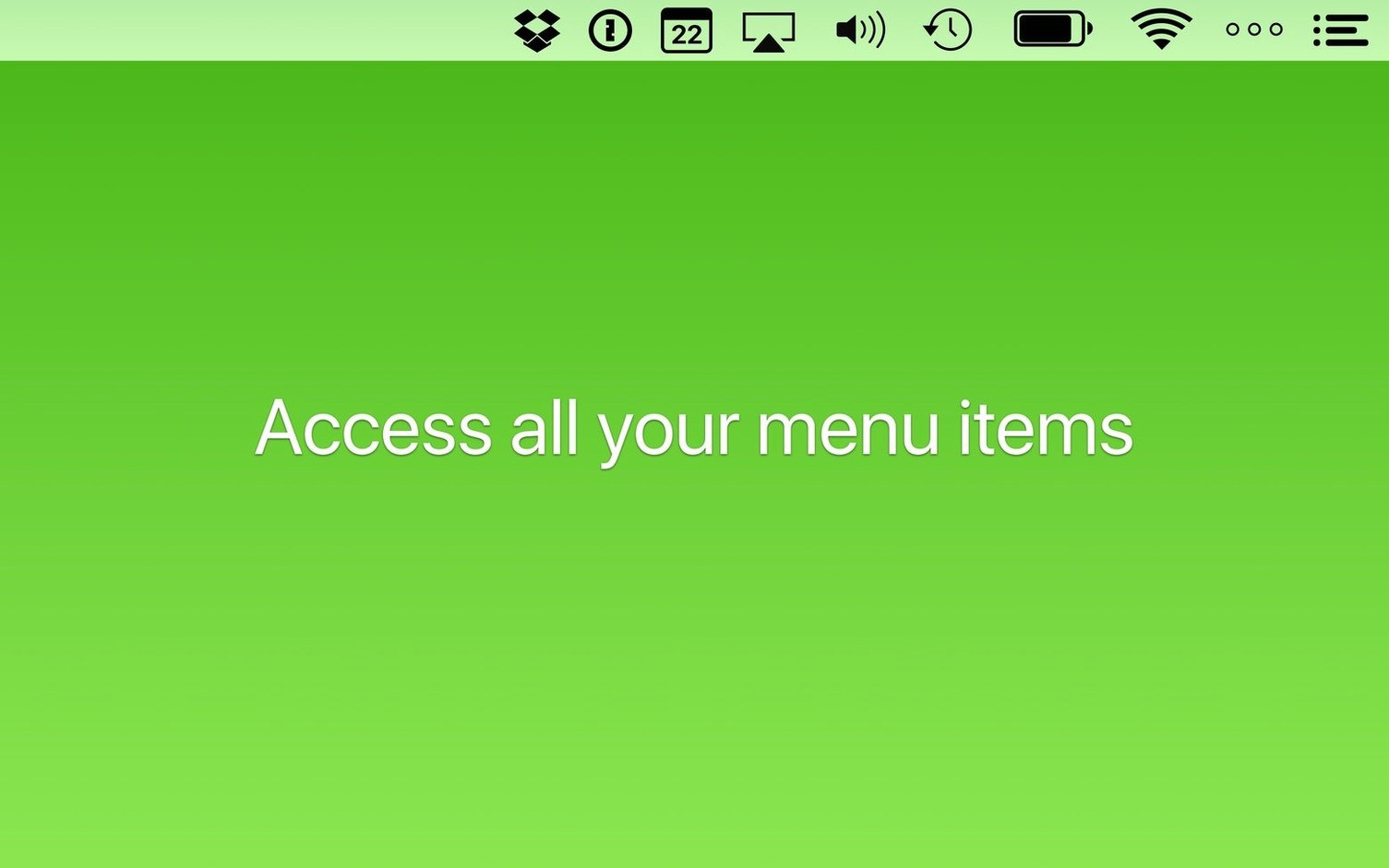
Bartender is a utility that gives you control over every icon living in your Mac's menu bar. Instead of a permanent traffic jam of symbols, you decide what stays visible and what tucks away into a hidden secondary bar until you need it.
| Detail | Note |
|---|---|
| Current version | 7.0.4 |
| macOS | macOS 27 |
| Architecture | Apple Silicon & Intel |
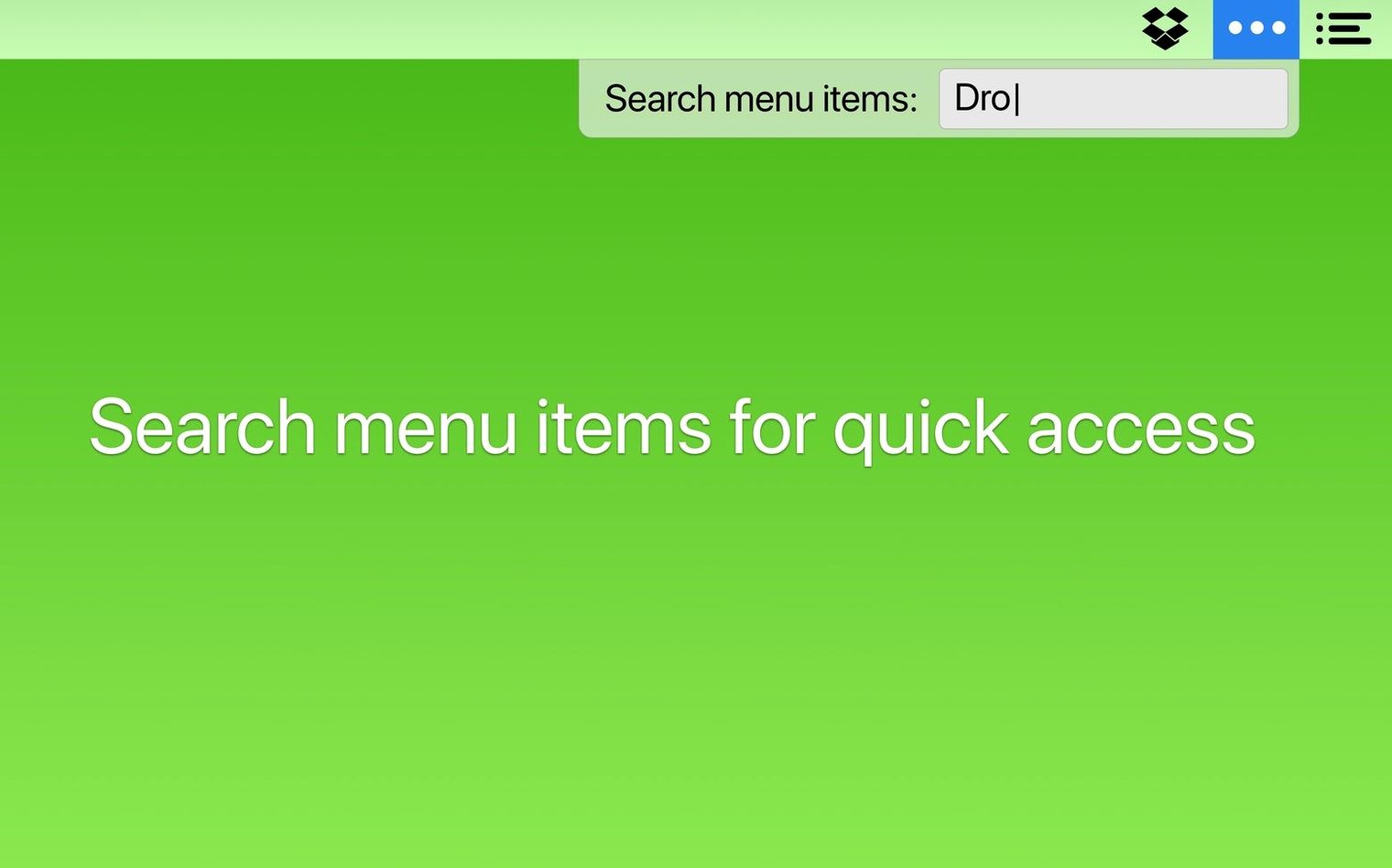
The standout job here is the Bartender Bar itself. Drag an item below the separator line and it vanishes from the main strip, appearing only when you click the Bartender icon or use a keyboard shortcut to open the secondary panel. Triggers let you surface specific items based on an event — a battery warning, say — so the icon appears in the main bar exactly when it matters. Navigation is fully keyboard-driven, with arrow keys to move through icons and Enter to activate them, which pairs nicely with the Command Bar for quick actions without reaching for a trackpad. If you prefer true minimalism, you can even hide the Bartender icon itself and rely solely on a hotkey to reveal everything. Under the hood, the app ships as a standard .dmg with a straightforward drag-to-install routine, and version 7.0.4 squashes a bug where spacers and icons would shift position after a restart.
Why does hiding an icon keep the app alive?
The most common slip-up is treating Bartender like a deletion tool. New users sometimes drag an icon below the separator and assume the app it belongs to has quit or stopped working. It hasn't. The process is still running, still consuming memory, still doing whatever it does — you've only hidden its menu bar presence. If you want the background task gone, quit the app properly first, then tidy the icon away.
Another early mistake is hiding everything on day one. It feels satisfying to sweep the bar clean, but then you lose the glanceable information that some icons actually provide. Battery monitors, cloud sync indicators, VPN status — those earn their place. A better approach is to keep four or five informational items visible and relegate launchers and passive tools to the Bartender Bar.
People also overlook the spacer feature. If you drag items into the Bartender Bar and your remaining visible icons suddenly bunch up on the left, a quick spacer dragged from the Bartender settings can restore comfortable grouping. Without spacers, the menu bar can look lopsided, and beginners sometimes assume the app is glitching when it's just a layout choice they haven't discovered yet.
What hides the clutter when you hide the app itself?
Right after the first launch, open Preferences and head to the General tab. The first thing worth toggling is Hide Bartender icon if you intend to rely on a keyboard shortcut. The icon itself adds clutter to the very space you're trying to simplify, so removing it and memorizing the hotkey — ⌃⌥⌘B by default, though you can rebind it — keeps the bar genuinely minimal.
Next, look at the Triggers section. Out of the box, no triggers are configured, which means you're managing visibility manually. Set up a trigger for your battery utility so its icon appears when the charge drops below 20%, or for a sync tool to show only while it's actively transferring files. This is where Bartender shifts from a manual organizer to something that reacts to conditions without your input.
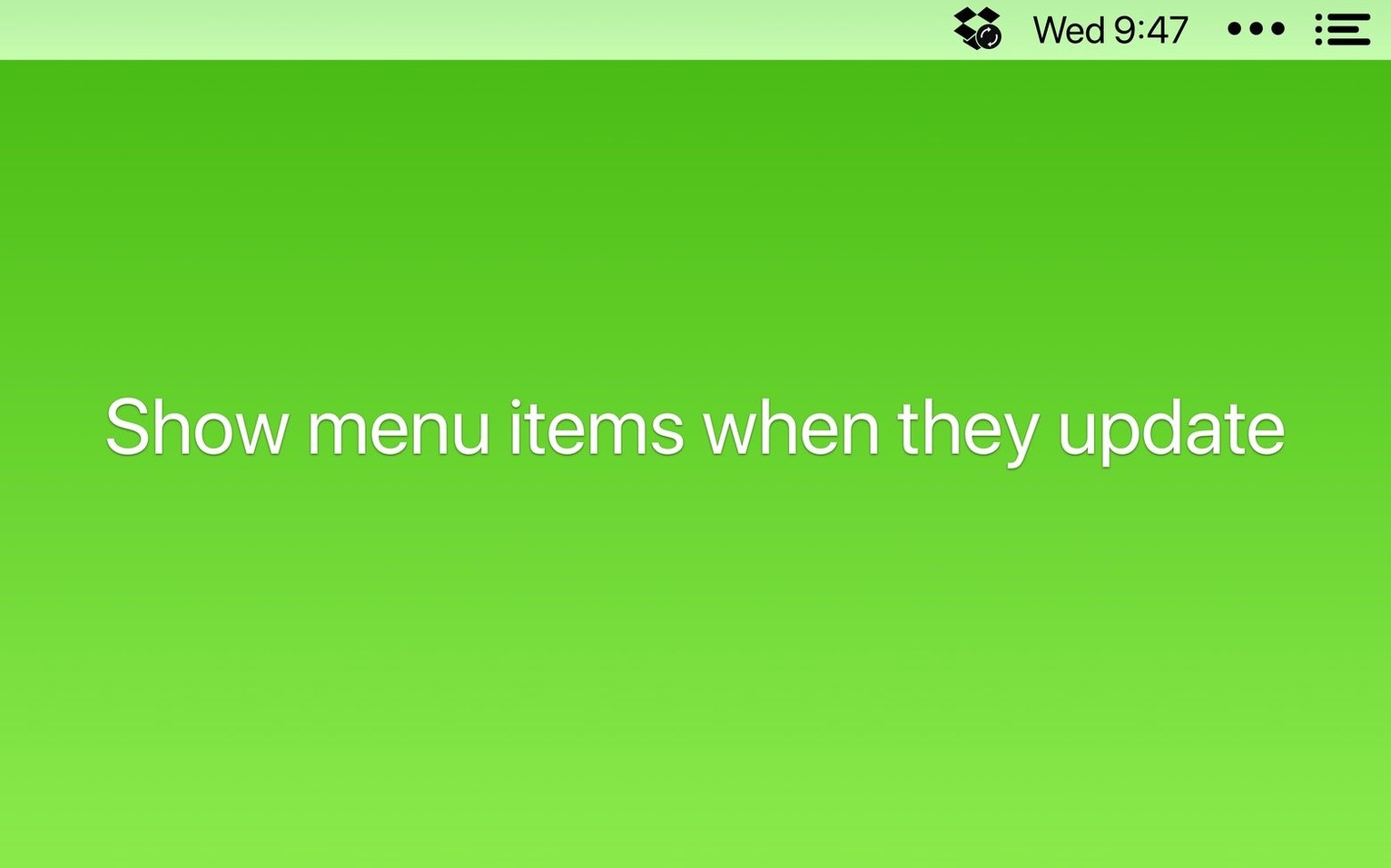
Under Appearance, switch the Bartender Bar style to Compact if you have more than a dozen hidden items. The default expanded layout shows every hidden icon in a wide panel, but compact mode collapses them into a grid that's faster to scan with arrow keys. While you're there, enable Show app icons during updates — this was refined in version 7.0.4 and prevents you from missing progress indicators for apps that briefly surface an icon during an install or sync operation.
Which icons earn their place in the visible bar?
Spend your first session just observing which icons actually change state. Some apps — cloud storage clients, clipboard managers, time trackers — update their menu bar icon to convey useful information. Make a mental list of those and keep them above the separator line. Everything else can go below while you decide whether it deserves a permanent spot.
On day two, try navigating entirely from the keyboard. With the Bartender Bar open and the Command Bar activated, you can search for any hidden item by typing its name, then press Enter to activate it. This workflow becomes muscle memory surprisingly fast, especially if you hide the Bartender icon and rely on the hotkey. Pairing this with macOS's built-in Spotlight for app launching means you can go long stretches without touching the mouse at all.
If you installed via a .dmg — which is the standard distribution for version 7.0.4 — make sure the app is actually in your Applications folder and not running from the mounted disk image. It sounds obvious, but a surprising number of people launch from the virtual volume, set up their layout, then eject the disk image and wonder why Bartender vanished after a restart.
After a day or two of use, revisit the menu bar order. Drag items left or right to group related tools together — networking icons in one cluster, audio controls in another. The order you set persists across restarts, thanks partly to the 7.0.4 fix that addressed spacers shifting position after a reboot.
Does it still need screen recording permissions?
Does it require screen recording permissions? Bartender 7 does not need screen recording access. Earlier versions walked a complicated path involving macOS's accessibility and screen capture frameworks to detect and reposition menu bar items, but version 7 was rebuilt for macOS 27 and works without that permission. You grant it standard accessibility access during setup, and that's it.
Will it slow down my Mac? The app itself is lightweight — a single process that monitors menu bar state and responds to triggers. It doesn't poll aggressively, and on both Apple Silicon and Intel machines the CPU footprint is negligible during normal use. What can slow things down, indirectly, is if you hide twenty icons and forget that half of those background apps are still running. That's not Bartender's doing; it's just visualizing what's already there.
What happens to hidden icons when I uninstall? If you quit Bartender or remove it from your system, every icon returns to the main menu bar exactly where it would have been. Nothing is permanently altered or deleted. The app's configuration lives in its own preference file and leaving it behind has no effect on individual app behavior.
Can I use it alongside other menu bar tools? Generally yes, but running two menu bar managers at the same time is asking for layout conflicts. If you've been using an older tool and want to try Bartender 7, quit the other one first. The menu bar is a shared resource, and two apps fighting over icon positions produces exactly the kind of shifting behavior that version 7.0.4 specifically patched out.
- macOS 27 or later
- Apple Silicon or Intel Mac
$ man bartender | grep -A2 "?"
Can I control Bartender using only the keyboard?
Yes. You can navigate menu bar items with the arrow keys, press Enter to select, and open the Command Bar with a shortcut.
Does Bartender let you hide its own icon?
It does. You can hide the Bartender menu bar icon in its own preferences, leaving a keyboard shortcut as your only entry point.
Comments 0
Sign in or create an account to leave a comment.
No comments yet. A codec, a slice, a machine — they appear after moderation.