Blocs for macOS
Blocs 6 runs on any Mac with macOS 11 or later, on both Intel and Apple silicon. The installer comes as a standard Mac app package, so the main compatibility question is the OS version rather than the chip inside.
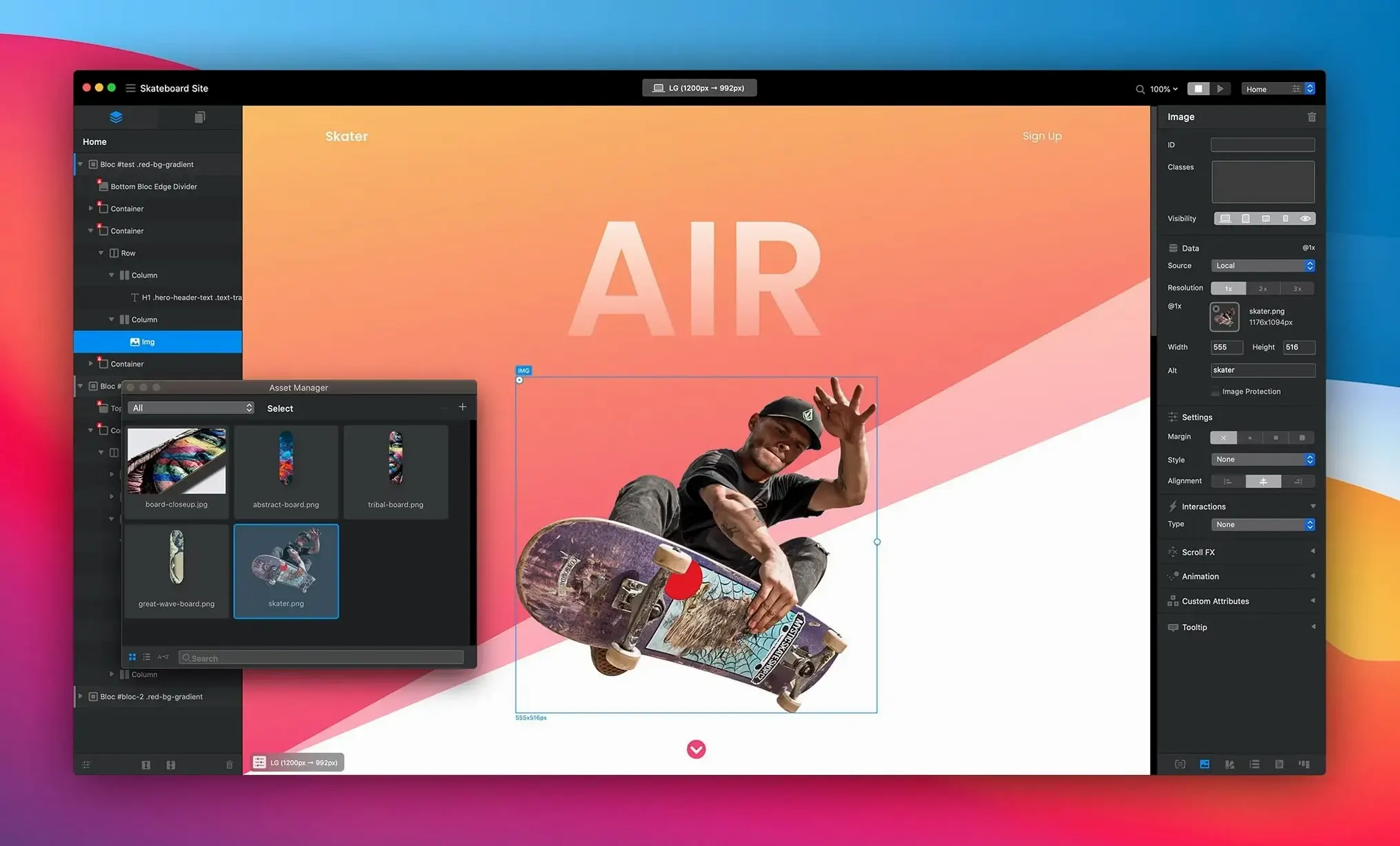
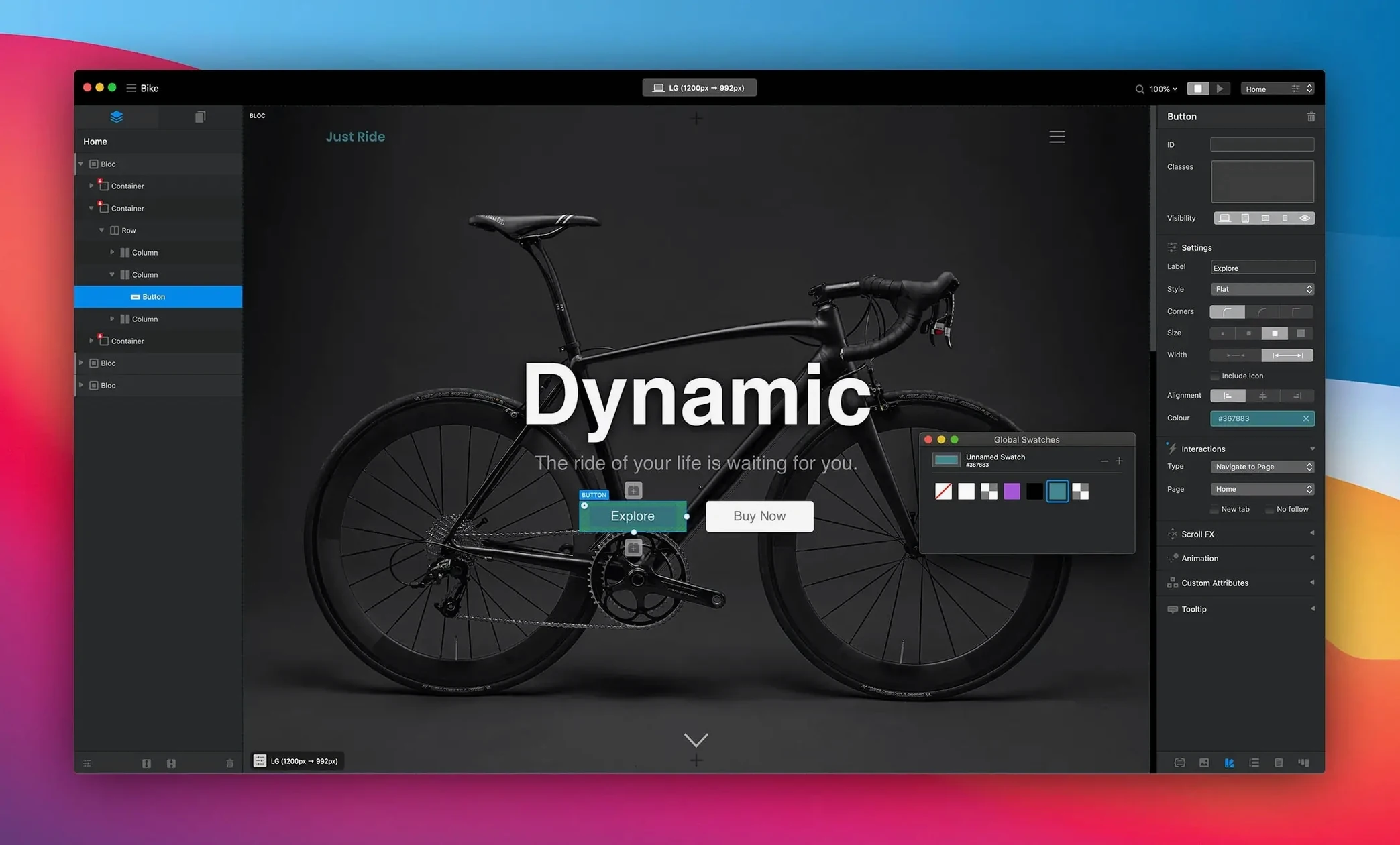
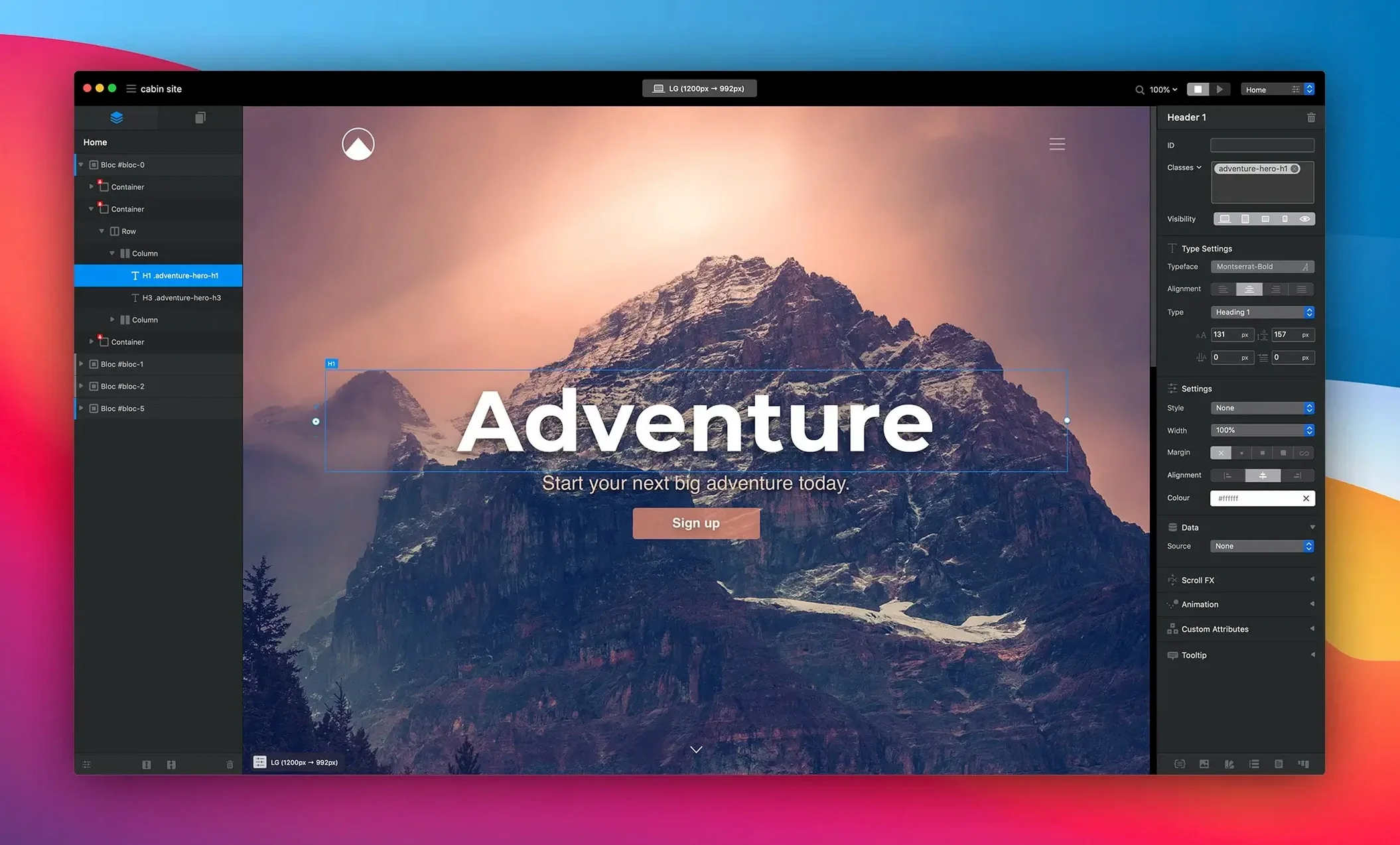
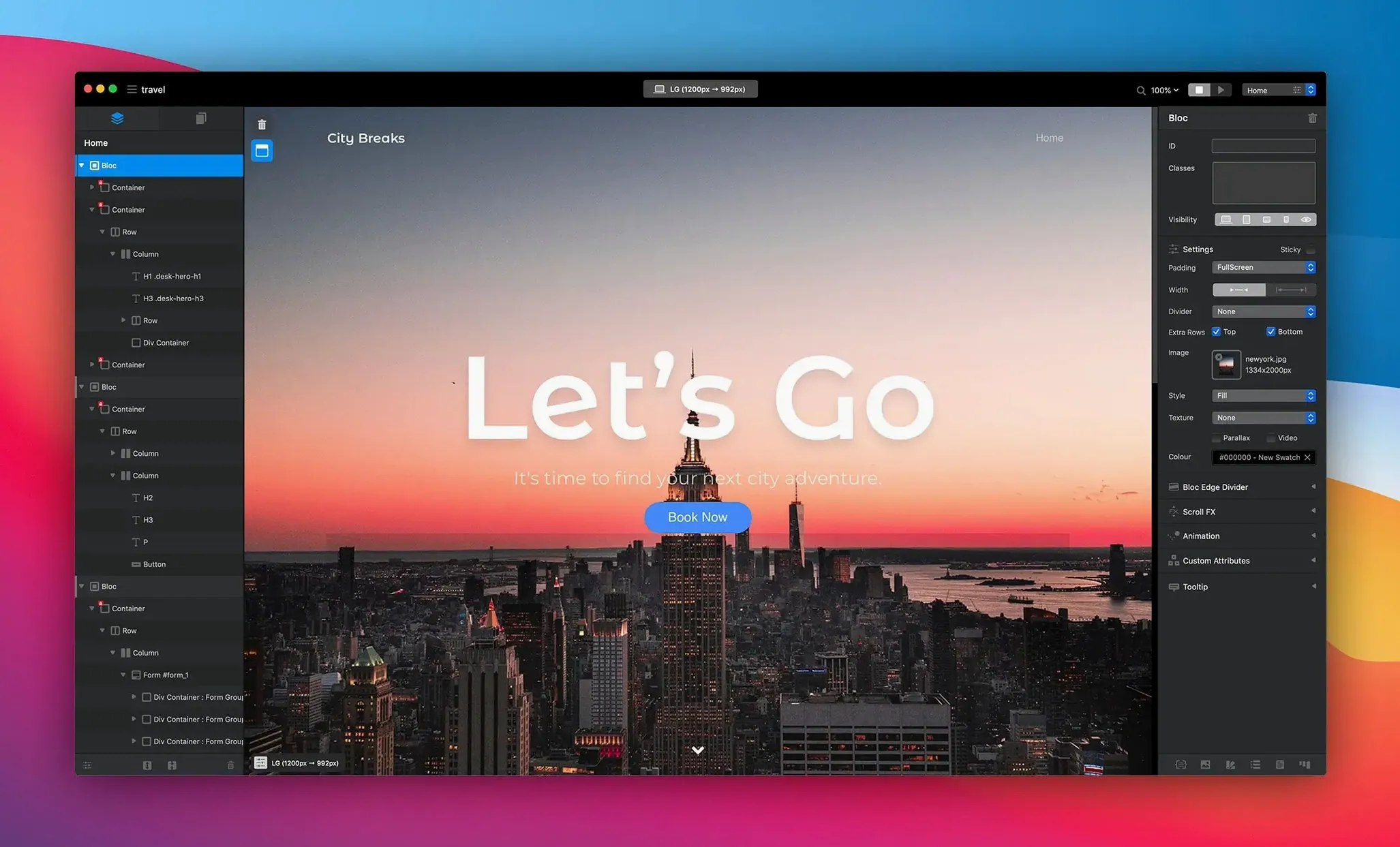
People usually want to know what the app actually does before they set it up. It is a visual website builder built around a block-based workflow: you assemble pages from prebuilt sections rather than writing markup by hand. Behind that simplified UI sit enough editing tools to matter, including drawing mode, global swatches, automatic text colouring, one-click animations, and integrated CMS workflows for sites that need updatable content.
The interface ships in English, German, Spanish, Italian, Dutch, Portuguese, French, and Japanese, which covers a decent spread of setups. The current release is 6.3.3, and it is mostly a stability pass. The fixes include a hamburger menu that misbehaved after toggling the navigation Bric option, a checkbox selected state that did not show in the app, missing inspector options for selected radio items, and a run of duplicate alerts when setting Blocs padding to fill inside a Bloc group.
If you are on the fence, the practical question is whether a visual, block-oriented builder matches how you think about layout. It will not teach you CSS, but it is not meant to.
Who clicks with Blocs the fastest?
Designers who already think in boxes and grids tend to warm to Blocs 6 immediately. If you have ever built a layout in Sketch or Figma and then sighed at the thought of translating it into HTML and CSS, the block workflow here maps more directly to that mental model. Freelancers juggling small-business sites get the most practical value: the integrated CMS support means handing off a site where the client can update a menu or a news section without ever opening the builder.
Developers get a different kind of win. The code Blocs generates stays clean—no inline styles sprayed everywhere, no framework lock-in. That matters when you want to build the bones visually and then hand-tweak the output without fighting an angry nest of div tags. Students and tinkerers on blocs macos setups often use it as a fast prototyping tool: rough out a landing page in twenty minutes, export, and then poke at the structure to learn how a real site fits together.
Start by dragging Brics and switching types for 30 minutes
Do not try to build a full site on day one. Open a blank project and spend half an hour just dragging Brics onto the canvas and switching their types through the inspector. The block hierarchy—Bloc groups, nested Brics, padding rules—clicks faster when you see it break and fix it yourself. The multiple-alert bug from 6.3.3 is gone now, so nesting padding changes behaves as expected.
Set up global swatches before you touch a single page. It feels like a small thing, but changing a brand color across sixty pages without swatches is exactly the kind of pain the tool is designed to prevent. The automatic text colouring logic relies on background contrast, so test your light and dark sections early: a cream card on a white Bloc sometimes confuses the algorithm and leaves text unreadably pale.
If you grabbed Blocs 6 torrent to try it before committing, spend an evening with the drawing mode. Hold D and drag to create a new Bric directly on the canvas instead of hunting through the sidebar library. It is the kind of shortcut that transforms the workflow from catalogue-browsing into actual layout thinking.
Option-drag a Bric to duplicate it with all content intact
A few things sit just below the surface in blocs 6 mac builds and get missed even by people who have used the app for weeks:
- Option-drag a Bric to duplicate it with all its content and classes intact. Much faster than copy-paste through the context menu.
- The CMS preview mode toggle (top-right of the canvas toolbar) shows you exactly what a content-editable region looks like to the client—no need to export and open a browser just to check one field.
- Right-click any Bric name in the layer tree and choose “Reveal in Library” to jump straight to its source template. Useful when you inherit a project and cannot identify where a particular block came from.
- When using Blocs for Mac on a multi-monitor setup, the inspector panel can be torn off and parked on a second screen. The app remembers the position between sessions.
Animations are one-click, but the timing curves live in a small dropdown that many overlook. The default ease-in-out works for most entrances; switch to a custom cubic-bezier only when you need a bouncier landing for a hero section or a snappier exit for a modal.
- Fixed a hamburger menu display issue after toggling the navigation Bric option.
- Fixed the checkbox selected state not appearing in the app.
- Fixed inspector options for selected radio items.
- Fixed multiple alerts when setting Blocs padding to fill inside a Bloc group.
- macOS 11 or later
- Runs on Intel and Apple silicon Macs
- Interface languages: English, German, Spanish, Italian, Dutch, Portuguese, French, Japanese
Comments 0
Sign in or create an account to leave a comment.
No comments yet. A codec, a slice, a machine — they appear after moderation.