BoltAI for macOS
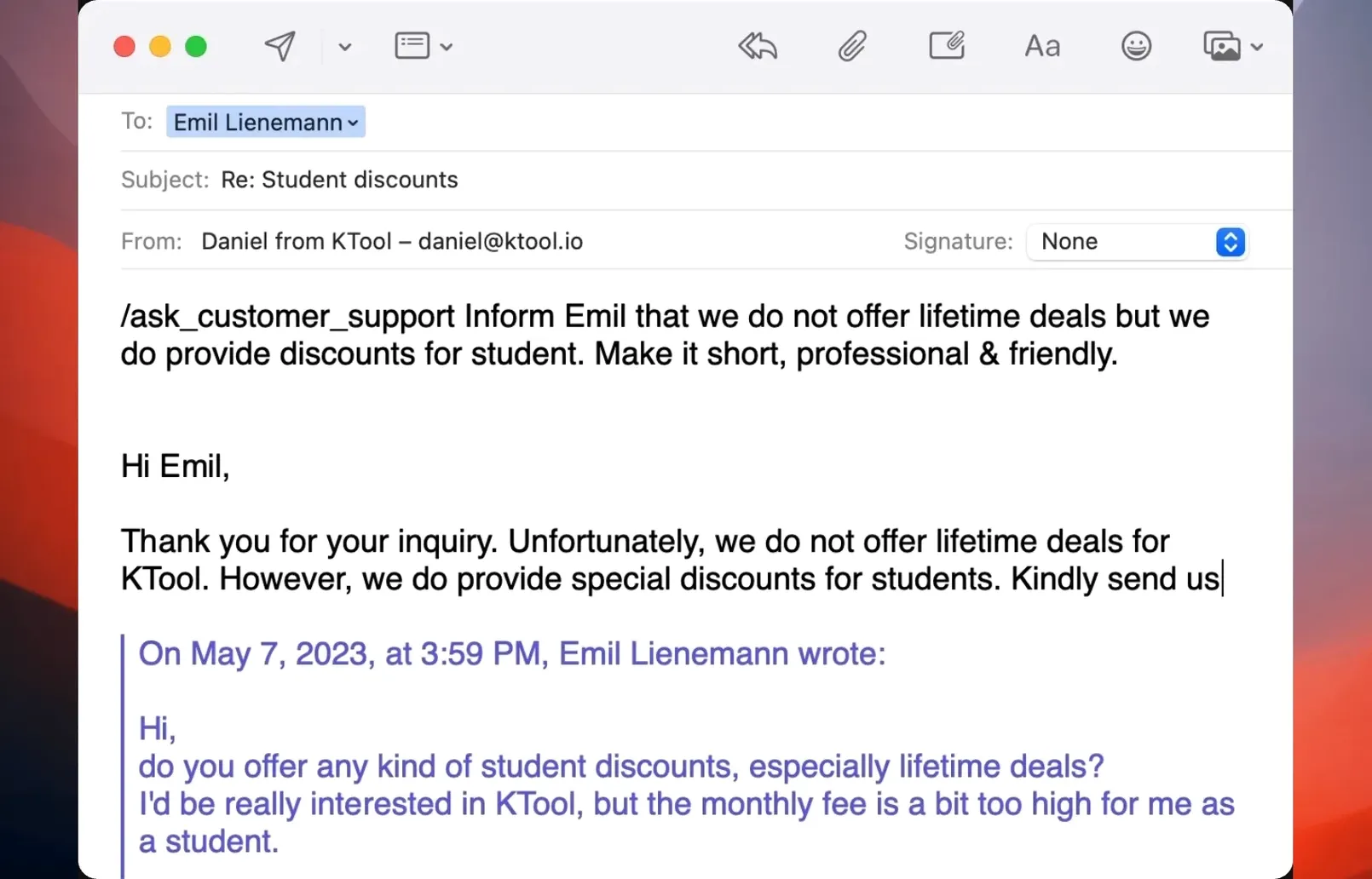
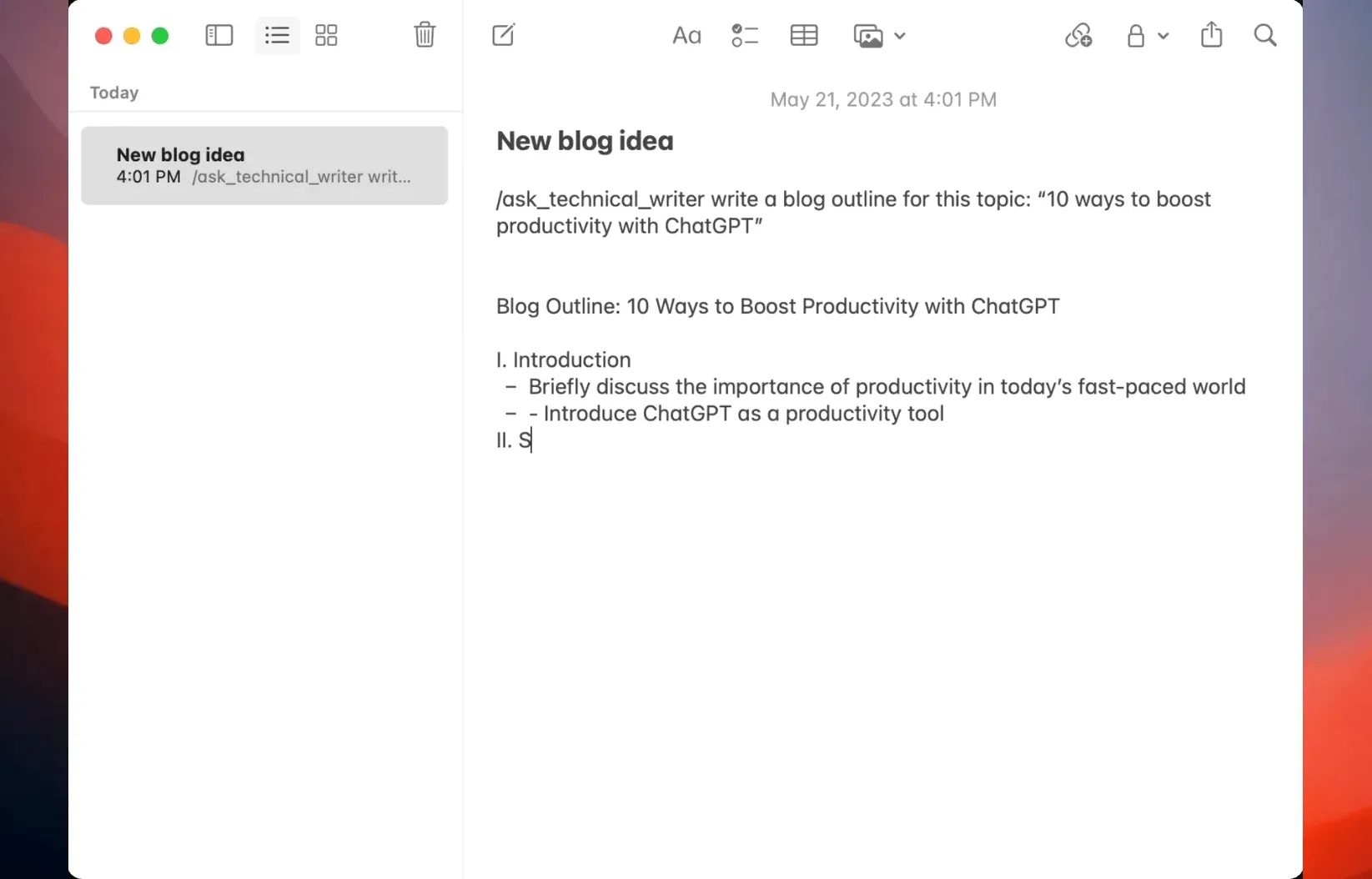
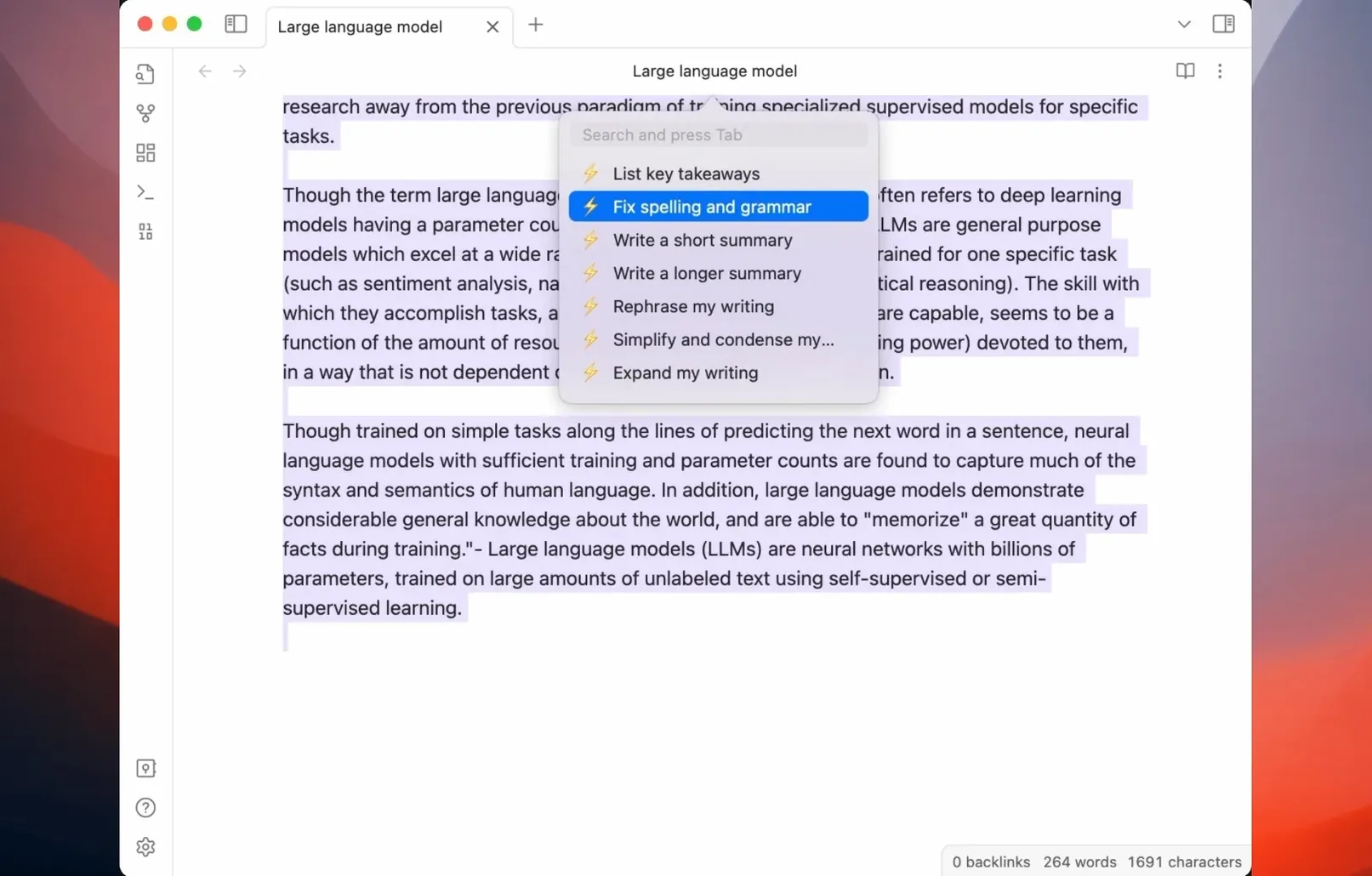
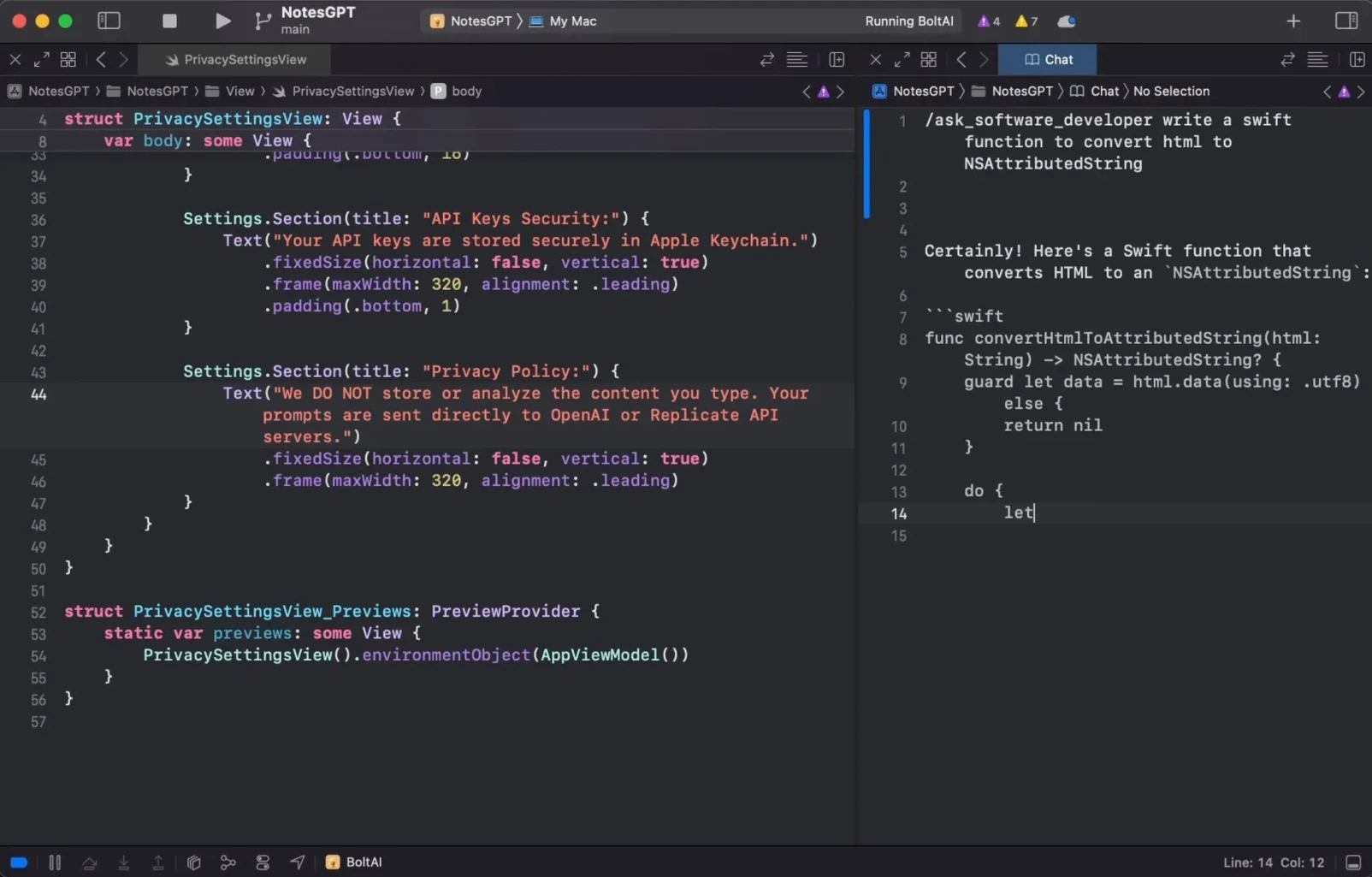
BoltAI is a native macOS app that puts ChatGPT and other large language models directly onto your Mac's desktop, sending requests straight to OpenAI without an intermediary service. It's a chat client, not a web wrapper—so the interface responds like any other Mac app, complete with familiar keyboard shortcuts, windows, and drag-and-drop.
Where it fits alongside your usual tools is in how it handles real files. You can pull a folder or a document straight into a new-project window, and the assistant reads it as context for your prompt. If the file contains sensitive info, BoltAI can automatically redact confidential data before the request ever leaves your machine. The API key stays in Apple Keychain, and the app stores data locally with no in-app analytics phoning home.
The model picker keeps things tidy too—you can disable unused providers so only the ones you actually work with show up. Custom AI assistants let you save specific instructions and behaviors for recurring tasks, which is useful if you switch between coding, writing, and research in a single session.
It's a utility that slots into the spaces between Finder, your editor, and your browser, handling the AI side without pulling you out of the Mac's own interaction model.
Walking through a blog‑post draft with linked research
Let’s say you’re writing a technical post about GPU architectures and you’ve already gathered a pile of PDFs, notes, and a folder of Apple Silicon benchmarks. The workflow starts in Finder, not inside BoltAI.
You open BoltAI and create a new project named GPU article. Before you type a single prompt, you drag the whole folder of research from Finder into the new-project window. The app registers the linked files and folders immediately—you can see them in the project sidebar. Next, you set a default agent for the project: a custom assistant you already built that responds like a hardware reviewer and cites file content when asked. With that done, you open a blank document in your editor and place it side-by-side with BoltAI’s chat.
Now the real session begins. You write a prompt that says “Summarize the Metal occupancy graphs from the linked PDFs and compare them with the A17 Pro die‑shot notes in my text file.” BoltAI reads only the files you linked, pulls the relevant sections, and drops a clean comparison into the chat. Before the request leaves your machine, the redaction layer scans for any API keys or personal identifiers in the context—if you accidentally left a credential in a config dump, it’s stripped silently. You copy the answer into your editor, tweak the tone, and move on to the next section. The whole loop stays on your Mac; the assistant follows the project’s default agent whenever you send a follow‑up, so you don’t have to keep re‑explaining the voice or the source material.
A translator’s morning with a custom assistant
A literary translator working from Japanese to English keeps three custom assistants inside BoltAI: one for rough first passes, one for polishing literary style, and one that acts as a terminology checker for technical passages. On a Tuesday morning she opens a chapter that mixes narrative prose with a long section about Edo‑period woodblock carving.
She starts by linking the chapter’s plain‑text file to a project named after the novel. The default agent for the project is her literary polisher, but she manually switches to the terminology checker for the woodblock section. She highlights the Japanese paragraphs that describe carving tools, triggers BoltAI with a keyboard shortcut, and asks “Are these tool names consistent with the glossary I linked last week? Flag any term that drifted.” The assistant cross‑references the linked glossary file and returns two flagged items with suggested corrections, plus a note that one term appeared earlier in the chapter with an archaic spelling the author may have chosen deliberately. She switches back to the literary agent to handle the narrative paragraphs, never leaving the Mac app she writes in.
Pre‑install checklist for BoltAI
Does the app route my prompts through someone else’s server?
No. BoltAI sends requests directly from your machine to OpenAI—there’s no proxy, no intermediate API layer run by the developer, and no logging on a third‑party relay. The API key lives in Apple Keychain, and the app doesn’t bundle in‑app analytics, so nobody besides OpenAI sees the prompt content. If you want to verify that yourself, a packet‑capture tool like tcpdump or Little Snitch will show the outbound connection going straight to OpenAI’s endpoints.
Single .dmg runs native on Intel and Apple Silicon
Yes. The build is universal—ARM, x86 (64‑bit)—so the same .dmg runs natively on both architectures. Your assistants, projects, and linked‑file references travel with the app’s local data folder, so moving between an Intel iMac and an M‑series MacBook just means copying that folder across or syncing it with a tool you already trust.
What happens if a linked file changes after I add it to a project?
BoltAI reads files at the moment you send a prompt, not at project‑creation time. If you edit a Markdown note or update a CSV after linking it, the assistant sees the latest version on disk the next time you reference it. That’s handy for living documents—you don’t need to re‑import anything. Just don’t move the file to a different path; the link is a filesystem reference, not a content snapshot.
- macOS 13 or later
- Apple Silicon or Intel Mac
$ man boltai | grep -A2 "?"
How does BoltAI handle API keys and privacy?
BoltAI stores your API key in the Apple Keychain and sends requests directly to OpenAI. It includes no in-app analytics and can automatically redact confidential data from files before they're sent.
Can I customize which AI models appear in the interface?
Yes—you can disable unused providers in the model picker so only the ones you use are visible, and you can create custom AI assistants with specific instructions for different workflows.
Comments 0
Sign in or create an account to leave a comment.
No comments yet. A codec, a slice, a machine — they appear after moderation.