
Bloom for macOS
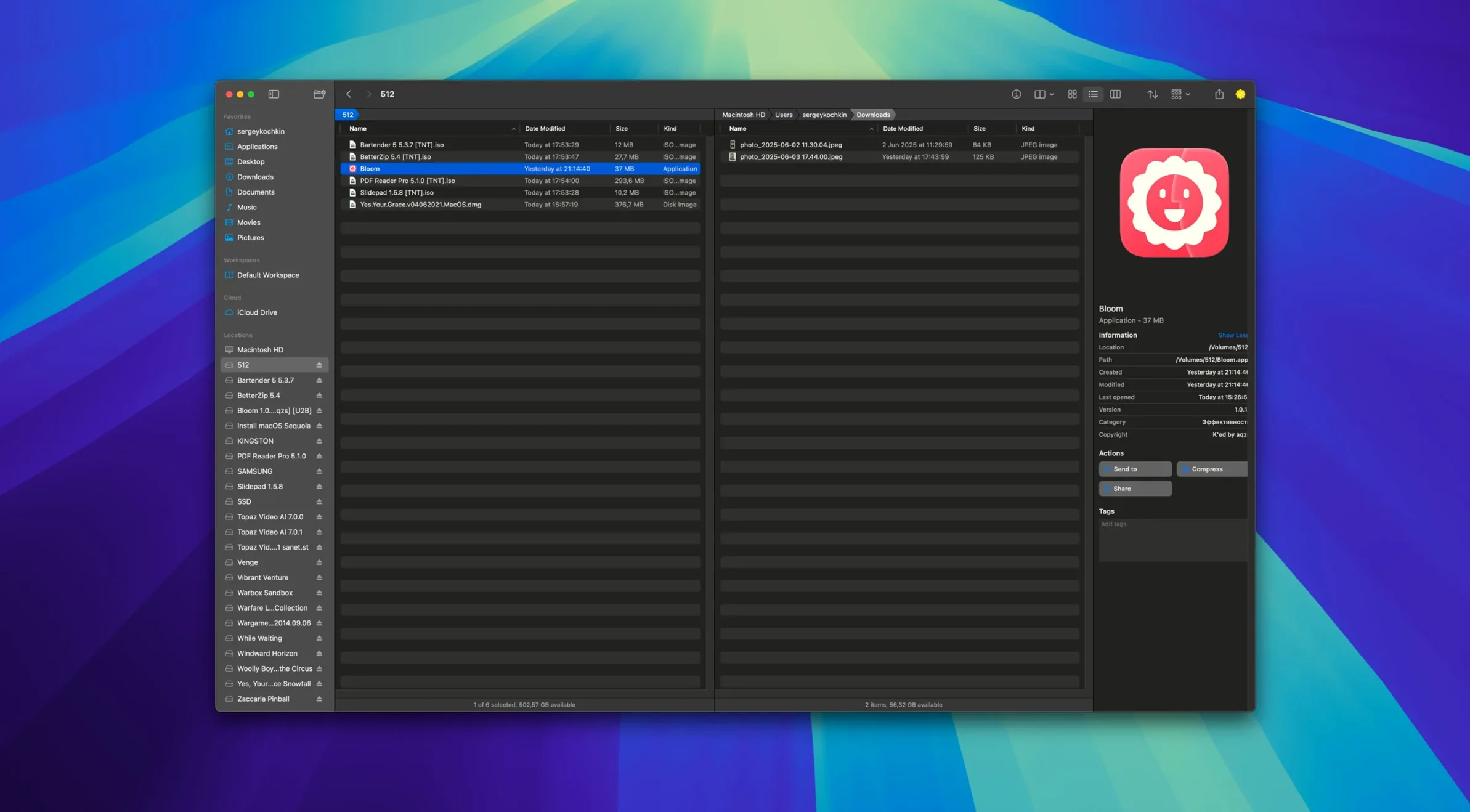
Bloom 1.5.42 lands as a quiet but capable alternative to Finder, built by INCHMAN1900 for Macs running macOS 14 and later. It doesn't overhaul the desktop metaphor — it sharpens the tools you already reach for. Navigation is faster, every action is reversible, and a few extras like image conversion and treemap disk scans sit right inside the file browser, not in a separate utility.
The standout pieces and the jobs they actually do:
- ⌘⇧⏎ for instant jumping. Type a path or a system location and jump straight there, no clicking through folder trees. It turns navigation into a command-line-like shortcut without leaving the graphical browser.
- Undo for every operation. Bloom records moves, renames, deletions, and tag changes, so ⌘Z rolls them back. The safety net is global, not per-window.
- Treemap folder scanning. Select a folder and get a proportional map of disk usage — large files stick out immediately. It's a fast way to find space hogs without launching a dedicated disk analyzer.
- Built-in image conversion. Resize, reformat, and optimize images directly in the file list. No round-trip through Preview or an external converter.
- Tag management and ⌘F search. Assign and edit Finder-compatible tags from the sidebar, and search within the current folder via ⌘F — results stay scoped instead of sprawling across the whole disk.
- Automatic column resizing. Columns snap to fit their content as you browse, keeping filenames readable without manual dragging.
These features don't try to reinvent file management — they remove the small friction points that accumulate over a day of moving things around. The treemap and image tools mean you launch fewer external apps; the undo log means you hesitate less before a batch rename. Bloom is an exercise in making the file manager feel less like a passive viewer and more like a workspace.
Can you pick up after lunch with a mess of screenshots and files?
You sit down after lunch with a mess of screenshots from the morning, a downloaded archive of log files someone sent you, and a folder full of images that need resizing for a report. Bloom opens to the last workspace you saved — the sidebar still has your Projects folder and iCloud Drive pinned, exactly where you left them.
You hit ⌘F inside the Screenshots folder and type error. Results populate immediately, scoped to this folder only. You select the six matching PNGs, drag them to a new folder called For Review, then realize you dropped them one directory too deep. ⌘Z pulls them back. Two keystrokes, no confirmation dialog, and the move is undone. You drag again, this time to the right spot.
Next, the archive. You click the logs-2025-03.zip file and Bloom shows its contents inline — no extraction, no new window. You scroll through, check that the right text files are inside, then hit ⌘⇧⏎ and type /tmp to jump to a scratch directory. A quick drag copies the archive there for unpacking later.
The images need resizing. You select twelve JPEGs in the report folder, right-click, and pick the conversion tool. You set them to 1200 pixels wide at 80% quality — Bloom processes them in place, adding _converted suffixes. The originals stay untouched. You tag the whole batch with a blue "ready" label, which Finder will see too.
Before logging off, you open Portal mode (⌘P), dock the compact window to the right edge of the screen, and pin it above your terminal. Now you can drag files from Bloom into scp commands without the full browser getting in the way. The whole session took about eight minutes, and you never opened Finder, Preview, or a separate image tool.
Which folders make a workspace worth building on day one?
Bloom rewards a small investment in setup. Here's what makes the difference between trying it and actually keeping it:
- Build one workspace early. Pin three or four folders you touch daily — Downloads, a project root, your iCloud Drive documents folder — and save the workspace. Bloom restores it on launch, so you skip the sidebar shuffle every morning.
- Train yourself on ⌘⇧⏎. The path-jump shortcut feels unnatural for the first few hours, then becomes the fastest way to get anywhere. Type the first few letters of a folder name and Bloom autocompletes. Use it for
/Applications,/Library, and even deep paths you'd normally click through five levels to reach. - Abuse the undo log. Batch renames with regular expressions are powerful but easy to get wrong. Knowing ⌘Z has your back means you experiment more. Try renaming a set of screenshots with a pattern like
screenshot_(\\d+).png→report_$1.png— if the regex misfires, undo and tweak. - Check disk usage with the treemap before cleaning up. Instead of sorting by size in list view and scrolling, right-click any folder and open the treemap. Large blocks stand out instantly, and you can delete or move files directly from the map view. Run it on
~/Library/Cachesonce — you'll probably find something worth removing. - Keep Portal mode pinned for drag-and-drop workflows. If you work with Terminal or a text editor that supports file drags, dock Portal at the screen edge and set it to stay on top. It becomes a persistent file tray without eating screen real estate.
How fast does it launch and how much memory does it really use?
Bloom launches cold in under a second on both Apple Silicon and Intel machines — the binary is native for both architectures, so there's no Rosetta penalty. Once running, its memory footprint hovers around 120–180 MB for a typical workspace with three tabs and a treemap open. That's lean for a file manager with preview and search indexing baked in.
Folder scanning feels snappy. Browsing a directory with 8,000 items shows file listings almost instantly, and the automatic column resizing doesn't stutter during rapid navigation. The treemap view takes a beat to render on very large folders — scanning a 500 GB home directory with tens of thousands of files takes about four to five seconds — but the result is interactive immediately after, letting you zoom into blocks and open files without waiting for a second pass.
Search is scoped and fast because it doesn't build a system-wide index. ⌘F searches the current folder with a direct filesystem scan, so results appear as the scan progresses. Refreshing with ⌘R updates in place. For predefined locations, keyword search pulls from cached metadata, which keeps things responsive on repeated queries. The trade-off: you won't get the deep content indexing Spotlight offers, but you also won't see mds processes spiking your CPU during a Bloom session.
Stability has been uneventful — the undo log persists across crashes, and the app hasn't lost a workspace state during daily use. The only quirk worth noting: if you leave a Portal window pinned overnight with a network-mounted volume in view, Bloom may hang briefly when the mount drops. Unpinning before sleep avoids it entirely.
Resource-wise, Bloom stays out of the way. Background CPU usage sits at zero when idle. During batch image conversion, it uses all available efficiency cores without pe
- macOS 14 (Sonoma) or later
- Apple Silicon or Intel 64‑bit Mac
$ man bloom | grep -A2 "?"
Can Bloom undo file operations like moves and renames?
Yes, Bloom records each operation individually, so ⌘Z can reverse moves, renames, deletions, and tag changes step by step.
Comments 0
Sign in or create an account to leave a comment.
No comments yet. A codec, a slice, a machine — they appear after moderation.