CleanMyMac for macOS
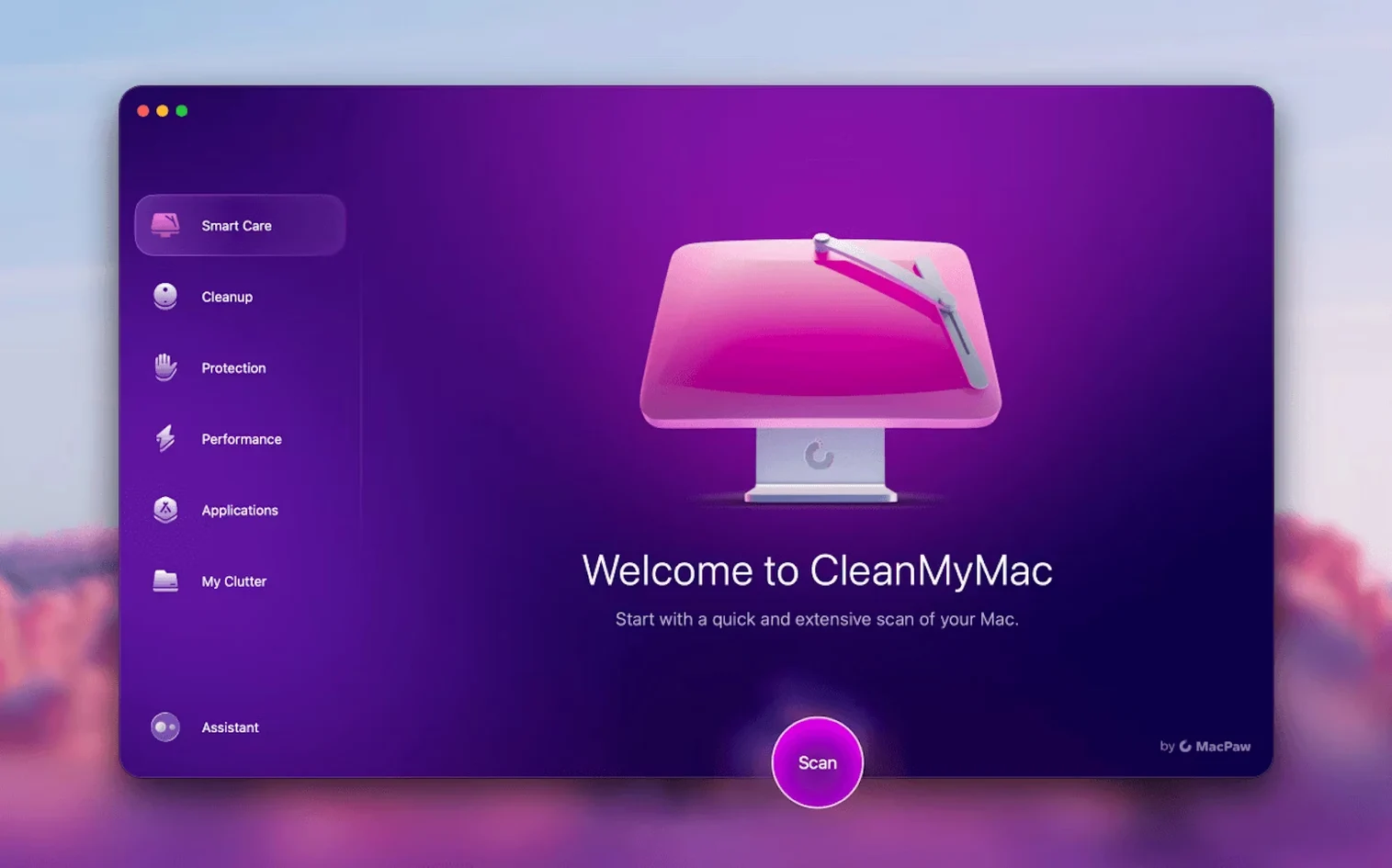
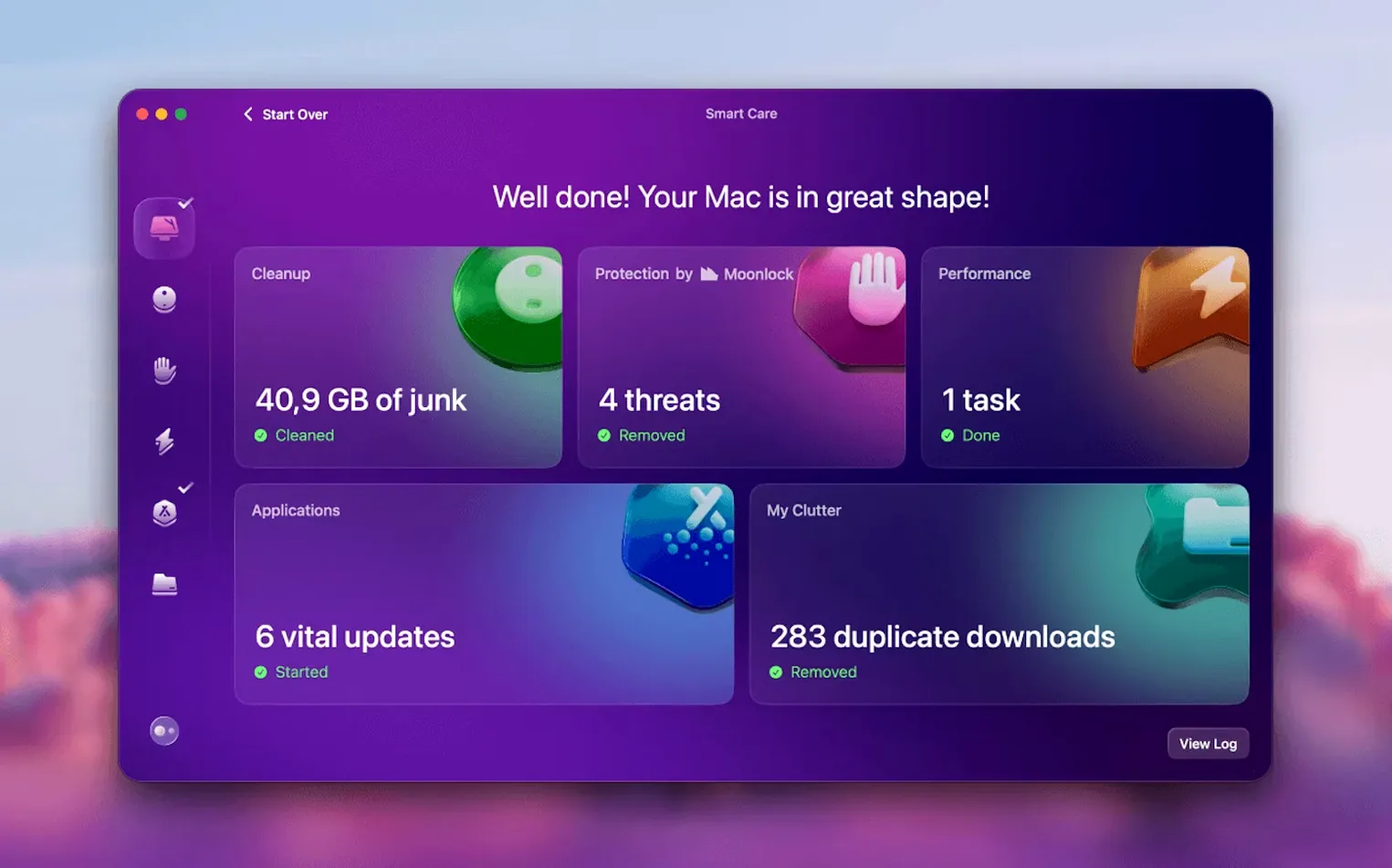
CleanMyMac runs on any Mac with Apple Silicon or a 64-bit Intel processor, as long as you're on macOS 11 or later. On macOS 27, you'll need to grant full disk access before the app will launch. The interface ships in a dozen languages, including English, German, Japanese, Ukrainian, and Simplified Chinese.
Can it now clean my Gmail attachments?
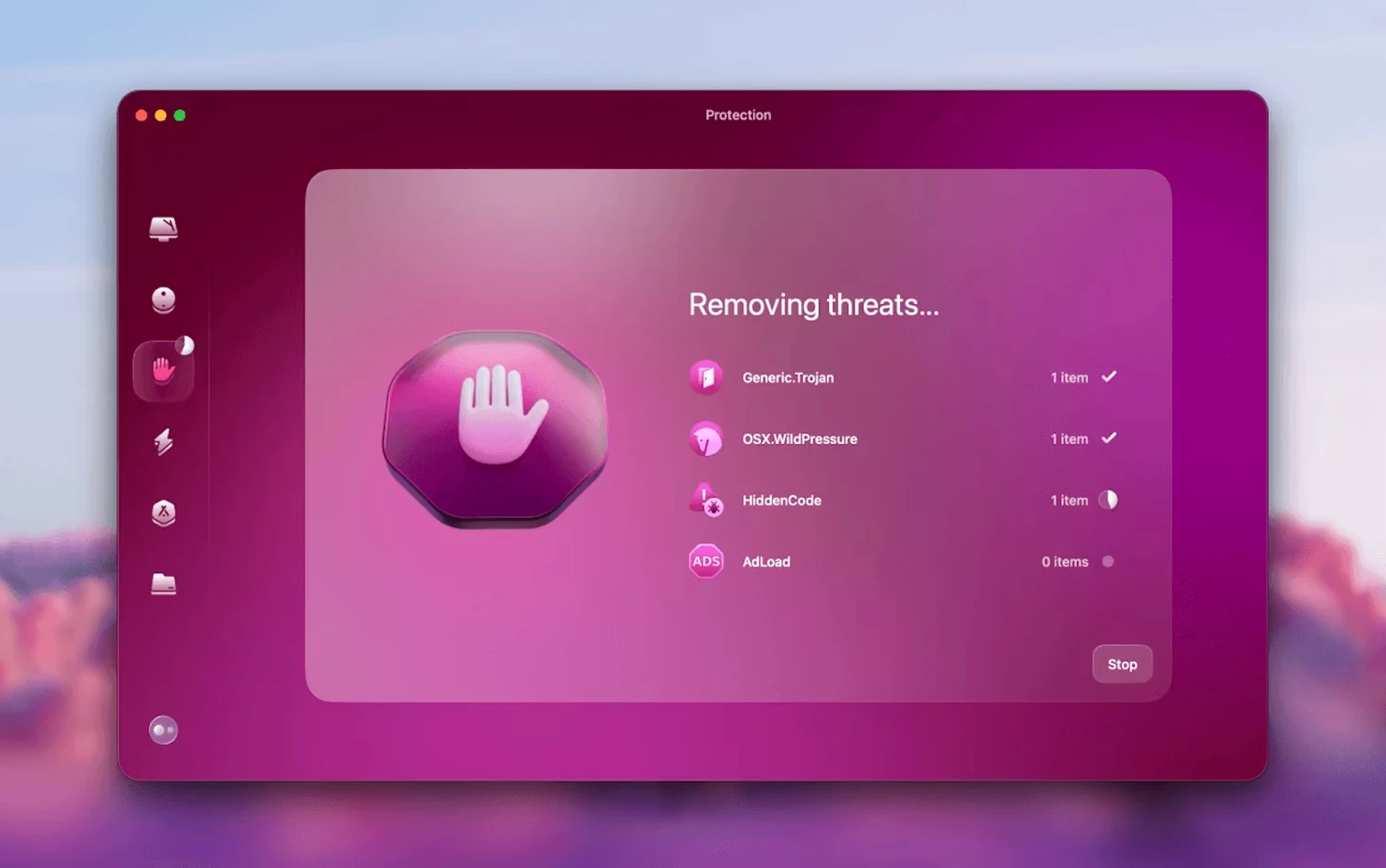
Version 5.7.0 adds tools aimed at email clutter — specifically new functionality for cleaning and managing mail attachments inside Gmail. That sits alongside the existing instant system cleanup, the large-file scanner that hunts down forgotten disk hogs, and a secure file deletion tool for permanent removal. A malware protection module rounds out the feature set, scanning for threats in the background.
Do you still drag it into Applications?
The installation routine hasn't changed. Remove any older build first, then open the downloaded disk image and drag the app into your Applications folder. Launch it from Launchpad, and on recent macOS releases, give it full disk access when prompted. The core maintenance tools — junk scanning, large file detection, shredding — are all still present alongside the newer email features.
Cleaning up a bloated Gmail inbox, start to finish
Let's say your Gmail account has accumulated several thousand messages over the last couple of years, many with attachments you downloaded once and never looked at again. Those PDFs, spreadsheets and ZIP files are still sitting on Google's servers, eating into your storage quota. Here's a step-by-step run through the new mail tools in version 5.7.0.
Open CleanMyMac and pick Mail Cleanup from the sidebar. The app asks you to sign in with your Google account — it uses a browser-based OAuth flow, so your credentials never touch the desktop app directly. Once connected, the tool scans your Gmail and groups attachments by size and age. The default sort puts the heaviest messages at the top, which is usually where you'll find video files and old design mockups someone sent three projects ago. Select the ones you want gone, hit Clean, and the attachments get removed from Gmail while the message bodies stay intact. The app shows a running tally of space reclaimed.
After the Gmail cleanup, I'd follow up with the regular System Junk scan to catch any local caches or mail downloads Mail.app left behind on the Mac itself. The two passes together — server-side, then local — tidy up both ends of the pipe.
A photographer's Wednesday morning
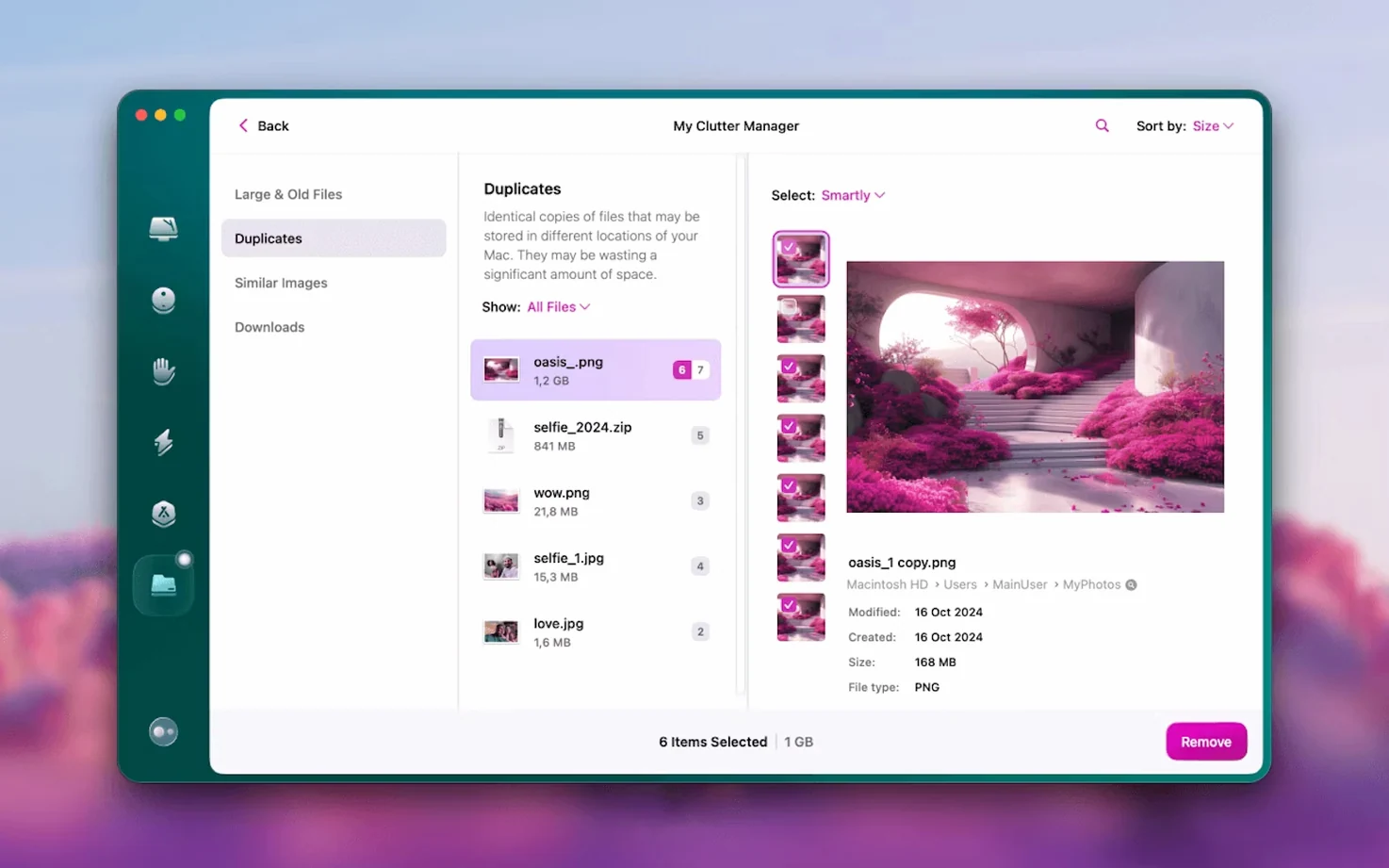
Imagine a photographer who shoots tethered to a MacBook Pro. Over a few months, the internal SSD fills up with RAW files from test shoots, duplicate exports she forgot to delete, and Photoshop scratch data that never got purged. She opens CleanMyMac and runs the Large & Old Files scanner, sorting by size descending. Within seconds it surfaces a folder of 80 GB of untouched TIFFs from a project she wrapped in March. She previews a couple to confirm they're safe to delete, then lets the tool handle removal.
Next she checks the Space Lens module (called File Scope in the interface). It builds a treemap of her drive, and she spots a Capture One catalog backup folder sitting at 210 GB inside her user library — something she'd never have found by clicking through Finder. She trims that down manually. The whole process takes under ten minutes, and she recovers roughly 300 GB without touching a terminal or digging through hidden directories.
How does cloud email cleanup work now?
The jump to 5.7.0 with Gmail integration means email cleanup is no longer limited to the Apple Mail app stored locally. Earlier versions could only touch Mail.app attachments downloaded to your Mac. Now the tool reaches directly into the cloud account, which matters for anyone who primarily uses Gmail in a browser or on iOS and never configured Apple Mail at all.
Day-to-day, the difference shows up when you install the app on a machine where you've never set up a desktop email client. Previously, the mail cleaning module would show an empty list or prompt you to add a Mail.app account. Now it bypasses that entirely for Gmail users. The rest of the feature set — malware scanning, shredder, large file detection — continues with the same behavior MacPaw has maintained across several point releases.
How fast does a full scan finish?
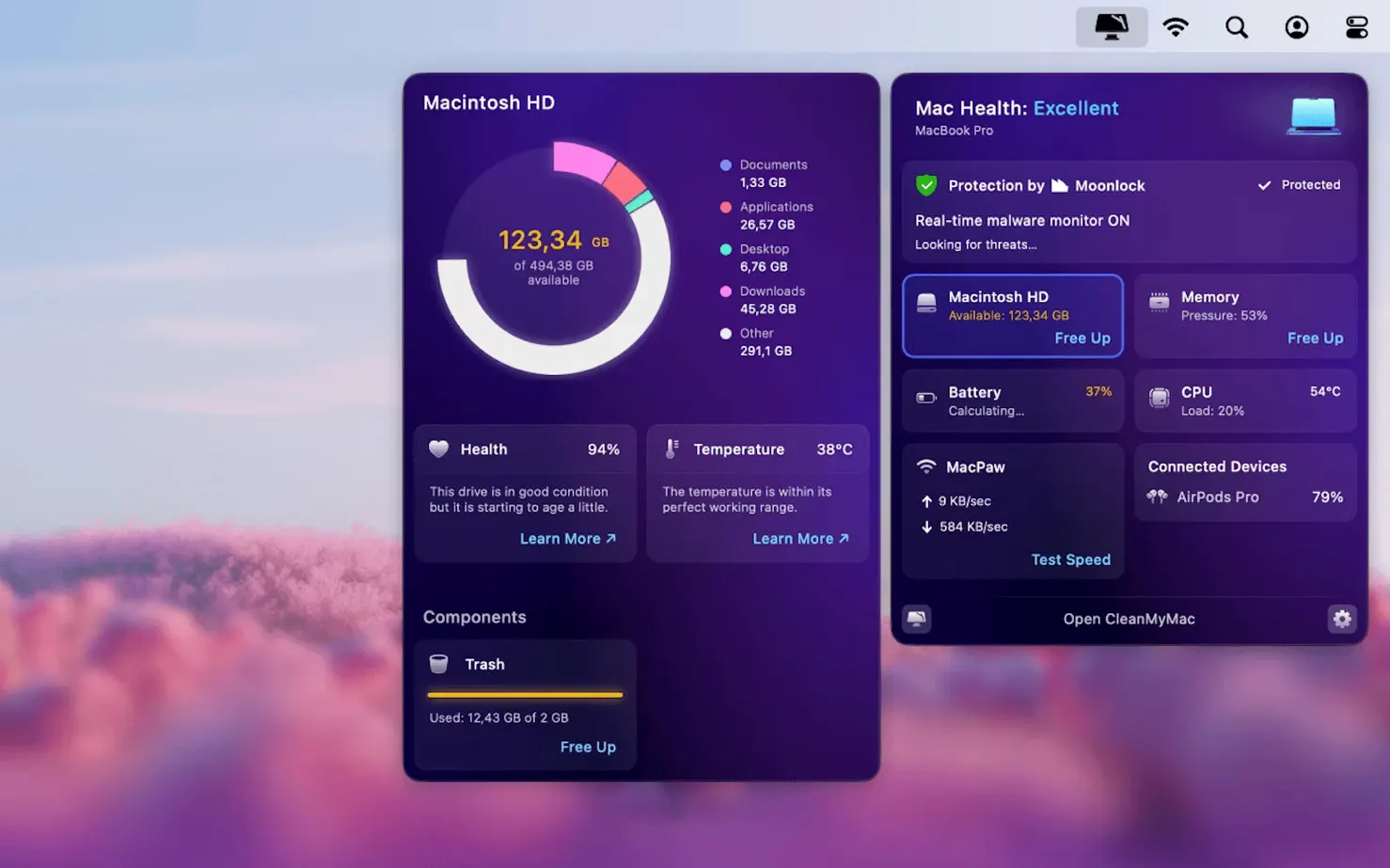
The app itself launches cold in about three seconds on an Apple Silicon Mac. A full system junk scan on a 512 GB drive finishes in under two minutes, with CPU usage spiking briefly during the scan phase and settling back to near-zero when idle. The background malware monitoring agent runs as com.macpaw.CleanMyMac.HealthMonitor and typically sits at 0.1% CPU and around 60 MB of RAM — negligible enough that you won't notice it during normal work.
Memory pressure stays low even during an active cleanup run. The Gmail scanning tool can take longer, depending on account size and Google's API rate limits, but the app keeps the operation asynchronous and doesn't block the rest of the interface. On Intel machines from 2018 or later, the same operations take about 30–40% longer, though the difference is in line with what you'd expect from the hardware gap. The app hasn't beachballed once across several cleaning sessions, and I've yet to see it leave behind orphaned temporary files in /private/var/folders the way some cleanup utilities do.
One note on the malware module: it updates its definitions silently and doesn't demand a full rescan after each update. That keeps the utility from turning into a resource hog that wants to re-index your drive every Tuesday morning.
- Added cleaning and management tools for Gmail attachments
- New email cleanup functionality for reducing mailbox size
- macOS 11 or later
- Apple Silicon or 64-bit Intel processor
Comments 0
Sign in or create an account to leave a comment.
No comments yet. A codec, a slice, a machine — they appear after moderation.