CloudMounter for macOS
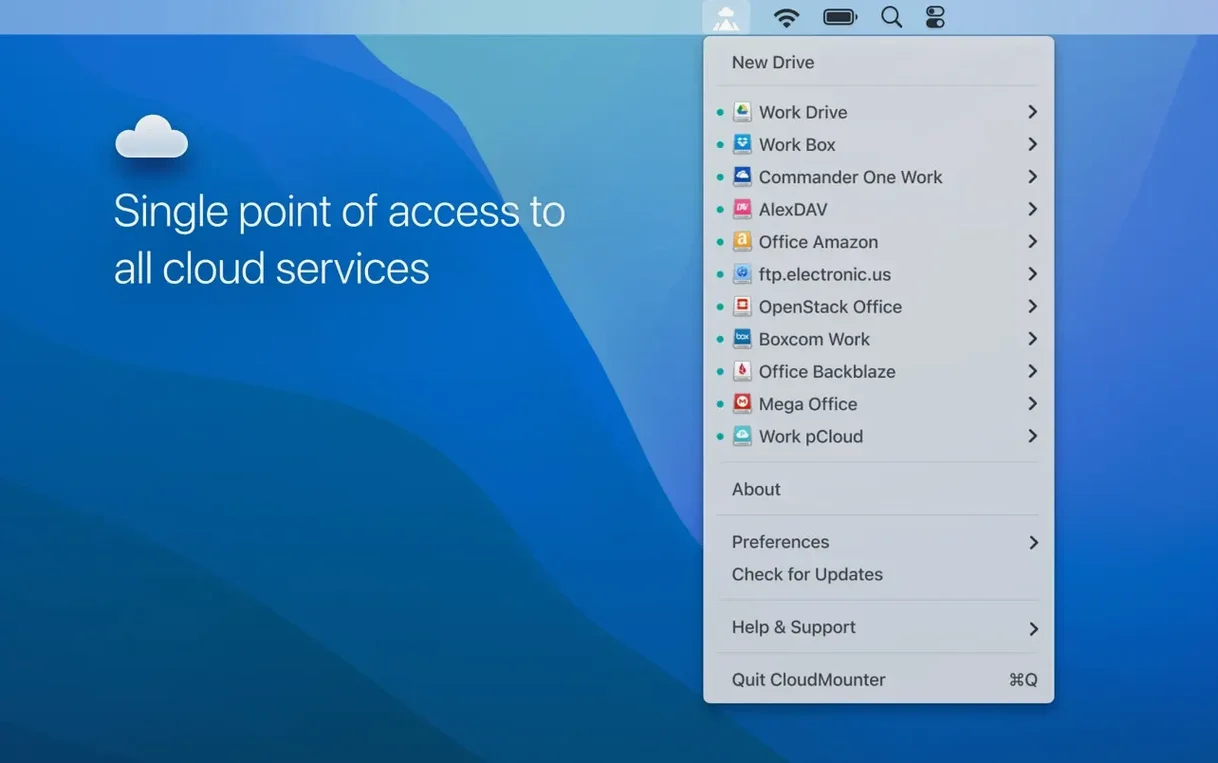
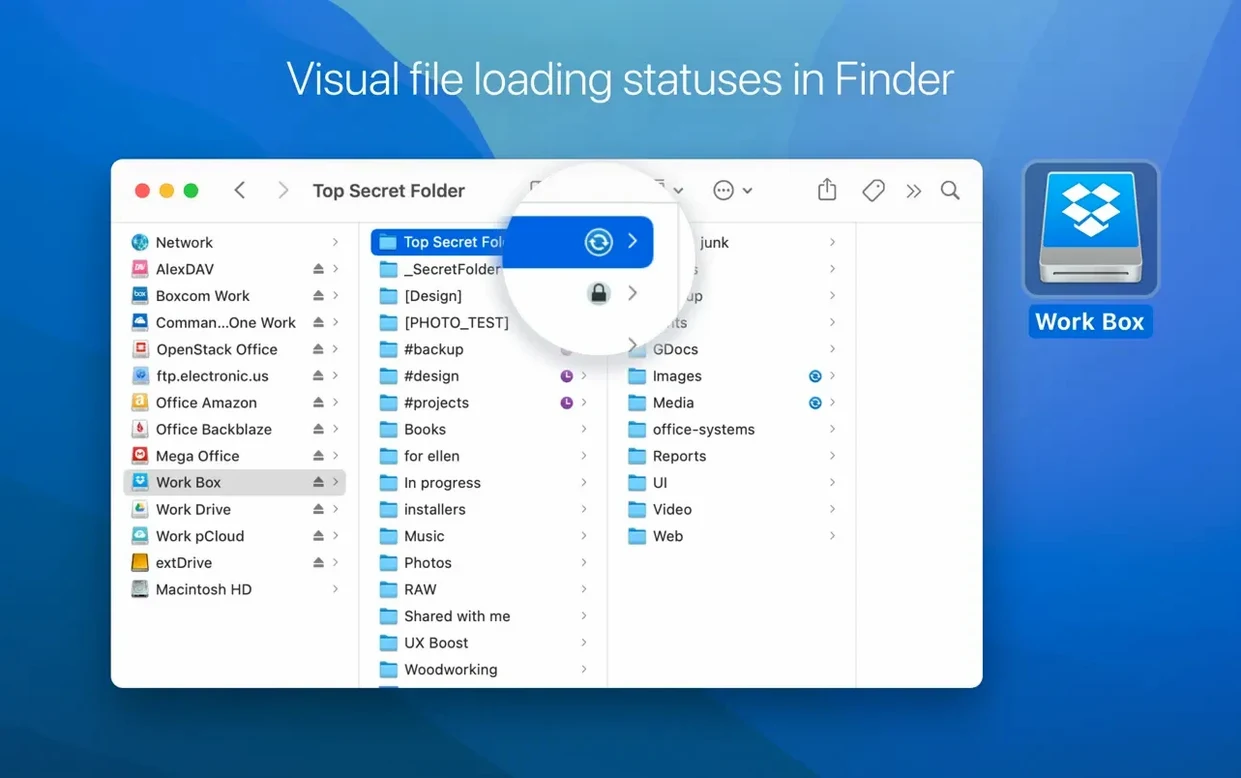
CloudMounter gives you a local mount point for cloud storage and remote servers, right in Finder.
What does a connection flow actually look like?
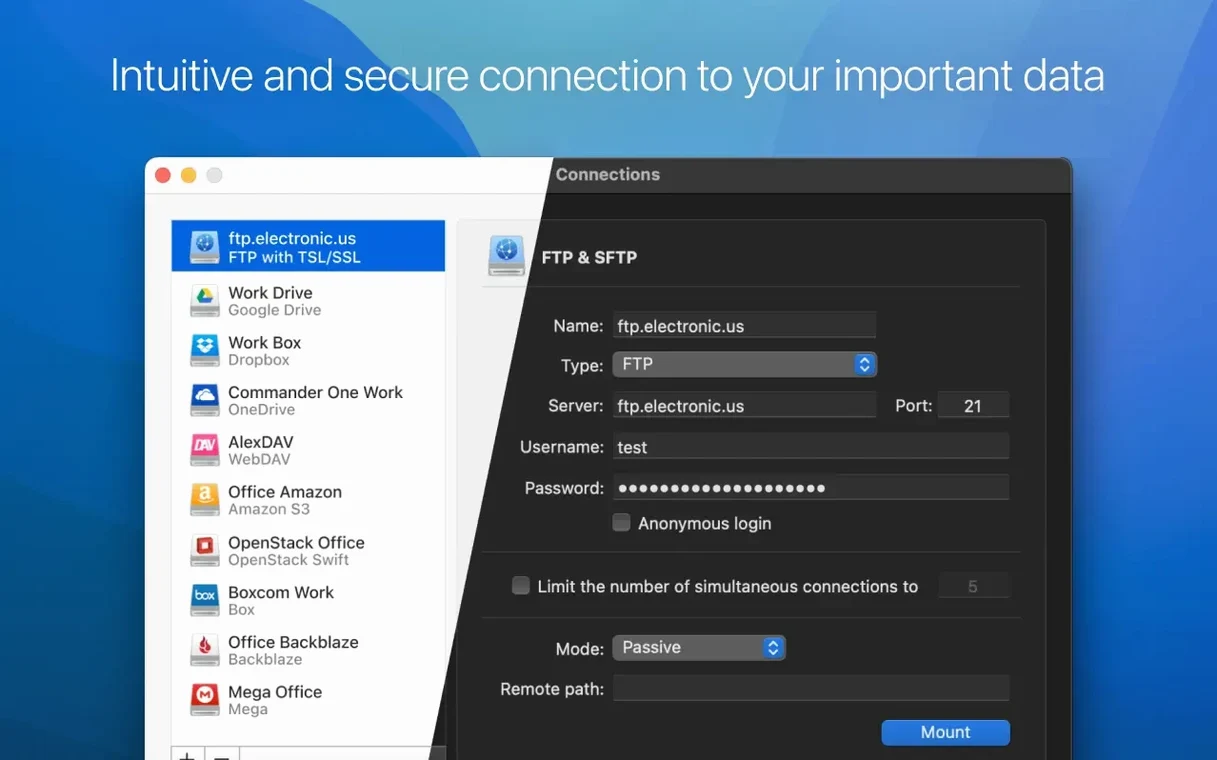
Say you need to grab a few client proofs from an SFTP server, touch them up, and re-upload them without leaving your working directories. You add the connection in CloudMounter, giving it the host key and your credentials. The server pops up as a volume in Finder. You open the files directly into an editor, save your changes, and the transfer progress shows as a small status icon in the app. There is no background sync cache filling up your disk—the file stays remote until you read or write it. The whole operation keeps your local storage untouched while the app handles the reads and writes over the wire.
Does it encrypt files before they leave your Mac?
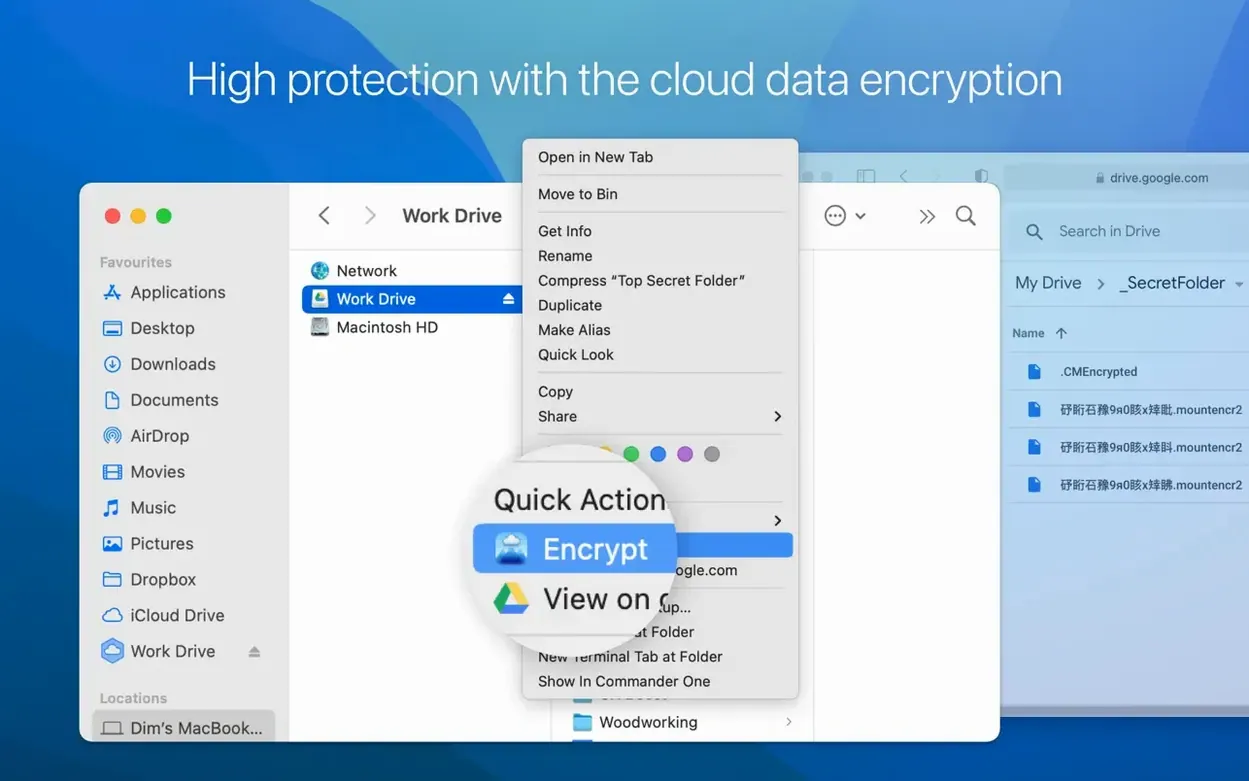
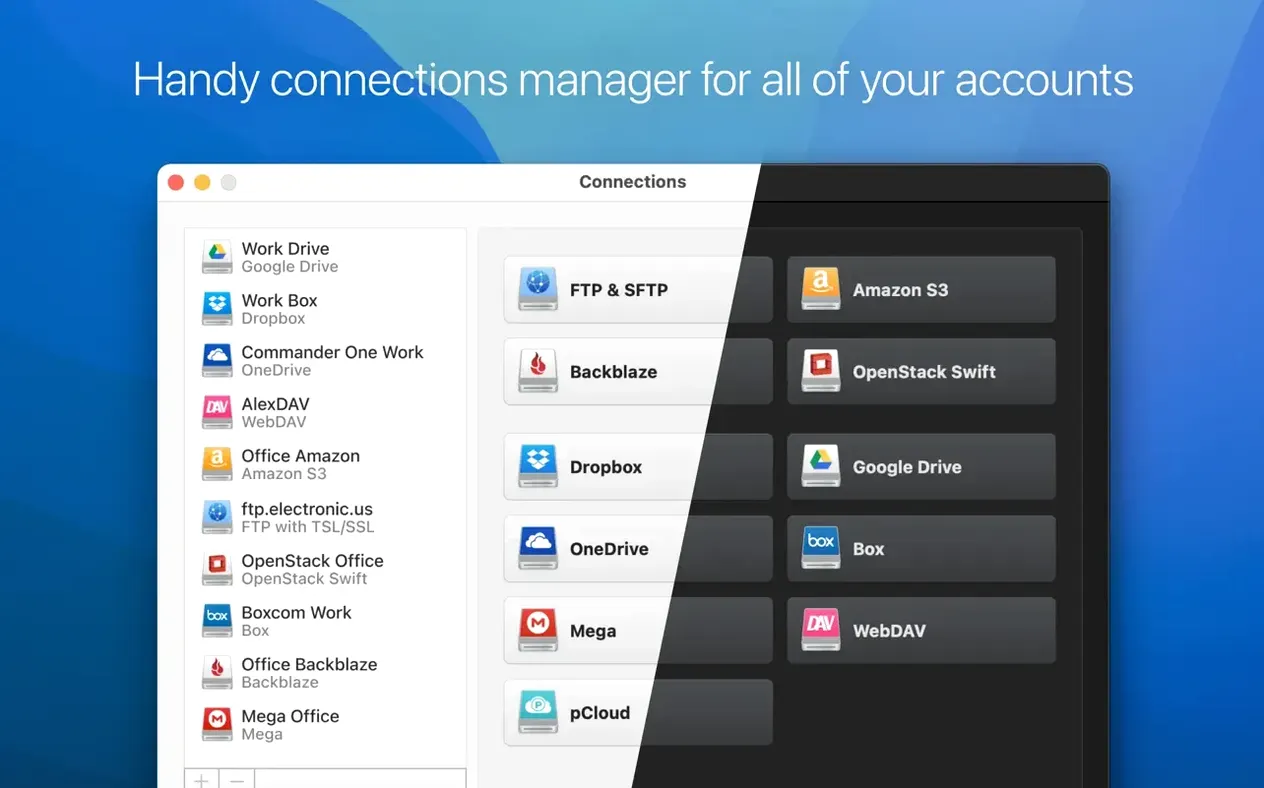
When you set up a connection to a service like Amazon S3 or Backblaze B2, you can enable AES-256 encryption inside CloudMounter before anything leaves your Mac. The encryption layer sits between the Finder representation and the actual network transfer, so the cloud provider only ever sees ciphertext. For someone juggling multiple accounts across different providers, the single-window manager view saves bouncing between browser tabs. It lists all your configured connections—Google Drive, OneDrive, MEGA, SFTP—and lets you mount or disconnect them with a click. Version 4.18 just landed with better handling for large uploads and a fix for SFTP download cancellation, so the progress reporting during big transfers is more predictable now.
Which settings should I change right away?
The default mount behavior works fine, but one setting makes a real difference: under Preferences → General, switch Auto-mount connections on app launch on if you want your drives ready before you even open a Finder window. The app waits for your Mac to finish waking from sleep before attaching volumes, so it does not flood you with connection errors on a Monday morning.
Next, head to Preferences → Cache and pick a custom folder on an external drive if your internal SSD is tight. CloudMounter never syncs full folder trees to disk, but it does hold recently accessed file fragments. Pointing the cache at a roomy volume keeps ~/Library/Application Support/CloudMounter from silently eating space you had not budgeted for. While you are there, set the cache size limit to something sensible—the default is generous, and dialing it back to 512 MB or 1 GB is fine if you work mostly with small documents.
Can you grab a share link straight from Finder?
Right-click any mounted volume on the desktop and you get a Copy link to file item. It generates a shareable URL for the selected file without opening a browser, which is faster than navigating the web interface of your cloud provider. The link respects the permissions you have set on that service, so it is not a public dump button—it just saves keystrokes.
The menu bar icon shows active transfers at a glance. Click it once to see upload and download speeds per connection; option-click it to pause all transfers at once. During a large batch move, hitting pause from the menu bar is quicker than opening the main window and stopping each connection individually. The same icon turns red when a mount fails, which means you notice a broken SFTP or WebDAV connection before you waste time hunting for a folder that is not actually there.
Keyboard-minded users should know that CloudMounter volumes respond to standard Finder shortcuts. ⌘V pastes files directly onto the remote drive, and the transfer dialog appears inside the app window, not as a floating pop-up that steals focus. The progress list stacks operations by connection, so you can see at a glance whether the holdup is your local network or a particular service throttling you.
Mountain Duck hides in the menu bar—where does CloudMounter live?
CloudMounter vs. Mountain Duck. Mountain Duck also mounts remote volumes in Finder, and it supports a similar roster of protocols. The difference lies in the interface philosophy. Mountain Duck lives almost entirely in the menu bar, while CloudMounter keeps a full window where you can see all connections, encryption status, and transfer queues in one place. If you prefer a visual dashboard over a minimal tray icon, CloudMounter feels more at home. Mountain Duck leans harder on the background-sync model for some services, whereas CloudMounter is stricter about keeping data off the local disk unless you explicitly open a file.
CloudMounter vs. ExpanDrive. ExpanDrive has been around forever and covers many of the same backends. It tends to treat every service as a generic network drive, while CloudMounter exposes service-specific options—like the encryption toggle for S3 and B2—closer to the surface. ExpanDrive also bundles a built-in sync engine for certain providers, which adds convenience but also adds background processes. CloudMounter stays leaner; it is a mount-then-forget tool, not a synchronization client masquerading as a drive mounter.
CloudMounter vs. built-in macOS options. Finder can connect to WebDAV and SMB servers natively through Go → Connect to Server, but it lacks encryption layering, transfer progress per file, and a unified view of multiple cloud accounts. If you only ever touch one SMB share on a local network, CloudMounter is overkill. The moment you juggle a Google Drive work account, a personal OneDrive, and an SFTP staging server in the same afternoon, the single-pane manager plus per-service encryption controls start to earn their place in your menu bar.
- Improved uploading of large files.
- Improved work with MEGA connections.
- Fixed download cancellation for files on SFTP connections.
- Fixed file downloading issues when cache volume is changed.
- Fixed displaying of storage usage information for online connections.
- macOS 10.14 or later
- Intel processor
$ man cloudmounter | grep -A2 "?"
Does CloudMounter sync files to my Mac?
No, it mounts remote storage directly without automatically downloading and syncing files to your local disk.
Comments 0
Sign in or create an account to leave a comment.
No comments yet. A codec, a slice, a machine — they appear after moderation.