Color Folder Pro for macOS
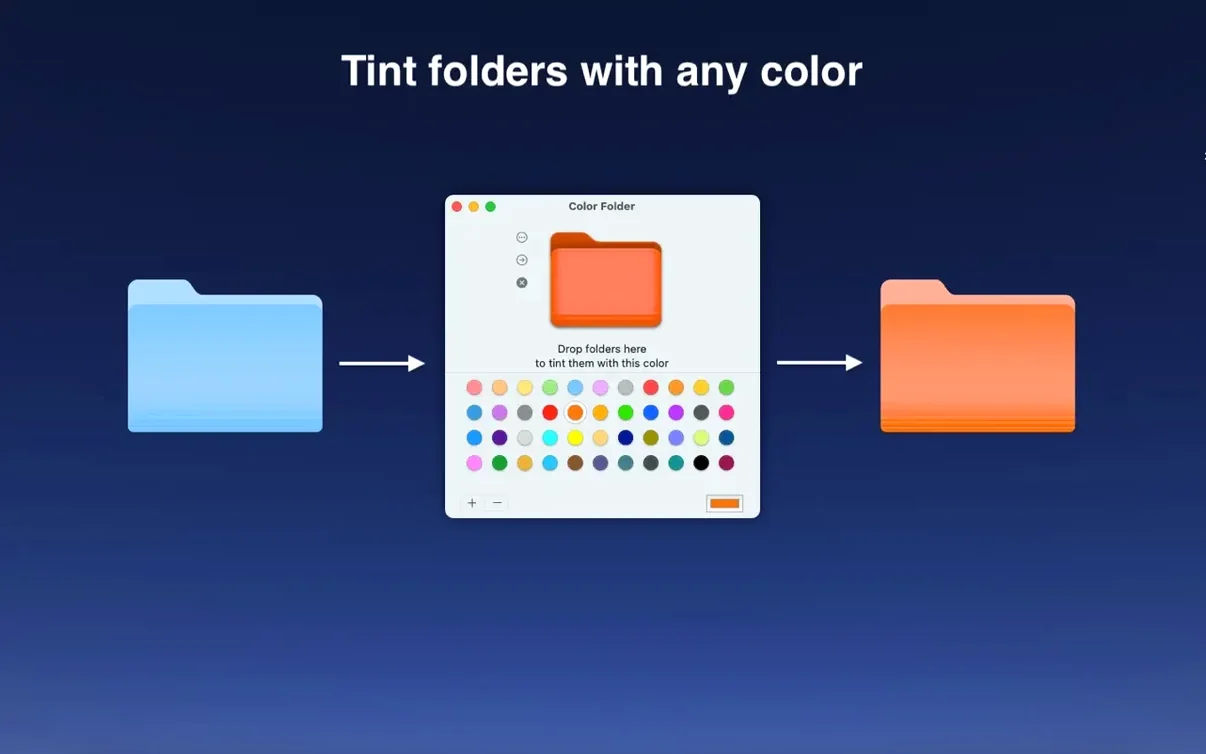
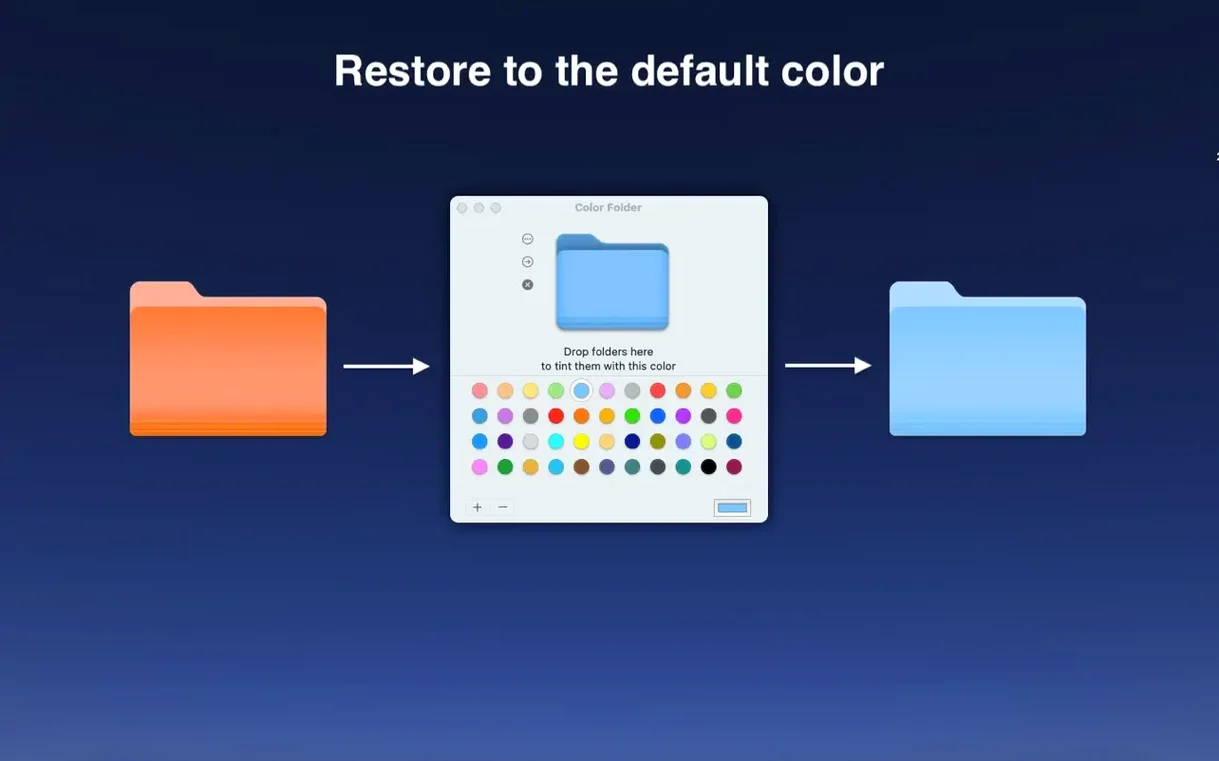
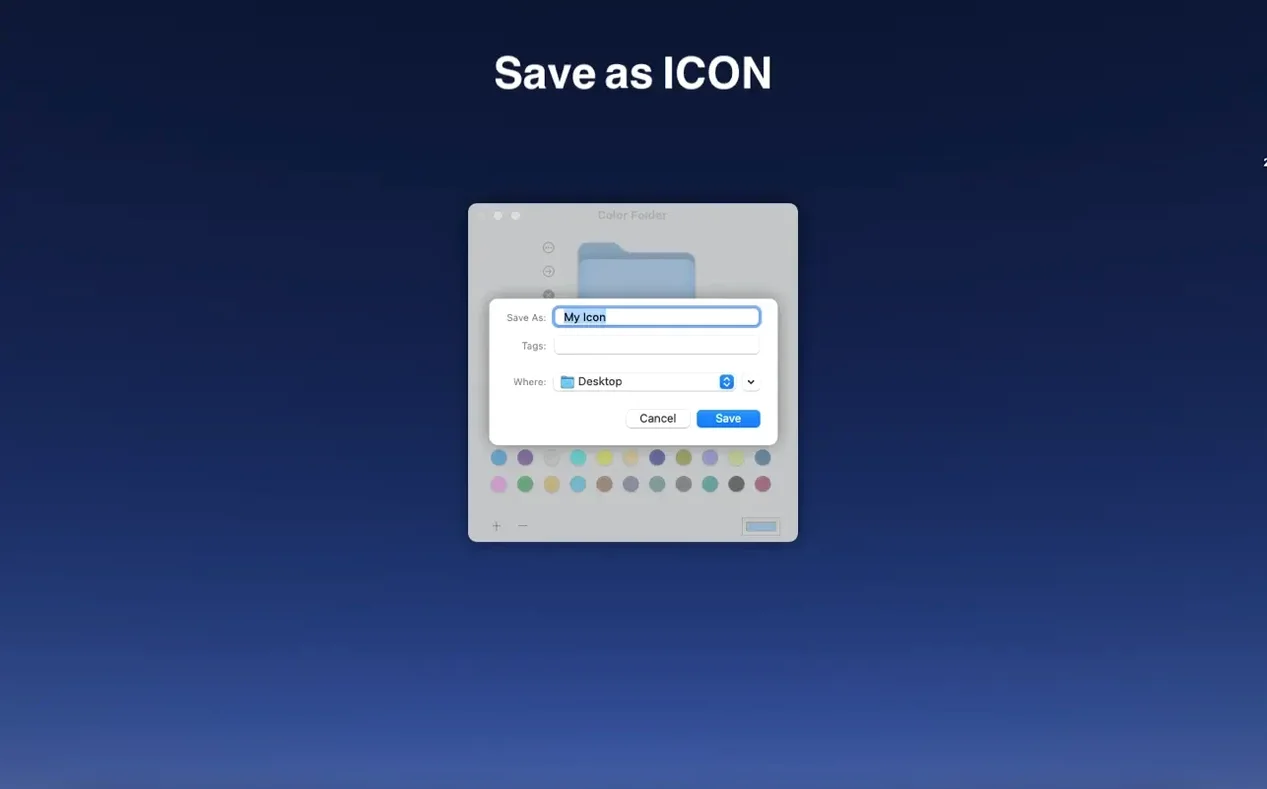
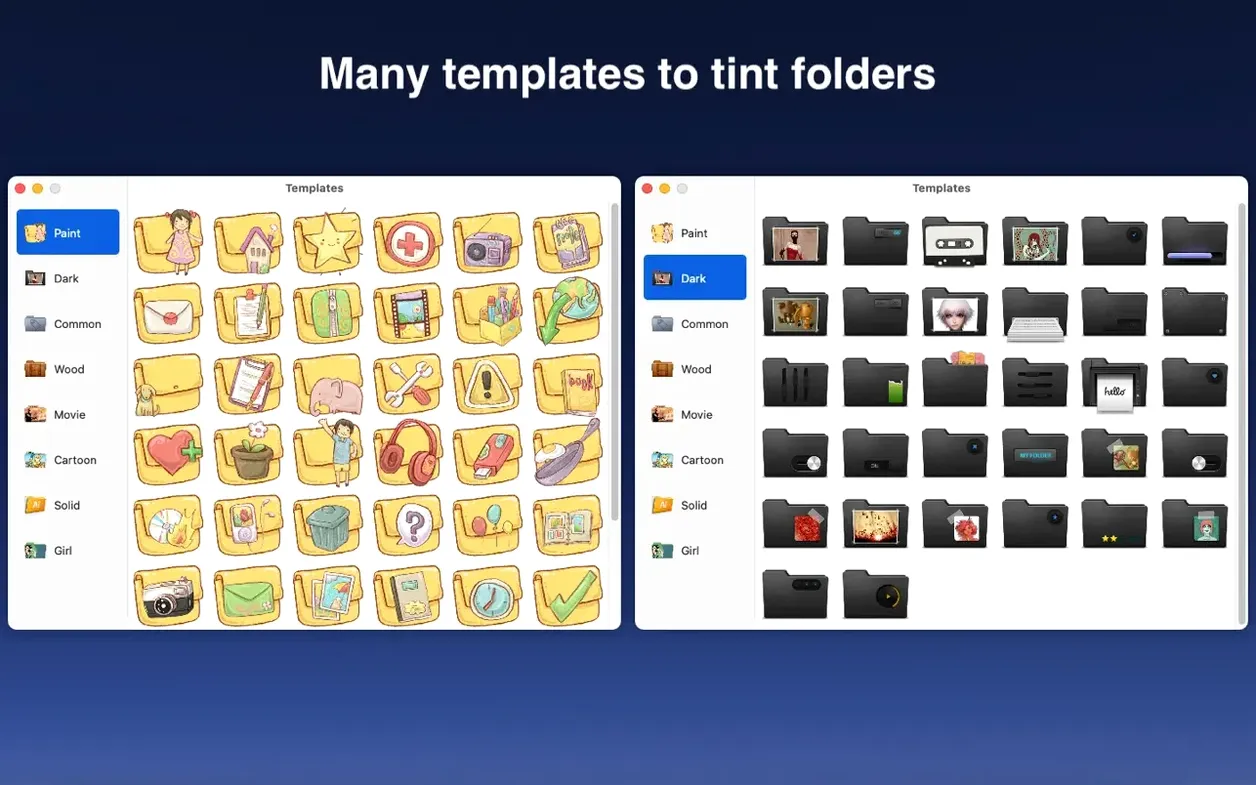
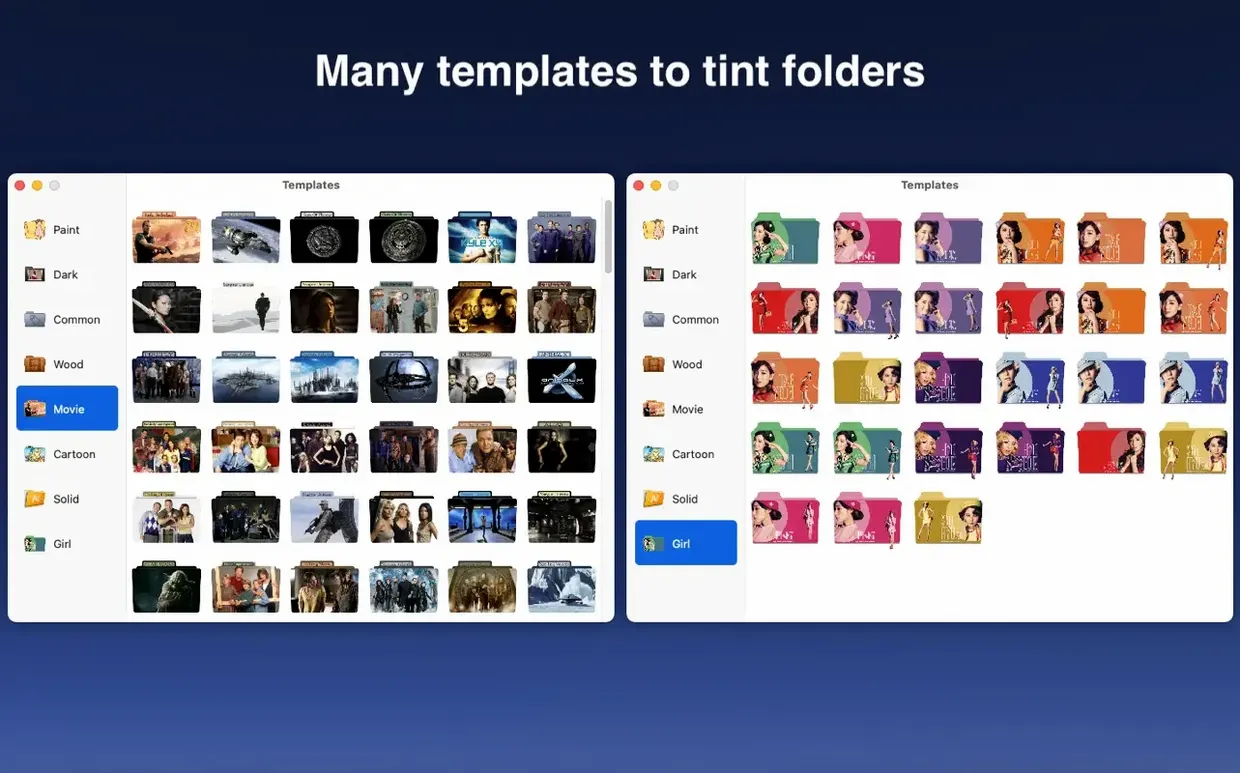
Version 5.5 runs on macOS 10.13 and later, including Apple Silicon and x86 64-bit Macs. The tool fits next to Finder's built-in label system: where tags add a colored dot beside a name, Color Folder Pro repaints the icon itself.
Folder tint — any color applied to the existing folder icon, without replacing its shape.
Custom icon — any image file set as the folder's icon, not just the default blue folder.
Universal binary — a single build that runs natively on both ARM and x86 64-bit Macs.
Icon cache — a system cache that may need a moment to refresh before a changed folder icon appears everywhere in Finder.
What questions do people ask before installing?
One question that comes up often is whether the app modifies folder permissions or touches file contents. It doesn't. Color Folder Pro writes a custom icon resource to the folder's metadata — the same mechanism Finder uses when you paste an image into a folder's Get Info panel. Files inside the folder are never read or altered.
Another common concern is Gatekeeper. The downloaded .dmg is signed for distribution outside the Mac App Store, so macOS will flag it on first launch. Running the bundled Open Gatekeeper friendly script opens Terminal, waits for you to press Enter, then clears the quarantine flag. It's a one-time step; after that the app launches normally from /Applications.
People also ask whether the changes survive macOS updates. The short answer: yes. Custom icons are stored as extended attributes on the folder itself, so a system update won't wipe them. The only exception is if you move folders to a volume formatted with a filesystem that doesn't support resource forks — exFAT or certain NAS shares, for instance. On APFS and HFS+ volumes, the icons stick.
Finally, there's the question of uninstalling. Dragging the app to the Trash removes the tool, but folders you've already customized keep their new icons. If you want to revert a folder, you can use the app to reset it before uninstalling, or open Finder's Get Info panel on the folder, select the icon thumbnail at the top, and press Delete.
Why start with just your everyday folders instead of everything at once?
Start with a small set of folders you see every day — Downloads, Documents, a couple of project directories. Changing a dozen folders at once is tempting, but assigning colors without a system can make things harder to scan later. A good first exercise: pick three to five colors that mean something to you (active projects in green, archived work in gray, reference material in blue) and apply them consistently.
If an icon doesn't update immediately in Finder, don't reapply it. The icon cache sometimes holds onto the old thumbnail for a few seconds, especially in column view. Switching to list view and back, or closing and reopening the parent folder window, usually forces a refresh. Restarting Finder is almost never necessary.
The template library — over 700 presets — is worth browsing early. Many of them combine a colored folder base with a small glyph: a camera, a music note, a gear. These work well for top-level folders where the icon alone tells you what's inside. Any image file dragged into the app becomes a folder icon too, so you can use album art for music folders or app icons for software projects. Stick to square images; Finder will stretch anything non-square into the icon grid.
If you're organizing a shared drive or a folder structure you'll hand off to someone else, the color-only presets tend to be more readable across different Macs than heavily stylized custom images. A bright red folder reads instantly; a tiny, detailed photo scaled to 64 points doesn't.
Which macOS version decides between the two almost identical apps?
The closest Mac App Store alternative does essentially the same job — folder tinting and custom icons — under a nearly identical name by the same developer, 万林 彭. That version requires macOS 11.5 or later, so if you're still on Mojave, Catalina, or older Big Sur builds, the direct-download version 5.5 with its macOS 10.13 floor is the one that works. Feature-wise they overlap heavily; the main difference is the distribution channel and the minimum OS version.
Outside the Color Folder family, Folder Colorizer takes a lighter approach. It focuses on color overlays — no built-in glyph library — and integrates as a Finder extension you trigger from the right-click menu. It's convenient if you only want quick color tints without managing a separate app window, but it doesn't offer the template collection or the bulk-apply workflow that Color Folder Pro provides when you need to recolor twenty folders at once.
Another utility worth mentioning is Img2icns, which is really a different tool: it converts images into .icns files. You can combine it with Finder's manual copy-paste-onto-icon method to achieve similar results, but it's a multi-step, one-folder-at-a-time process. Color Folder Pro folds that entire pipeline — image import, icon generation, and application — into a single drag or click. If you're customizing folders regularly, the integrated workflow saves real time.
- macOS 10.13 or later
- Apple Silicon and Intel 64-bit
- Interface languages: English, Simplified Chinese
Comments 0
Sign in or create an account to leave a comment.
No comments yet. A codec, a slice, a machine — they appear after moderation.