Clop Pro for macOS
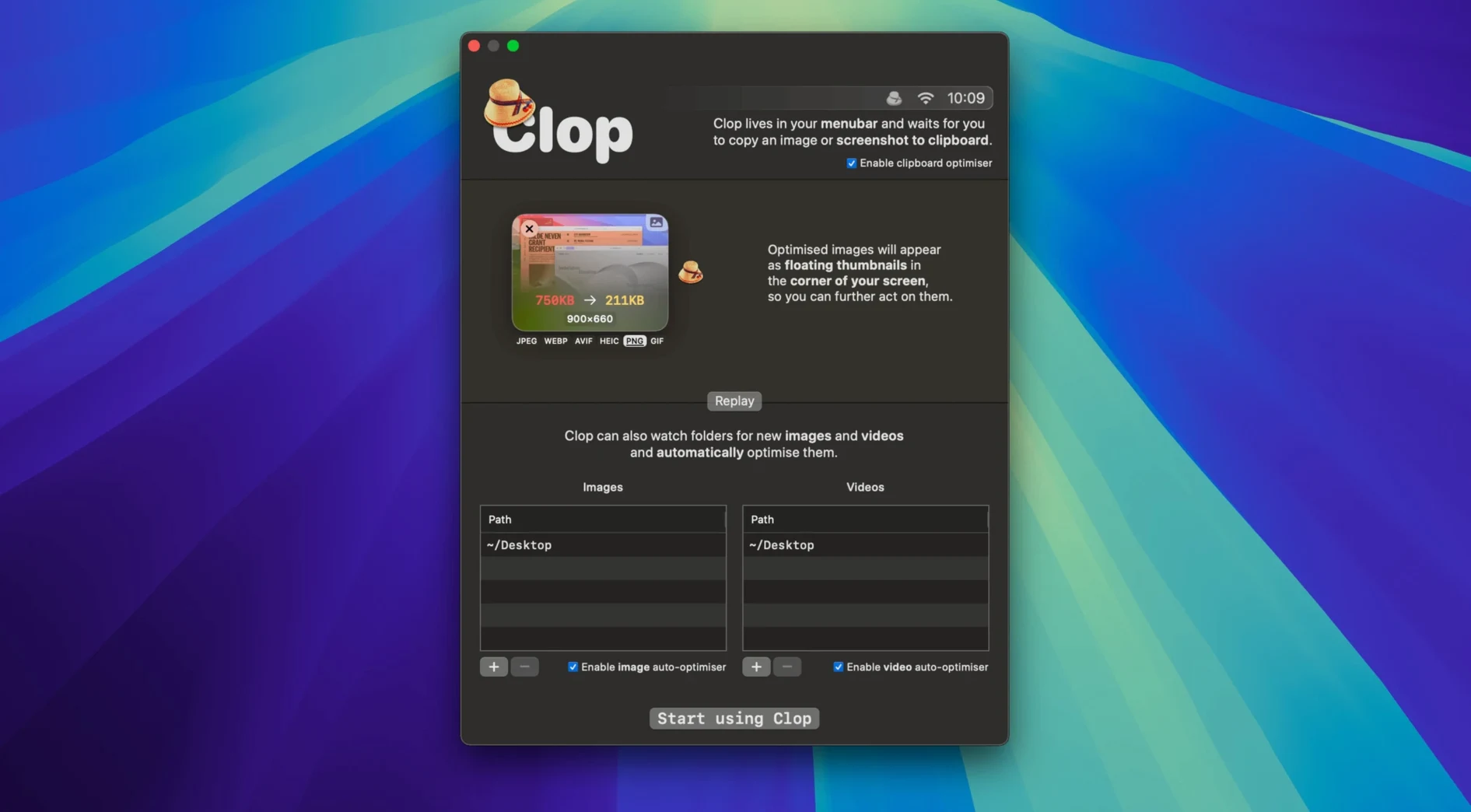
Screen-capture-heavy writers, developers who grab stack traces, and anyone who routinely copies large assets to paste elsewhere are the natural users for Clop Pro. The idea is simple: it watches the clipboard and optimizes images, videos, and PDFs the moment you copy them, so the file that ends up pasted or saved is already smaller.
Auto-optimizing screen recordings the moment you copy them
- Auto-optimizing screen recordings as soon as you copy them, without opening a compressor.
- Reducing the size of images, videos, and PDFs directly on the clipboard.
- Running natively on both Apple Silicon and Intel 64-bit Macs on macOS 13 and later.
Requires macOS 13 and changes clipboard contents on copy
- It only works on macOS 13 and later; older systems cannot run the current version.
- The interface is English-only, with no additional localizations.
- Optimization happens when files are copied, so it changes what is on your clipboard in real time.
Unlike ImageOptim or Permute, it optimizes directly from the clipboard
On macOS you usually reach for three kinds of shrinking tools: one-shot image compressors like ImageOptim, general media converters such as Permute, and clipboard-aware utilities. Clop Pro sits squarely in that third category and that changes the comparison right away.
ImageOptim strips metadata and runs PNG and JPEG through multiple compression passes. It does a more thorough job on still images than Clop Pro, but it only works on files you explicitly drop onto it — no clipboard awareness, no video or PDF handling. If your day is 80 % still-image export from Sketch or Figma, ImageOptim is the more surgical tool. If half your copies are screen recordings and annotated screenshots, Clop Pro saves you the round-trip through another app.
Permute converts between media formats with a clean drag-and-drop interface and strong automation through its own Finder extension. Its video output control is more granular — you can pick codecs, resolutions, frame-rate caps — while Clop Pro makes sensible choices for you and applies them at copy time. For a one-off ProRes-to-H.265 job, Permute gives you more knobs. For the twelfth screen grab of the afternoon that you just want to paste into a Notion page without ballooning the page size, Clop Pro wins on friction.
A less obvious neighbour is Hazel, which watches folders and runs rules. Hazel can optimize images and rename files automatically, but it works on disk, not on the clipboard. People who already use Hazel for watched folders sometimes try to mimic clipboard optimization by saving everything to a hot folder — it works, but it adds a step. Clop Pro collapses that into the copy action itself.
Video pipeline rewrite handles long 4K QuickTime recordings without stalling
Version 3.3 brought a rewrite of the video pipeline that makes screen recordings the clear priority. Earlier versions could stall briefly on a long 4K recording copied from QuickTime; the 3.3.3 build handles those with noticeable confidence — the progress indicator appears faster and the optimized file lands on the clipboard a beat sooner. That one change shifts the feel of the app from “helpful but you wait for it” to something you stop thinking about.
Finder actions received a quiet but meaningful update in the 3.3 cycle: you can now send files straight to Clop Pro from a right-click without opening the main window. The Shortcuts integration tightened as well, so chaining an optimization step into a larger automation — say, a shortcut that grabs a frame from a video, copies it, and has Clop Pro shrink it before passing it to a sharing action — became reliable where earlier builds could drop the optimized copy.
There is also a small behavioural change that users noticed: Clop Pro now respects the clipboard’s file type hints more carefully. Before 3.3, pasting an optimized screenshot into some Electron-based apps occasionally gave you a PNG when the target expected a TIFF. That edge case has been largely smoothed out.
Idles at 90–140 MB RAM, then climbs to 500 MB during 4K processing
On an Apple Silicon Mac the app sits around 90–140 MB of RAM during idle clipboard watching. When it processes a 20-second 4K screen recording, memory climbs to roughly 400–500 MB and CPU fans briefly across four to six efficiency cores; the whole spike lasts under ten seconds for most clips. Intel machines show a wider spread — a 2019 i9 MacBook Pro can peg two cores near 90 % for fifteen seconds on the same task — but the app never blocks the system, and you can keep typing or scrolling while optimization runs.
Stability in daily use comes down to one thing: Clop Pro rarely crashes. The 3.3.3 build has been out long enough that the common failure modes — a malformed PDF on the clipboard, a half-copied screen recording from a buggy tool — no longer take down the helper process. When something does go wrong, the app silently skips the clip and restores the original, so the worst you get is an unoptimized paste and a brief notification.
For anyone searching for Clop Pro Mac torrent to try the behaviour before committing, the disk footprint is modest: the app bundle weighs under 15 MB and the background helper adds no launch daemons or persistent kernel extensions. That keeps the uninstall path trivial — drag the app to Trash and it is gone, no scavenger hunt through /Library folders.
- macOS 13 or later
- Apple Silicon or Intel 64-bit processor
$ man clop-pro | grep -A2 "?"
What does Clop Pro actually optimize?
It handles images, videos, and PDFs that you copy to the clipboard, reducing file size on the fly.
Does it run natively on Apple Silicon Macs?
Yes, it supports both Apple Silicon and Intel 64-bit Macs as a universal binary.
Can it optimize a screen recording automatically?
Yes, auto-optimizing screen recordings is one of its core behaviors as soon as they hit the clipboard.
Comments 0
Sign in or create an account to leave a comment.
No comments yet. A codec, a slice, a machine — they appear after moderation.