Cocktail Sequoia Edition for macOS
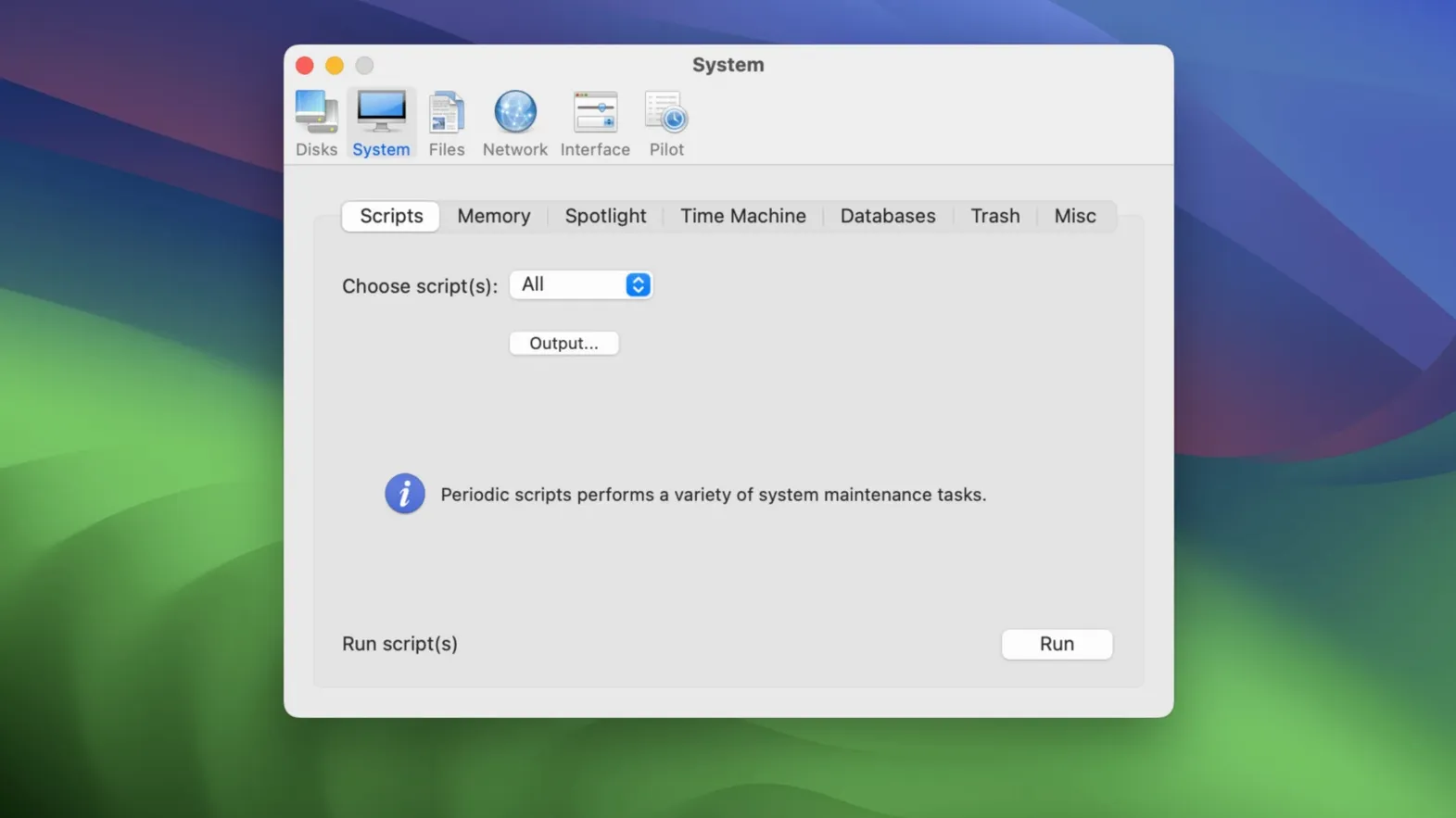
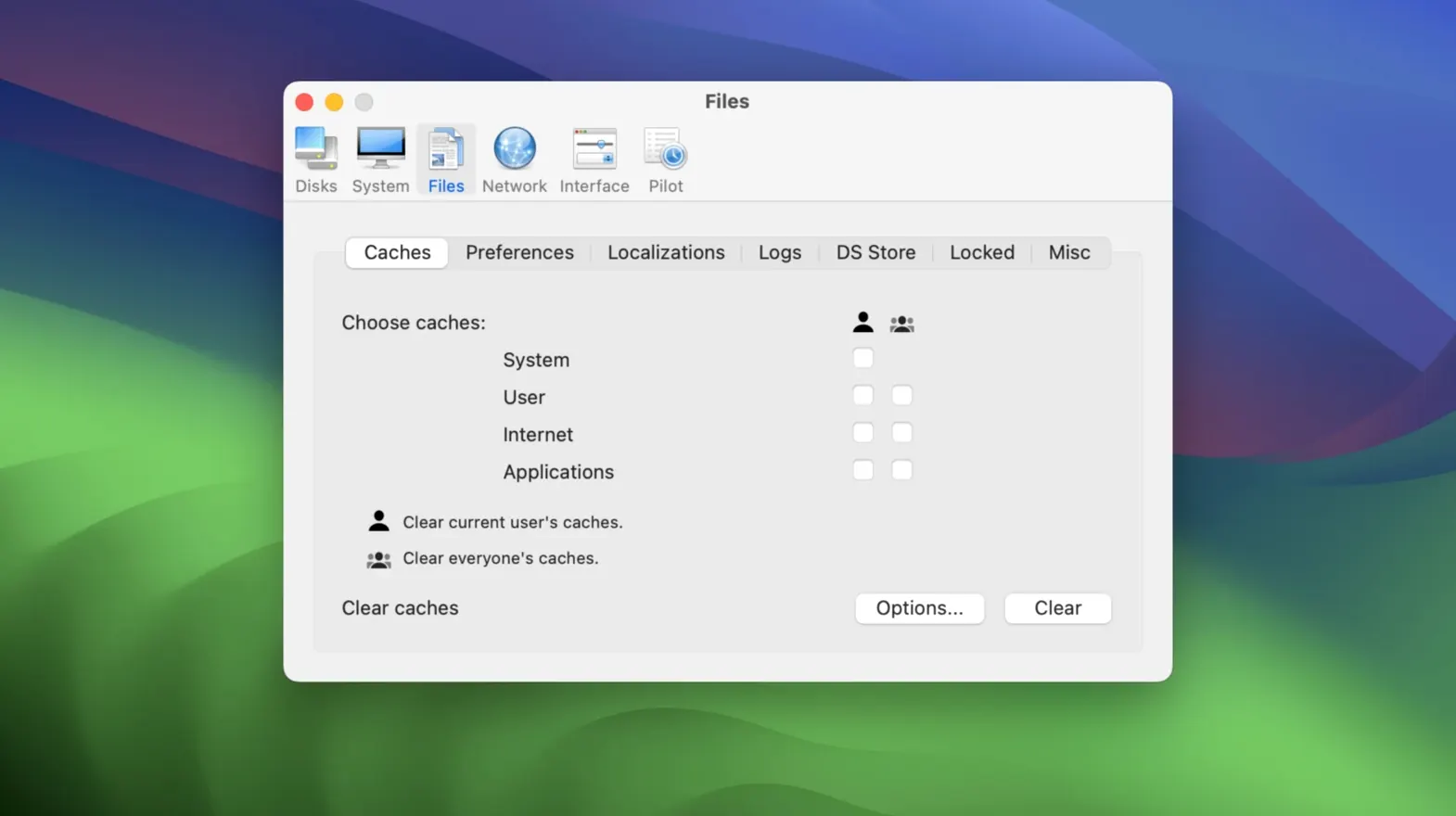
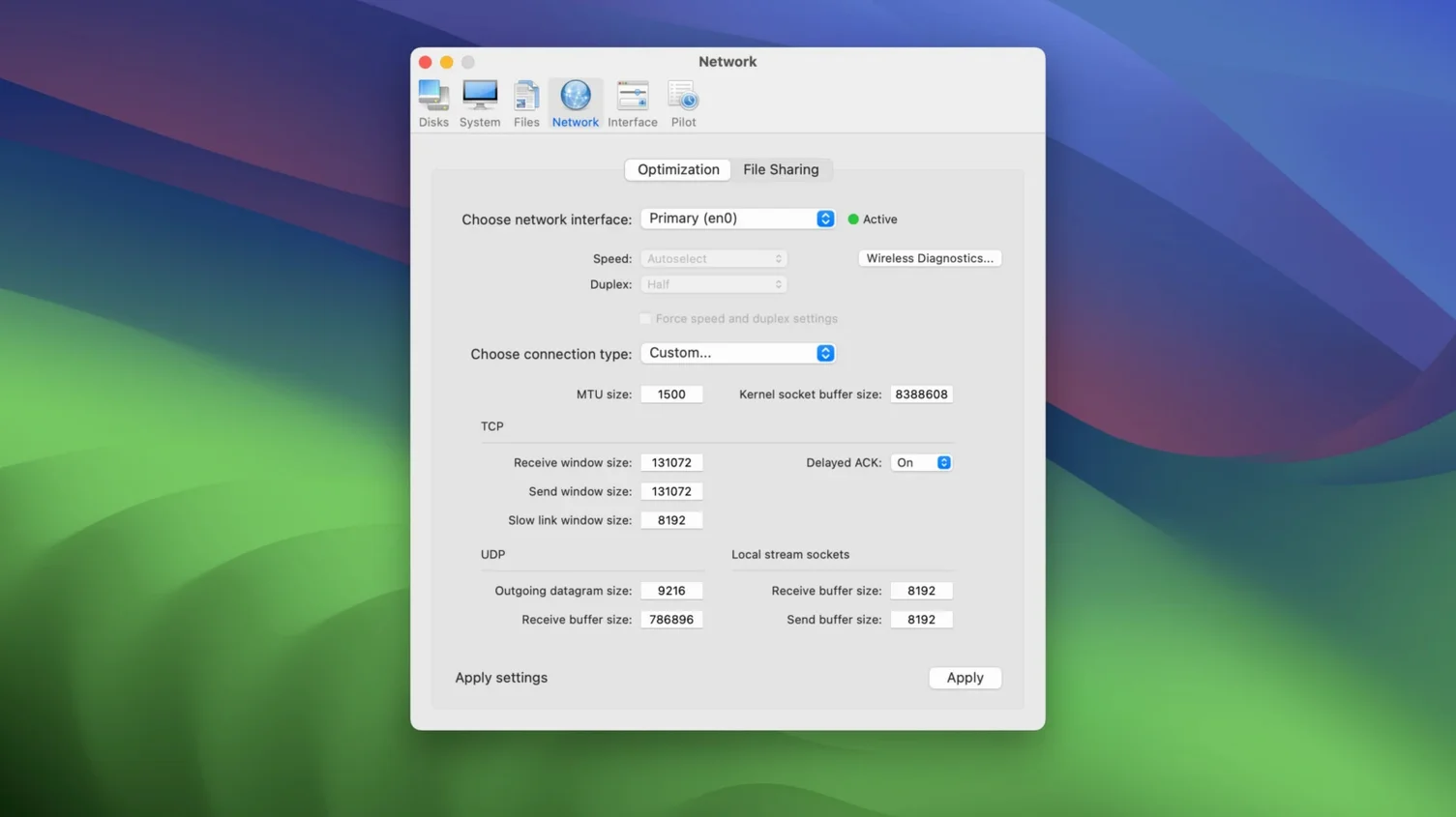
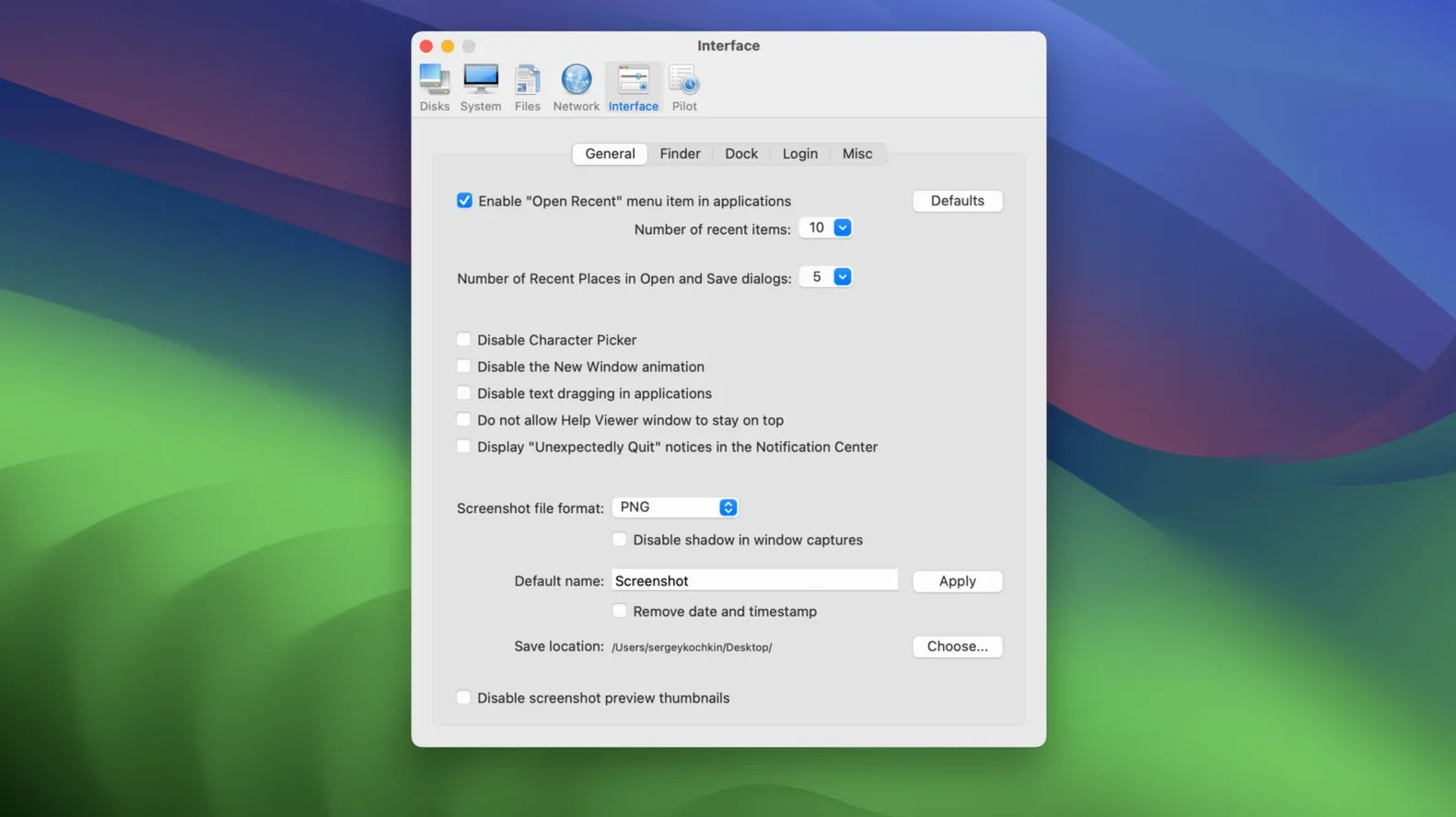
Cocktail Sequoia Edition runs on Intel-based Macs with macOS 15. It is a general-purpose maintenance utility built to handle three jobs: cleaning caches and logs, repairing disk permissions, and tweaking hidden system settings. If you are still on an older version of the operating system, the developer offers separate, frozen editions for those releases—this one is built specifically for Sequoia.
Which five categories house the practical tools?
The interface is simple and groups every function into five categories, so you are not hunting through a hundred checkboxes. It covers the practical end of system care, from flushing user and system caches to running maintenance scripts and tweaking network settings. The idea is not to bury you in options but to give a clear path to the daily tune-up tasks that keep a Mac responsive.
Who is Cocktail for?
This is a tool for people who want one place to handle the routine maintenance that macOS normally scatters across Terminal, hidden preference panes, and silent background schedules. It does not add daemons or real-time monitors—you open it, run what you need, and quit. The current build is version 18.7.1, and the whole interface is in English.
Why start in the Pilot tab?
I launch Cocktail, and the main window lands on the Disks category. First thing I do is switch to the Pilot tab—this is the automatic mode that strings together a sensible sequence of tasks without me ticking each box. I set it to run system cache cleanup, user cache cleanup, and rotate the log files, then click Run. A progress bar ticks through the operations while I grab coffee.
When it finishes, I jump over to System and check the maintenance scripts panel. macOS is supposed to run its daily, weekly, and monthly scripts on its own, but that only happens if the machine is awake at the traditional Unix times. Mine is often asleep, so I force them manually here. It takes maybe twenty seconds.
Next stop: the Network category. I flush the DNS cache and renew the DHCP lease because I was switching Wi-Fi networks earlier and Safari still felt sluggish. Two clicks, done. Finally, I head into Interface and toggle a few Finder settings—showing the path bar and displaying hidden files—things I want on this week but not permanently. I close the app. No background processes linger.
A freelance photographer's Sunday routine
Clara shoots tethered all week and dumps hundreds of RAW files onto her desktop. By Sunday, her Sequoia machine feels soft—folder previews lag, disk space reports are off, and Adobe Bridge takes forever to generate thumbnails. She does not want to dig through forums or memorise sudo periodic commands.
She opens Cocktail, hits the Pilot tab, and runs the full sweep: system caches, user caches, font caches, and log rotation. After that, she goes to Disks and runs the fsck-style file system check, then repairs disk permissions—something that used to matter more on older OS versions but still catches oddities when apps install helper tools. She also clears the Quick Look thumbnail cache because Bridge was showing stale previews. Twenty minutes later, the machine snaps through folder browsing again. She quits Cocktail and gets back to culling.
What should you run first to learn safely?
When you first install Cocktail, resist the urge to run every category at once. Here is a calmer path that avoids breaking anything while you learn what each section actually changes.
- Start with Pilot, but light. Configure it to clear user caches and rotate logs, nothing else. Watch the log output (it prints what it runs) so you learn the underlying commands. After a few days, add system caches to the mix.
- Leave the network tweaks alone until you need them. The Network panel can set socket buffer sizes and change TCP delayed-ack behaviour. If your internet works fine, do not touch these yet. The safe, everyday tools are DNS cache flushing and the firewall log viewer.
- Check what the maintenance scripts actually ran. Under System, after you force the daily or weekly scripts, open
/var/log/in Finder (using Cocktail's hidden-files toggle) and peek at the output files. It is a good habit—you will notice if a job keeps failing quietly. - Disk permissions repair is slow for a reason. On a large boot volume it can take several minutes. Run it when you have time, not right before a deadline, and only after a major software install or a system update. Doing it every day is overkill.
- Make a note of what you tweak in Interface. Cocktail exposes settings that normally live in
defaults writecommands. If you later run a macOS point update, some may revert. Keep a short text file of which Finder and Dock tweaks you turned on, so you can reapply them without guesswork.
Where does it draw the line against OnyX?
Cocktail overlaps most with OnyX, the free utility from Titanium Software. Both tackle the same trio of cleaning, maintenance, and hidden settings. OnyX tends to expose even more granular flags—some that can genuinely confuse a new user—while Cocktail keeps the surface cleaner. OnyX is built for multiple macOS versions in one download, whereas Cocktail is a single-edition binary tied to Sequoia. If you want a no-cost tool that does 90% of the same work, OnyX is the closest match.
CleanMyMac comes from a different angle. It is a commercial suite with a real-time malware scanner, a large-file finder, and an uninstaller. Where Cocktail runs targeted UNIX maintenance and then exits, CleanMyMac stays resident and monitors system health. That makes CleanMyMac broader but heavier—it adds daemons and a menu bar app. Cocktail is lighter on resources and narrower in scope: it does not hunt malware, shred files, or warn you about heavy memory usage.
TinkerTool focuses entirely on the hidden preferences side of Cocktail's feature set. It does not clean caches, it does not run periodic scripts, and it has no Pilot mode. What TinkerTool offers is an enormous list of individual system and application defaults, presented in a straightforward list UI. If your only need is tweaking Dock behaviour, font smoothing, or animation speeds, TinkerTool is a smaller, single-purpose tool. Cocktail wraps those same kinds of plist edits into a broader maintenance workflow—useful if you want one app for both the cleanup and the customisation.
- macOS 15 or later
- Intel processor
$ man cocktail-sequoia-edition | grep -A2 "?"
Which macOS versions does Cocktail Sequoia Edition support?
It is built for macOS 15 on Intel Macs. If you are running an older version of macOS, the developer provides separate editions for those releases on their site.
Comments 0
Sign in or create an account to leave a comment.
No comments yet. A codec, a slice, a machine — they appear after moderation.