Commander One PRO for macOS
Developers, system admins, and anyone who wrestles with deeply nested folders eventually look for a dual-pane alternative to Finder. Commander One PRO is that tool, built in Swift for macOS and designed to make copying, moving, and comparing files across directories feel direct.
Manage local files across two panes
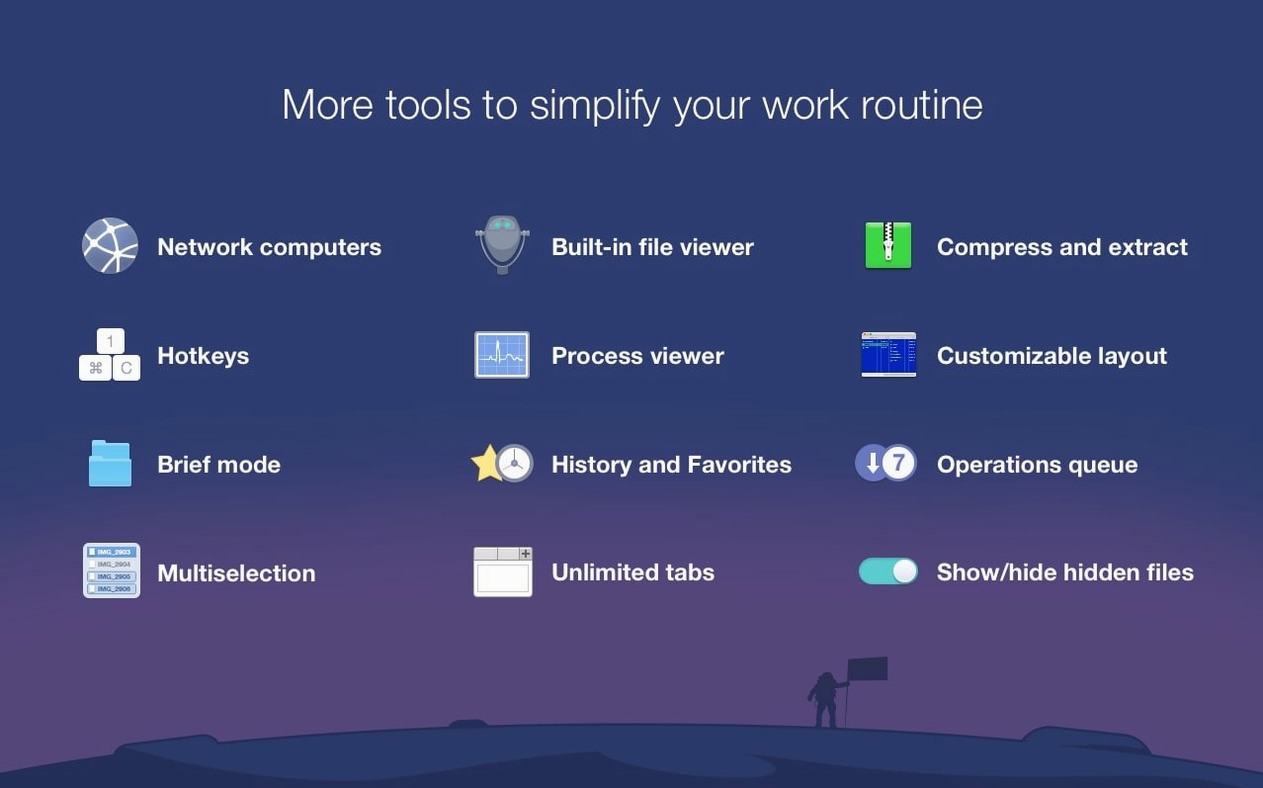
Instead of tabbing between Finder windows, you see two directories side-by-side. Brief Mode compacts the file list so you can manage a large batch of files at once, and the built-in archive handling lets you unpack .zip, .rar, .7z, .tbz, and .tgz without a separate utility.
Connect to cloud and network servers
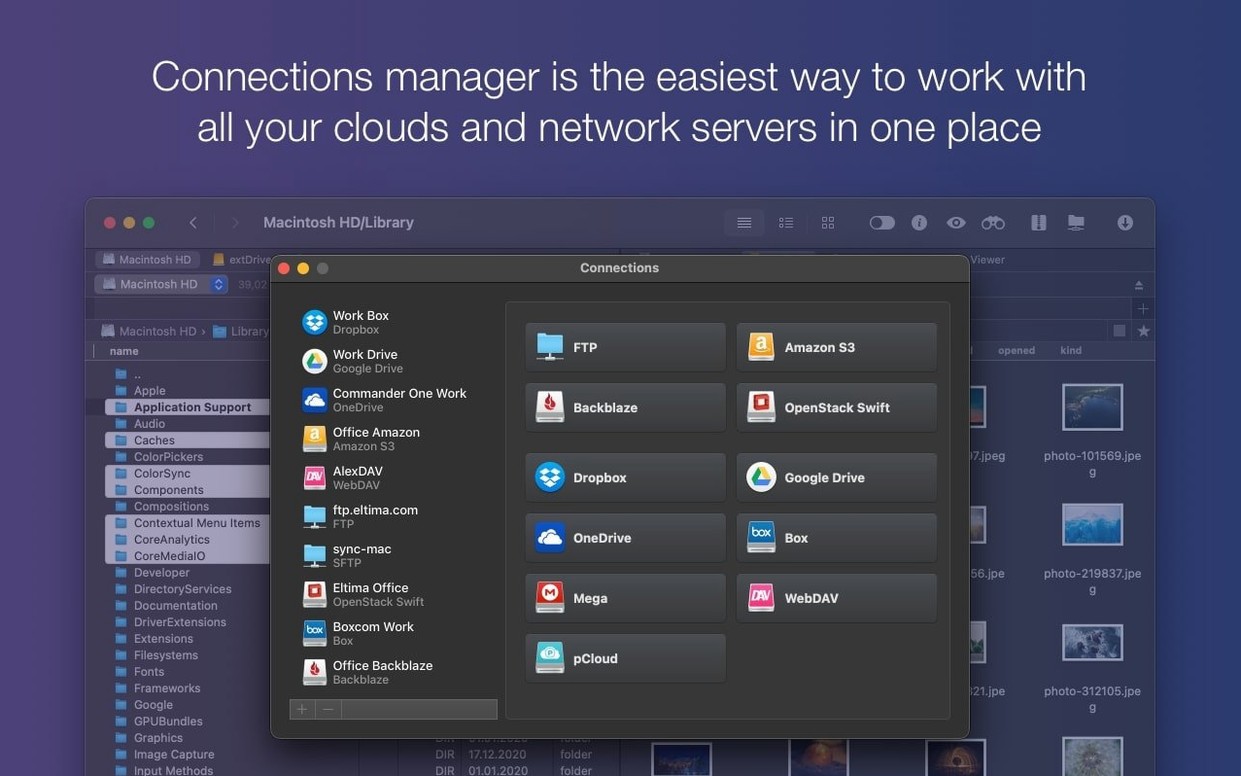
The app mounts cloud storage and remote servers directly into its pane so you can treat them like local folders. This puts FTP, SFTP, and cloud accounts right next to your home directory for straightforward transfers.
Monitor running processes
Commander One PRO includes a Process Viewer that lists active processes on your Mac, giving you a quick window into what’s running without opening Activity Monitor.
Open Preferences early to fix the defaults that slow you down
Out of the box, Commander One PRO works, but a few defaults slow you down if you leave them untouched. Open Preferences early — the app becomes much more comfortable after a handful of tweaks.
- Switch the default file operation queue to background. Under General, enable background operations. A large copy to an S3 bucket won’t lock the interface while it runs.
- Turn off confirmation dialogs for drag-and-drop. By default the app asks before every move or copy between panes. Uncheck the confirmation boxes if you trust your own fingers — it removes a surprising amount of friction.
- Set the editor and viewer. The built-in text viewer is fine for quick looks, but pointing the external editor to something like Nova or VS Code means
F4opens files where you actually edit them. - Flick on “Show hidden files” and keep it on. The toolbar toggle is convenient, but if you manage
.gitdirectories or dotfiles regularly, having it on by default saves a click every session. - Adjust the hotkeys for Brief Mode. The default is
Cmd+1throughCmd+5for different view densities. Pick the two you actually use and map them to something memorable — Brief Mode is too useful to hunt through menus for.
A sysadmin’s morning in two panes
Picture someone managing a handful of Linux boxes from a MacBook. A release just shipped and logs need collecting before the stand-up. Commander One PRO is already open with an SFTP connection to the staging server in the left pane and the local ~/releases/4.2/logs folder in the right.
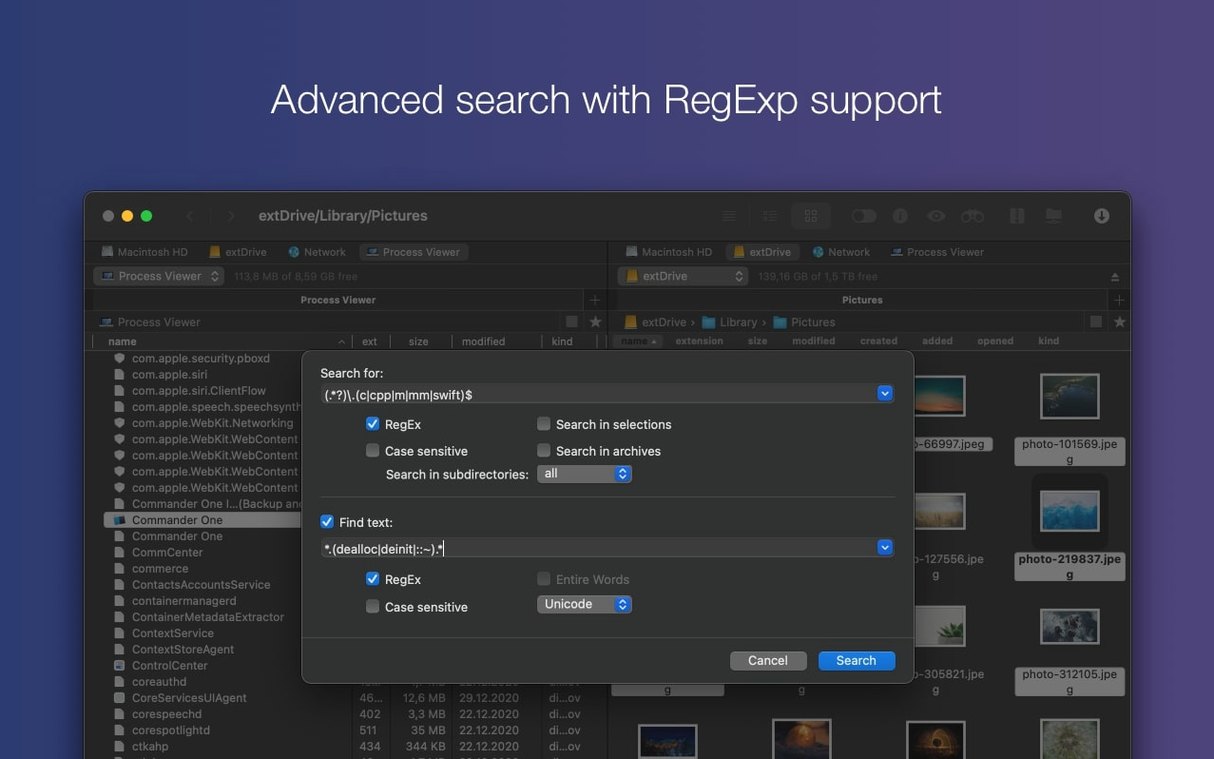
A quick Cmd+F with the regex pattern error|critical|timeout filters the remote log directory down to six files. They select those, tap F5, and the files copy across while they switch tabs to an S3 connection in the left pane — the nightly database backup needs pulling down before the analytics team arrives. The queue panel shows the log transfer finished; the S3 download runs in the background while they open the Process Viewer to check whether a local redis instance they forgot about is still eating memory. It is. They kill it from the right-click menu without opening a terminal. The whole sequence takes under four minutes and no Finder window was ever involved.
That’s the workflow Commander One PRO is built for: jumping between protocols and local storage without breaking stride. The regex search and the queue manager do the heavy lifting; the dual panes keep the context visible.
A few rough edges trip up new users but are easy to fix
A few rough edges trip up new users. They’re easy to fix once you know what’s happening.
Gatekeeper blocks the app after mounting the .dmg
macOS flags software distributed outside the App Store. After you drag the app into /Applications, the first launch might show a warning that it can’t be opened. The install instructions cover this: open Terminal, type the command shown in the installer window, and press Enter. That bypasses Gatekeeper for this app specifically. If you skip the Terminal step, right-click the app icon, choose Open, and confirm — that works too, but the Terminal method is faster for repeat installations.
Cloud connections don’t appear in the connection list
Commander One PRO needs permission to access cloud accounts through macOS system services. If you add a Google Drive or Dropbox connection and nothing shows up, check System Settings → Privacy & Security → Files and Folders (or Full Disk Access, depending on the macOS version) and make sure Commander One is ticked. A relaunch after granting permissions usually sorts it.
Brief Mode feels cramped on smaller screens
Brief Mode compacts rows, which helps on a 27-inch display but turns into a tight spreadsheet on a 13-inch MacBook. Instead of squinting, drop the font size in Preferences → Fonts by one point and switch to the medium Brief Mode view rather than the densest one. The difference is night and day on a laptop panel.
MTP devices mount but folders load slowly
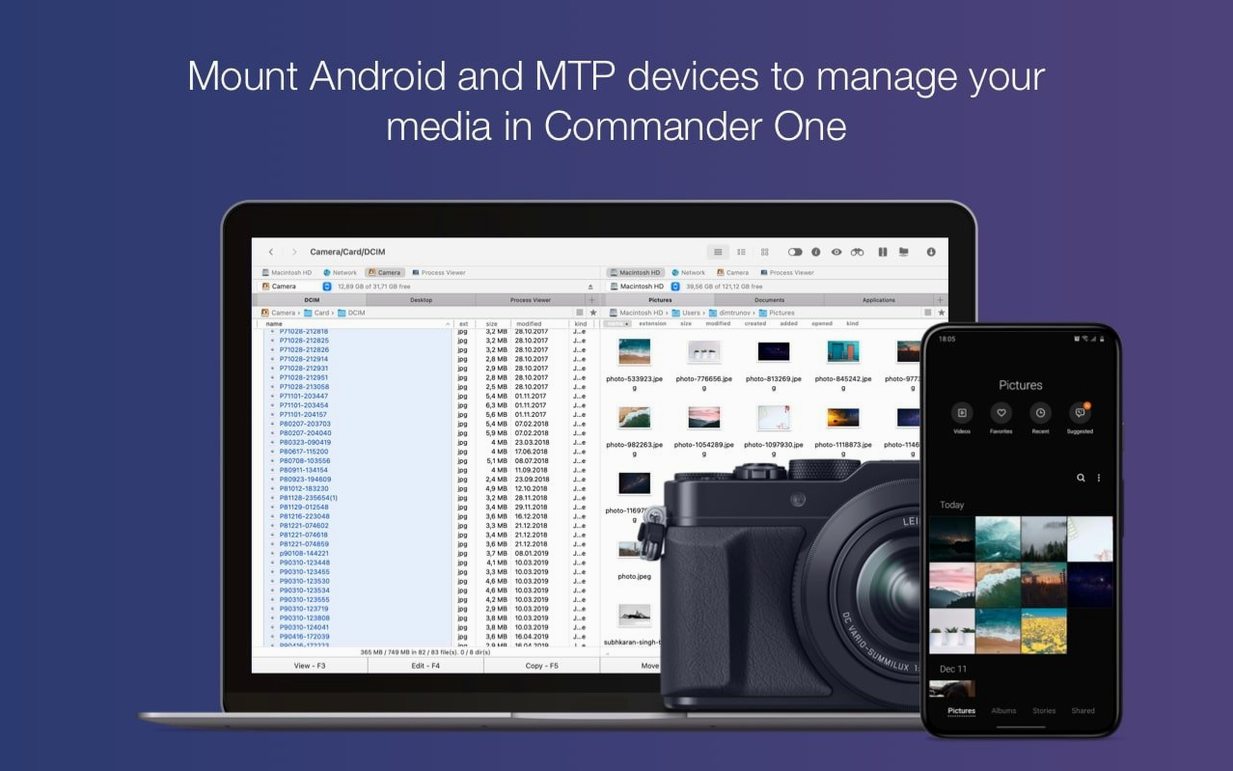
When you plug in an Android phone or an older MTP device, the initial folder scan can lag — especially if the device has thousands of images. Let the first scan finish; subsequent browsing is snappier because the app caches the directory tree. If it still drags, unmount the device in Commander One, reconnect it, and avoid switching away from the pane while it populates.
Which dual-pane manager suits your connections and search style
Commander One PRO isn’t the only dual-pane file manager on macOS, and which one fits depends on what you connect to and how you search. Here’s how it sits next to three others people commonly compare.
ForkLift shares the dual-pane layout and the SFTP/FTP feature set, and its sync and batch-rename tools are more polished. Where Commander One PRO pulls ahead is cloud integration — Amazon S3 and Google Drive mount as first-class panes rather than through a separate connection manager buried in a sidebar. ForkLift’s search doesn’t do regex; if you filter filenames with patterns regularly, Commander One’s regex search is the deciding feature.
Marta is a free, lightweight dual-pane file manager written entirely in Swift, aimed at developers who want speed and keyboard-driven navigation. It’s fast and minimal. But Marta has no FTP, no cloud connections, and no archive unpacking beyond .zip. It’s a fantastic local file manager for people who live in the terminal; Commander One PRO is for when you need remote servers, cloud buckets, and archive formats in the same window.
Path Finder is the feature-packed veteran — it does almost everything, from module-based panels to a Drop Stack for collecting files from different locations. Its interface is heavier, and updates have historically lagged behind macOS releases. Commander One PRO feels lighter on its feet, partly because it’s written in Swift and partly because it doesn’t try to replace every macOS subsystem. Path Finder wins on sheer customization; Commander One wins on launch speed and cloud protocol support without extra plugins.
If you’re searching for a commander one pro crack or a commander one pro full mac build, you’ll find the binary floating around — the 3.18.0 version handles both Intel and Apple Silicon Macs cleanly, and the TNT release includes the PRO feature set unlocked. The commander one pro mac package lands as a .dmg that drags into /Applications the familiar way.
- Improved compatibility with macOS 27.
- Fixed drag and drop of files on macOS 27.
- Fixed handling of some hotkeys when using non-English keyboard layouts.
- macOS 10.13 or later
- Apple Silicon and Intel 64-bit
$ man commander-one-pro | grep -A2 "?"
What archive formats can Commander One PRO unpack?
It can unpack ZIP, RAR, TBZ, TGZ, and 7z archives directly within the file panes.
Can I use Commander One PRO on an Intel Mac?
Yes, the app runs natively on both Intel and Apple Silicon Macs.
Does it offer a way to see running processes?
Yes, it includes a Process Viewer that shows active processes on your Mac.
Comments 0
Sign in or create an account to leave a comment.
No comments yet. A codec, a slice, a machine — they appear after moderation.