CorelCAD for macOS
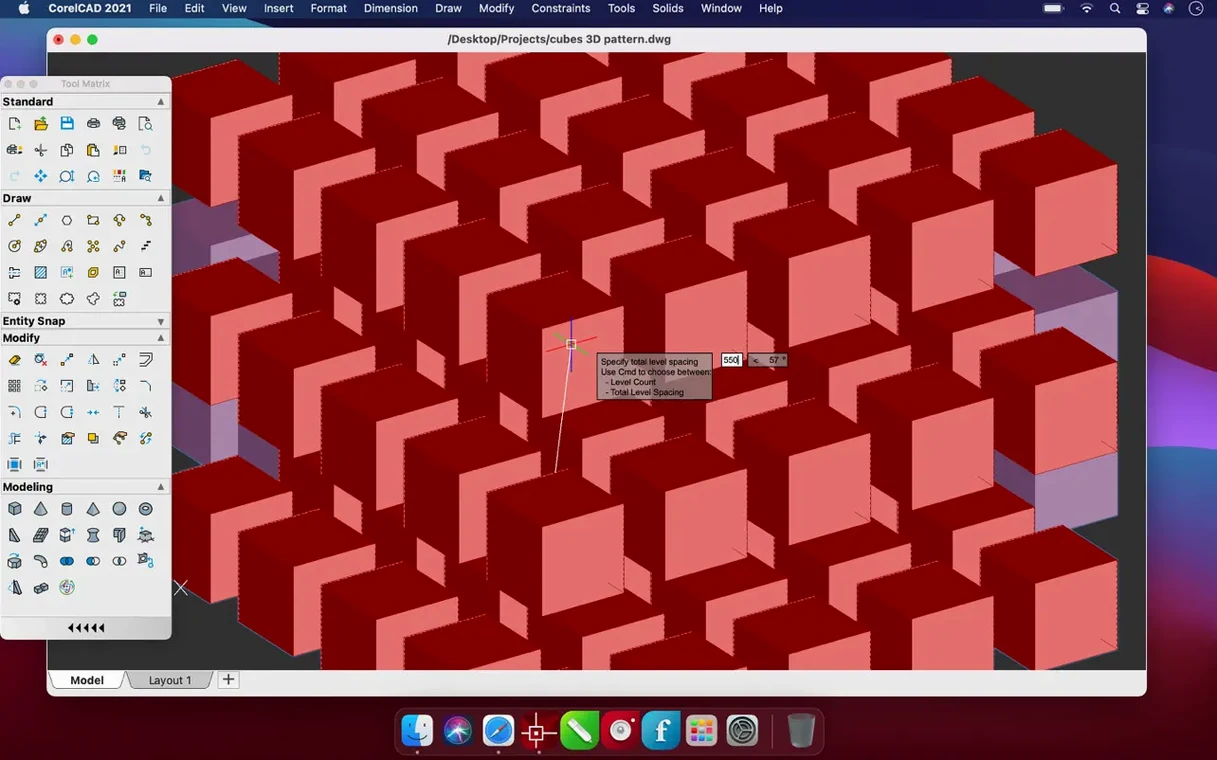
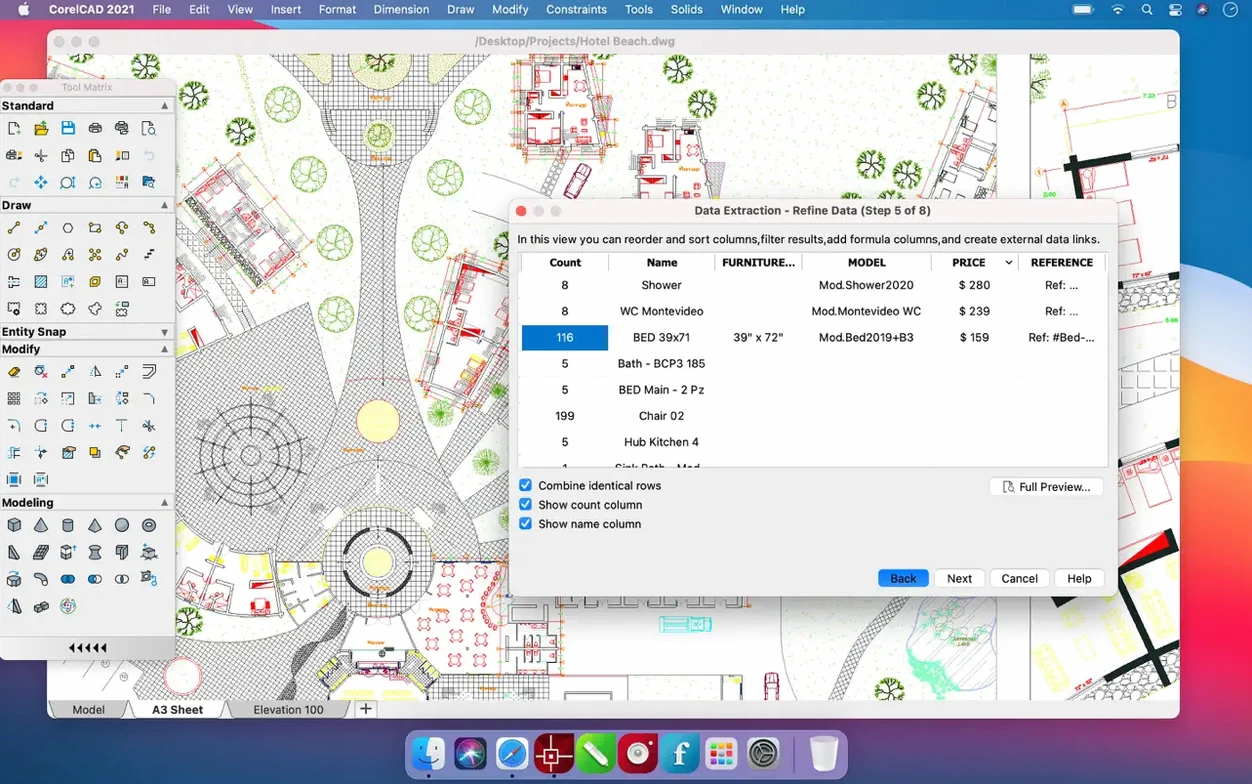
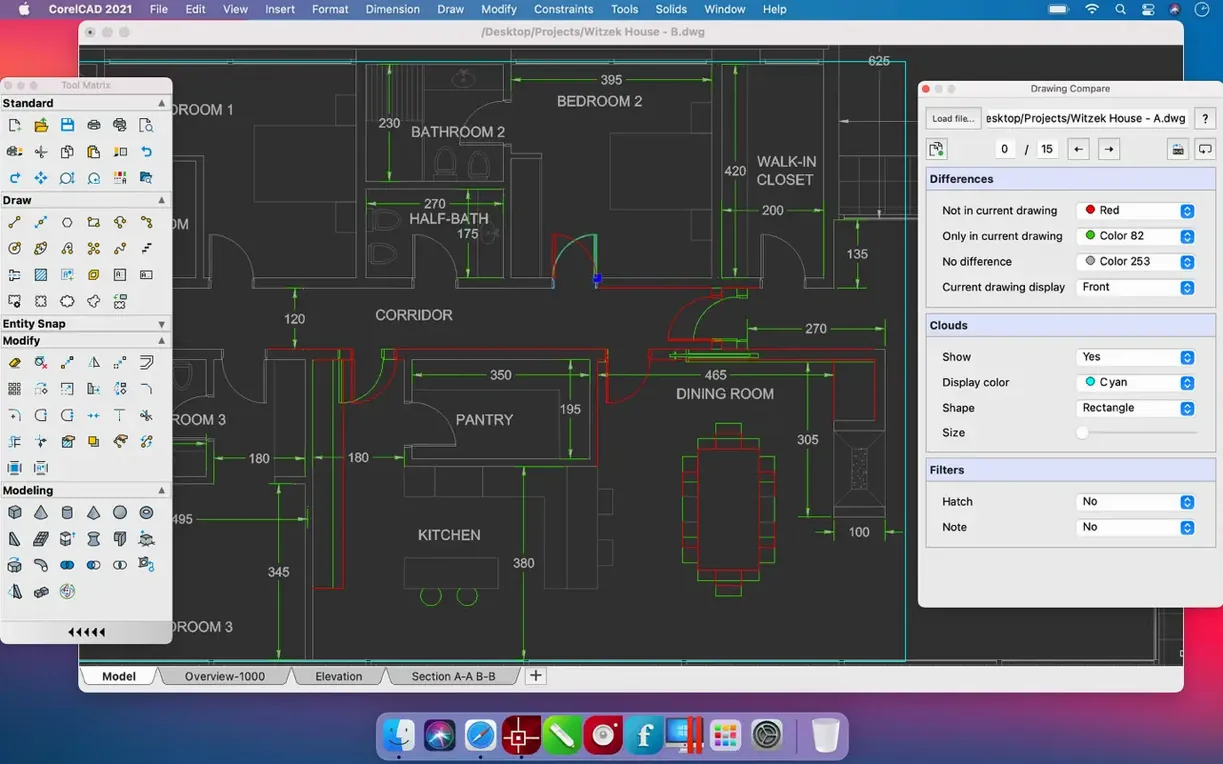
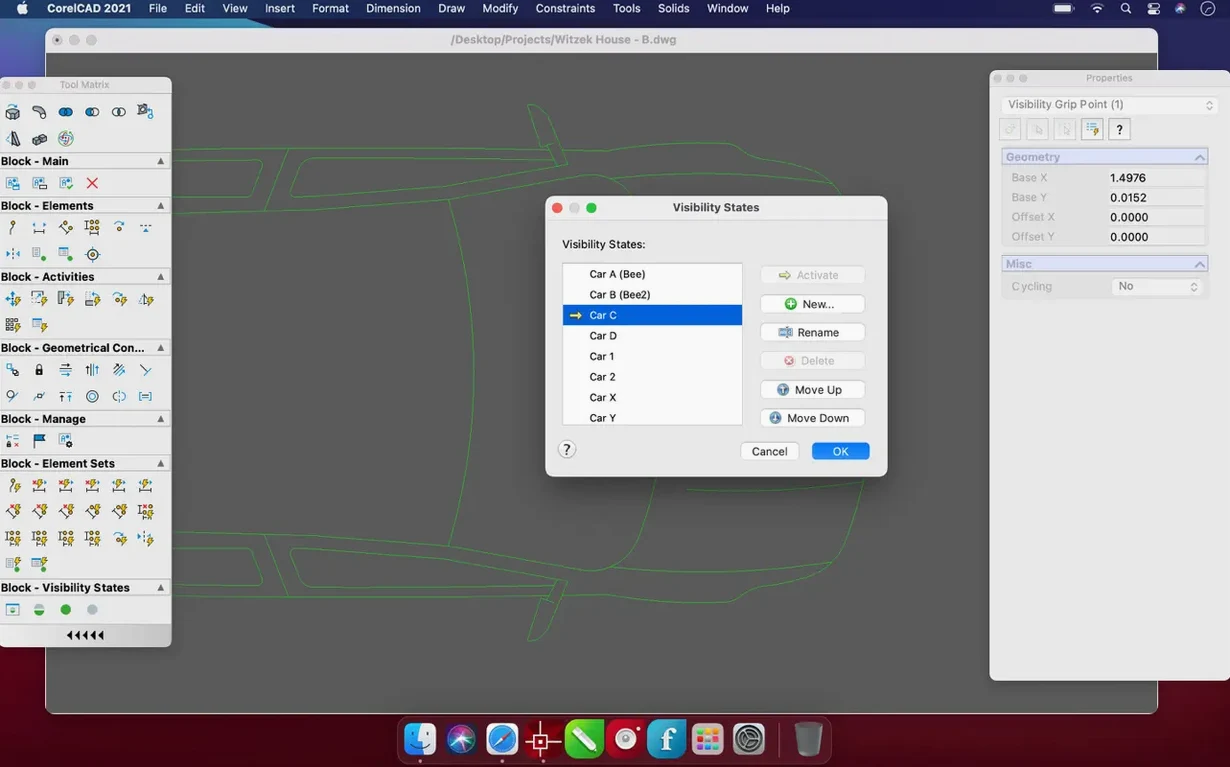
Mechanical engineers, architects, and product designers who need precise CAD tools on macOS often pick up CorelCAD. It is a straightforward drafting and modeling workspace that doesn't tie you to a subscription-only ecosystem, and it runs on both Apple silicon and Intel Macs.
Sketch a part in 2D and convert it to a 3D solid in a few clicks
It covers the whole cycle, from 2D technical drawings to 3D solid modeling. You can sketch a part in two dimensions, then convert that design into a 3D graphic in a few clicks for visualization or further refinement.
Direct .dwg read/write for AutoCAD collaboration plus PDF, SVG, and STL exchange
Read and write support for the native AutoCAD .dwg format sits at the core, so collaboration with Windows-based teams is direct. It also opens and produces PDF, SVG, EPS, DWF, STL, SAT, SHP, and DWS files, which covers most exchange and prototyping workflows.
Who is the interface built for?
The workspace will feel familiar if you have used a classic CAD environment before—command line, tool palettes, property inspectors. Its interface is localized into fourteen languages, including English, German, Japanese, Simplified Chinese, Spanish, French, and Korean.
Unconstrained sketches drift when you edit a nearby feature
New users coming from illustration tools often drag objects around without locking reference geometry first. In CorelCAD, a sketch that is not fully constrained will drift when you edit a nearby feature. Get comfortable with geometric and dimensional constraints early—they are not optional extras, they are how the parametric engine keeps your model predictable.
Another common stumble is ignoring the command line. It sits at the bottom of the screen and many people minimize it on day one because it looks like a terminal they do not need. In practice, typing OFFSET, TRIM, or FILLET is often faster than hunting through ribbon panels, and the auto-complete suggestions teach you commands you did not know existed.
File management trips people up too. Saving a .dwg without checking the file version can cause problems when a colleague on an older AutoCAD release tries to open it. CorelCAD defaults to the current drawing format, but you can set it to save as an earlier DWG version in the preferences. Set that once, before you send your first file to a contractor.
What to do right after installing
Before you draw anything, open Preferences and check two things. Under Paths, point the support file search path at any folder where you keep custom blocks, linetypes, or hatch patterns. Under Display, switch the color theme if the default dark canvas strains your eyes during long sessions—light gray backgrounds are gentler with a bright studio environment.
Next, load a small test file and run through the snap settings. Turn on endpoint, midpoint, center, and intersection snaps, but leave nearest-snap off unless you need it. Nearest-snap overrides everything else and causes lines that look connected but sit half a millimeter apart. That gap shows up later when you try to extrude the profile and nothing works.
Set your default save location to a folder that gets backed up automatically—whether that is an iCloud-synced directory for solo work or a shared network volume for a team. CorelCAD respects whatever folder you last used, so training that path on day one prevents the scattered-drawings problem that plagues every CAD user by month three.
How CorelCAD fits into a Mac workflow
Because it reads and writes DWG natively, CorelCAD slots into a pipeline where modeling happens here and annotation or plotting happens on another machine. You can save a drawing, open it in AutoCAD on a Windows workstation, add layout sheets, and send it back without conversion. The round-trip is lossless as long as both sides stay on a compatible DWG version.
For 3D printing, the STL export dialog gives you control over facet resolution, so you can tune the mesh density for the printer you are using. Export the STL, then open it directly in Preview to inspect the mesh before sending it to a slicer. Preview's 3D view is surprisingly useful for a quick sanity check on wall thickness and orientation.
macOS integration extends to Quick Look. Once you save a drawing, a tap of the spacebar in Finder shows a preview without launching the full application. It works for .dwg files the same way it does for PDF and images, which makes searching through project folders a lot faster when you have a hundred revision files and only vague file names to go by.
Smoother panning across dense layouts with dozens of viewports in long sessions
The update to build 22.3.1.4090 brought performance and stability improvements rather than a redesigned toolset, and that is the kind of change you notice in long drafting sessions. Panning across a dense drawing with dozens of layout viewports is smoother than in earlier 2022 releases, and the application wakes from sleep on Apple silicon without the brief rendering glitch that sometimes appeared before.
Behind the scenes, the DWG compatibility layer was tightened. Drawings saved from the latest AutoCAD releases open with fewer proxy-object warnings, and custom line types survive the exchange more reliably. If your workflow depends on files bouncing between different CAD applications, those quiet fixes matter more than new features.
- Build 22.3.1.4090 rolls up a set of enhancements and performance and stability improvements.
- macOS 10.14 or later
- Apple silicon and Intel Macs
Comments 0
Sign in or create an account to leave a comment.
No comments yet. A codec, a slice, a machine — they appear after moderation.